
Troubleshooting
Fix missing options, preview issues, incorrect prices, uploads, or PNG files. Follow the relevant checks and prepare details for support.
Last updated: 2026-11-06
Start by identifying what is missing or incorrect and where it happens: in the editor, product page, cart, checkout, order details, or downloaded file. Then follow the matching checks below. Similar symptoms can have different causes.
Identify the Problem Before Changing Settings
Use the details you already have. If the problem is still unclear, answer the one question that separates the relevant checks before changing settings or rebuilding options.
| What you see or want to do | Distinguish first | Next check |
|---|---|---|
| “My image is missing.” | Is it missing in Live Preview, the cart or email, or the downloaded PNG? | Check preview layers, saved order data and cart display, or PNG contents. A theme display change does not recover missing order data. |
| “I want to change the color.” | Does the color identify a different product SKU, or change text or artwork on the same item? | Use the variant and personalization decision guide. |
| “I need two of the same charm.” | Two charms in one customized product, or two whole products? | For repeated charms within one product, check Allow quantity per option. The product quantity selector controls whole products. |
| “I want to turn it off.” | Hide customization temporarily, remove the saved options permanently, or stop selling the Shopify product? | Follow temporary hiding guidance before considering Delete Options. |
| “The price is wrong.” | Did the amount change after saving in the editor, or only on the storefront or at checkout? | Check the saved decimal amount first, then compare prices through checkout. |
| “I cannot move the image.” | Are you positioning a layer in the editor, moving it as a shopper in Live Preview, or editing an upload inside Edit Photo? | Shopper movement uses On-canvas image controls; Edit Photo uses the separate Uploaded image editor popup. |
| “I need the print file.” | Do you need the original upload, the final preview, or combined production artwork? | Compare the order file types, then check print-ready generation and included artwork. |
Find the Check for Your Issue
| Issue | Start here |
|---|---|
| Options are missing | Check the option set and active theme. |
| Image movement, resizing, or rotation controls are missing | Check the option’s Live Preview tab and allowed actions. |
| The preview is blank or misplaced | Check the background and preview layers. |
| The personalization charge is incorrect | Compare the base variant price and selected adjustments through cart and checkout. For a paid linked component, check the link, price, and stock separately. |
| A customer image will not upload | Check the 8 MB upload limit and supported formats. Test a supported file and distinguish an upload failure from an uploaded image not appearing in Live Preview. |
| Order emails or packing slips are missing customization details | Update the templates: order confirmation email and packing slip. |
| Translations do not appear on the storefront | Check the customer-facing language check. |
| The view switcher is missing | Multiple Views works in Popup mode only. |
| A custom font does not load | Check Font Swatch uploads (TTF, OTF, WOFF, or WOFF2, up to 5 MB each). |
| Shop Pay or Buy it now is missing | This is expected on customized products. See Display Modes. |
| The order has no PNG or ZIP download | Check that print-ready generation is enabled, then review the generation status and file troubleshooting checks. |
| Stock differs after cancellation or refund | Podifai does not automatically reverse its deductions. Follow the inventory lifecycle guidance and check stock already restored by Shopify before adjusting it. |
Custom Options Not Showing on Product Page
Podifai is designed for modern Shopify Online Store 2.0 themes and most standard product page layouts. If your options are not appearing, check the following:
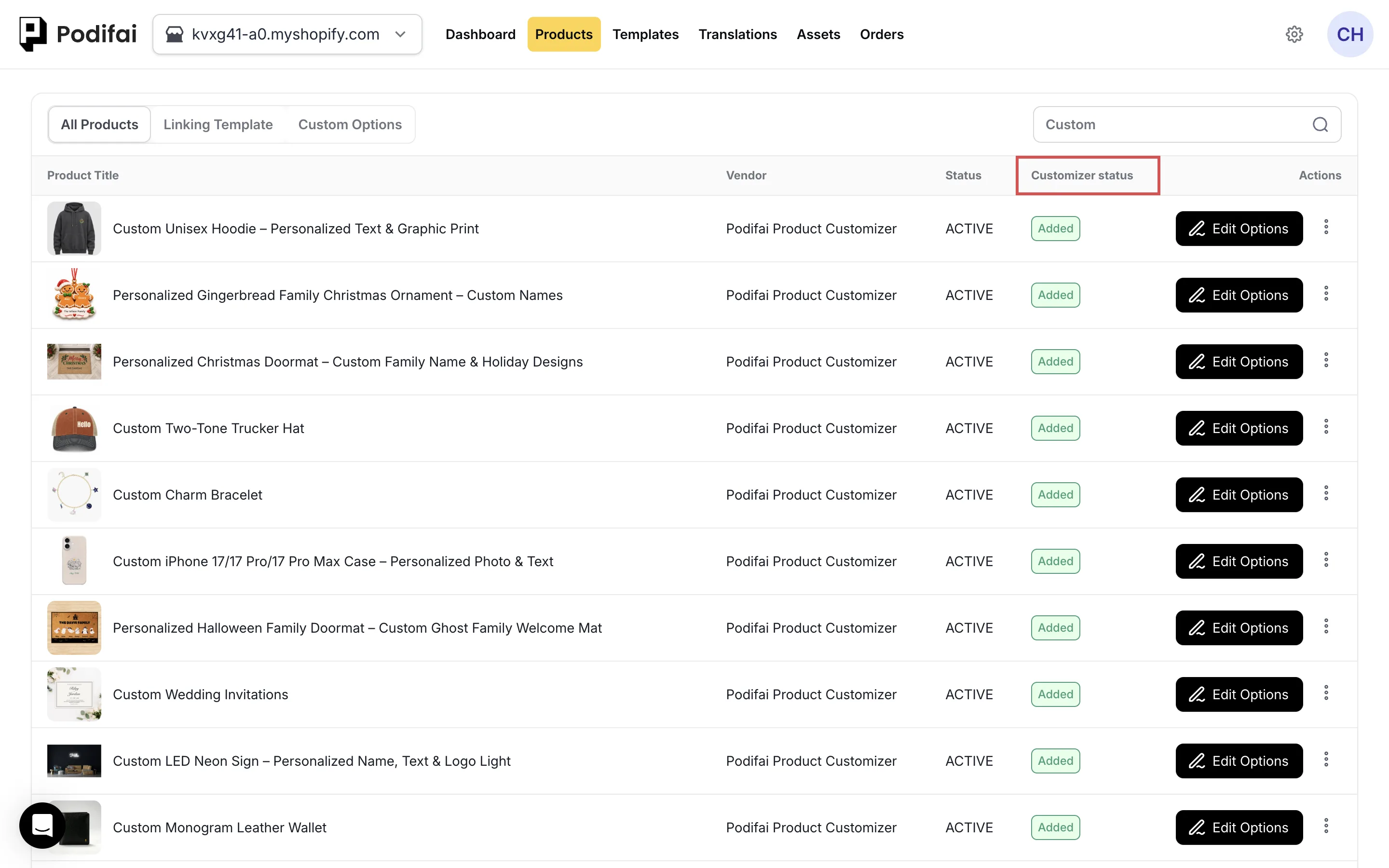
- On Products, check Customizer status → Added and open Edit Options to confirm the saved setup. Status → Active describes the Shopify product, not an option-set switch.
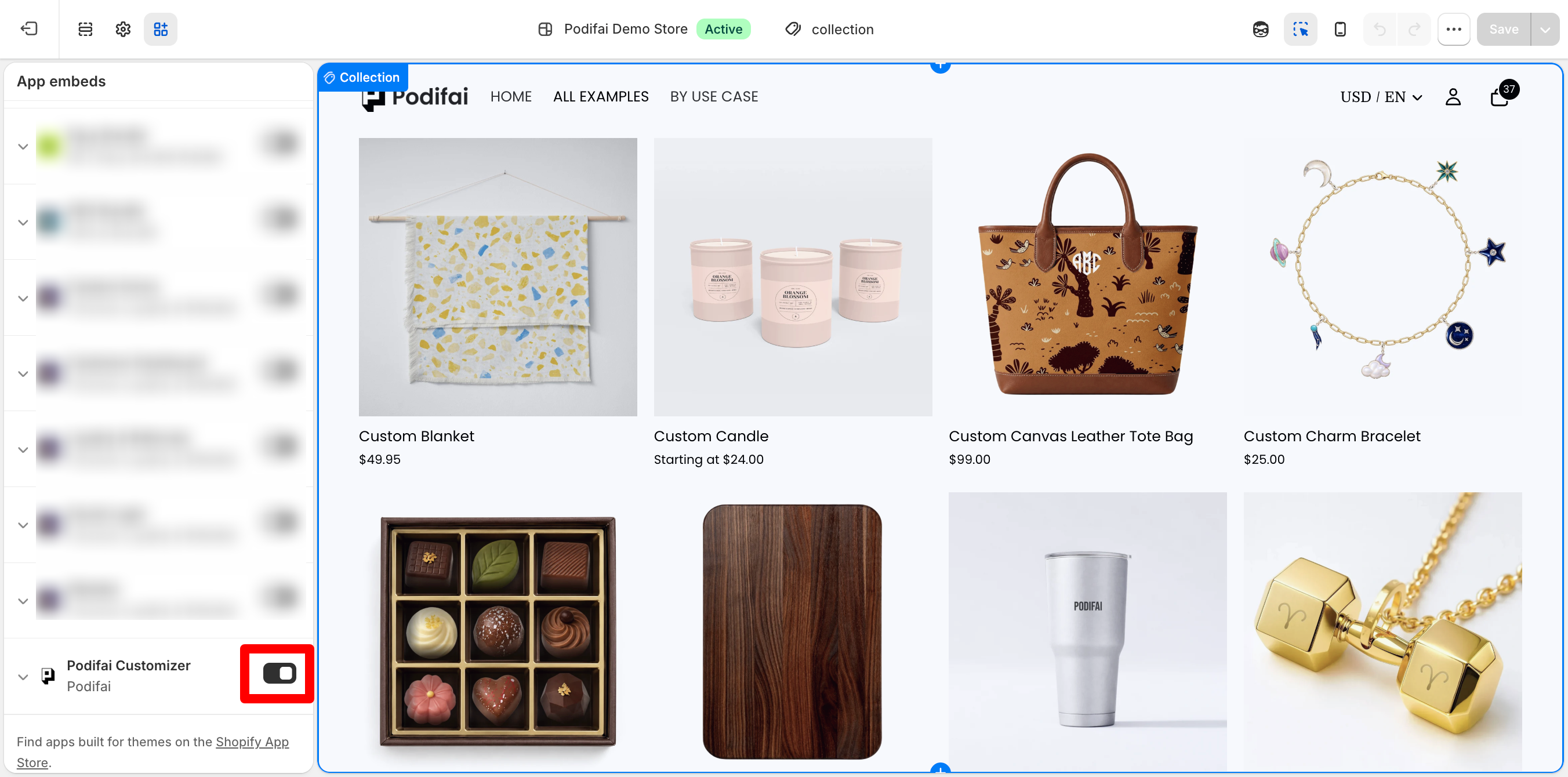
- Go to Online Store → Themes → Customize and confirm the Podifai App Embed is toggled on, or that a Podifai App Block has been added to the product template.
- If you need custom placement, use the Podifai App Block. Turning off App Embed is optional; see App Block setup.
- Clear your browser cache and try again in an incognito window.
Cannot Find or Use Image Controls
- Select the Image Swatch or Image Upload option in the custom option form.
- In its Properties panel, open Live Preview and enable Live customizer.
- Turn on On-canvas image controls and check the specific permission: Allow move, Allow resize, or Allow rotate.
- For free placement of multiple Image Swatch values, choose Multiple position → Mode → Drag freely. Drag & snap uses predefined slots.
- Save, select a swatch value or upload an image on the storefront, and select the image in the preview.
Display mode below the product preview chooses Inline or Popup. Image controls are configured in the selected option's Live Preview tab. If enabled controls still do not respond, check theme gallery interactions. For a missing tool inside Edit Photo, check Uploaded image editor popupand its enabled tools on the Image Upload option.
Live Preview Not Rendering
Inline Live Preview can depend on the theme's product gallery layout, image zoom, sliders, and product media behavior. You can also try Popup display mode.
Preview Also Fails in the Editor
Use these checks when the preview is missing or misplaced in the editor itself:
- Ensure Live Preview is toggled on for the option type in the editor.
- Check that the preview canvas and selected background source are configured. Blank canvas does not require a background image.
- Verify the preview layer has valid position and size values.
- Compare Inline and Popup in a test theme or theme preview to help isolate a product gallery conflict. See Theme Compatibility for the checks.
Check the source selected in Live Preview background settings:
- First or Last Shopify product image — Confirm the configured first or last product image exists in Shopify.
- Variant image — Check the image assigned to the selected Shopify variant. If none is assigned, check the first product image used as the fallback.
- Custom image — Confirm your intended background image is uploaded and visible in the editor.
- Blank canvas — An empty background is expected. For a template created from My Templates, choose an image ratio to define the canvas, then check the preview layers and their placement.
Preview Works in the Editor but Fails on the Storefront
If the preview already works in the editor and you have saved it, keep that working setup. Start with the storefront checks below instead of rebuilding the layers or repeating the enable-and-save steps. If you can see the option field, the app is loading, so work through the preview checks below.
- Confirm the page belongs to the product you edited and uses the intended saved options or linked template. Check the selected Shopify variant and view when they affect the preview background.
- Enter a test value in the storefront text field. When both the input and its placeholder are empty, there may be no text to display.
- Check the theme and product template you are viewing. Confirm the intended Podifai App Embed or App Block integration is active there; enabling both is not a required fix.
- For an Inline preview, compare the documented theme gallery checks and Inline/Popup behavior in a test theme or theme preview. Record the difference before changing the live theme.
Retest the same product, selected values and view after each change. If it still fails, send support the product URL, theme name, display mode, editor and storefront screenshots, and the checks already tried. A preview that works on the product page does not mean the cart, order, or print file is correct, so check those separately.
A Documented Setting Is Missing
Compare the current screen and visible option labels with the relevant guide. Note the selected option type and tab, and take a screenshot. If the documented path still does not match, use the chat icon on the left side of the page or email chelsea@podifai.com with that evidence instead of repeating the same steps or deleting the configuration.
Conflicts with Other Product Customizer Apps
Do not enable multiple product customizer apps on the same product template at the same time. Their storefront scripts can compete for:
- The Shopify product form and selected variant ID
- Add to Cart behavior
- The product image gallery and Live Preview
- Cart line item properties
- Disable the other customizer app embeds and storefront integrations.
- Test Podifai again in an incognito browser window.
- If the issue continues, send support the store URL, product URL, theme name, and a screen recording.
Wrong Shopify Variant Added to Cart
If you already use Shopify variants and the native picker shows blue while the cart contains red, record the expected and actual variant names or SKUs. Send support the product URL, theme name, and a recording of the selection and Add to Cart steps. The product form or an app interaction may need investigation. Creating variants again or deleting personalization options is not the first step.
If the selection method is not yet known, identify whether the choice came from the native Shopify picker or a Podifai option. A Podifai color, badge, dropdown, or swatch value is saved as customization data and does not automatically replace the base Shopify variant ID.
Use the matching branch in Shopify Variants vs Podifai Options: an existing native-variant mismatch needs different checks from a product-defining choice configured only as a Podifai option.
Product Page Freezes or Add to Cart Feels Slow
Possible causes include app or theme conflicts, upload processing, network delays, or an app error. First identify the step that stalls: opening the page, selecting an option, uploading a file, rendering the preview, or adding the configured product to cart.
- Record the product URL, device, browser, and exact step. Note any error message and whether the issue happens every time.
- Compare a text-only selection with an upload, if the product supports both. For an upload-specific problem, test a small file in a supported format within the upload limit. Record whether the upload itself or the preview is waiting.
- Retry the same steps in a clean browser session, then on another network if possible. Change one condition at a time so you can identify what affects the result.
- If an app or theme interaction is suspected, compare the behavior in a duplicate test theme or theme preview. Temporarily disable the relevant product-page integration there and test again before making changes to the live storefront.
If the issue continues, send support the product URL, theme name, device, exact failing step, and a short recording. Include the comparisons you tried; they show us whether the cause is an app, the network, or the product setup.
App Embed Is Enabled, but the Customizer Is Missing
- On Products, find the exact product you are viewing, check Customizer status → Added, and open Edit Options to confirm its saved setup. Status → Active describes the Shopify product.
- In Shopify admin, check the product status. A Draft product is not shown on the storefront. To test before launch, set it to Unlisted: shoppers cannot find it in collections or search, but the direct product link opens.
- If the store is password protected, enter the storefront password before opening the product page.
- Check the same Shopify theme you are viewing or previewing; enabling App Embed in a different theme, such as a duplicate theme, does not enable it here.
- Disable other product customizer apps on the same product. See conflicts with other customizer apps.
- Open the product page. Homepage Featured Product sections and collection pages are not supported customizer surfaces.
- Check the configured display mode. Popup uses a Customize button; Inline displays options on the product page.
- If automatic placement does not fit the product template, use the Podifai App Block where supported.
- Retest in a clean browser session. If it still fails, send the product URL, theme name, display mode, and a short recording to support.
App Embed works on most standard product pages. Heavily modified, less common, or custom-built themes may require a compatibility check. Support should inspect the affected product form and gallery before recommending code changes.
Other Preview Elements Fade When I Focus an Area
Open Global Settings → Live preview → Focus areas. When this toggle is on, selecting an area highlights it and dims other areas. Turn it off if you do not want that focus effect. Dimming does not mean the other customization has been deleted.
A layer that is entirely absent even with Focus areas off needs a separate check of its Live Preview settings, position, and size.
A Conditional Field Appears at the Wrong Time
- Select the field that should appear conditionally and check the rule on that field.
- Confirm the referenced parent option and the value that should trigger visibility.
- Review whether each condition uses Contains any or Contains none, and whether the rule uses All or Any.
- Check parent defaults and the initial unselected state, then test matching and non-matching choices.
- After entering a value, change the parent selection and review the preview, charges, and order data for the new path.
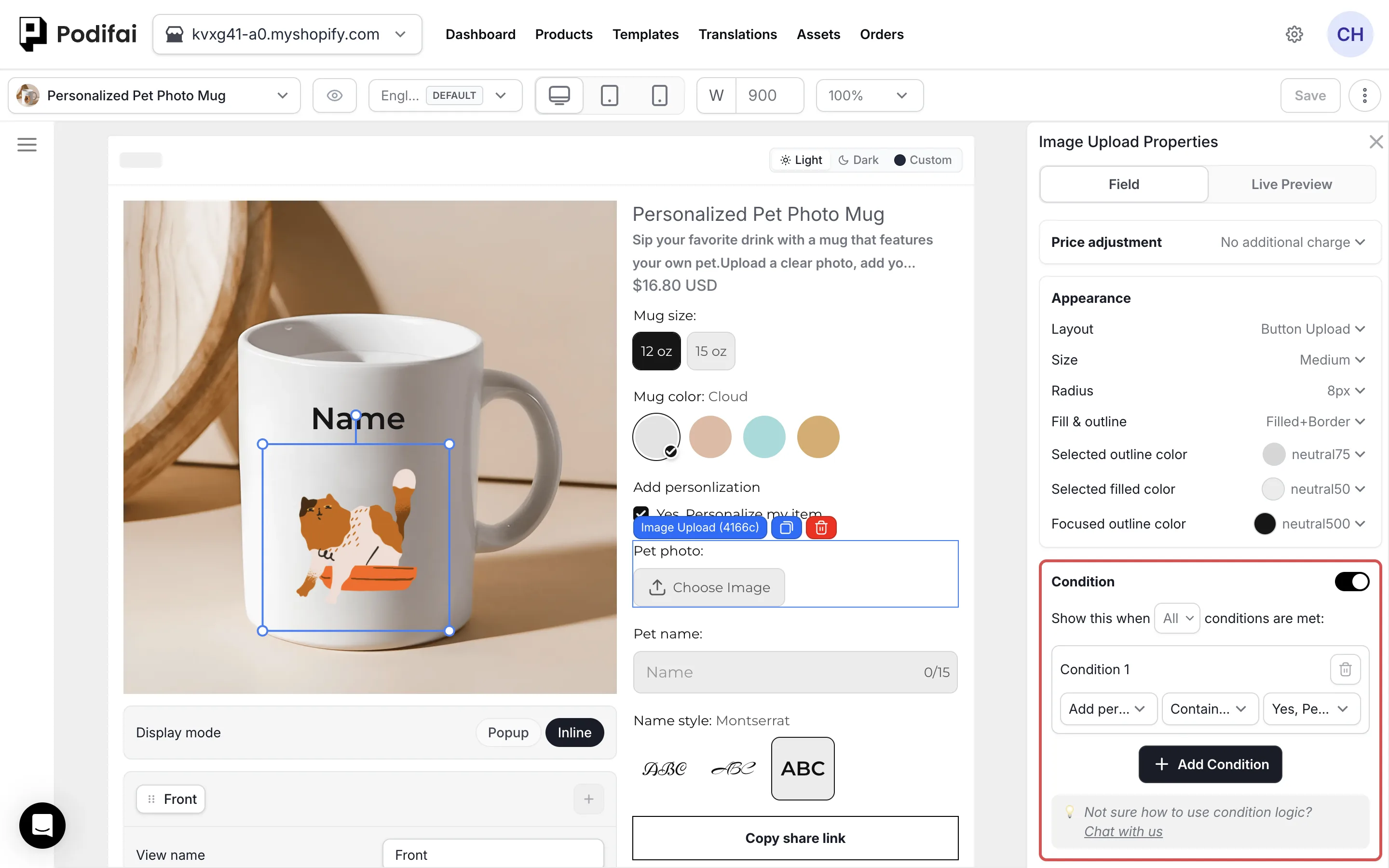
See the engraving rule example and conditional path checklist.
FAQ
Why do other preview elements fade when I select or upload an image?
Check Global Settings > Live preview > Focus areas. When enabled, the focused customization area is highlighted and other areas are dimmed. Turn it off if you want to see the other areas without that dimming. If a layer is still completely missing, check its Live Preview configuration and use the chat icon on the left side of the page or email chelsea@podifai.com if needed.
Why are my custom options not showing on the product page?
Check that options are saved and assigned to the product, and that Podifai is enabled in the active Shopify theme through either App Embed or App Block.
App Embed is activated, but I still cannot see the customizer. What should I check?
Check these common causes in order: the Shopify product is Draft (Draft products are not shown on the storefront; set it to Active, or Unlisted while testing); the store is password protected (enter the storefront password first); App Embed is enabled in a different theme from the one you are viewing; another product customizer app is enabled on the same product; or the product has no saved Podifai options. If all of these look correct, send the product URL and theme name to support.
Why is Live Preview not rendering correctly?
First check where the preview fails. If it also fails in the editor, check Live Preview, the canvas, background source and layer position. If it works in the editor and is saved but fails on the storefront, check the applied product/template, entered shopper value and active theme integration. Compare Inline and Popup in a test theme when needed; do not assume a theme conflict from the symptom alone.
Why does the product page freeze or Add to Cart feel slow?
Possible causes include app or theme conflicts, upload processing, network delays, or an app error. Record which step stalls and whether it happens with text-only choices or a small supported image. Send the product URL, device, and recording to support if it persists.
What should I send to support?
Send your store URL, product URL, theme name, a short screen recording, and a short description of what is not working.
Can other product customizer apps conflict with Podifai?
Yes. Multiple customizer apps can compete for the product form, selected variant ID, Add to Cart behavior, product gallery, and cart line item properties. Enable only one customizer on the affected product template.
Why does the cart still use the first Shopify variant?
If the native Shopify picker shows the intended variant but the cart contains another one, record the expected and actual variant and use the chat icon on the left side of the page or email chelsea@podifai.com with the product URL, theme name, and selection recording. Investigate the selected versus submitted variant; do not recreate the existing variants as the first step. Check which picker was used only when that is not already known.