
Managing Orders
Find Podifai selections, uploads, and final previews in Shopify orders. Access PNG files and connect fulfillment, emails, and packing slips.
Last updated: 2026-11-06
Podifai saves customer selections, upload links, and final preview data with Shopify orders. Review the information in Podifai or Shopify Admin, and use Shopify Flow when fulfillment teams need automated routing or production instructions.
How Customized Orders Work
When a shopper adds a customized product to cart, Podifai's storefront script attaches their selections to the Shopify cart line item as line item properties. Readable properties contain customer-facing selections such as text and color choices. Separate internal properties, including _podifai_all_attributes, hold app data and should not be printed as customer-facing text.
A Shopify Cart Transform function — installed automatically when you install Podifai — applies any add-on charges from dynamic pricing options at checkout. The shopper completes checkout through Shopify's standard flow, and the final order is created in Shopify Admin → Orders.
When Shopify creates an order, it notifies Podifai via webhook. Podifai stores the order, exposes the customer's selections in the Podifai Orders tab, and adjusts inventory for any tracked customization options. Inventory deductions do not wait for payment, so unpaid orders can reduce stock.
Cancellations and refunds do not reverse these deductions automatically. See Inventory After Order Creation.
Order Multiple Items with Different Personalizations
To order two necklaces with different names, add each personalization separately:
- Customize the first necklace with Emma and add quantity 1 to the cart.
- Return to the product page, enter Mia, and add quantity 1 again.
- Check that the cart has separate lines with the correct name and quantity for each necklace before checkout.
Increasing the quantity of one customized cart line to 2 repeats its existing personalization. It does not create separate name fields or automatically assign a different name to each copy. Shopify keeps different line item properties on separate cart lines; see Shopify's cart documentation. If a theme or cart app merges the items or drops either name, use the chat icon on the left side of the page or email chelsea@podifai.com with the product URL and a recording of both Add to cart steps.
Two names on one necklace requires fields for that single product's design. Two of the same charm inside one necklace uses Allow quantity per option. These are separate from ordering two individually personalized necklaces.
Viewing Orders
View order details in the Podifai dashboard
Open the Orders tab in the Podifai sidebar, then click an order to expand the customization data. Each customization option appears with the customer's selection — text entries, color names, uploaded image URLs, and dropdown values.
View order details in the Shopify admin
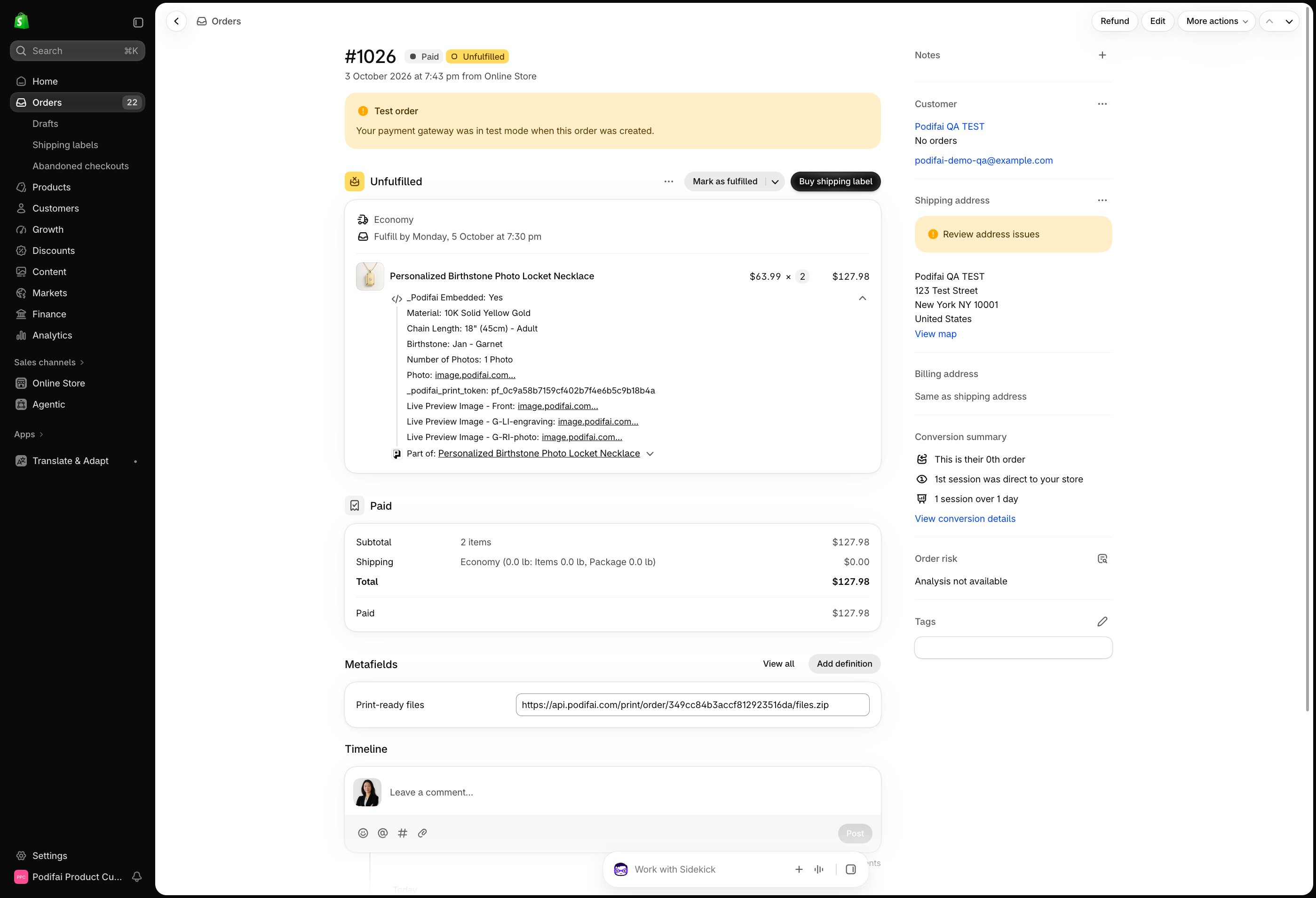
Open the order from your Shopify admin. The same customer inputs appear as line item properties on the order — visible to anyone reviewing or fulfilling the order in Shopify.
Customer Uploads and Final Preview Images
Customer uploads and final Live Preview images are stored as cloud links with the customization data. Open the order in Podifai Orders or Shopify Admin Orders, then open the relevant link to view or save the file. Use the print-ready PNG for combined production artwork; the final Live Preview image is a visual reference that can include the product background.
- Uploaded image links contain the original file supplied by the shopper.
- The Live Preview Image link contains the generated final preview when one is available.
| File | Use it for | What to check |
|---|---|---|
| Customer upload | Reviewing the shopper's source image separately. | Image quality and suitability for your production process. |
| Final Live Preview image | Checking the complete visual result and showing a reference in emails or packing slips. | The saved text, selections, and placement; the image can include the product background. |
| Print-ready PNG in the order ZIP | Combined production artwork from the included text and uploaded-image layers. | Generation status, included layers, physical print size, and the correct product/view. |
Print-ready generation is a separate setting and excludes product backgrounds and Image Swatch artwork. See What Is in the File? before choosing a production workflow. A saved preview link does not by itself mean that a production ZIP is available.
Customization Details in Emails and Packing Slips
Shopify notification templates and packing slip templates control their own output. Saved customization details may not appear until the relevant template is updated. A cart theme change does not update these templates.
Use the readable line item properties for customer-facing selections. _podifai_all_attributes is an internal JSON payload; do not print it as raw customer-facing text or assume a Liquid loop can iterate its contents directly.
- To show selections, upload links, and the final Live Preview image in confirmation emails, edit the Shopify notification template. See Order confirmation emails.
- To show customization details on packing slips, edit the packing slip template (or the template used by your printing app). See Packing slips.
Podifai provides free template code modification assistance for merchants on the Starter and Growth plans. Use the chat icon on the left side of the page or email chelsea@podifai.com with the document type and an example of the missing information.
Identify Podifai Orders with Shopify Flow
An order line item containing the following property indicates that the product was customized with Podifai:
Property Name: _Podifai Embedded
Property Value: Yes
In Shopify Flow, start with the Order created trigger, then add a condition that checks the order line items' properties for _Podifai Embedded equal to Yes. You can then:
- Add an order tag or order note.
- Send production or fulfillment notifications.
- Route Podifai orders to a specific team.
- Send order data to Google Sheets or another connected system.
- Start another manufacturing or fulfillment workflow.
The complete customization payload is stored in _podifai_all_attributes.
Compound or Dynamic SKUs
Podifai does not currently generate a compound SKU or rewrite the Shopify variant SKU based on personalization selections. Podifai keeps the selected components in the order's line item properties instead.
If production needs a code such as 45005-GM-1-BL-1, use Shopify Flow or another automation to translate the selected properties into a production code, then save it in an order note, order tag, notification, purchase order, spreadsheet, ERP, or fulfillment system.
Show the Final Preview Image in the Cart
Podifai supports displaying the customized preview in the Shopify cart. The theme controls the cart thumbnail, so a theme code change may be needed to show the preview instead of the original product image. The code Podifai provides is written for the Horizon theme; see the cart preview image guide for details on other themes. Cart pages and cart drawers may use different theme templates.
Shopify controls checkout rendering. With Podifai's current integration, checkout shows the selected Shopify variant image when one exists, or the default product image otherwise. The Podifai preview is customization data attached to the cart line rather than a native Shopify variant image, so it does not replace the checkout thumbnail. The customization data and preview link remain available with the order.
Shopify Plus
Shopify Plus does not change this automatically. Shopify provides Plus stores with a separate Cart Transform lineUpdate operation that can override a cart line image in checkout. That requires an additional app implementation, the image must use an allowed public URL, and the replacement image is visible in checkout only—it is not persisted to the order. Podifai does not currently apply this image override.
Shopify reference: Cart Transform Function API.
Third-Party Checkout Apps
A third-party checkout or cart app must preserve Shopify line item properties and Podifai's configured price. Before launch, place a complete test order and verify the selected options, text, uploaded files, final preview link, add-on total, and paid order. Contact the checkout app provider if its flow removes or rewrites line item properties.
ERP and Production Connections
Podifai does not provide built-in ERP, manufacturing, or fulfillment connectors. Saved order properties, uploaded files, preview images, and print-ready files are data that your external workflow may use; they do not establish an integration. A separate automation must be implemented and verified independently. Podifai also does not generate compound SKUs or rewrite the base Shopify variant SKU.
Test Orders
You can place test orders while checking the customizer and fulfillment workflow. Test orders cannot currently be deleted from the Podifai Orders interface and remain in the Podifai order history.
Verify a Complete Test Purchase
Use your store's test payment setup to place a test order with an uploaded image. Before submitting, verify the quantity, selected variant, customization values, upload link, preview links, and total in both the cart and checkout. See Shopify's test payment instructions.
A quantity of 2 repeats the same customization; it does not create two separate personalization forms.
A successful checkout confirms the purchase flow and visible customization data. Complete your fulfillment checks in Shopify Admin and Podifai Orders: compare tracked inventory before and after the order, inspect any linked inventory items, open the uploaded and preview files, and review the generated production files. Check notification emails and packing slips separately.
Inventory After Order Creation
Podifai deducts tracked option stock when Shopify creates the order, without waiting for payment, so unpaid orders can reduce stock. Cancellations and refunds do not automatically reverse those deductions: review the affected stock counts and correct them manually, checking any stock Shopify already restored first. See Inventory: order creation, cancellations, and refunds for reconciliation steps.
Generate Print-Ready Files
Turn this on under Global Settings → Add to cart & orders → Generate print-ready files before the order is placed. When valid Add to Cart print data is saved, Podifai generates a transparent PNG at 300 DPI for each customized view. The longest side is up to 3600 pixels, preserving the original aspect ratio. Generation starts when Shopify creates the order, including unpaid orders. Each PNG combines text, including its colors, effects, masks, and SVG icons inserted through the Text Input or Text Area icon selector, with customer-uploaded images. Product photos, mockup backgrounds, and Image Swatch images or icons are excluded.
The PNG preserves the full view canvas, artwork placement, and transparent margins. Once all required files succeed, download the complete order ZIP from Podifai order details or Shopify Admin → Orders → Metafields → Print-ready files. Download entry points are not shown in the storefront or cart.
See Generate Print-Ready Files for details.
FAQ
How can a shopper order two necklaces with different names?
For two separately personalized items, customize the first necklace with the first name and add quantity 1 to the cart. Return to the product page, enter the second name, and add quantity 1 again. Check that both customizations are shown on separate cart lines before checkout. Increasing one cart line to quantity 2 repeats that line's customization; it does not create a second name field. Two names on one necklace is a different product setup.
Why is the Live Preview image missing from the order confirmation email?
Shopify renders order confirmation emails from a separate notification template. The template must display the saved Live Preview Image property as an image; changing the storefront or cart does not automatically change the email. Check that the order has a preview link, then follow the order confirmation email guide. Podifai provides free assistance with these code changes for merchants on the Starter and Growth plans.
Why does the cart show only color and size, without my customization details?
Some Shopify themes display native variant options but do not render custom line item properties. Check Shopify Admin and Podifai order details for the saved selections. If the order has the data but the cart does not show it, the cart theme may need a display change. If the data is missing from the order too, use the chat icon on the left side of the page or email chelsea@podifai.com to investigate.
Can I hide or rename customization details shown in the cart?
Not from Podifai settings. The Shopify theme decides how cart line details are displayed. If you want to hide some details, such as file links or certain labels, our team can usually help with a small custom theme code change. Use the chat icon on the left side of the page or email chelsea@podifai.com with the product URL and which details you want to hide. The order still keeps the full customization data.
Why does the cart show the original product image instead of my uploaded photo or Live Preview?
The Shopify theme controls the cart product image. Showing the customized Live Preview instead of the original product image may require a theme code change. This is separate from placing the full customizer in the cart or editing a customization there. Podifai provides free assistance with these code changes for merchants on the Starter and Growth plans.
Where can I find the print-ready transparent PNGs?
When enabled for the order, print-ready files can be downloaded from Podifai order details or Shopify Admin Orders → Metafields → Print-ready files. Each included view gets a transparent PNG at 300 DPI with its longest side up to 3600 pixels, preserving the original aspect ratio. Download the order ZIP once all required files have generated successfully.
Where can I find customer uploads and final preview images?
Open the order in Podifai Orders or Shopify Admin Orders. The customization data includes customer selections, uploaded file links, and the final Live Preview image link when one is generated.
How can Shopify Flow identify Podifai orders?
Check the order line item properties for _Podifai Embedded with the value Yes. The complete customization payload is also stored in _podifai_all_attributes.
Can Podifai generate a compound SKU from selected components?
No. Podifai does not currently generate compound SKUs or rewrite the Shopify variant SKU. Use Shopify Flow or another automation to translate line item properties into a production code.
Can the customized preview replace the product image in the Shopify cart?
Yes. Podifai supports replacing the cart product image with the customized preview; a theme code change may be required. This applies to the cart; replacing the product image at Shopify checkout is not supported.
Can the final customized preview replace the product image at Shopify checkout?
Not with Podifai's current checkout integration. Shopify normally shows the selected variant image or default product image because the Podifai preview is customization data attached to the cart line, not a native Shopify variant image. Shopify Plus offers a separate Cart Transform lineUpdate image API, but Podifai does not currently use it to replace the checkout thumbnail.
Will Podifai work with a third-party checkout app?
It depends on whether the checkout app preserves Shopify line item properties and Podifai's configured price. Test the product page, cart, checkout, paid order, uploads, and add-on total before launch, and confirm compatibility with the checkout app provider.
Can shoppers edit their customization after adding the product to cart?
Not currently. Podifai does not provide an Edit customization action in the cart. To change the text, image, or other selections, remove the cart item and add the product again with the new customization.
Can I delete test orders from Podifai?
No. Test orders cannot currently be deleted from the Podifai Orders interface and remain in the Podifai order history.
Why Does an Order Have No Customization Details?
- Check the purchase path. Did the shopper visit the product page and use the customizer? A link that adds the product directly to cart or opens checkout can skip that step. This can happen with an advertising or sales-channel link. Check the order's conversion details and the actual destination URL.
- Check the saved data. Compare Podifai order details and the Shopify order's line item properties. Missing data and data hidden by a cart or email template are different problems.
- Check the complete storefront flow. Confirm that the customizer loads and that selected values remain attached after Add to cart. Other product-option or cart apps can overwrite properties even when the preview looked correct.
For personalized products, direct shoppers to the website product page so they can complete customization before adding to cart. Test the actual ad link through to an order. If details still disappear, send support the order number, product URL, theme, and the steps used to purchase.
The Preview Works, but the Cart Looks Different
Check the selected values, uploaded-file link, saved preview link, and cart thumbnail separately. A theme can show the original product thumbnail while the customization data is present. Use the cart preview image guide for thumbnail replacement; it does not change the Checkout image or recover customization that was never collected.
Can I Export All Customized Orders to Excel or CSV?
Podifai does not currently provide a built-in bulk Excel or CSV export of complete customization details and images. Viewing individual order details, using an integration to read line item properties, and downloading a print-ready ZIP for an order are different workflows. An order ZIP is not a bulk spreadsheet export.