
Quick Start
Install Podifai, connect your Shopify store, add product options, enable App Embed, and check the customer flow before launch.
Last updated: 2026-11-06
Quick Start shows the shortest path to launch Podifai: install the app, connect your Shopify store, add options to a product, and enable the app embed.
Step 1: Install from Shopify App Store
Go to the Podifai listing on the Shopify App Store and click Install. Approve the permissions when prompted. Podifai's Free forever plan supports up to 3 custom products. When you add a fourth, Podifai asks you to choose a paid plan; see the pricing FAQ below.
What this shows
- Open Podifai from the Shopify App Store.
- Click Install and approve the requested permissions.
- Continue into the Podifai onboarding flow.
Step 2: Connect Your Store
After installation, open Podifai and enter your Shopify store handle. Shopify then asks you to approve access so Podifai can read your product catalog and attach customization data to orders. See Connect Your Store for details on permissions.
Find Your Store Handle
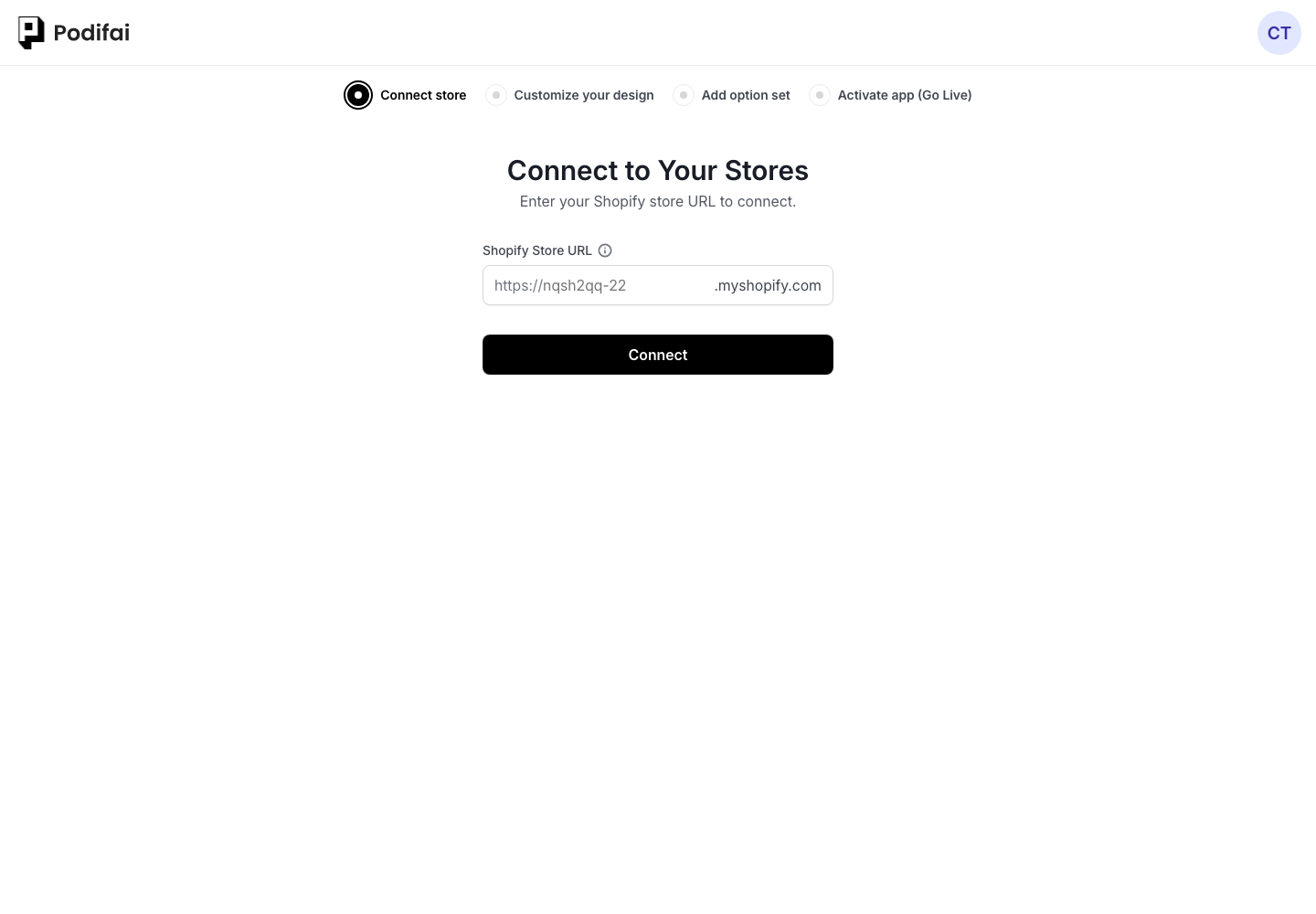
What this shows
- Find the store handle from your Shopify admin URL.
- Enter the handle in Podifai.
- Approve Shopify access when prompted.
Step 3: Add Options to a Product
In the Podifai dashboard, go to the Products page — your Shopify products are listed automatically. Find the product you want and click Add Options. This opens the option editor where you can add option types (image swatches, color swatches, dropdowns, text inputs, image uploads, and more) from the options panel into the preview area. You can also start from a template; see Products & Options. Configure each option's label, values, and pricing, then click Save.
What this shows
- Open the Products page in Podifai.
- Choose a product and click Add Options.
- Add option types in the editor and save.
Step 4: Activate the App Embed
For options to appear on your storefront, enable the Podifai app embed in your Shopify theme. The onboarding checklist in the dashboard has an Activate app step — click the button to go directly to the Shopify theme editor and toggle the Podifai embed on. This is the default setup we recommend for most merchants. See Enable App Embed for detailed instructions.
What this shows
- Open the Activate app step from onboarding.
- Turn on the Podifai app embed in Shopify's theme editor.
- Save the theme and check the product page.
Once the embed is active, visit your product page to see the options live. If you prefer custom placement inside a product template, you can turn off App Embed and use the Podifai App Block instead.
Save Your Changes
Click Save in the editor to keep your option changes. If you leave the editor with unsaved changes, Podifai shows an Unsaved Changes prompt. Choosing Discard changes throws away your edits, and they cannot be recovered. Global Settings apply to all products and are saved separately with Save changes at the bottom of that panel.
Step 5: Verify the Customer Flow
Open the configured product page in the theme you just saved. Check the fields and any enabled preview on desktop and mobile, then test required fields, option choices, and personalization charges through cart and checkout. Complete a test purchase using your store's testing process and compare the saved customization with what you entered. You should see your option fields on the product page, and any Live Preview updating as you make choices.
Use Verify Before Launch for the detailed checklist, or follow the engraving example if you need a complete first configuration. If the options are missing, start with App Embed is enabled, but the customizer is missing.
FAQ
How long does Podifai setup take?
Setup time depends on the number of options, preview layers, and pricing rules. Start with one product, enable the app embed, and complete a test order before launching.
Do I need code to show Podifai options on my product page?
No. We guide most merchants to enable the Podifai app embed in Shopify's theme editor. If you want exact placement control, you can turn off App Embed and add the Podifai App Block to the product template instead.
Is Podifai free to use?
Podifai has a Free forever plan for up to 3 custom products. Starter supports 30 products for $7.9/month and Growth supports unlimited products for $15.9/month. Plan details and current prices are on the Podifai pricing page.
Continue with your product setup
- Plan your live preview — Choose the preview workflow for the product you are setting up.
- Learn from a real store — See how merchants structure product options and order requirements.
- Check the saved order — Place a test order and confirm the customization details before launch.