
Customizer Display Modes
Choose Inline or Popup, configure required personalization and quantity, and check desktop and mobile customizer behavior.
Last updated: 2026-11-06
Podifai supports Inline and Popup display modes. Use Inline when the personalization options should appear directly on the product page. Use Popup when you want a cleaner product page with a Customize button that opens the full customizer.
Choose a Display Mode
- Go to Products and open the product customizer in Podifai.
- Find Display mode below the product preview image.
- Choose Popup or Inline.
- Save the customizer and test the product page.
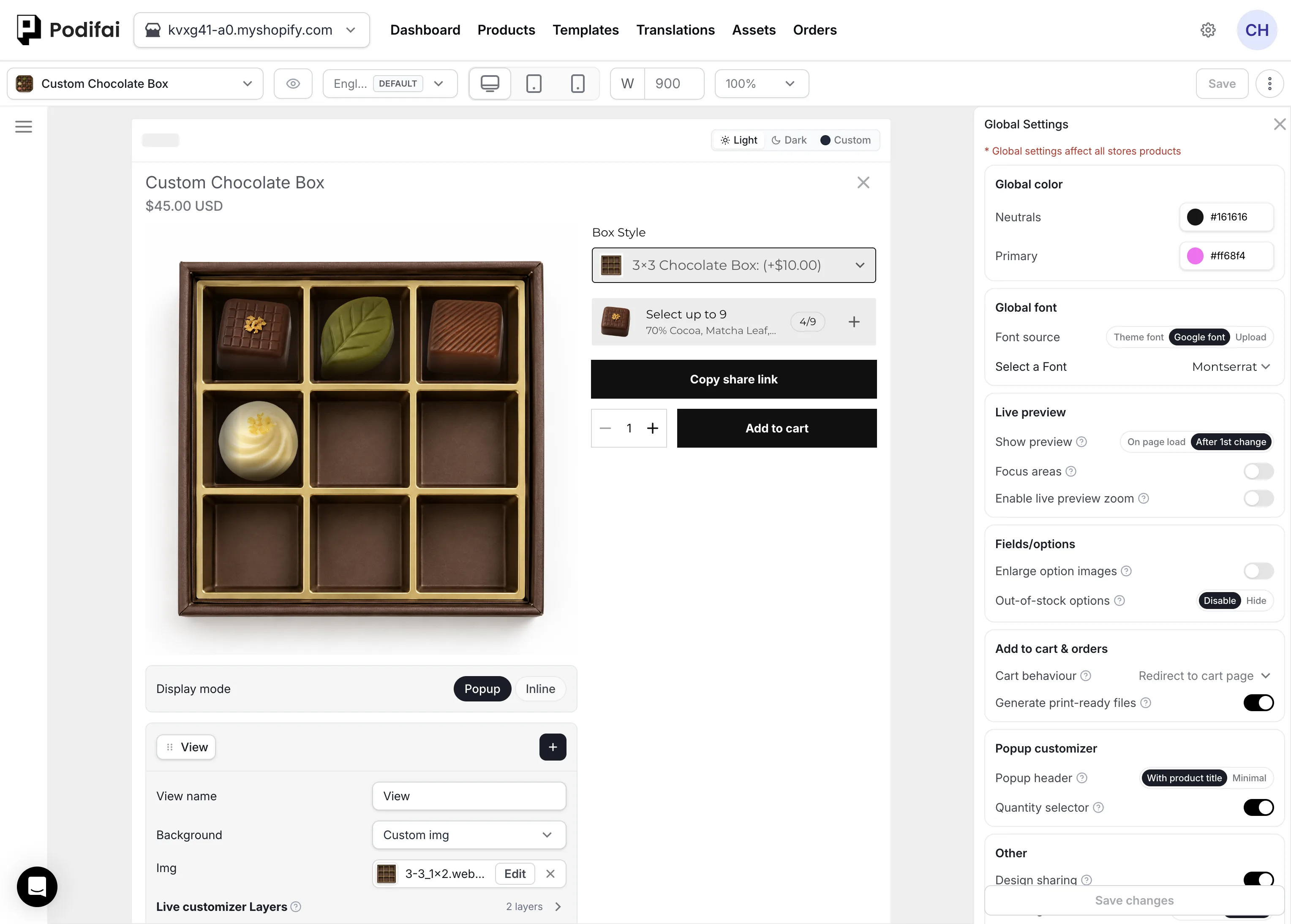
To keep the original product image until customization starts, see when Live Preview first appears. That setting is separate from choosing Inline or Popup.
Inline Customizer
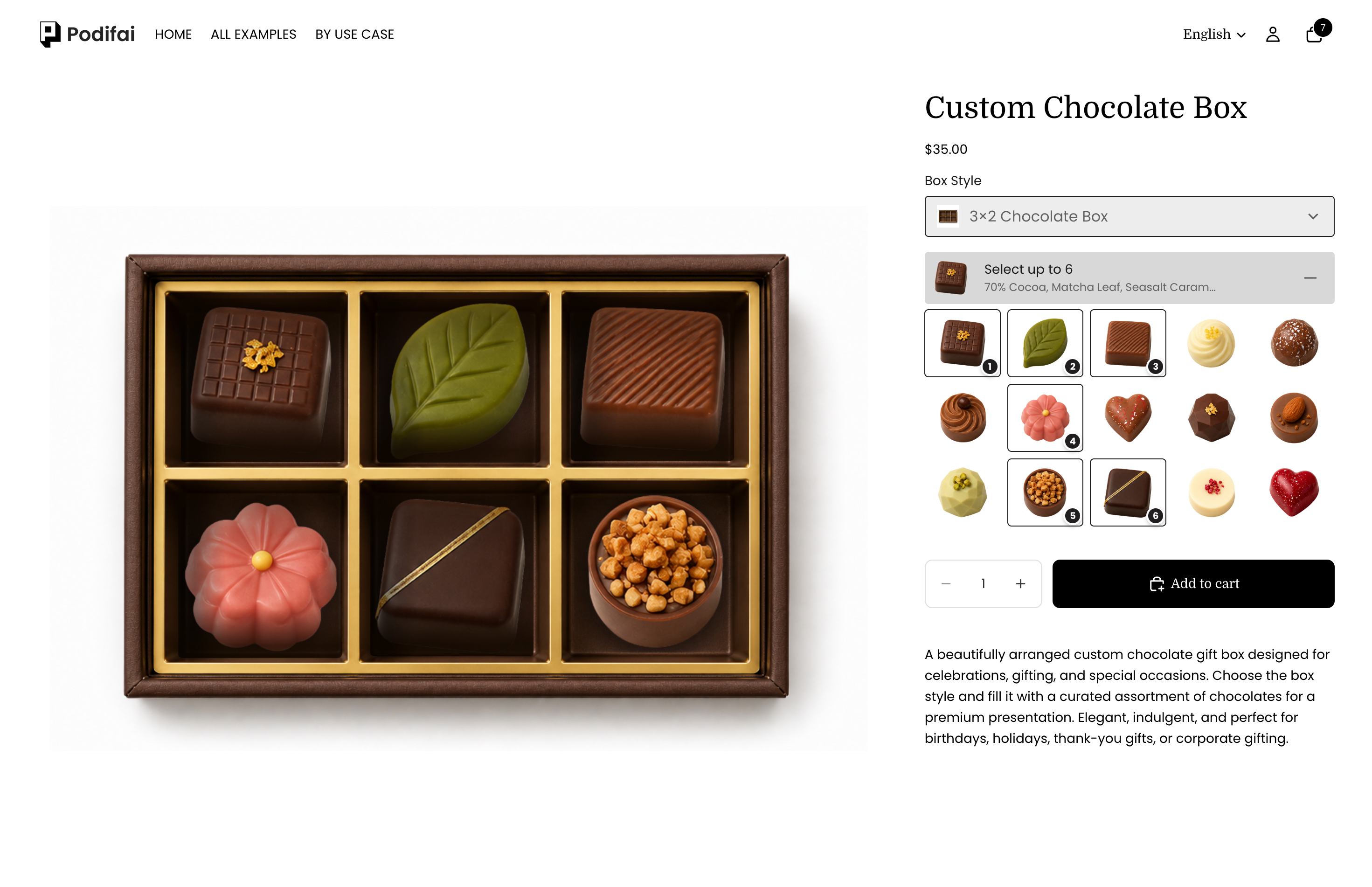
Inline mode displays the custom options directly inside the Shopify product page. It works well when the option set is short or when shoppers should see the choices immediately.
Use the App Embed or App Block to control where the inline customizer appears. App Block is the best choice when you need exact placement inside a product template.
Popup Customizer
Popup mode keeps the product page compact. The shopper clicks Customize, then completes the personalization inside a dedicated popup experience. On mobile devices, the popup uses the full screen. On desktop and web browsers, Podifai uses a fixed popup size.
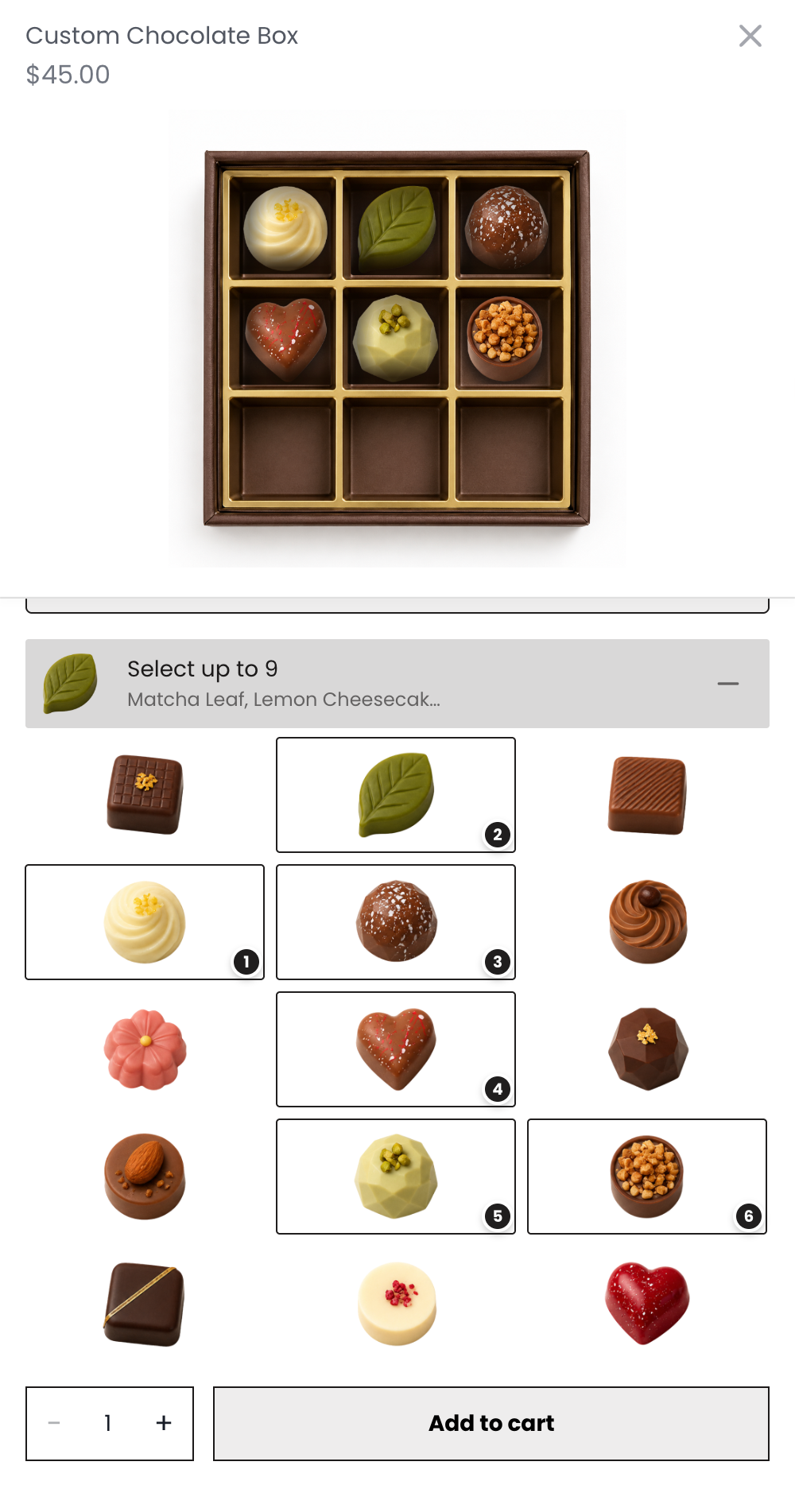
The Inline example above is desktop and the Popup example is mobile. Both modes work on desktop and mobile. The six- and nine-piece box choices, prices, and selection limits are product configurations, separate from Display mode.
Popup header
In Global Settings > Popup customizer, set Popup header to With product title when shoppers should see the product title and price at the top of the Popup, or choose Minimal. A Minimal header shows “Customize”, and the total price appears above the Add to cart button.
Popup cart behavior
In Global Settings > Add to cart & orders > Cart behaviour, choose Redirect to cart page when Add to Cart should take the shopper directly to the cart. Choose Follow theme default when Podifai should follow the Shopify theme's normal cart flow, such as its cart drawer or other theme-defined behavior. This applies only to the Popup customizer; Inline customizers always use the theme's default cart behavior.
Focus areas
In Global Settings > Live preview, turn on Focus areas to highlight the focused customization area and dim the rest of the product preview. When a shopper clicks or taps a focus area, the Popup scrolls the related customization options into view.
Live Preview zoom on desktop and mobile
Turn on Enable live preview zoom under Global Settings → Live preview. On desktop, hover over the Live Preview image to magnify it. On mobile, press and hold the image to use zoom. It works in both Inline and Popup modes.
Mobile Popup experience
On mobile, the Popup starts with a larger product preview so shoppers can inspect the design. As the shopper scrolls down to work with the custom options, the preview moves upward and becomes more compact, leaving a larger actionable area for entering text, choosing values, uploading images, and completing the setup.
Required vs Optional Personalization
This purchase-flow choice is separate from the Required setting on individual fields. Review both: whether the product may be bought without personalization, and which fields must be completed when the shopper uses the customizer.
In the editor, click the edit (pencil) icon beside the Customize button and open Before add-to-cart. Choose how shoppers should purchase the product:
- Required personalization — The storefront displays only the Customize button. The shopper must complete the personalization before adding the product to cart.
- Optional personalization — The storefront displays both Customize and Add to Cart. The shopper can personalize the product or purchase it without personalization.
Product Quantity Selector
Open Global Settings, find Popup customizer, and turn Quantity selector on or off to show or hide the product quantity control inside the Popup customizer. Inline customizers always show the quantity selector. Click Save changes.
Customize Button Text and Appearance
Choose a clear label for the storefront Customize button, such as Personalize or Design Yours.
- In the editor, click the edit (pencil) icon beside the Customize button.
- Enter your wording in Button text.
- Under Button appearance, keep Match “Add to cart” or choose Custom to set the button text, outline, and fill colors.
- Save the customizer and check the product page.
For labels in additional storefront languages, follow Multiple Languages & Translations.
Which Mode Should I Use?
- Use Inline for short option sets and direct product-page interaction.
- Use Popup for larger customizers or when the product page should remain visually simple.
- Multiple Views requires Popup. Inline mode does not show the view switcher. See Multiple Views.
- Use required personalization when the product cannot be purchased without configuration.
- Use optional personalization when shoppers can buy either the standard or personalized product.
Check the Selected Purchase Flow
- For Inline, check the option placement in the configured product template.
- For Popup, check the Customize button, header, scrolling, and access to Add to Cart on desktop and mobile.
- For required personalization, confirm the shopper must use the customizer. For optional personalization, test both the standard purchase and the customized purchase.
- Test required fields inside the customizer, including any conditional fields.
- Check the configured cart behavior and quantity selector if you use them.
Finish with Verify Before Launch to check the selected variant, customization charges, and saved order details.
FAQ
Which display mode supports Multiple Views?
Multiple Views is available in Popup mode only. Use Popup when shoppers need to switch between Front, Back, or other product views.
Why does the preview stay visible after I change personalization back to No?
This is how Show preview (Global Settings > Live preview) works. On page load shows the Live Preview as soon as the page opens. After 1st change keeps the original product image until the shopper makes a Podifai option selection, enters text, or uploads an image; native Shopify variant changes do not count. Once the preview appears it stays visible, even if the shopper changes the option back (for example from Yes to No). In Popup mode, opening Customize shows the preview with either setting.
Can Podifai open the customizer in a popup?
Yes. Open the product customizer, find Display mode below the preview image, choose Popup, and save. Choose Inline when the options should appear directly on the product page.
What is the difference between required and optional personalization?
Required personalization shows only the Customize button, so the shopper must complete the customizer before adding the product to cart. Optional personalization shows both Customize and Add to Cart.
Why did the Shop Pay or Buy it now button disappear after I added Podifai options?
This is expected. Express checkout buttons such as Shop Pay and Buy it now skip the cart, so the customization and any add-on price would be lost. Podifai hides them on customized products in both Required and Optional personalization. Optional personalization only adds a standard Add to Cart button so shoppers can buy without personalizing; Shop Pay and Buy it now stay hidden. If you need express checkout buttons, use the chat icon on the left side of the page or email chelsea@podifai.com.
Can I change the Popup Customizer size?
The popup is full-screen on mobile. On desktop and web browsers, its width and height are fixed and cannot currently be changed from Podifai settings.
Can I show a quantity selector in the customizer?
Yes. In Global Settings > Popup customizer, turn Quantity selector on or off to show or hide the product quantity selector inside the Popup customizer. Inline customizers always show the theme's quantity selector.
Why can't I find the Inline or Popup Display Mode setting?
Open Products, open the product customizer, and find Display mode below the preview image. The setting remains there whether the right panel is showing Global Settings or a selected option's properties.