
Multiple Views
Set up one to five product views with separate backgrounds and preview layers. Test view switching and check each view in the order output.
Last updated: 2026-11-06
In Popup mode, Multiple Views lets you configure one to five separate 2D product views—such as Front, Back, Left Sleeve, or Right Sleeve. Every view has its own background and independent preview layers, and shoppers can switch between views while keeping their selections.
When to Use Multiple Views
Use Multiple Views when one product image cannot clearly show every personalization area. Common examples include front and back jersey printing, artwork on both sides of a bag, sleeve patches, or different sides of a shoe.
| Product | Example views |
|---|---|
| Jersey or T-shirt | Front, Back, Left Sleeve, Right Sleeve |
| Bag | Front, Back, Inside |
| Shoe | Outside, Inside, Heel |
| Mug or bottle | Front, Back, Wrap detail |
Set Up Multiple Views
What this shows
- Set Display mode, below the preview image in the product editor, to Popup. Multiple Views is not supported in Inline mode.
- Plan between one and five product views and give each one a short shopper-facing label, such as Front or Back.
- Below the preview, click the + (Add view) button next to the view tabs. Enter a View name, then set the correct 2D background image for that side or angle, the same way you set a single product's Live Preview background.
- Open each view and place its text, image, swatch, or upload preview layers in the correct customization area.
- Save the customizer, then switch through every view on the storefront and confirm that earlier selections remain selected.
- Test the complete product in both desktop and mobile layouts before publishing it.
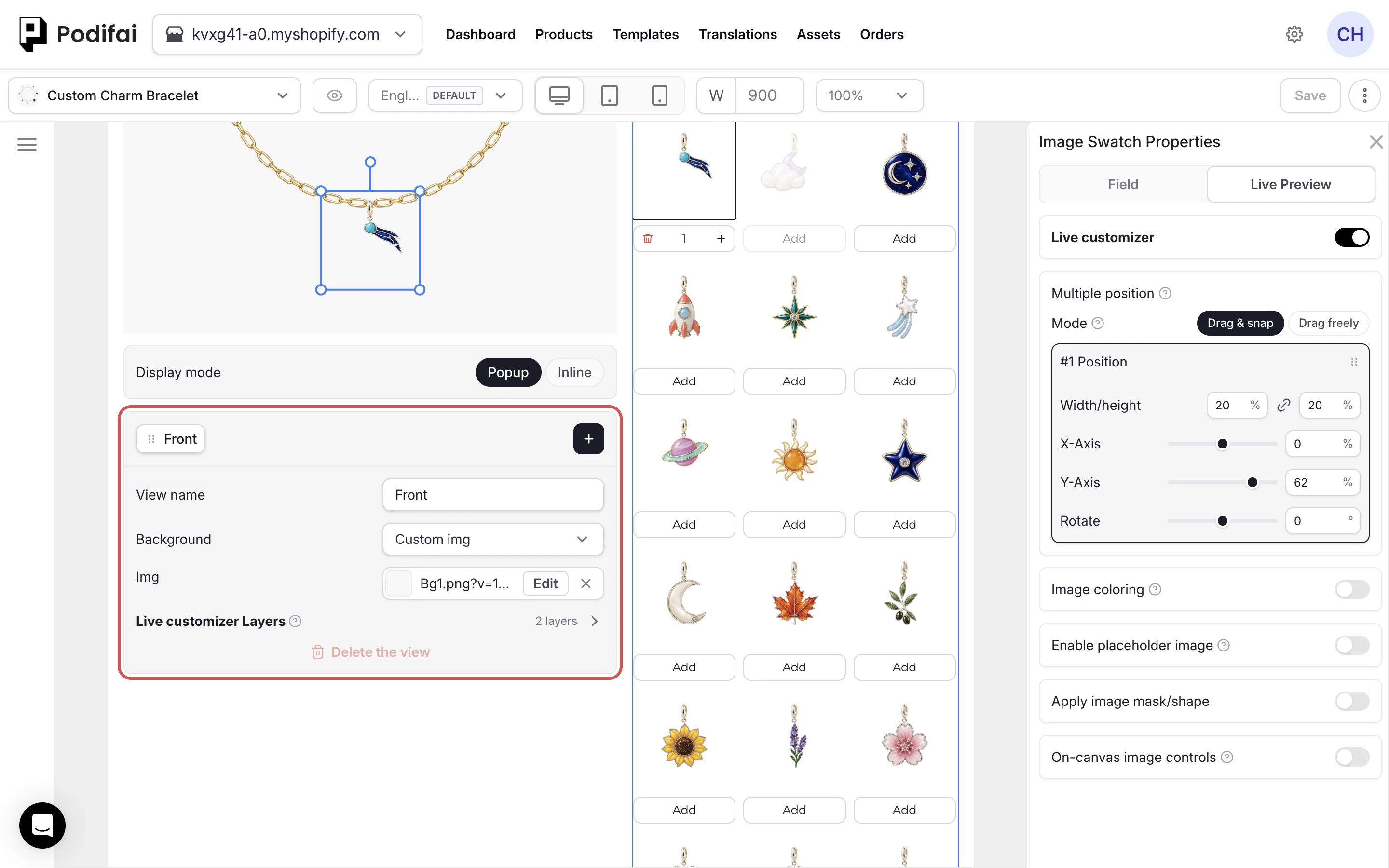
Views, Options, and Preview Layers
A view controls where a preview layer is shown; the option controls what the shopper chooses or enters. Every view has an independent layer set. Configure each preview layer on the view where that personalization should appear—for example, Front Text on the Front view and Back Number on the Back view.
Podifai keeps the shopper's option state while they switch views. Changing a value updates the related preview layer without clearing unrelated selections. For several items on one view—such as charms, patches, or stickers—see the Charm Builder and multi-select Image Swatch workflow.
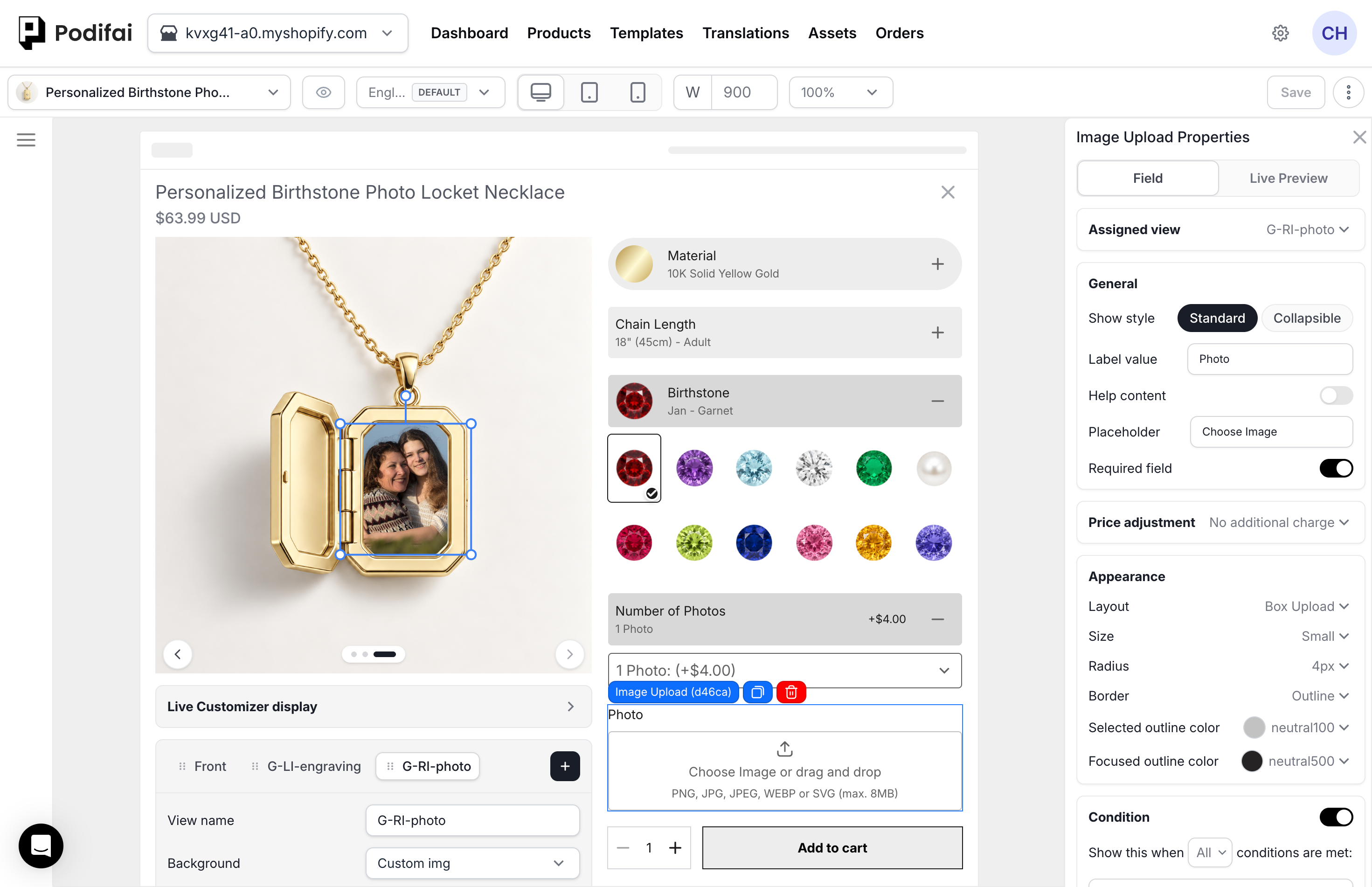
In this locket example, Assigned view connects the Photo upload option to G-RI-photo. Select that view to configure its background and photo layer placement. Use the other views for the closed front and inside engraving, then check every view on the storefront.
Switch the Preview When a Shopper Picks a Value
You can make the preview jump to the right view when a shopper selects an option value. For example, on a hoodie with a Design placement option, selecting Back can show the Back view and selecting Left sleeve can show the Left sleeve view.
What this shows
- Open the option in the editor and go to Option values.
- Click the value that should change the view, such as Back.
- In Edit option value, set Switch preview to the view to show. The default is No switch.
- Repeat for the other values, save, and select each value on the storefront to check the preview moves to the right view.
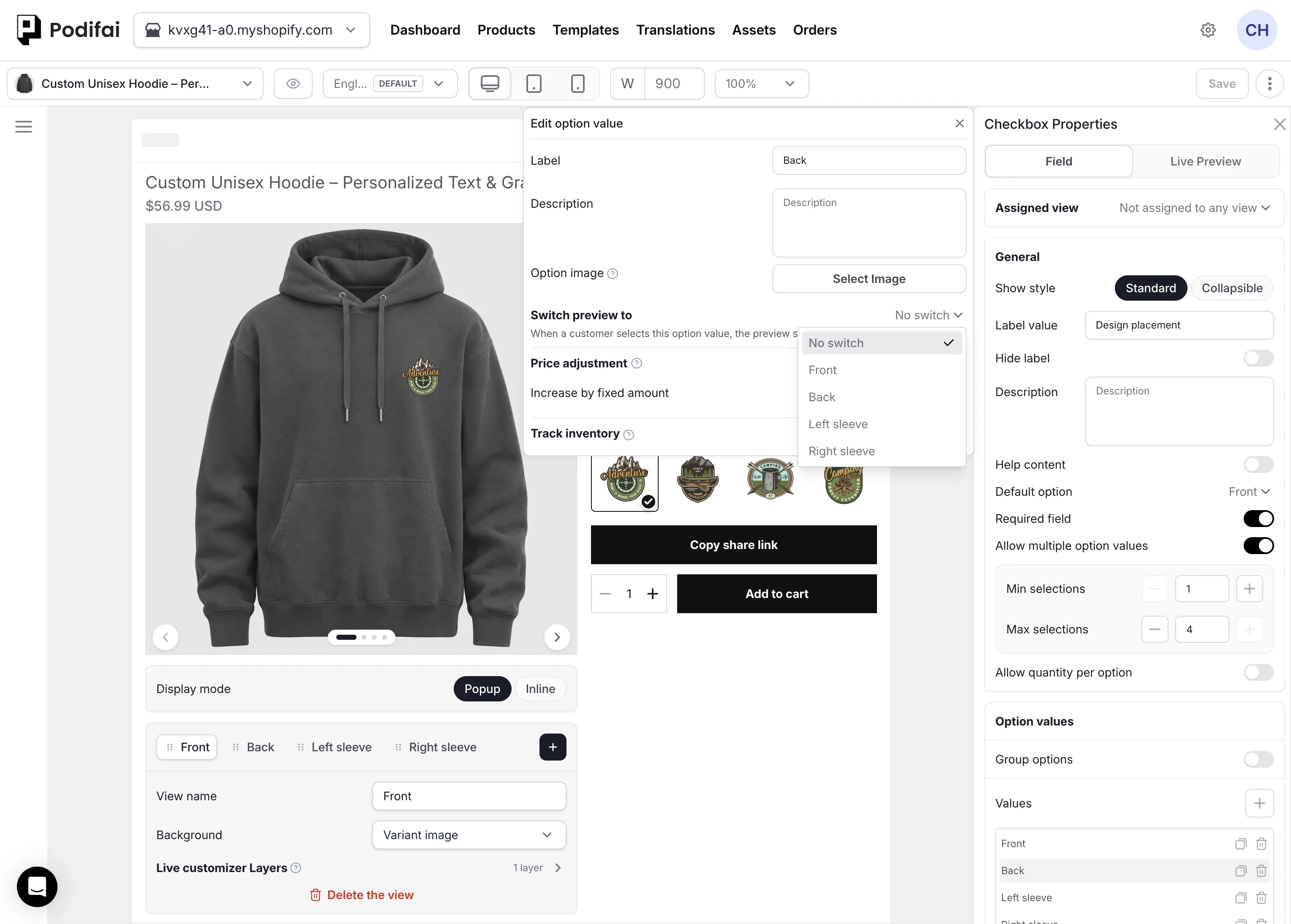
Values left on No switch keep the current view. Switch preview to only changes which view is shown. It does not move preview layers, so place each layer on its view as described above.
Example: Front Name and Back Number
- Create Front and Back views with the corresponding product images.
- Add a Text Input labeled Front name and position its preview layer on the Front view.
- Add a separate Text Input labeled Back number and position its preview layer on the Back view.
- Set suitable character limits and required settings on each text option.
- Save, enter both values on the storefront, and switch between Front and Back to check each layer.
View labels help shoppers navigate; option labels identify the values saved with the order. Use clear names for both. For translated view and option names, see Multiple Languages & Translations.
Prepare View Backgrounds
- Use one clean product image for each side or angle.
- Keep product scale, framing, lighting, dimensions, and aspect ratio consistent.
- Leave enough empty space around each customization area for text and image controls.
- Compress images before upload so switching views stays responsive on mobile.
See Image & Asset Requirements for image preparation guidance.
Use Popup for Multiple Views
Multiple Views is supported in Popup mode only. In the product editor, find Display mode below the preview image, choose Popup, and save. See Customizer Display Modes for the setting. Inline mode does not support the Multiple Views switcher.
Example: Preview a Photo Inside a Locket
Open the photo locket demo and choose Customize. Expand Number of Photos, select 1 Photo, and upload a portrait. Switch between the front and the two inside views using the dots or arrows below the preview.
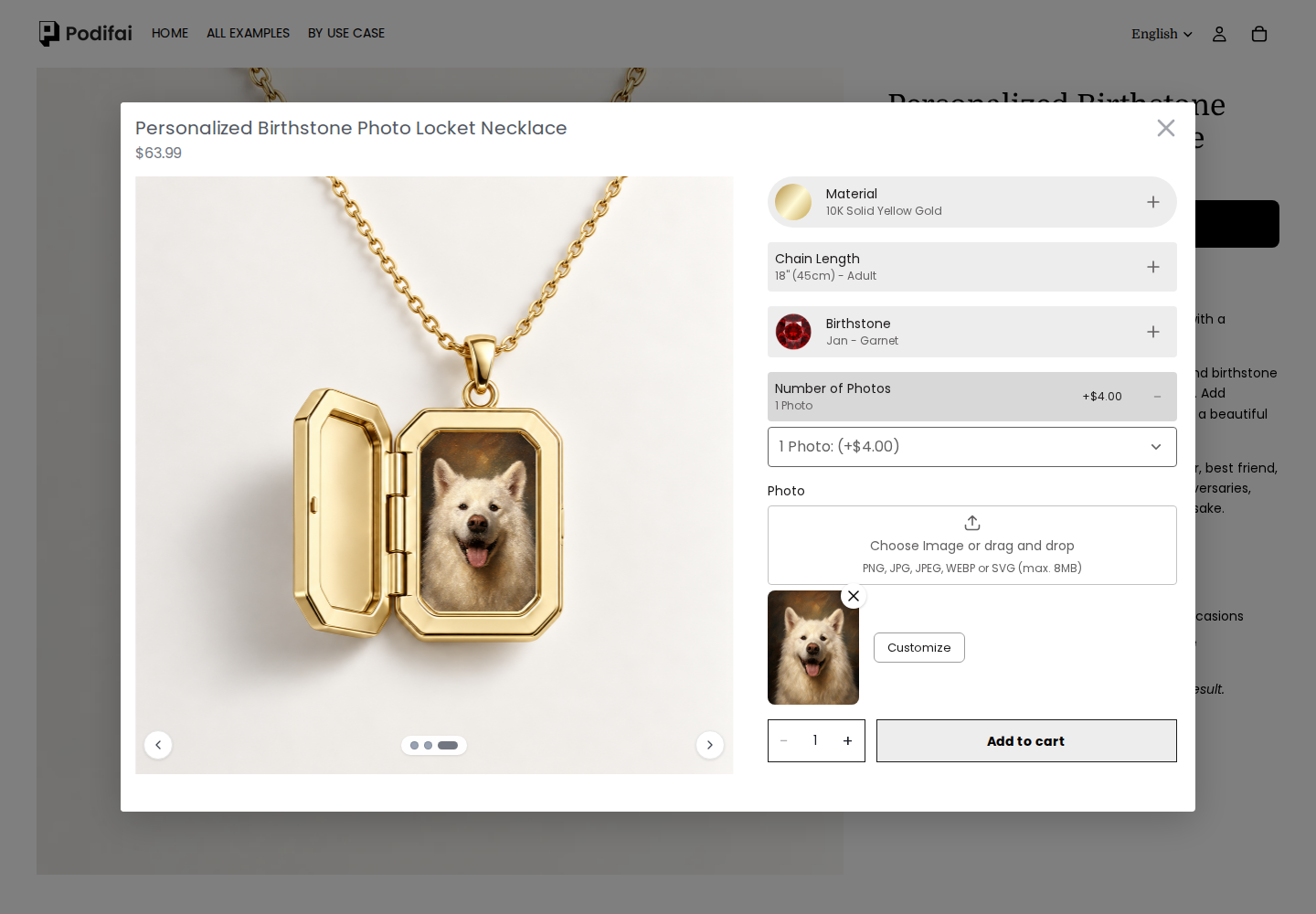
After each switch, check that 1 Photo remains selected and the upload thumbnail is still present. The front view shows the closed locket; the uploaded portrait appears in its configured inside view. Each view can show different content while sharing the same option selections.
Add the configured product to the cart and check its option values, upload link, and preview links. Reviewing these links is separate from checking the generated production files; see Generate Print-Ready Files.
Storefront Test Checklist
- Every view has the correct label and background.
- Each text or image layer appears only in the intended position and view.
- Selections remain intact when the shopper switches views.
- Required options are enforced before Add to Cart.
- Dynamic prices and linked inventory update for selections from every view.
- The view controls remain usable on desktop and mobile.
Current Boundaries
- One customizer can contain a minimum of one view and a maximum of five views.
- Multiple Views uses separate, switchable 2D previews.
- View switching is a shopper navigation control, not several full preview canvases shown simultaneously.
- Live Preview is a purchase preview. Confirm production-file requirements separately in your workflow.
Check Each View in the Order Output
Place a test order and review the saved customization and available final preview links for all views. If you use print-ready generation, check the ZIP's product folder and view names separately. Only views containing included text or customer-uploaded image layers produce PNGs; product backgrounds and Image Swatch artwork are excluded.
FAQ
Why can shoppers not see the back of my product?
Add a separate Back view with its own background and preview layers, save, and test switching to it on the storefront. Adding another Shopify gallery image alone does not create a Podifai view. Multiple Views requires Popup mode. Switch from Inline to Popup if needed, then save and test again.
Can Podifai show front and back personalization?
Yes. Multiple Views lets you create separate product views such as Front and Back and configure the preview content for each view. Shoppers can switch views while customizing without losing their selections.
Can I create more than two views?
Yes. A customizer can use one to five views. Multiple Views is not limited to Front and Back; use clear labels such as Left Sleeve, Right Sleeve, Inside, or Detail.
Can the preview switch to the back when a shopper picks a back design?
Yes. Open the option, click the value under Option values, and set Switch preview to the view you want, such as Back. When a shopper selects that value, the preview moves to that view. Leave other values on No switch if the preview should stay where it is. Switch preview to overrides Assigned view: while any value uses it, Assigned view is greyed out until every value is set back to No switch.
Does Multiple Views work with Inline and Popup customizers?
Multiple Views is supported in Popup mode only. Set Display mode (below the preview image in the product editor) to Popup, save, and test the view switcher on the storefront.
Front and Back Views Versus Variant images
Multiple Views defines separate sides or angles of a product. Variant image follows the image assigned to the selected Shopify variant. These are different settings: adding Front and Back views does not automatically pair every color variant with its matching front and back photographs.
Configure and verify each view's background and layers. If your catalog needs automatic color-by-view image mapping, confirm that workflow with support before building the full catalog; do not assume that multiple gallery images are mapped automatically.
Continue with your product setup
- Plan a multi-view product — Review use cases for separately prepared 2D product surfaces.
- Verify each view’s production output — Check the included artwork and PNG dimensions after a test order.