
Linked Inventory & Add-on Pricing
Choose stock tracking without an extra charge or a paid add-on. Check linked variants, cart lines, prices, and possible double stock deductions.
Last updated: 2026-11-06
Choose Linked inventory to deduct a component's stock without adding its Shopify price. Choose Add variant price (Bundle variant) to charge that price as a paid add-on.
Which Setup Do You Need?
For example, a bag may include a strap at no extra cost, or offer a premium strap for an extra charge.
- Linked inventory only deducts stock from a Shopify variant. It adds no charge and no extra order line.
- Bundle variant adds the linked Shopify product to the order as its own line, charged at its Shopify price. Shopify deducts its stock through that line.
This page calls the linked Shopify product the component or add-on; both mean the same variant.
| Your goal | Price adjustment | Track inventory |
|---|---|---|
| Deduct stock for an included strap | No additional charge | Linked to a variant |
| Charge your own fixed amount and deduct strap stock | Increase by fixed amount | Linked to a variant |
| Sell a strap at its Shopify variant price | Add variant price (Bundle variant) | Not tracking inventory when Shopify deducts it through its order line |
Linked inventory does not create a separate item in the order. A fixed surcharge also does not create one.
Open the Option Settings
In the product editor, open the option value's Edit option value dialog. For Image Swatch, go to Field → Option values. You will find Price adjustment and Track inventory there.
Track Stock Without Adding the Variant Price
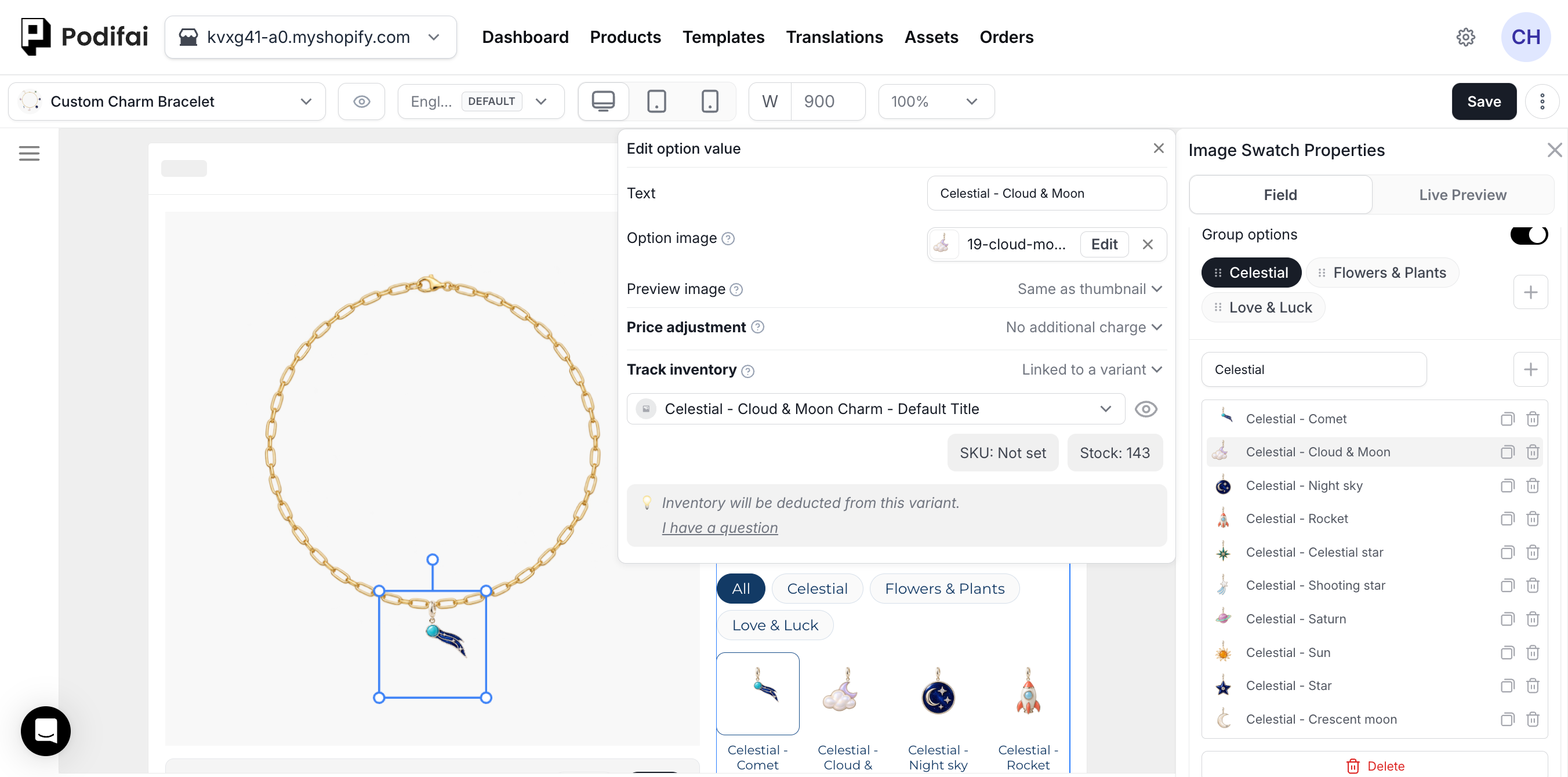
- Choose Track inventory → Linked to a variant.
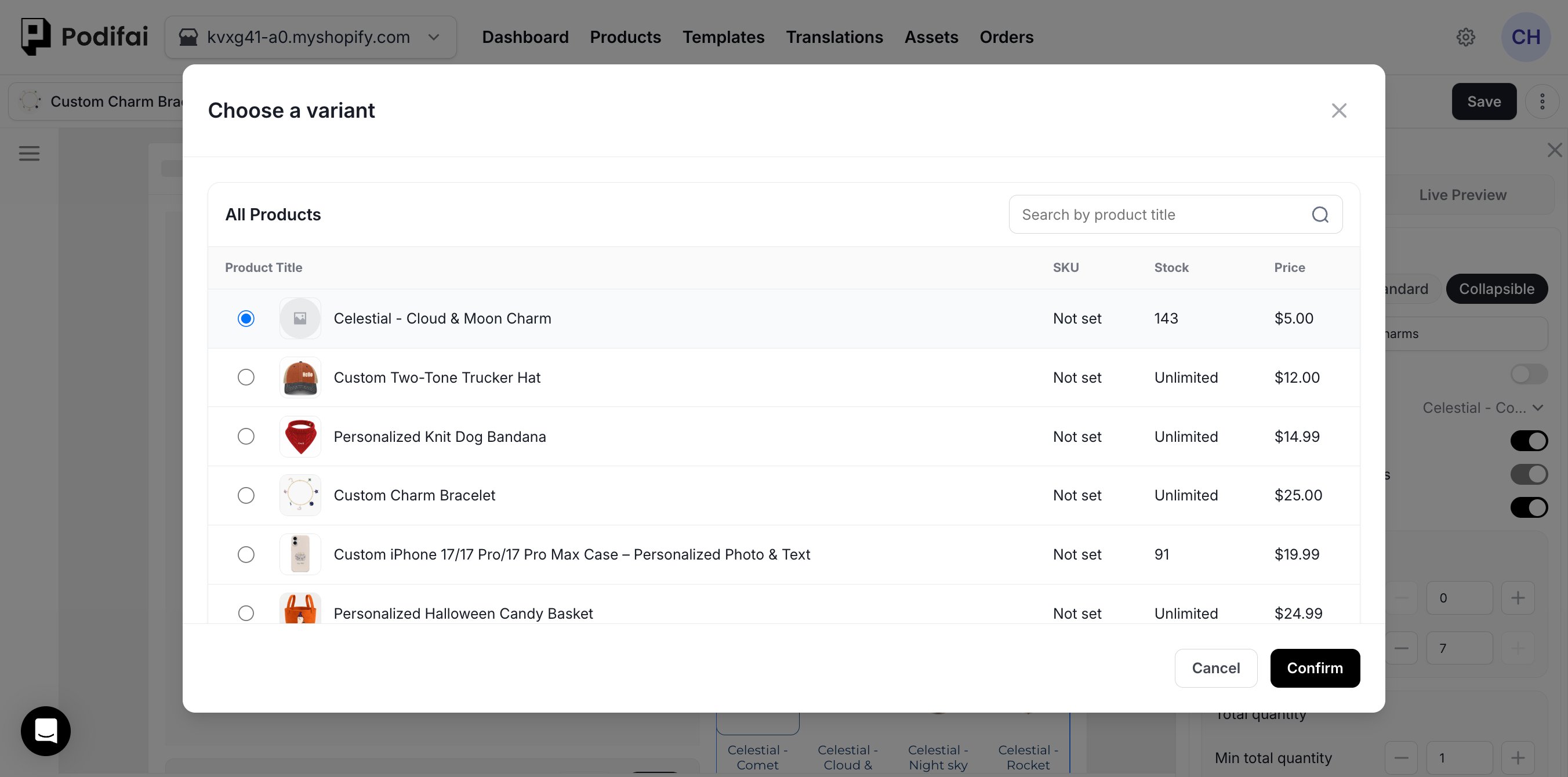
- Search for the Shopify product, select the correct variant, and click Confirm. Only Active products published to the Online Store appear.
- Set Price adjustment to No additional charge, or set your own fixed surcharge.
- Click Save at the top right of the editor. Confirming the variant alone does not save the setup.
Selecting a $25 variant here does not add $25 to the customer's price.
Sell a Paid Add-on
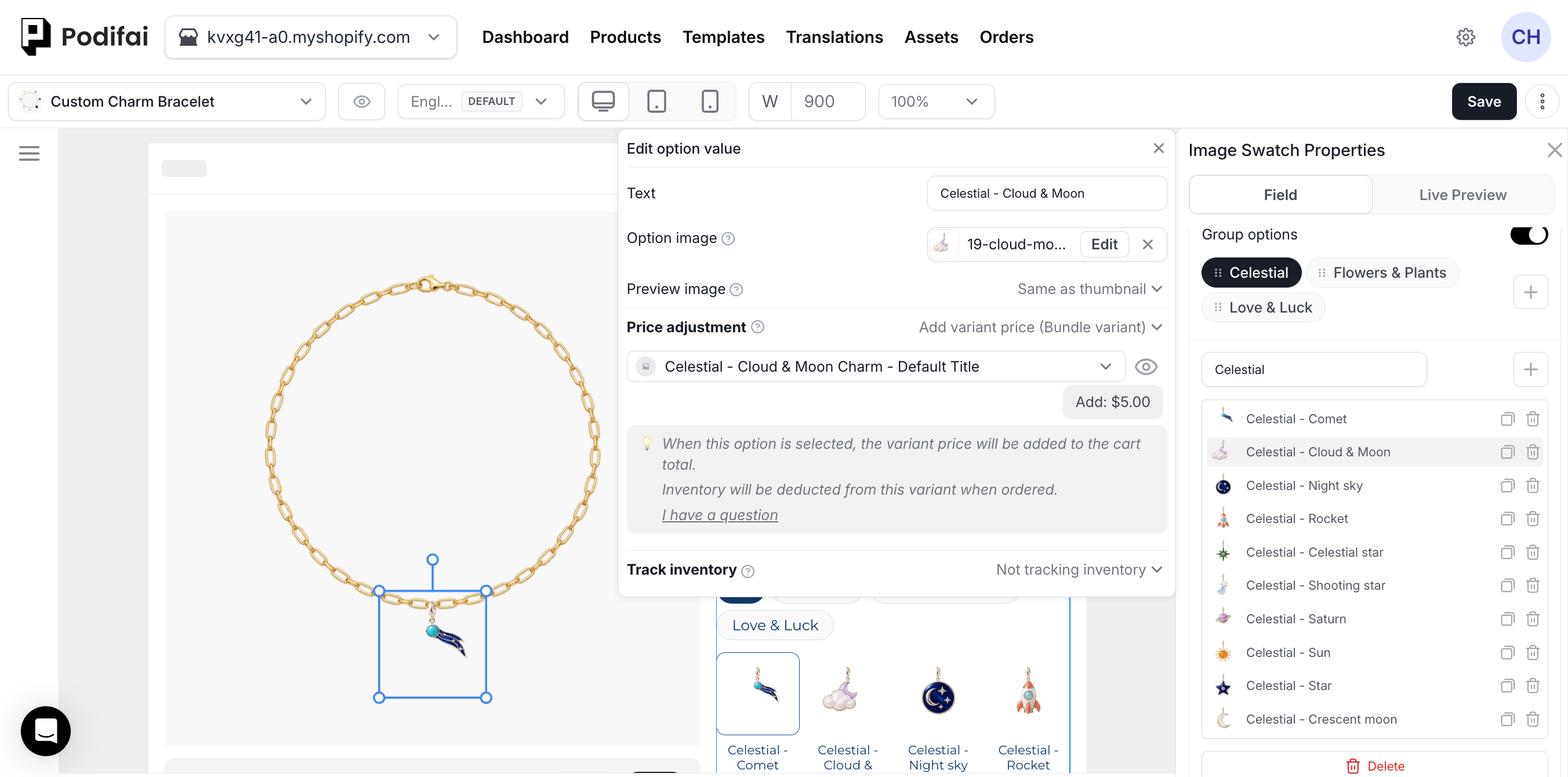
- Choose Price adjustment → Add variant price (Bundle variant).
- Select the add-on variant in the same picker and click Confirm. Its Shopify price becomes the extra charge.
- When the add-on has its own order line, set Podifai's Track inventory to Not tracking inventory for that variant. Keep stock tracking enabled in Shopify.
- Click Save, then place a test order to check the price, order lines, and stock change.
Example: A Paid Personalization Add-on
The small pouch offers Yes, add engraving as a Badge Group value linked to the EMBROIDERY ADD-ON [Active] variant. Add variant price (Bundle variant)supplies the extra $25 charge. The option label describes the shopper's choice; the linked Shopify product identifies the add-on sold with the pouch.
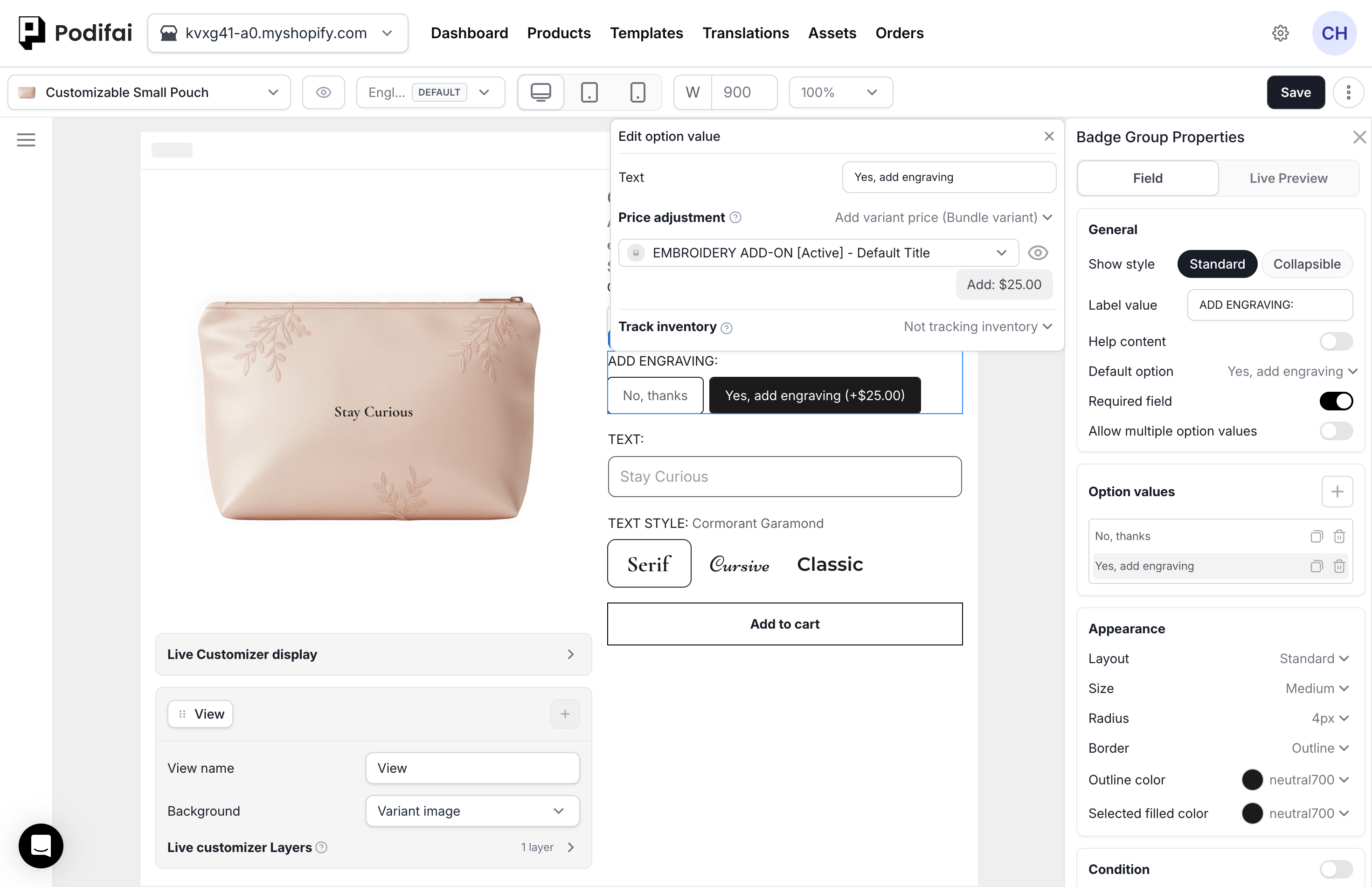
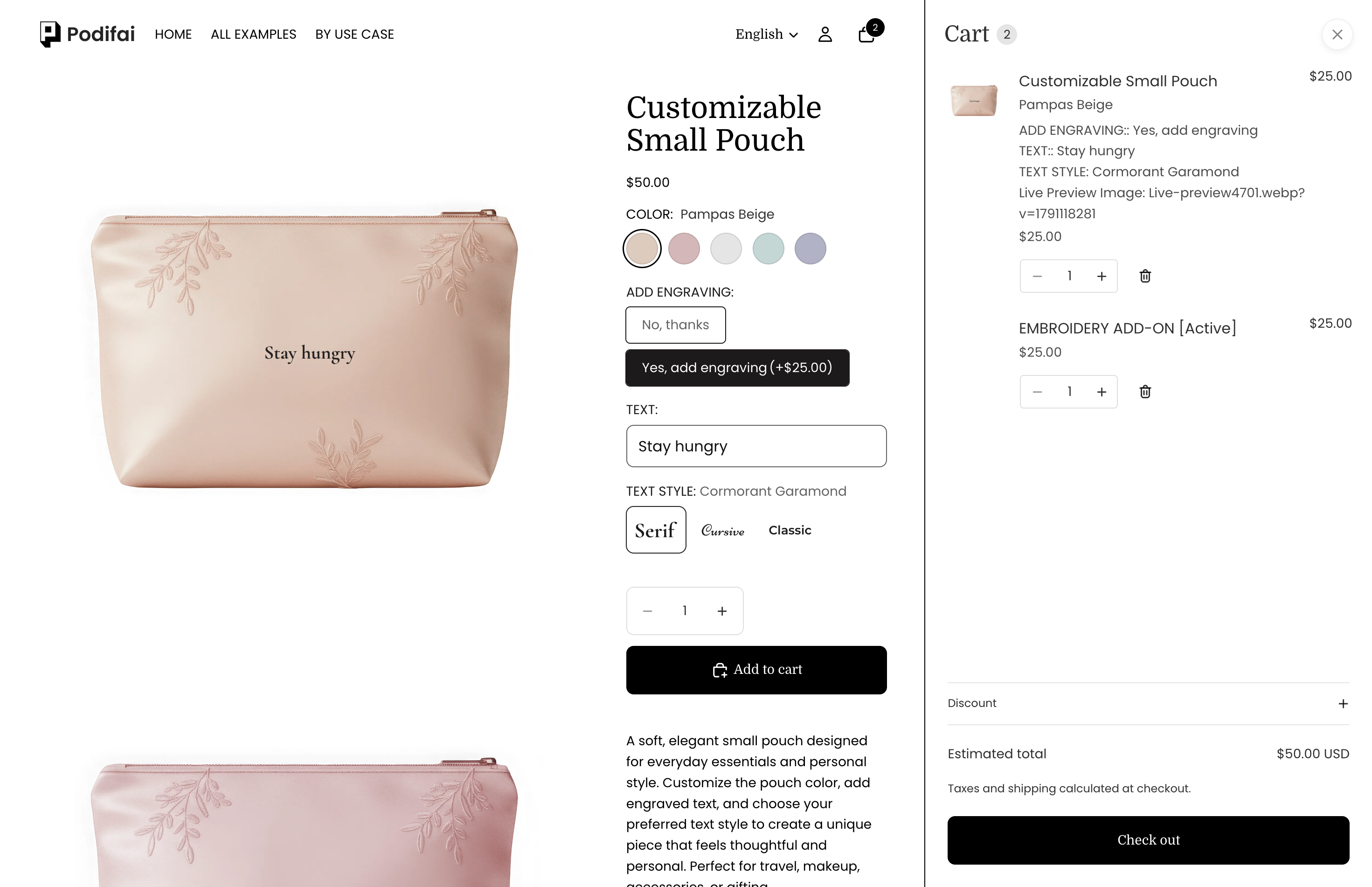
When the add-on remains a separate Shopify order line, Shopify deducts its tracked variant stock through that line. Keep inventory tracking enabled on the add-on variant in Shopify; a quantity-one purchase uses one unit of that add-on. The cart screenshot shows the separate item and charge. Check the stock change after creating a test order, and review the next section for cart presentation when other price adjustments are configured.
Bundle Lines with Other Price Adjustments
Besides Add variant price, you can set your own price adjustments:
- Increase by fixed amount / Decrease by fixed amount: add or subtract a set amount, such as $5.
- Increase by percentage / Decrease by percentage: add or subtract a percentage of the product's current effective price, such as 10%.
See Dynamic Pricing for setup steps and calculation examples.
With no price adjustments on other options, the bundle add-on appears as a nested item under the main product. Shopify deducts its stock through that order line.
Fixed or percentage adjustments on other options do not remove the linked variant line in the standard setup. Its cart presentation can change from nested to a separate, unindented line. Inspect the Shopify order lines rather than relying on indentation.
Do not add an inventory link merely because the cart presentation changed. Shopify deducts tracked add-on stock through the linked variant line; enabling Podifai inventory tracking for that same variant can cause a second deduction. If the expected line is missing, use the chat icon on the left side of the page or email chelsea@podifai.com and verify the order before using it for fulfillment.
Collection Pages Show the Shopify Price
Collection pages, search results and price filters always use the product's own Shopify price. The Podifai customizer runs only on the product page, so it doesn't change the Shopify price on collection cards. If you set the product to $0 and charge everything through linked variants, collection pages show $0.
Keep the starting price on the product and set each linked variant to the extra amount only. For example, set the product to $68 and the gold chain variant to $22: the collection page shows $68 and the cart shows $90. This works as long as those variants aren't also sold on their own at full price. A $0 product can also be added to the cart at $0 wherever the customizer is skipped, such as a collection quick-add or a social checkout. If you need to keep $0 products, a small theme code change can show a starting price on collection cards. SeeCollection Product Cards and Starting Prices.
Product Status, Availability, and Deleted Variants
For both Linked inventory and Add variant price (Bundle variant), product status and Online Store publication are checked when you pick the linked variant. This picker check does not guarantee that a previously linked product remains Active or published later.
If an add-on product is later set to Draft or unpublished, its price can't be added correctly at checkout. Keep add-on products Active and published to Online Store, and test Add to Cart and the checkout total after any change to them. Do not rely on the picker check or out-of-stock display settings to catch this.
- Out of stock: variant availability is checked for both inventory links and add-on price links. An out-of-stock variant makes the linked option unavailable for selection. See out-of-stock display settings for inventory options.
- Available again: the existing link recovers automatically. No relinking is needed. Product status changes do not remove the link; an order that still comes through can still deduct stock.
- Deleted: the option value remains, but its link information disappears from the editor. The inventory link falls back to Not tracking inventory; the variant-price link falls back to No additional charge. Select a replacement if needed.
- Deleted and recreated: Shopify gives the new variant a different ID. Link it manually.
Does Add to Cart Check the Required Quantity?
Checking whether a variant is out of stock is different from checking whether its remaining stock covers the total quantity required by all selected options and the main-product quantity. For example, two selected options each use one unit of variant A. Buying three main products requires six units of A, but Shopify has only five available.
With inventory tracking enabled in Shopify and Continue selling when out of stock turned off:
- Linked inventory: Product-page validation counts repeated units, shared-variant options, and parent quantity together. Demand of six is rejected when only five units remain. Stock deduction after order creation is a separate step to verify.
- Add-on Product (Bundle variant): Shopify checks the required add-on quantity and returns a cart error when stock is insufficient, preventing the add-to-cart request. This applies when the add-on is included as a Shopify variant line.
Order Creation, Cancellations, and Refunds
Podifai deducts linked component stock after Shopify creates the order, without waiting for payment. Unpaid orders can therefore reduce component stock.
See Inventory: order creation, cancellations, and refunds for the current behavior.
Check the Link, Price, and Stock Separately
- Record the base product variant, chosen component variant, configured Price adjustment, and Track inventory mode.
- Save the editor after confirming the variant picker.
- Record component stock, then place a test order with a known main-product quantity.
- Check whether the actual order contains a separate add-on variant line or incorporates its charge in the main product.
- Compare the charged amount and stock change. Repeat with other priced options configured, including the case where they are unselected.
- If two options share one component variant, test that combination and the product quantities your store offers.
Choose the inventory mode from the actual order-line behavior. A visible add-on label or an inventory link alone does not prove that the component has its own order line. For external fulfillment, also test the resulting order in your ERP or shipping integration.
If the Result Is Unexpected
Send support the order number, base product and component variant, both configured linking modes, product quantity, starting and ending stock counts, and whether an add-on line appears in the order. Include any other price adjustments in the customizer. See Contact Us.
FAQ
When is linked component stock deducted, and do cancellations restore it?
Podifai deducts tracked component stock after Shopify creates the order, without waiting for payment. Podifai does not currently automatically reverse these deductions on cancellation or refund. Review the actual stock count and make any necessary manual adjustment, checking stock already restored by Shopify first.
Can I track inventory without adding the variant price?
Yes. Choose Track inventory → Linked to a variant and Price adjustment → No additional charge. The selected variant supplies stock, without adding its Shopify price.
Can I charge my own fixed amount instead of the variant price?
Yes. Choose Increase by fixed amount and enter your surcharge. Add a separate inventory link if you also need to deduct component stock. The surcharge does not depend on the linked variant's price.
Why is my add-on missing from the order as a separate item?
In the standard setup, Add variant price (Bundle variant) keeps a separate linked-variant line, including when other options have fixed or percentage adjustments. Cart nesting can change without removing that line. Check the actual Shopify order and use the chat icon on the left side of the page or email chelsea@podifai.com if your setup differs.
Does deleting the linked variant remove my option or fixed surcharge?
No. The option value and an independently configured fixed surcharge remain. The deleted inventory link stops tracking stock; a price linked to the deleted variant falls back to No additional charge. Link a replacement variant if needed.
What if two selected options link to the same variant?
Each selected option deducts stock separately. For two selected options linked to variant A, buying three main products deducts six units of A after order creation. Product-page linked-stock validation counts shared variant demand and parent quantity. With tracking on and Continue selling when out of stock off, demand of six is rejected when only five remain. Verify cart changes and the final order separately.
Can my ERP import the add-on as its own SKU?
Check that the actual Shopify order contains a separate add-on variant line, then test your ERP import. An inventory link or a fixed surcharge alone does not create that line. The result depends on your ERP integration.
Can collection pages show the Podifai configuration price instead of $0?
Not automatically. The theme prints the collection page price from the product's own Shopify price before any app runs, and Shopify doesn't let apps change it. Nothing is selected on a collection page yet, so there is no configuration price to show. Sorting, price filters, search and Google Shopping also use the Shopify price. A $0 product can also be added to the cart at $0 wherever the customizer is skipped, such as a collection quick-add or social checkout. Instead, keep the starting price on the product and set each linked variant to the extra amount only. For example, set the product to $68 and the gold chain variant to $22 so the cart shows $90. This works if those variants aren't also sold on their own at full price. If you need $0 products, a small theme code change can show a starting price on collection cards; see Dynamic Pricing > Collection Product Cards and Starting Prices at /docs/option-types/dynamic-pricing#collection-card-pricing.
If customization details or prices are missing, check the theme's Add to Cart submission and try Popup mode. For more settings, see Inventory & Variants and Dynamic Pricing.
Continue with your product setup
- Plan inventory for custom options — Review variant linking and out-of-stock behavior for your product.
- Apply this to a charm product — Combine selectable components, preview placement, and stock checks.
- Check the saved order — Confirm the resulting cart lines and order details with a test purchase.