
Cart Preview Image
Replace the Horizon cart thumbnail with the customer's Podifai preview using a tested Liquid snippet.
Last updated: 2026-11-06
You can display the customer's final Podifai preview as the cart thumbnail by editing your Shopify theme. This Horizon guide uses the cart line's Live Preview Image property and keeps the original product image when that property is empty. It changes the cart page and cart drawer, not checkout.
Before You Start
Theme versions and customizations can differ, so locate the code by its contents rather than a line number and test your own theme. If your Horizon code does not match what is shown below, contact us before changing it.
- Duplicate your theme and make the change in the copy first. Save the original code separately.
- Use a product with a Shopify product image and a working Live Preview.
- The cart line must contain a nonempty image URL under the exact property name
Live Preview Image. To check, add a customized product to the cart and open/cart.json your store (for exampleyourstore.com/cart.js). Under that item'sproperties, look forLive Preview Image. If it is missing, this snippet will keep showing the original image. - For multiple views, check the actual property names first. This example does not select between view-specific keys.
1. Open the Cart Snippet
In Shopify Admin, go to Online Store → Themes. Open the copied theme's menu, choose Edit code, and open snippets/cart-products.liquid.
Horizon uses this snippet for both the cart page and the cart drawer.
2. Find the Original Image Output
Search for echo item.image. Find this block inside the link with class="cart-items__media-container":
{%- liquid
  echo item.image | image_url: width: 250 | image_tag: class: 'cart-items__media-image border-style', style: border_override
-%}
Delete all three lines of that block, including the {%- liquid line at the top and the -%} line at the bottom, and put the replacement code from the next step in their place. Keep everything around it: the surrounding opening and closing link tags, the ratio settings, and the outer image condition. Do not add a second image after the original.
live_preview_image condition, review that existing customization instead of adding another copy. If the surrounding code differs, use the chat icon on the left side of the page or email chelsea@podifai.com before adapting the snippet.3. Paste the Replacement Code
{%- assign live_preview_image = item.properties['Live Preview Image'] -%}

{%- if live_preview_image != blank -%}
  <img
    src="{{ live_preview_image | escape }}"
    alt="{{ item.product.title | escape }}"
    class="cart-items__media-image border-style"
    style="{{ border_override }} object-fit: contain;"
    width="250"
    height="250"
    loading="lazy"
  >
{%- else -%}
  {{
    item.image
    | image_url: width: 250
    | image_tag:
      class: 'cart-items__media-image border-style',
      style: border_override
  }}
{%- endif -%}
Download the replacement code as a TXT file.
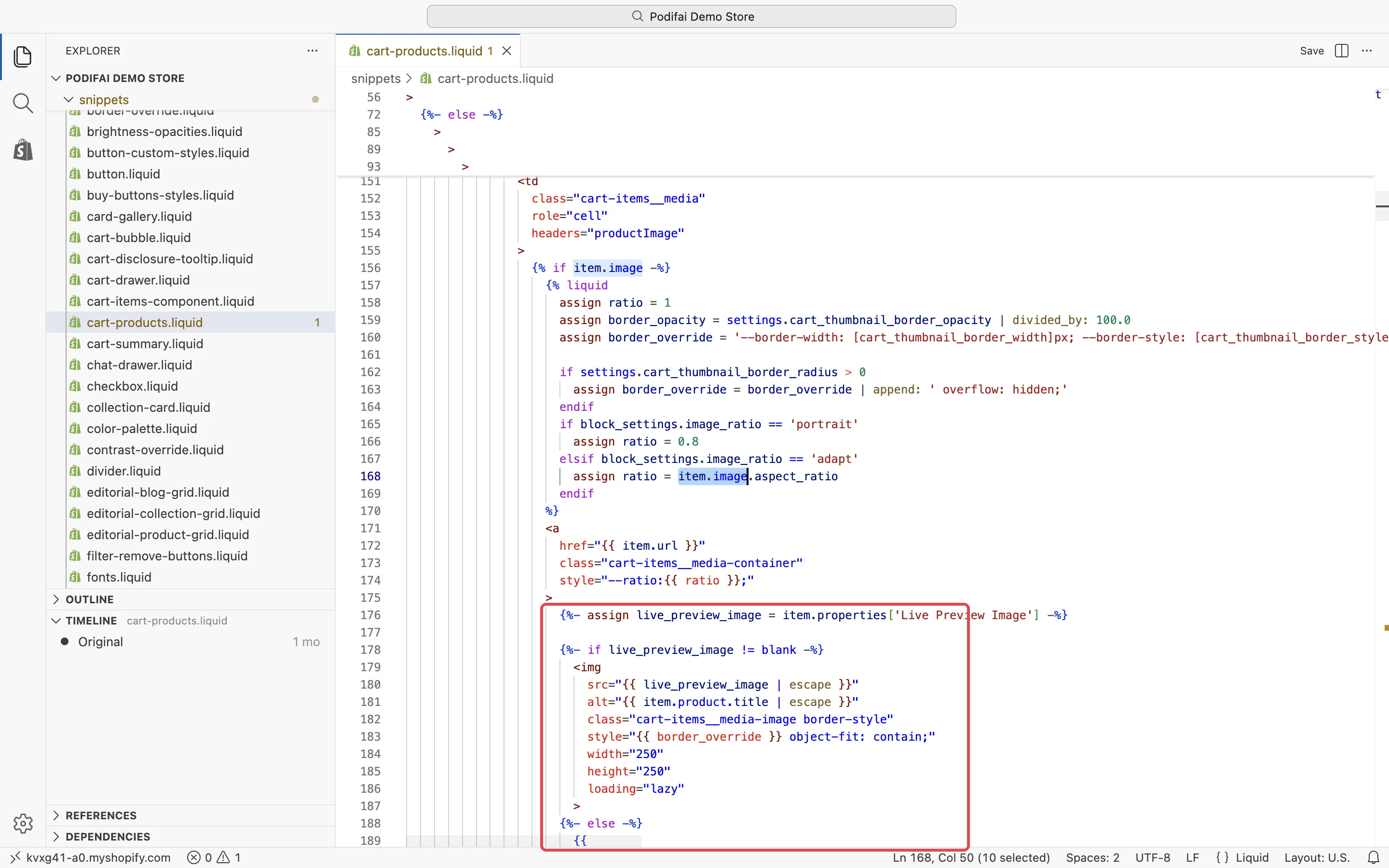
What the Code Does
item.properties['Live Preview Image']reads the preview URL for the current cart line, so different customizations can display different images.- The nonempty check selects the preview; the
elsebranch keeps Horizon's original image output for ordinary products. - The existing classes and
border_overrideretain Horizon's image and border styling. object-fit: containkeeps the full preview visible. Different aspect ratios can leave empty space.- The width and height attributes do not resize the source file. The theme controls the displayed thumbnail size.
4. Save and Test
Click Save, then preview the theme you edited. Complete a new customization and add it to cart.
- Check both the cart drawer and the full cart page.
- Refresh and change quantity; confirm that the correct preview remains.
- Add the same product with two different customizations and check each line's image.
- Add an ordinary product without a preview property and check that its original image still appears.
- Check mobile layout and confirm the complete design is visible.
Troubleshooting
The original product image still appears
Confirm you are previewing the edited theme. Customize and add the product again; older cart items may lack the preview property. Check the property name, including spaces and capitalization. View-specific property names require an adapted lookup.
The preview is broken or the image area is missing
The nonempty check does not detect an expired or inaccessible URL. Verify that the saved URL opens as an image. The original outer if item.image condition is preserved, so this minimal change requires a Shopify product image.
Shopify reports a Liquid syntax error
Replace the complete original Liquid block. Do not put HTML inside an unclosed Liquid block, and retain the surrounding link tags and conditions.
Publish, Undo, or Update Your Theme
When the copied theme looks right, go to Online Store → Themes, open the copy's menu, and choose Publish.
To undo: if you have not published the copy, simply do not publish it. If you already published it, publish your original theme again or replace the new image code with your saved original code. Recheck this customization when switching or updating themes; do not assume the change carries over.
Can the Checkout Image Be Replaced Too?
This theme edit does not change checkout. Podifai currently leaves the native checkout product thumbnail in place.
No setting in Podifai or your theme changes the checkout thumbnail. See Podifai's checkout image explanation for details.
For developers
Shopify provides a separate Cart Transform lineUpdate image override for Plus and development stores. A developer must implement it in an app, provide an accepted image URL, and verify compatibility with pricing and other cart operations. Shopify documents this replacement image as checkout-only and not persisted to orders. See Shopify's Cart Transform API.
Related Guides
- Theme Compatibility
- Show customizations in order confirmation emails
- Show customizations on packing slips
Theme references: Horizon cart products, cart drawer, and cart page block.
FAQ
Does Podifai automatically replace the cart thumbnail?
No. The theme controls the cart image. This guide shows a tested Horizon theme modification that displays the Live Preview Image property when present and otherwise keeps the original product image.
Does this code change the checkout image?
No. It changes the theme's cart rendering only. Checkout image replacement requires a separate app implementation; Shopify's direct lineUpdate image override is restricted to Plus and development stores. Podifai does not currently apply that override.
Can I use this exact code in another theme?
The property-reading logic can be adapted, but the filename, markup, variables, and styles are specific to Horizon. Check your theme's cart template or use the chat icon on the left side of the page or email chelsea@podifai.com.