
Dynamic Pricing
Configure fixed or percentage price changes, or add a linked Shopify variant price. Compare the configured total through cart and checkout.
Last updated: 2026-11-06
Dynamic Pricing can increase or decrease the product price by a fixed amount or percentage. Options can also add the current price of a linked Shopify product or variant. Fixed and percentage adjustments are available for selectable values, Text Input, Text Area, and Image Upload. Add variant price (labeled Bundle variant in the editor) is currently available for selectable option values, not those text or upload fields.
Overview
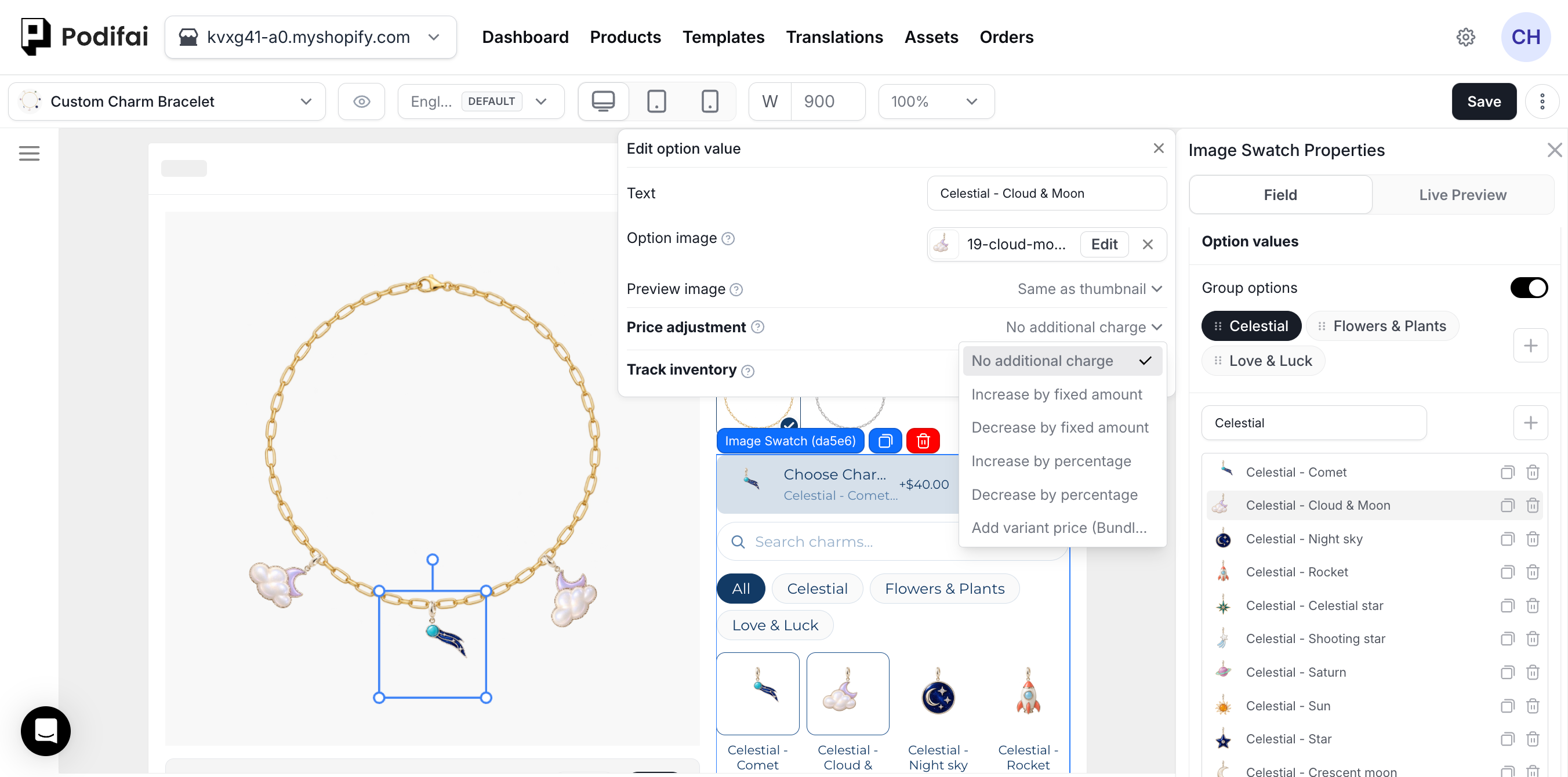
Dynamic Pricing lets customization choices change the product price. Open the option value or field's Price adjustment control to choose the pricing method.
You can leave a choice unchanged, increase or decrease it by a fixed amount, increase or decrease it by a percentage, or use Add variant price when a value should follow pricing from Shopify.
Price Adjustment Modes
The Price adjustment control supports these methods:
- No additional charge — The option value does not add anything to the base product price.
- Increase by fixed amount — Add a fixed amount when the value is selected.
- Decrease by fixed amount — Subtract a fixed amount when the value is selected.
- Increase by percentage — Add a percentage of the product's current effective price.
- Decrease by percentage — Discount a percentage of the product's current effective price.
- Add variant price — Podifai adds the current price of a linked Shopify product or variant.
Where Price Adjustments Apply
Pricing can be added in two places:
- Option values — Image Swatch, Color Swatch, Font Swatch, Dropdown, Badge Group, and Checkbox values can each have their own price adjustment.
- Input and upload fields — Text Input, Text Area, and Image Upload can also use fixed or percentage increases and decreases. Add variant price (Bundle variant) is not currently supported for these fields.
For Image Upload, the add-on applies once per upload option when the customer uses that upload field.
Fixed Amount Adjustments
Use a fixed increase when the option always adds the same amount, such as +$5 for engraving, +$12 for gift wrapping, or +$20 for premium material. Use a fixed decrease when a selection should subtract the same amount from the product price. The resolved adjustment appears in the storefront customizer and is included in the configured price when the order is placed.
Add a fixed surcharge
Fixed surcharge on the storefront
Add Variant Price
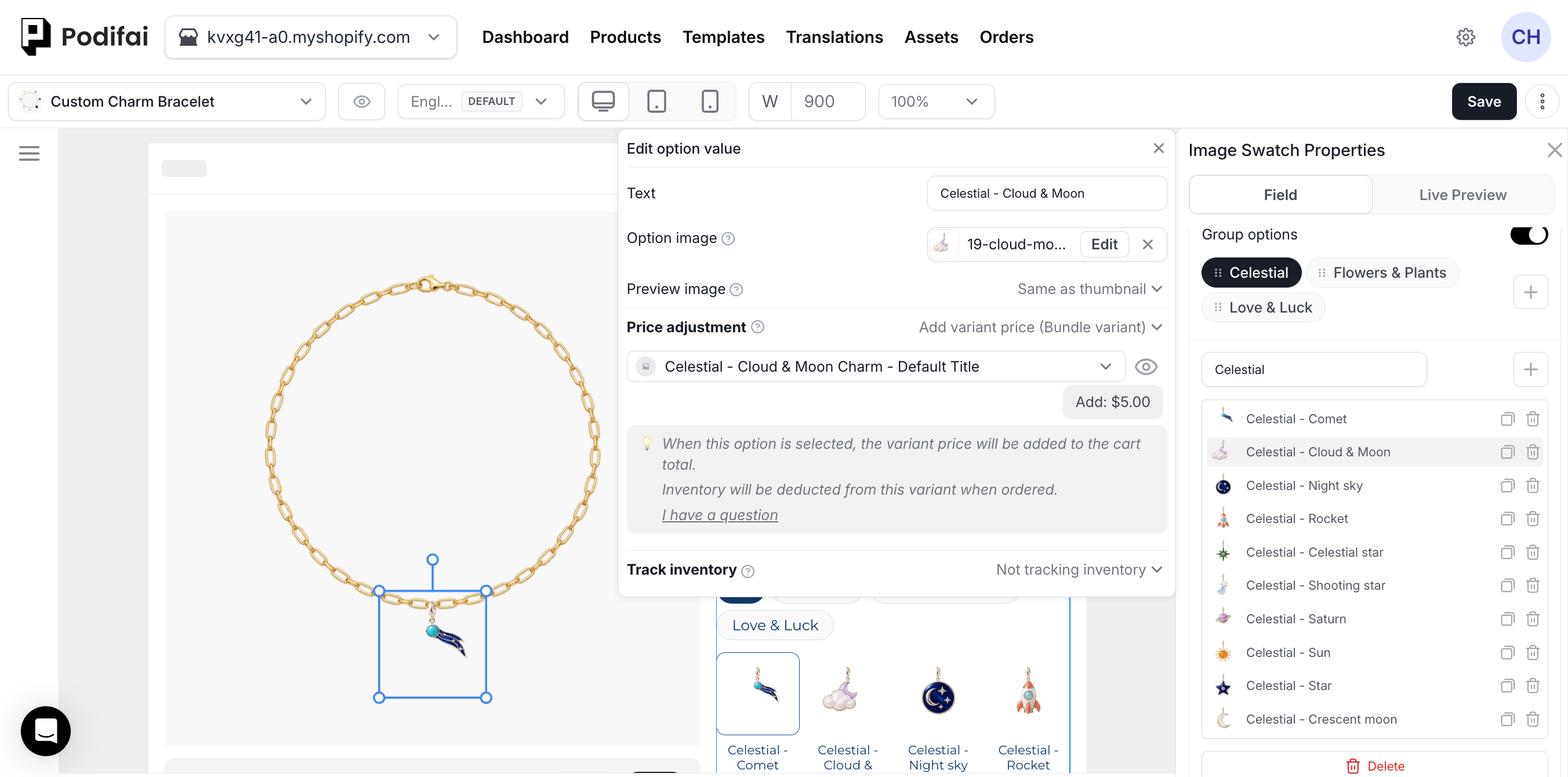
Use Add variant price when the option value should follow pricing from Shopify. You can select a product directly, or select any variant under a product that has variants. If the Shopify product has only one purchasable item, Podifai links to that single item.
After a Shopify item is linked, Podifai uses the item's current Shopify price as the additional charge. When a merchant changes that product or variant price in Shopify admin, the additional charge shown by Podifai updates automatically without editing the customizer again.
Setup
- Select the option value, or select the Text Input, Text Area, or Image Upload field you want to price.
- Open Price adjustment.
- Choose no adjustment, a fixed increase or decrease, a percentage increase or decrease, or Add variant price.
- For a fixed adjustment, enter the amount. For a percentage adjustment, enter the percentage.
- For Add variant price, select the Shopify product or variant to link.
- Confirm the selection if you used the variant picker, then click Save in the editor.
- Open the storefront and test the resolved increase or discount for the selected value or used field.
How Pricing Works
Every selected option value creates its own adjustment from the product's current effective base price. When a customer selects multiple priced options, Podifai sums all increases and decreases.
- No additional charge — Adds $0.
- Fixed increase or decrease — Adds or subtracts the amount saved in Podifai.
- Percentage increase or decrease — Adds or subtracts a percentage of the same effective base price.
- Add variant price — Adds the current Shopify price of the linked product or variant.
With Allow quantity per option off, each selected value can contribute its own increase or decrease once. For example, if a customer selects three different paid charms from one Image Swatch, Podifai applies the price adjustment for each selected charm.
For repeated units, enable Allow quantity per option. A fixed $4 increase contributes $8 for two units of that option. Compare the selected units and total through cart and checkout; this feature does not set different unit prices at different volume tiers.
A Decimal Price Changes After Saving
Reopen the option's Price adjustment after saving. If an amount such as 1.25 shows as 1, contact support with the product URL and option name. A changed saved amount is separate from Shopify Markets currency conversion or storefront rounding. If the saved amount is correct, compare the selected variant, market currency, other active adjustments, cart, and checkout using the pricing verification steps.
When the Linked Variant Is Unavailable
If the linked Shopify variant is deleted, the Podifai option value remains and its variant-price link falls back to No additional charge. Select a replacement variant if the option should still add a variant price. Variant availability is checked for both add-on price links and inventory links; an out-of-stock variant makes the linked option unavailable for selection.
Product status and publication are checked when you select the linked variant. If an add-on product is later set to Draft or unpublished, Add to Cart shows a cart error.
When the add-on is included as a Shopify variant line, Shopify checks its required quantity at Add to Cart. With inventory tracking enabled and Continue selling when out of stock turned off, insufficient stock returns a cart error. Linked inventory also validates total component demand on the product page. Check cart quantity edits, checkout, and the actual stock deduction separately. See required quantity checks.
See Linked Inventory & Add-on Pricing for bundle variant setup, current cart line behavior, availability limitations, and ERP reporting.
Pricing & Inventory Independence
Pricing and inventory stay independent when they do not need to use the same Shopify variant. For example, one option value can use a fixed surcharge without tracking stock, while another can track inventory through a linked Shopify variant without adding a price adjustment.
- A color option can have a surcharge without tracking inventory.
- A charm option can track inventory via variant linking without changing the price.
- When the same variant is used for Add variant price and linked inventory, stock can be deducted twice if Shopify also deducts it through an order line.
Set Podifai Track inventory to Not tracking inventory for a variant whose stock Shopify already handles through its order line. Keep stock tracking enabled in Shopify if you need it there.
Currency Formatting
The Podifai editor shows a dollar symbol regardless of your store currency. On the live storefront and at checkout, price add-ons follow the currency context that Shopify provides for the customer.
For single-currency stores, add-on prices display in the store currency. If your store uses Shopify Markets, add-on prices follow the customer's active market currency and Shopify's market pricing setup. Depending on how the market is configured, Shopify can use automatic exchange rates, manual exchange rates, rounding rules, price adjustments, or fixed international prices. This means the displayed add-on amount is not always a simple real-time exchange-rate conversion.
Podifai does not use third-party currency converter apps as its source of exchange rates. Some third-party apps only change how prices look on the storefront, while Shopify checkout may still use the store's default currency or the Shopify Markets currency. If your store uses a third-party currency app, test the product page, cart, and checkout for each active market.
Shopify references: Pricing in local currencies, Currency conversions and exchange rates, and Testing your multiple currency setup.
Percentage Price Adjustments
Percentage price increases and discounts are available for selectable values, Text Input, Text Area, and Image Upload. Podifai uses the product's current effective price as the percentage base. If the product is on sale in Shopify, this means the sale price, not the compare-at price.
Percentage adjustments are never compounded. Every selected percentage is calculated from the same base, and the resulting amounts are added together. For example, on a $100 product, +10% and −5% resolve to +$10 and −$5, producing a $105 configured price. If the Shopify base price is $0, a percentage adjustment also resolves to $0; use a fixed amount or a non-zero Shopify base price for that setup.
Collection Product Cards and Starting Prices
Collection cards can automatically display the minimum customization price after a small Liquid theme code change. The wording can be changed to "Starting at". Contact Podifai Support for free assistance with this change.
This shows the minimum customization price, not a shopper-specific configured total. Podifai custom option swatches are not supported on collection cards; those cards can display Shopify variant swatches. The customizer itself remains on the product page.
Loyalty, Rewards, and Other Third-Party Apps
Some third-party storefront apps read only the Shopify product's base price and do not automatically detect Podifai's real-time add-on price. This can affect product-page points badges, rewards estimates, upsells, or other price-based widgets.
- Check whether the third-party app can read the current or real-time price, including add-ons.
- Place a test order and confirm the final cart, checkout, and paid order totals.
- Check whether rewards or points are calculated from the final paid total even if the product-page badge is different.
- Contact the third-party app's support team for its integration-specific settings.
Compare the Configured Price Through Checkout
- Start with the selected Shopify base variant and note its current price.
- Select one priced option at a time, then combine them. For percentage rules, use the same effective base for each calculation.
- For text or upload fields, compare the unused field with a completed field. For conditional options, also test changing the parent choice after entering a value.
- Compare the configured price on the product page, in the cart, and at checkout. Account for discounts, taxes, shipping, and market currency when comparing totals.
- Place a test order and inspect both the charged amount and the actual order lines, especially when Add variant price is combined with other adjustments.
If the add-on's order line or stock change differs from your expectation, follow Bundle Lines with Other Price Adjustments. Pricing and stock links should be checked separately.
FAQ
Which options support Price adjustment?
Price adjustment is available for predefined values such as swatches, dropdowns, badges, checkboxes, and fonts, and for customer-entry fields such as Text Input, Text Area, and Image Upload. Those text and upload fields support fixed or percentage adjustments, but not Add variant price (Bundle variant).
Can each selected value add its own price?
Yes. With per-option quantity off, each selected value contributes its configured adjustment once. With Allow quantity per option enabled, a fixed increase scales with the selected units of that value: two units at $4 add $8. This is separate from volume-tier discounts.
How does Image Upload pricing work?
Image Upload can use the available Price adjustment methods, including fixed or percentage increases and decreases. The adjustment applies once per upload option when the customer uses that upload field.
How does currency work for price add-ons?
On the live storefront and at checkout, price add-ons follow the currency context Shopify provides for the customer. For Shopify Markets, the displayed amount depends on the market pricing setup, not always a simple real-time exchange-rate conversion.
Can an option increase or decrease the product price by a percentage?
Yes. Choose Increase by percentage or Decrease by percentage. Podifai calculates each percentage from the product's current effective price, after any Shopify sale price and not from compare-at price. Multiple percentage adjustments use the same base and are added together rather than compounded.
Why does a loyalty or third-party app read only the base product price?
Some third-party apps read only Shopify's base product price. Check whether the app can read the current real-time price including add-ons, test the final cart and checkout total, and contact the third-party app's support team for integration-specific settings.
Can I use different option prices for different order quantities?
Not currently. Podifai does not support volume-tier option pricing, such as one logo-placement price for 12 items and another price for 200 items. Option price adjustments use the configured fixed or percentage rule regardless of the product quantity.