
Conditional Logic
Show or hide custom options based on Shopify variants or other choices. Configure Contains any or Contains none rules and combine conditions with All or Any.
Last updated: 2026-11-06
Conditional Logic lets you show or hide Podifai custom options based on Shopify variants or earlier customer selections. Use it to create cleaner Shopify product pages and guide shoppers through only the personalization fields that apply.
Overview
Conditional Logic lets you show or hide option types based on what the customer has already selected. Every option still lives on one customization surface — Conditional Logic keeps that surface short by revealing only the fields that apply to the choices already made. It is not a multi-step configurator: shoppers are not moved through separate stages.
Preview Conditional Logic on the storefront
Save the rules, then open the product page. Choose matching and non-matching values to check when the dependent option appears. Test each condition separately when a rule uses All or Any.
How It Works
- Select the option you want to conditionally show/hide.
- Open its Field settings and turn on Condition.
- Choose All or Any in “Show this when … conditions are met”.
- Choose a condition source, an operator, and one or more matching values. Use Add Condition for another rule.
Example: Show Engraving Text After Yes
- Add a Badge Group labeled Add engraving? with Yes and No values.
- Add a Text Input labeled Engraving text.
- Select the Text Input and turn on Condition in its Field settings.
- Add a condition referencing Add engraving?, choose Contains any, and check the Yes value.
- Save, then test Yes and No on the storefront.
Put the rule on the dependent Text Input. Configure its character limit, preview placement, and any engraving charge separately; the visibility rule does not define those settings.
Set up Conditional Logic on an option
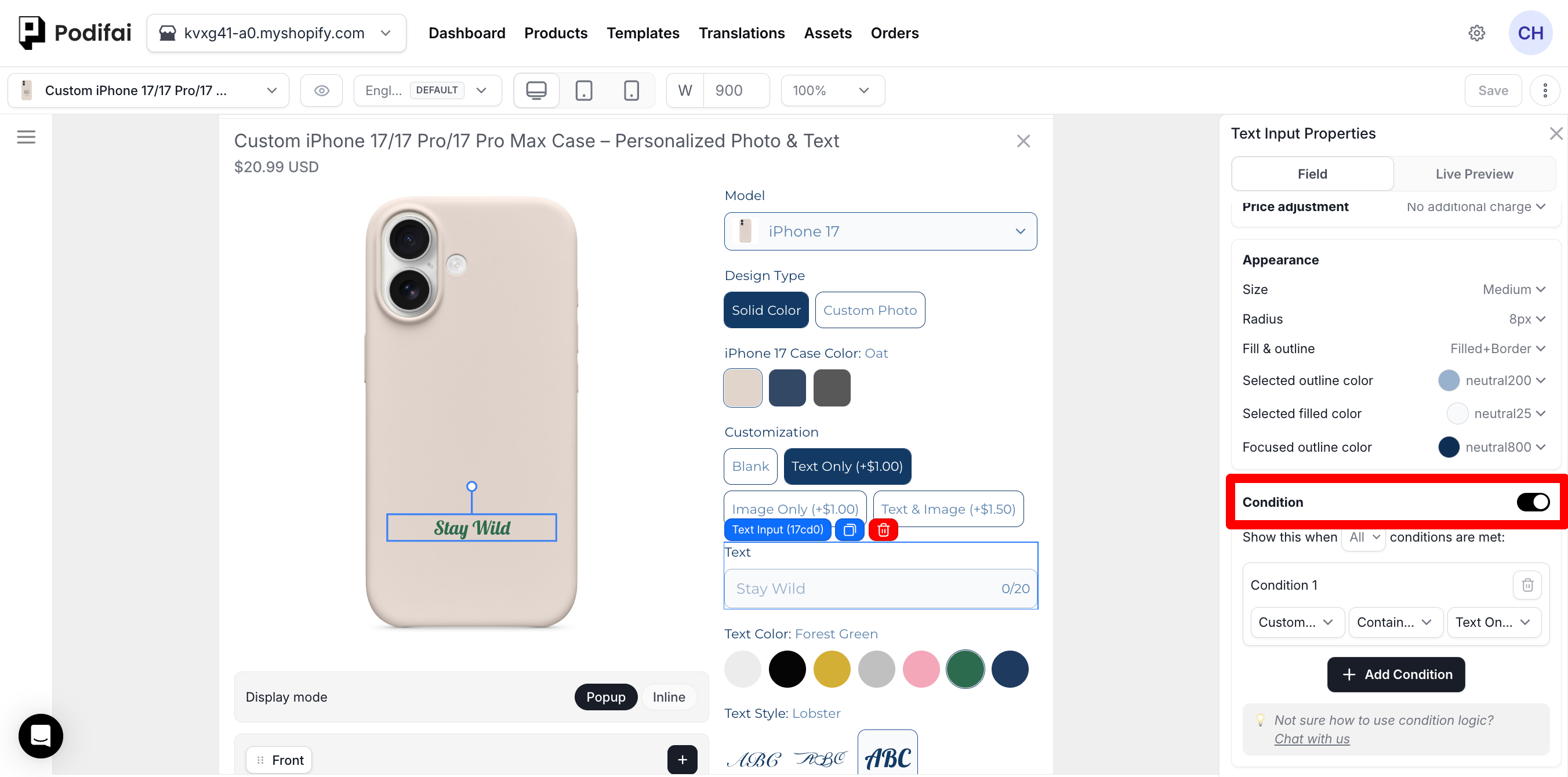
Logic Operators
- ALL (AND) — Every condition must be true to show the option
- ANY (OR) — At least one condition must be true to show the option
Example: Require Both a Model and a Design Type
In this phone case example, the Upload Image option uses All to combine two conditions: Model must include iPhone 17, and Design Type must include Custom Photo. Both must match for this upload field to appear.
- Select the Image Upload option and turn on Condition in its Field settings.
- Choose All in “Show this when … conditions are met”.
- For Condition 1, choose Model, then Contains any, and check iPhone 17.
- Click Add Condition.
- For Condition 2, choose Design Type, then Contains any, and check Custom Photo.
- Save, then test changing Model and Design Type separately on the storefront.
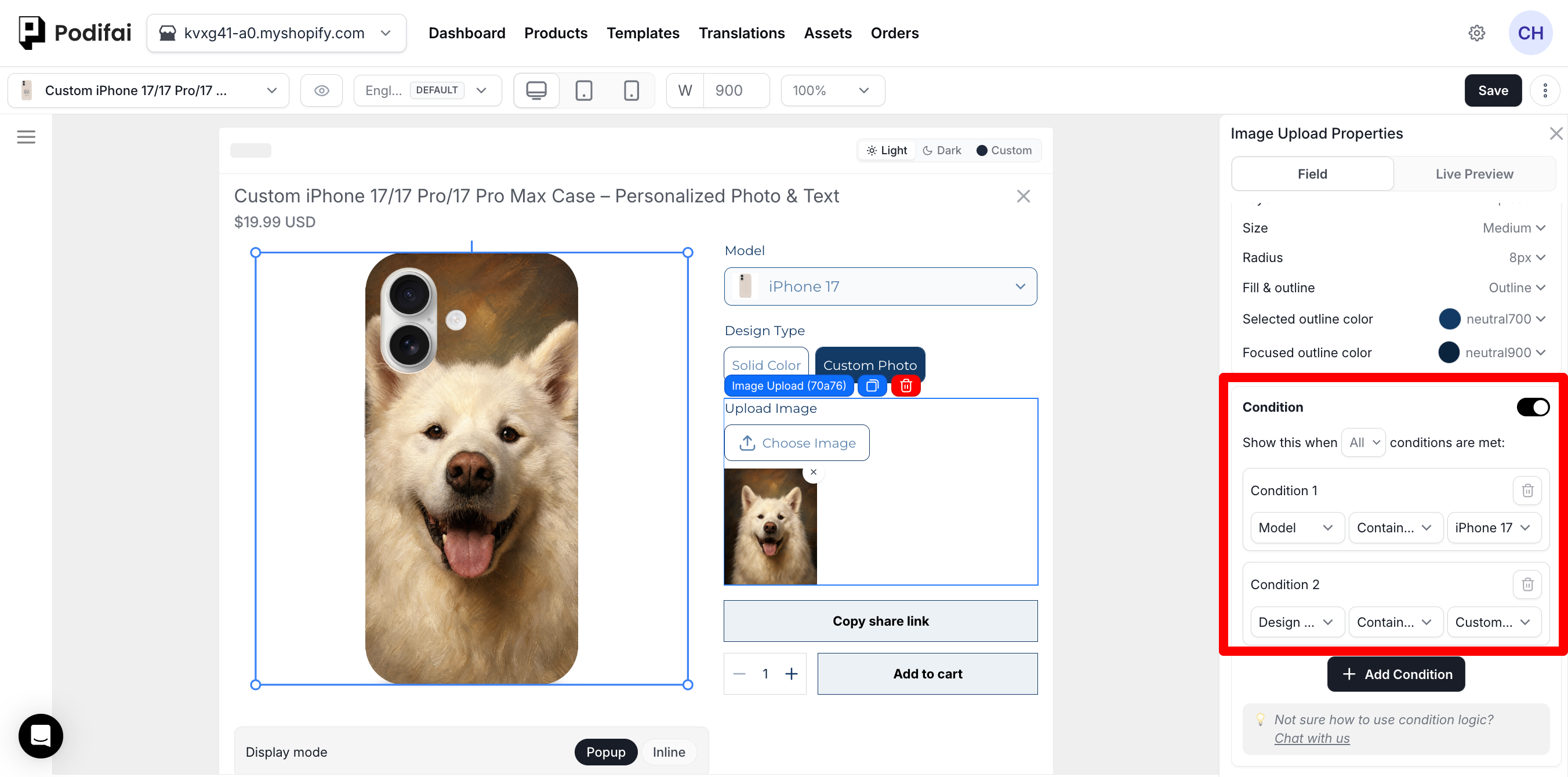
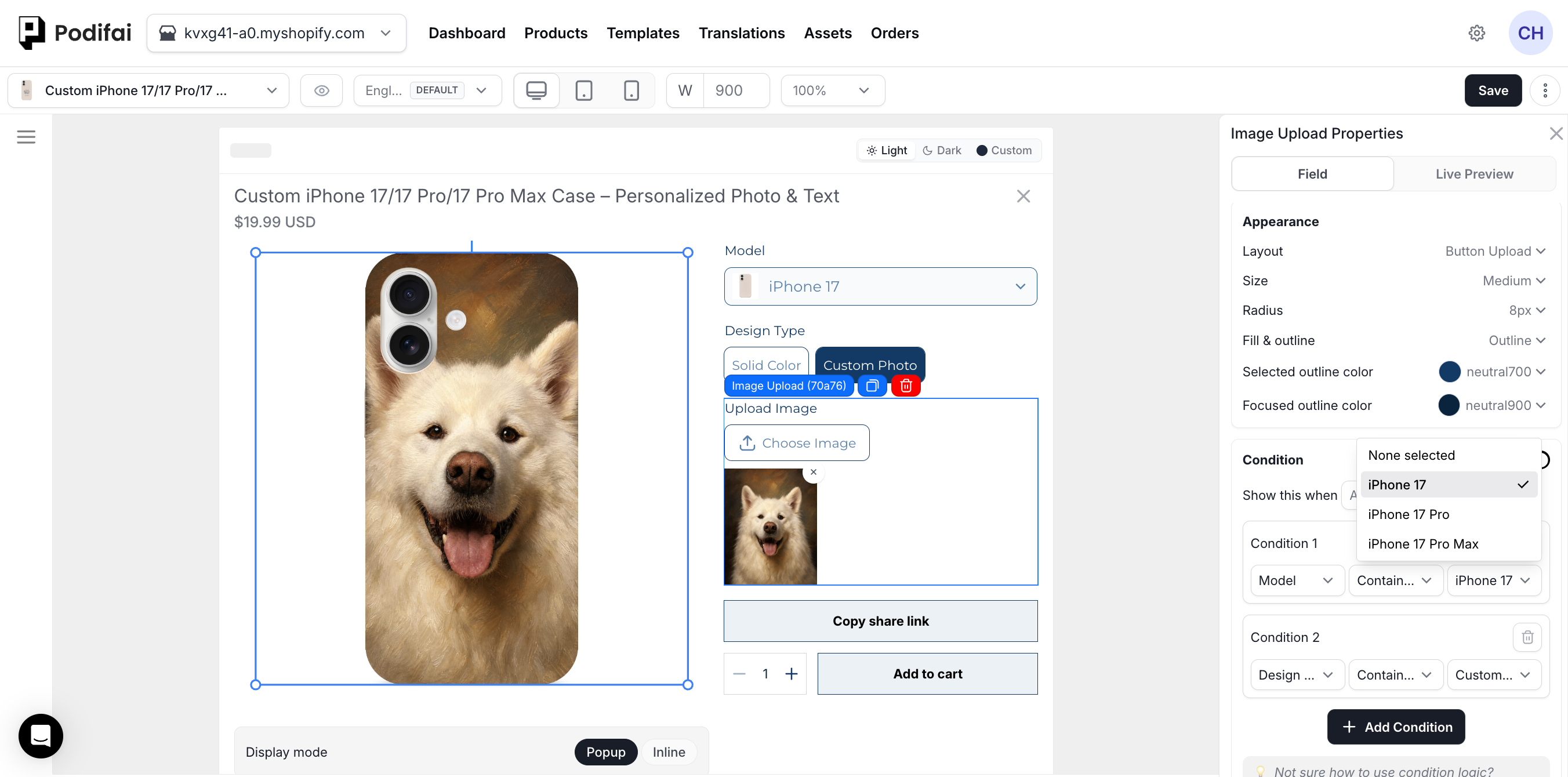
Use these expected states when testing this rule:
| Model | Design Type | This upload field |
|---|---|---|
| iPhone 17 | Custom Photo | Shown: both conditions match |
| iPhone 17 | Solid Color | Hidden: the design condition does not match |
| iPhone 17 Pro or iPhone 17 Pro Max | Custom Photo | Hidden: the model condition does not match |
These rules belong to this Image Upload option. If another model has its own upload option, configure that option separately and check which field appears for each model.
Use Any When Either Condition Can Show the Option
Select the option you want to show or hide, open its Field settings, and enable Condition. In “Show this when … conditions are met”, choose Anywhen a match in any one condition row should show the option. With two conditions, either row can match on its own; if neither matches, the option stays hidden. Use All when both conditions must match.
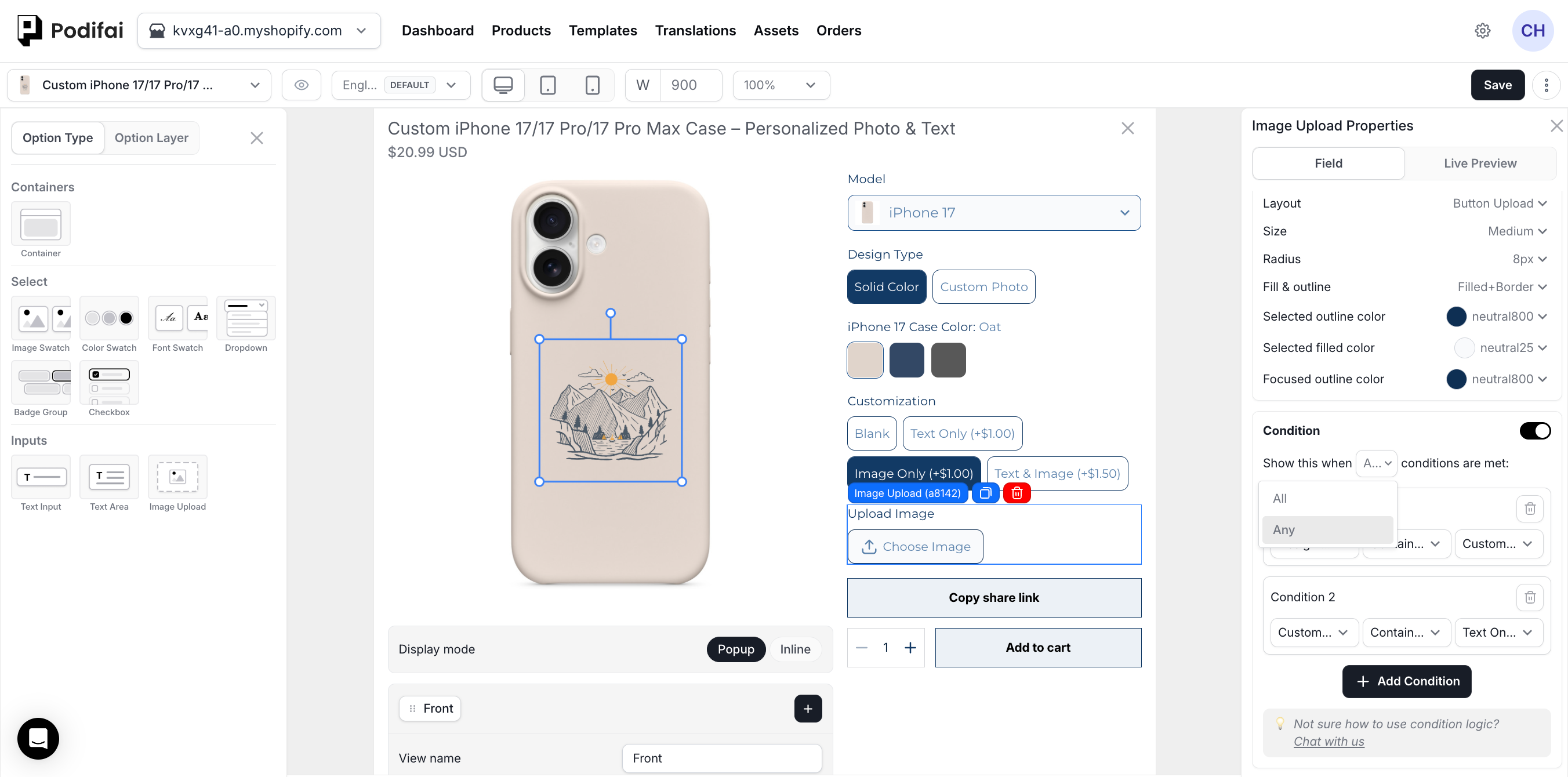
This Any setting combines condition rows. Contains any and Contains none are separate operators inside each row, as explained below.
Condition Rules
For the illustrated custom-option and Shopify-variant sources, choose an operator and check the values to match:
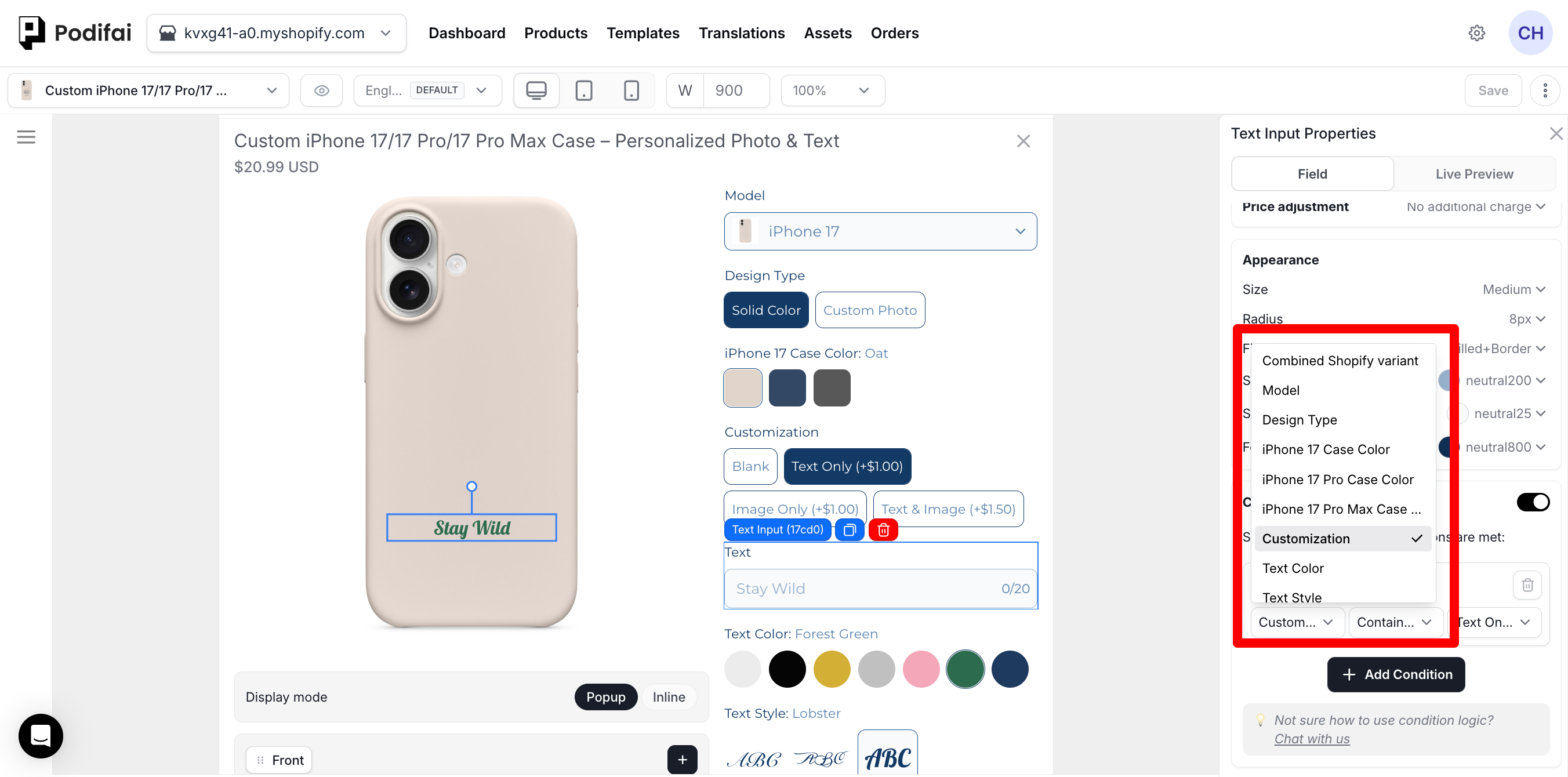
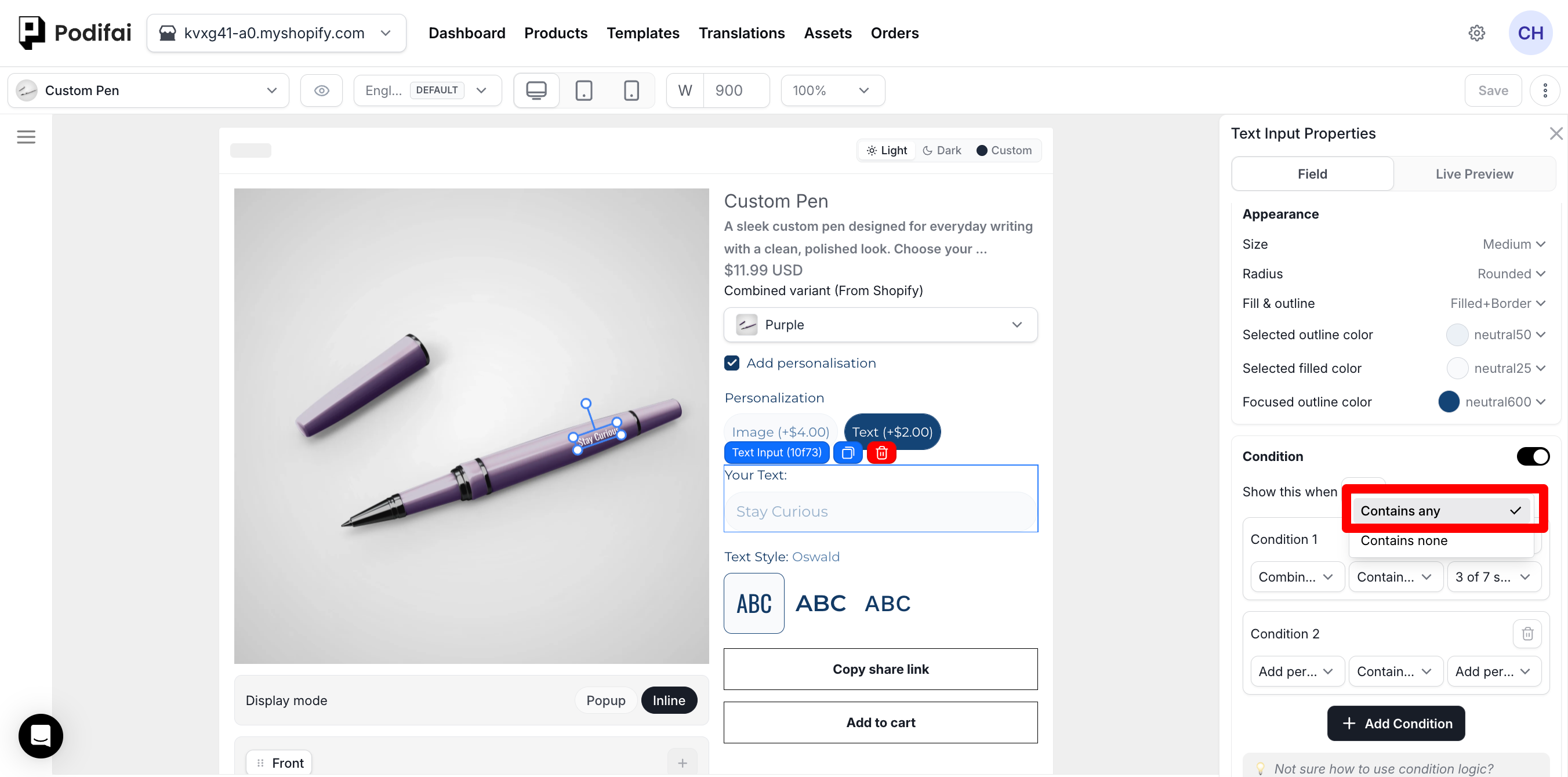
- Contains any — The condition matches when the source selection includes at least one checked value.
- Contains none — The condition matches when the source selection includes none of the checked values.
Use None selected to check the source's unselected state. This is a special value; an option named Blank is an ordinary configured choice.
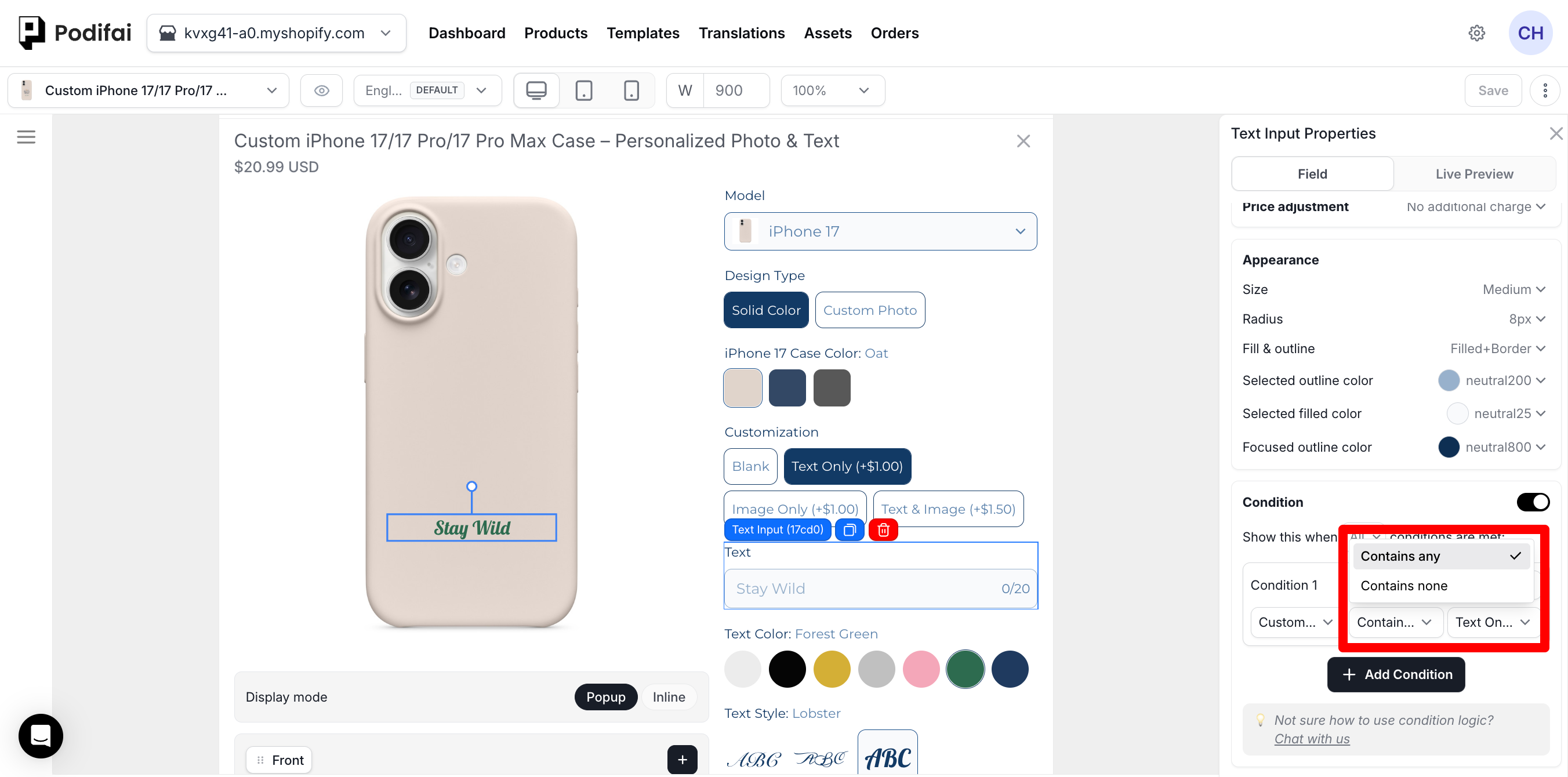
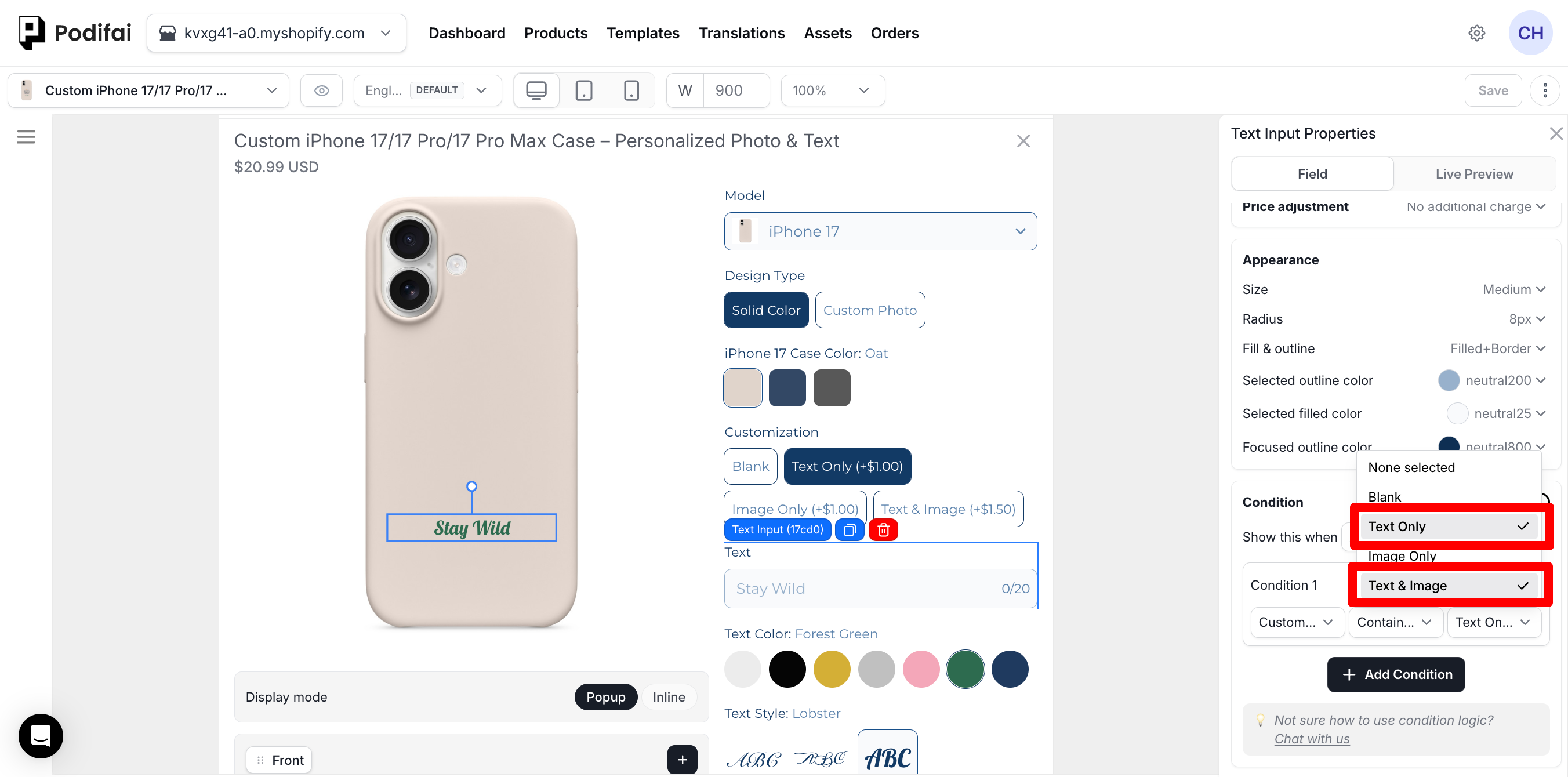
All / Any combines separate condition rows. Contains any / Contains nonecompares values within one row. Checking two values in a Contains any rule does not require the shopper to select both values.
Show Options for Selected Shopify Variants
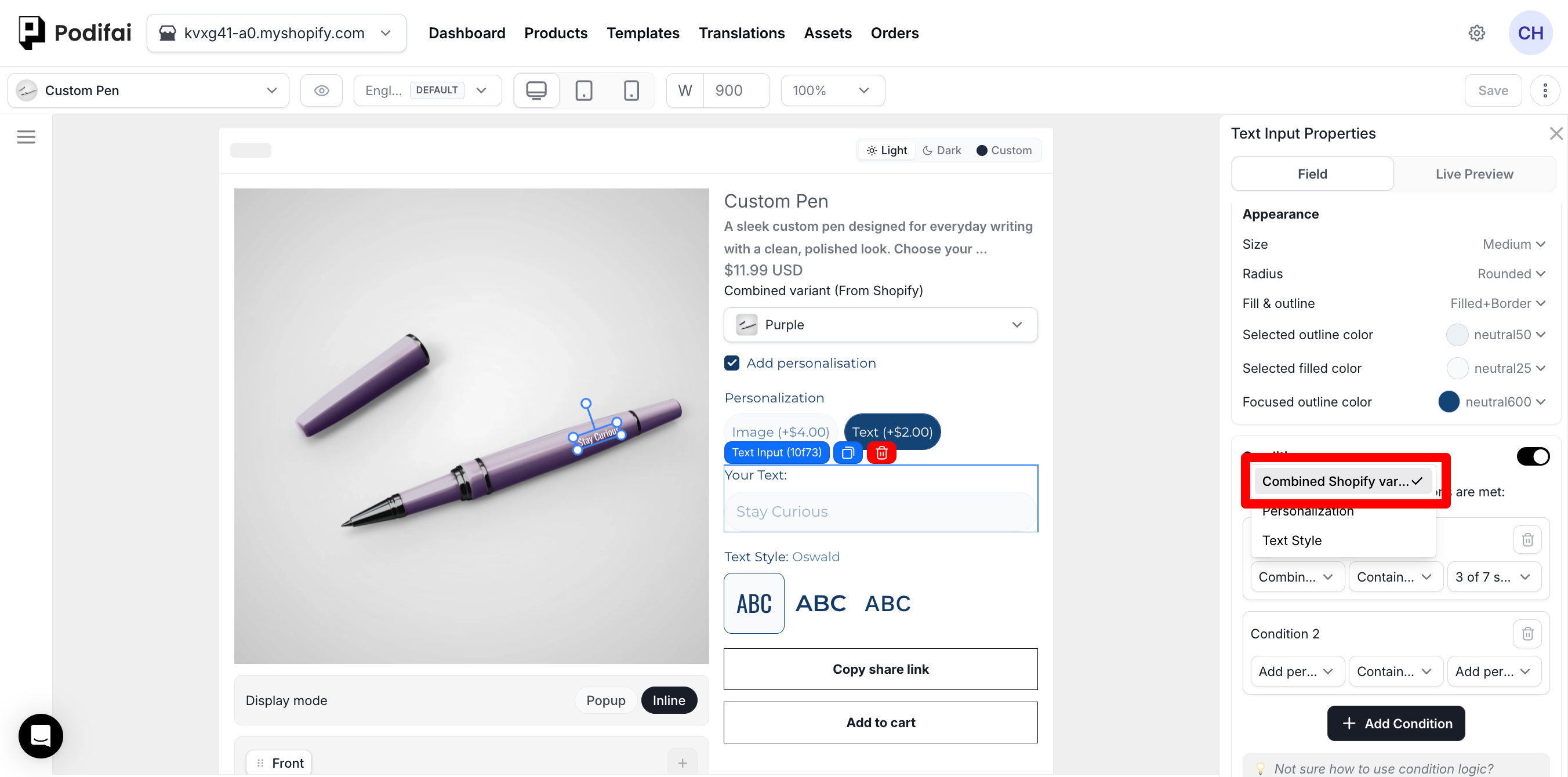
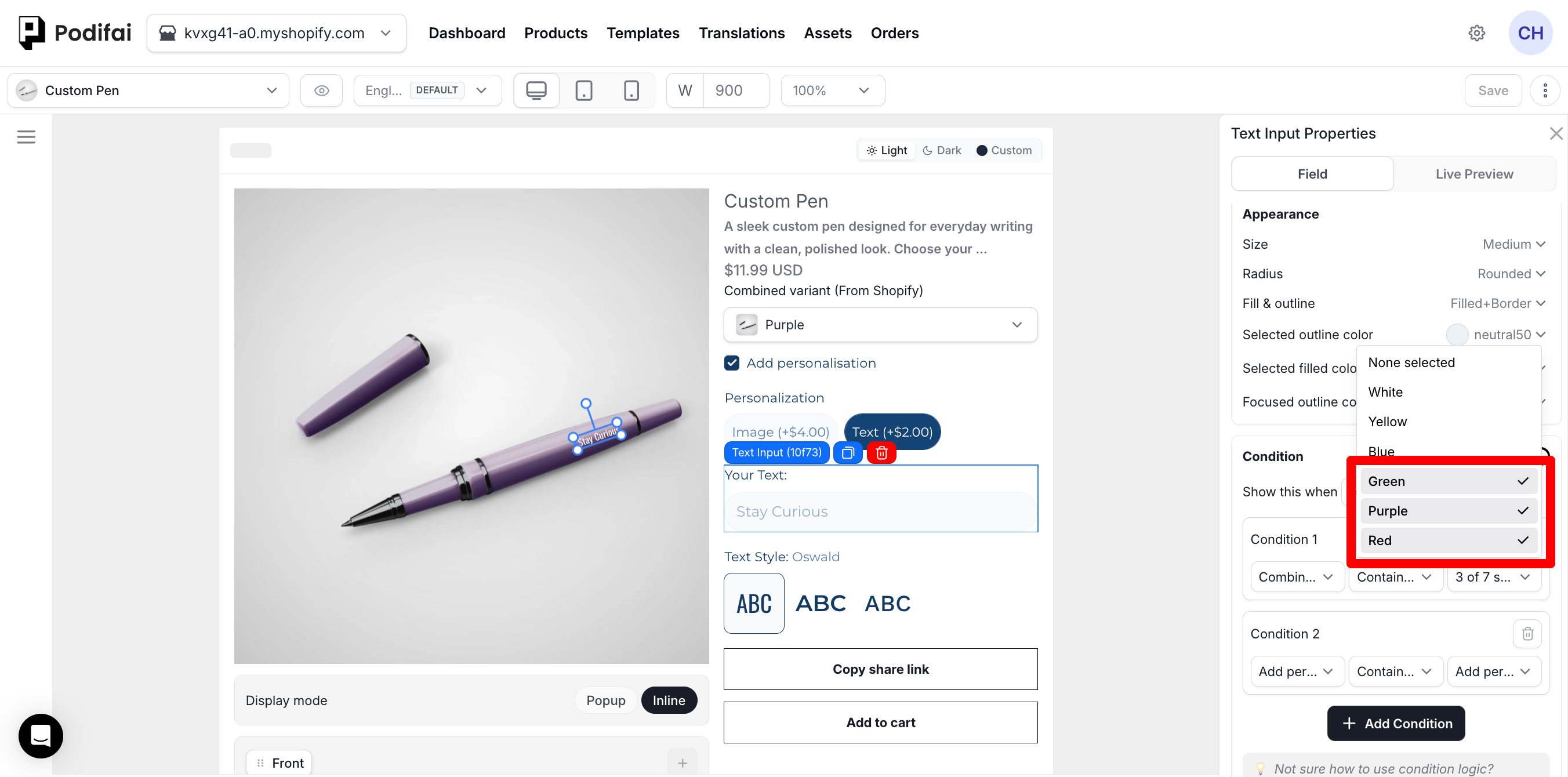
Use Combined Shopify variant as the condition source when an option should appear only for particular variants of the product. In this Custom Pen example, one Text Input is configured for Green, Purple, and Red; a separate Text Input is configured for White, Yellow, and Blue.
- Select the custom option you want to show or hide.
- In Field settings, turn on Condition.
- Choose Combined Shopify variant in the condition source menu.
- Choose Contains any.
- Open the matching-values menu and check the variants that should show this option. You can select several variants in one rule.
- Save, then test matching and non-matching variants on the storefront.
Combine a Variant Rule with Another Choice
To require both an eligible variant and the shopper's agreement to personalize, choose All. Keep the variant rule as Condition 1, then use Add Condition to add Condition 2: source Add personalisation, operator Contains any, matching value Add personalisation. With this setup, the text field should appear only when both conditions match. Test switching the variant and checking or clearing Add personalisation separately.
Use Separate Fields for Different Variant Groups
Create a separate Text Input when another variant group needs its own text settings or preview placement. Configure its variant rule independently. The second Text Input below has White, Yellow, and Blue checked. Set each field's font, text color, and preview position separately; the visibility rule only controls when the field appears. Add the same personalization condition to each field if both should require it.
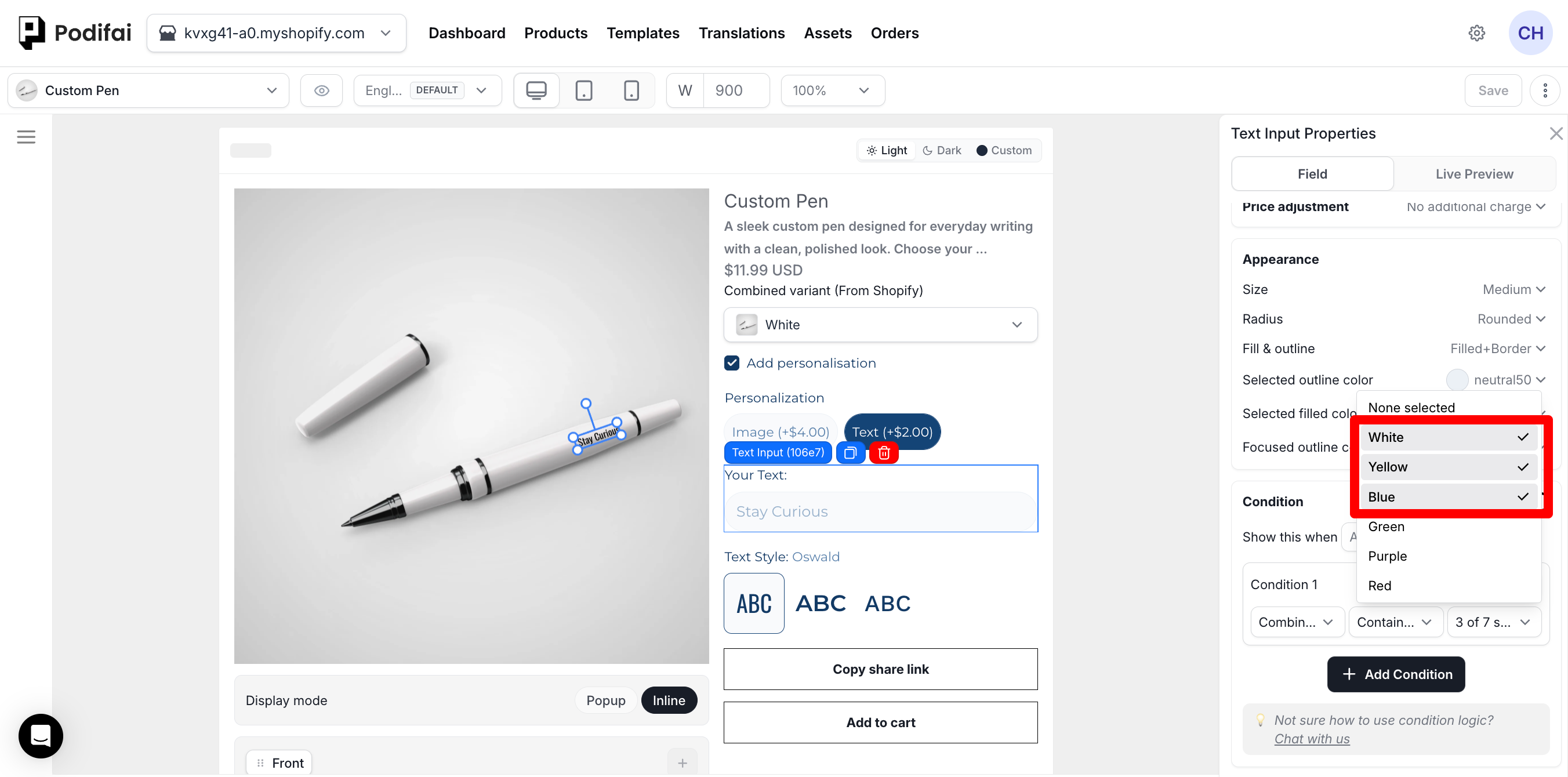
Check the field, preview, price, and submitted customization after changing variants. A visibility rule does not by itself establish whether earlier values or charges are cleared. See Shopify Variants vs Podifai Optionsfor the difference between the purchased Shopify variant and custom option values.
Dependency Chains
Conditions can reference options that are themselves conditional. This creates dependency chains — for example, Option C depends on Option B, which depends on Option A. Podifai evaluates these chains automatically up to three levels deep.
Examples
- Show "Engraving Font" only when "Add Engraving" badge is selected
- Show "Upload Logo" only when "Custom Print" option is chosen
- Show "Gift Message" when "Recipient" Contains none of "For Myself"
- Show "Thread Color" when "Material" Contains none of "None selected" (the shopper has picked something)
Let Shoppers Choose a Fixed Personalization Position
Use separate preview layers when shoppers should choose from fixed positions such as Top, Center, or Bottom:
- Create a Badge Group with Top, Center, and Bottom values.
- Create a separate Text Input, Image Upload, or visual option for each position.
- Place each option's Live Preview layer in its corresponding fixed position.
- Add Conditional Logic to each position option.
- Show the matching position option for each Badge Group value.
Example: Switch Between Plain and Personalized
In the hoodie demo, choose Text to display the text input. Enter a short value, then switch back to Plain and confirm that the dependent input disappears.
| Demo selection | Expected field | Example total |
|---|---|---|
| Plain | No personalization text input | $35 |
| Text (+$2) | Personalization text input appears | $37 |
| Return to Plain | Text input is hidden again | $35 |
These prices describe the tested Demo configuration. The visibility rule and the selected value's price adjustment are separate settings. When a field is hidden by its condition, its value and its price adjustment are not added to the cart, and a hidden required field does not block Add to Cart.
Verify Every Conditional Path
First identify what should disappear: an option field, a preview artwork layer, or a fixed guide such as a number on the product image. Conditional Logic shows or hides configured custom options; it does not automatically detect the most recently selected artwork or control numbers baked into a background. When a field is hidden, its value and price adjustment are not added to the cart. A request to keep all choices selected but show only the latest artwork needs its own preview behavior check.
- Test the initial page state, including any defaults or unselected parent options.
- Choose a matching parent value and confirm that the dependent field appears; choose a non-matching value and confirm it is hidden.
- Fill the dependent field, switch the parent choice away and back, then review the field, preview, charges, and submitted customization.
- For ALL, test each condition failing individually. For ANY, test each condition matching individually and all conditions failing.
- If a dependent field is required, confirm that Add to Cart is blocked while the field is visible and empty, and allowed once the field is hidden.
If a field appears unexpectedly, check the rule on that field, the referenced option and value, the Contains any or Contains none operator, and the ALL or ANY setting. Simplify dependency chains when isolating a problem. Finish with the order verification checklist.
FAQ
Why does a whole option group disappear on the storefront?
On the storefront, a group is hidden when it has nothing to show: either it has no options, or all its options are hidden by conditions. It appears again when a condition shows one of its options. In the editor, groups always stay visible so you can edit them. An empty group shows Add option, and a group whose options are all conditionally hidden says so.
Can a Shopify variant control which custom options appear?
Yes. Enable Condition on the custom option, choose Combined Shopify variant as the source, select Contains any, and check the variants that should show the option. You can select several variants in one condition and combine it with conditions on other custom options.
What does Conditional Logic do in Podifai?
Conditional Logic shows or hides one custom option based on a Shopify variant or another custom option's selected value, so shoppers only see fields that apply to their choices.
What is the difference between ALL and ANY conditions?
ALL means every condition must match before the option appears. ANY means the option appears when at least one condition matches.
Can I show an option when another option is not selected?
Yes. Use the None selected value when you need to check whether a shopper has not made a selection yet.
Can conditional options depend on other conditional options?
Yes. Podifai supports dependency chains where a conditional option depends on another conditional option, evaluated automatically up to three levels deep.
What are common uses for Conditional Logic?
Common uses include showing engraving fields only when Add Engraving is selected, showing upload fields only for custom print choices, and hiding irrelevant options after a shopper chooses a product style.
Can shoppers choose between several fixed personalization positions?
Yes. Create a Badge Group with choices such as Top, Center, and Bottom, create one text or image option for each fixed preview position, then use Conditional Logic so only the option matching the shopper's position choice appears.
Can a Native Shopify Variant Control Option Visibility?
Yes. Conditional Logic supports Shopify variants as a condition source. For example, show a silver pendant option only when the shopper selects the Silver Shopify variant.
Follow the steps in Show Options for Selected Shopify Variants, choosing the Shopify variant that should show the option, such as Silver.
When the shopper changes the Shopify variant, each conditional custom option follows its configured rules. Options whose show conditions no longer match are hidden; options whose conditions match are shown. For example, a Silver-only option is hidden after switching to Gold.
Check the dependent option, preview, price, and saved order after switching variants. A visibility rule alone should not be treated as confirmation that an earlier selection or charge has been cleared.
You can use a Podifai choice such as a Color Swatch as the parent for conditional options. That choice is personalization data, not a replacement for the Shopify variant that controls the purchased SKU. Choosing Variant image as the preview background only changes the background; linking inventory or price serves a separate purpose.
See Shopify Variants vs Podifai Options before choosing the setup for your product.