
Storefront Image Editor
Enable shopper editing for Image Upload and choose allowed controls, including repositioning, scaling, rotation, opacity, and grayscale.
Last updated: 2026-11-06
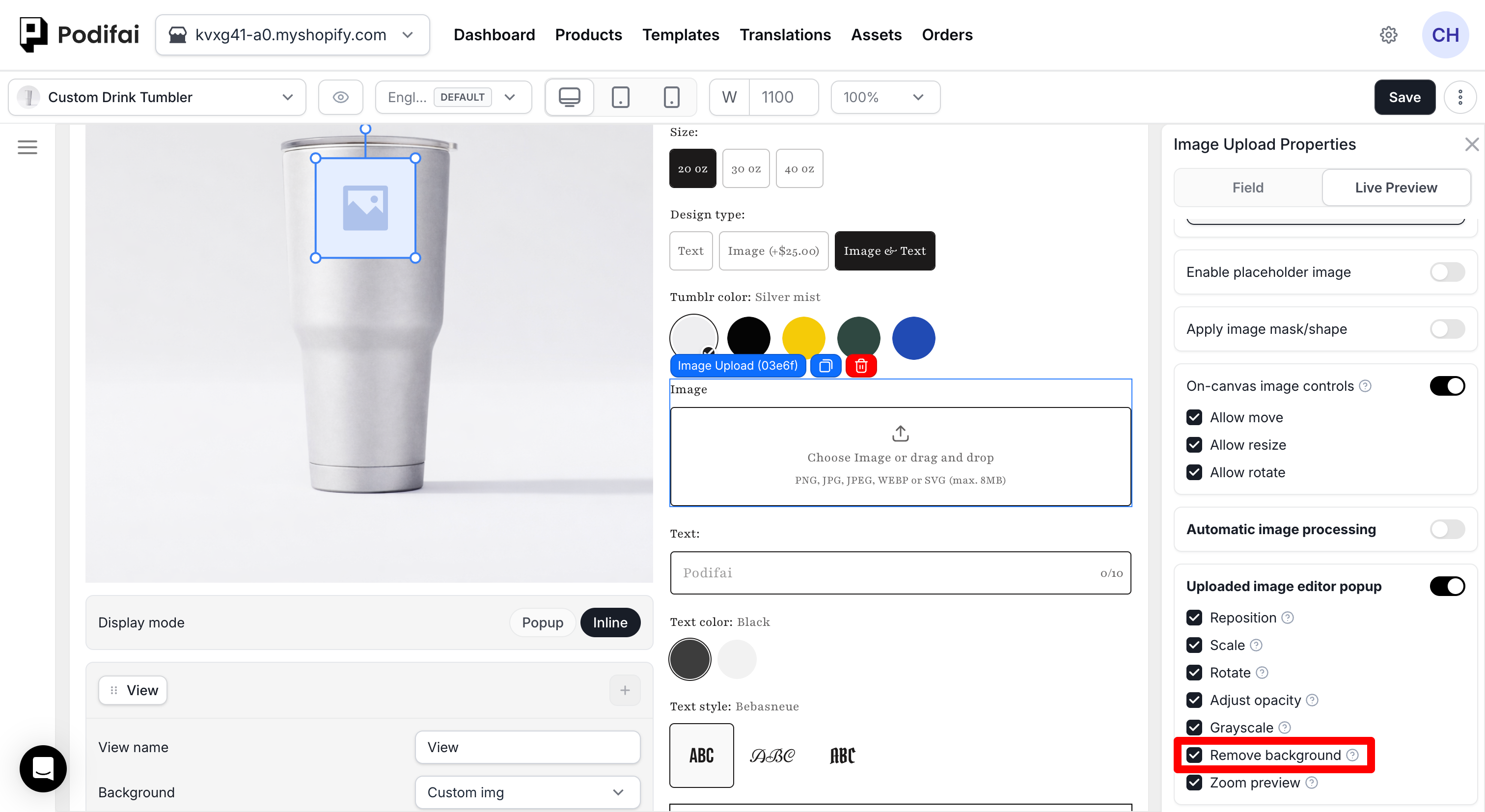
Enable Uploaded image editor popup on an Image Upload option to let shoppers adjust their uploaded image in Live Preview. Merchants choose whether to allow Reposition, Scale, Rotate, Adjust opacity, Grayscale, Remove background, and Zoom preview.
Enable the Storefront Editor
What this shows
- Open the product customizer in Podifai.
- Select the Image Upload option and open Image Upload Properties > Live Preview.
- Enable Live customizer, then turn on Uploaded image editor popup in the same tab.
- Select the shopper tools that should be available for this upload field.
- Save the customizer and open the product page in a new storefront session.
- Upload test images and verify every enabled tool on desktop and mobile.
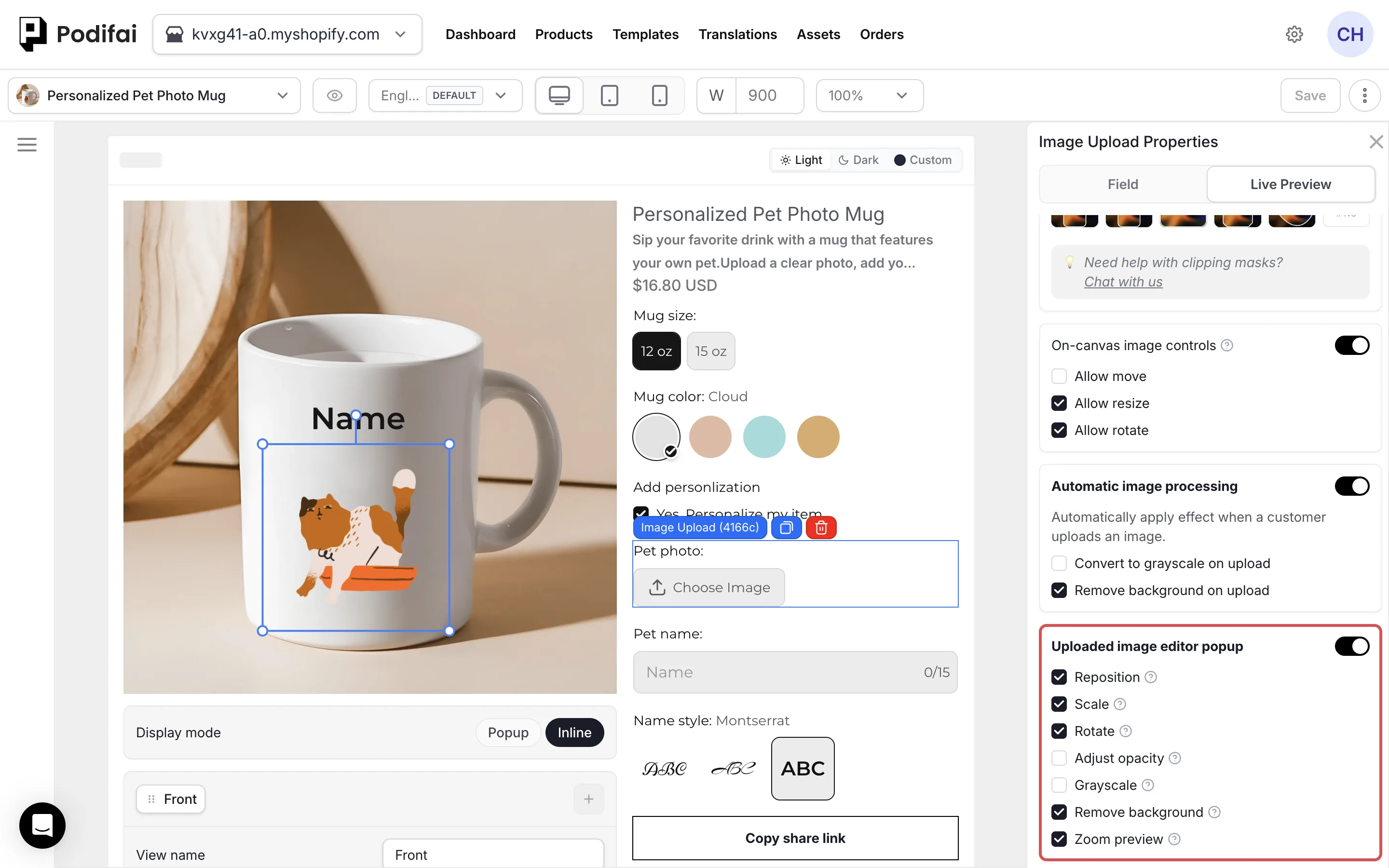
Automatic Image Processing
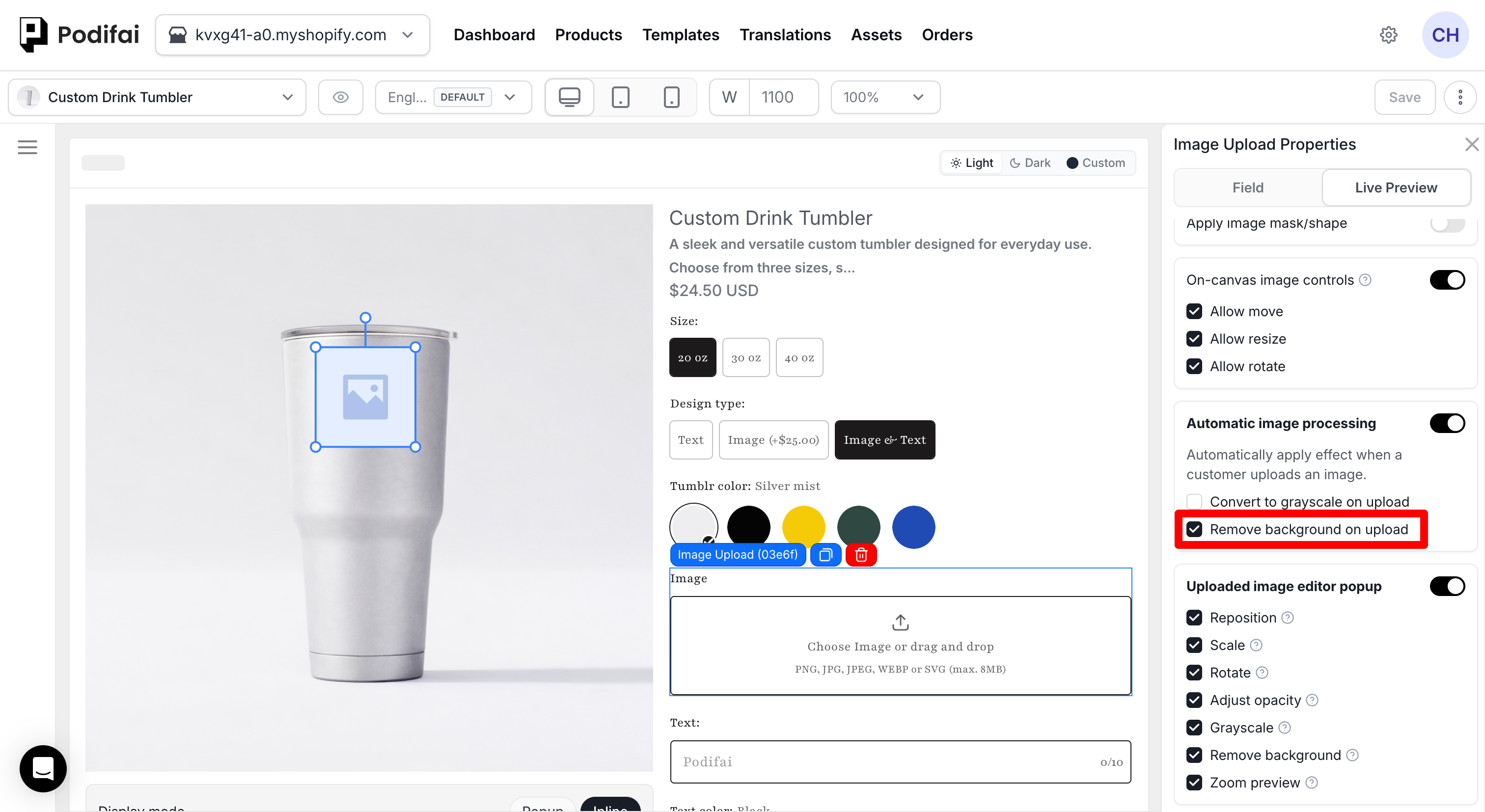
Automatic image processing is separate from the Storefront Image Editor. It applies an effect immediately after the shopper uploads an image, and the processed result is used both in Live Preview and in the production file attached to the customization.
- Convert to grayscale on upload — Automatically creates a grayscale version.
- Remove background on upload — Automatically removes the image background.
You can enable either effect or both effects. When Uploaded image editor popup is also enabled, shoppers can still use the merchant-selected reposition, scale, rotate, opacity, grayscale, and zoom controls after the automatic processing step.
Choose Standard or Premium Background Removal
- Open a product customizer and its Global Settings.
- Under Other → AI background removal, choose Standard or Premium. Standard is the default.
- Click Save changes.
This setting applies across the store. Premium is included for every account at no additional charge. Select the service here, then configure Remove background on uploadon the Image Upload option when removal should happen automatically.
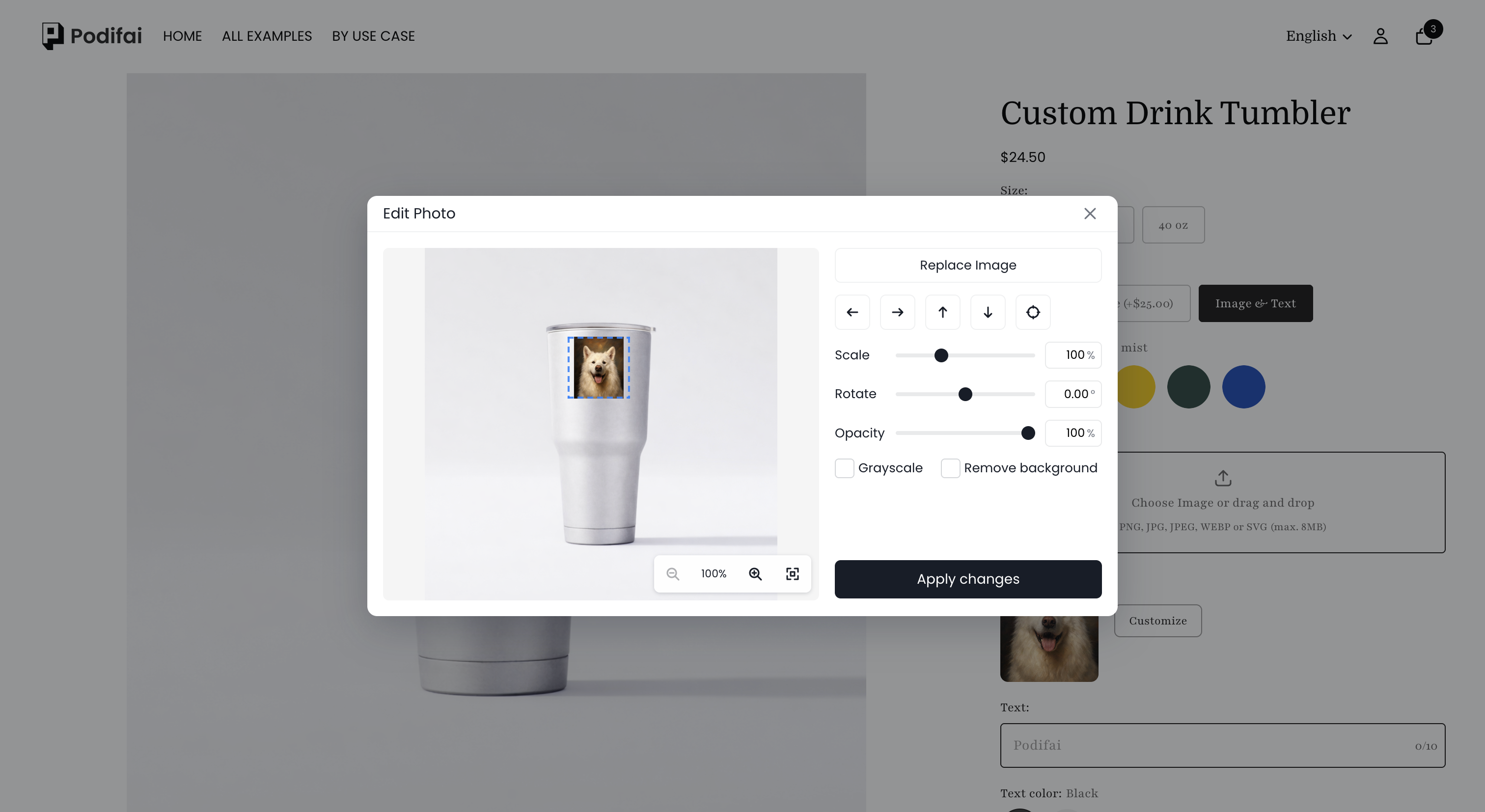
During automatic removal, shoppers see Removing background... while the image is processed. To offer manual removal, enable Uploaded image editor popup → Remove backgroundin Image Upload Properties → Live Preview. Shoppers click Customize beside their upload to open Edit Photo and choose Remove background. Use Apply changes in that dialog to apply shopper edits, then inspect the product preview. Check the result with representative uploads before using it for production.
Remove Background Automatically
In Image Upload Properties → Live Preview, turn on Automatic image processing and select Remove background on upload. Background removal runs when the customer uploads an image.
Let Customers Remove the Background
- In Live Preview, turn on Uploaded image editor popup.
- Select Remove background and save the customizer.
- Customers upload an image and click Customize beside its thumbnail.
- In Edit Photo, they select Remove background, then click Apply changes.
Enabling this tool lets customers choose the effect. It does not turn on automatic removal.
Shopper Controls
- Reposition — Move the uploaded image within the customization area.
- Scale — Adjust the size of the uploaded image.
- Rotate — Rotate the image within the customization area.
- Adjust opacity — Change the transparency of the uploaded image.
- Grayscale — Convert the uploaded image preview to grayscale.
- Remove background — Let shoppers remove the uploaded image background in the Edit Photo dialog.
- Zoom preview — Zoom in or out to inspect a small customization area without changing the final design.
Image Editing in Popup and Inline Customizers
Shoppers can open the image-editing dialog from either a Popup or an Inline customizer. The examples below show different products and upload configurations. The available tools are configured for each Image Upload option; switching the customizer's Display mode does not choose those tools.
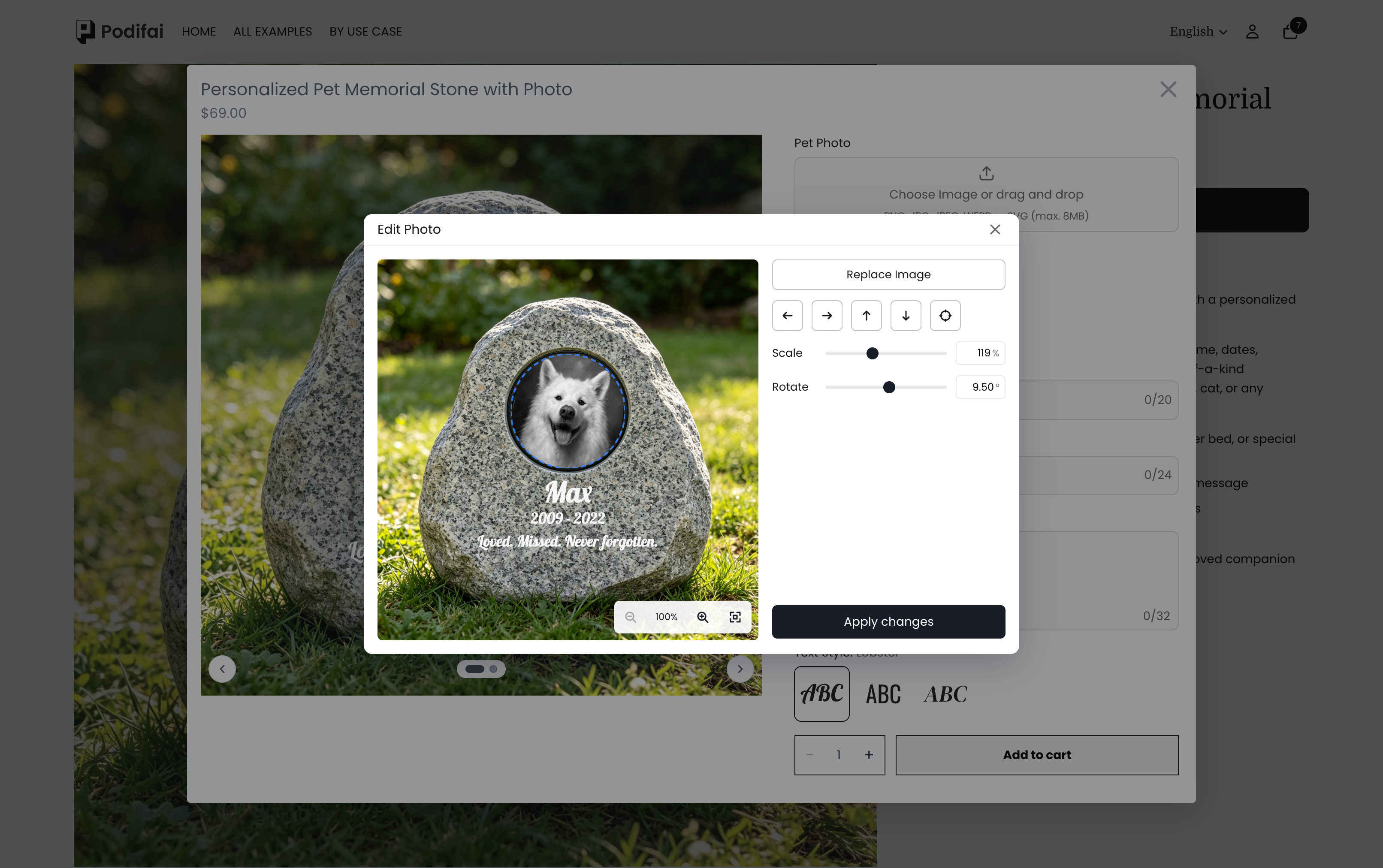
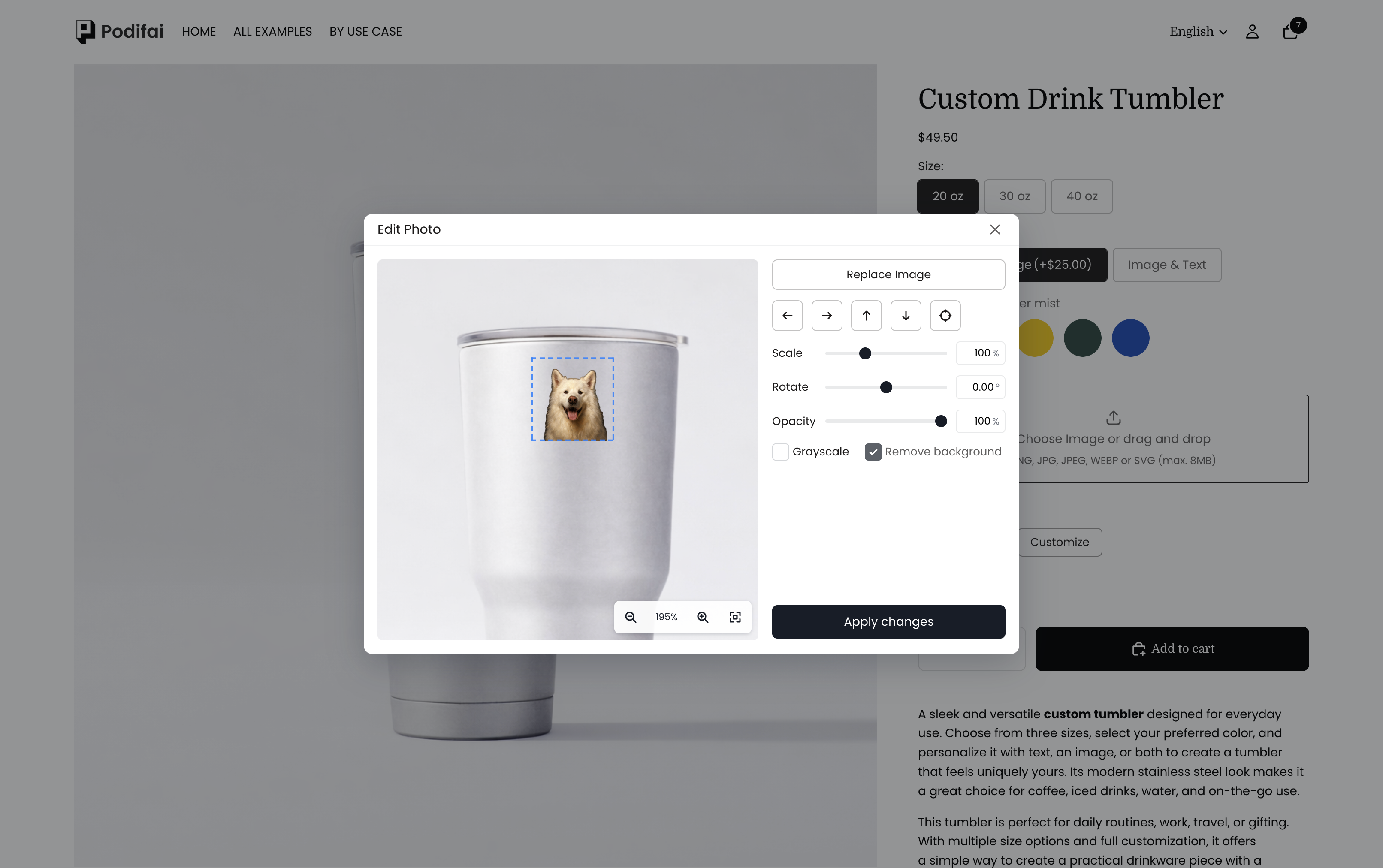
Use Apply changes to return to the product preview. These screenshots show different enabled controls and processing states; review the option's editor and automatic-processing settings separately. For the customizer's placement, see Customizer Display Modes.
Prepare the Starting Layout
Position and size every preview layer in the Podifai editor before enabling shopper controls. The merchant layout should be a safe, useful default; the storefront editor then lets the shopper fine-tune the uploaded image. Test portrait, landscape, square, and transparent uploads, plus the smallest mobile layout your storefront supports.
Check That Shopper Adjustments Are Saved
- Upload a clear image and open Customize beside its thumbnail if the image editor is not already open.
- Change an enabled control, such as Scale or Rotate, and check the image inside the product area.
- Select Apply changes and inspect the product preview.
- Reopen the image editor and confirm that the adjustment is still applied.
- Repeat on mobile, then review the uploaded file and final preview links with a test order.
For example, the tumbler demo retained a Scale value of 150% and a Rotate value of 30° after applying the changes and reopening the editor. These values are test examples, not recommended defaults. Test only the controls enabled for your upload field, and check production output separately.
Use the Editor with Image Masks
Image Upload supports Podifai's built-in masks and merchant-uploaded PNG masks. The mask defines the visible shape; the enabled Storefront Image Editor tools let the shopper position and style the uploaded image within that presentation. See Image Masks.
Other Preview Layer Editing
| Control | Configure it for | What it does |
|---|---|---|
| Automatic image processing | Image Upload | Applies selected grayscale or background-removal effects on upload. |
| Uploaded image editor popup | Each Image Upload option | Provides the shopper adjustment tools you enable for that upload. |
| On-canvas image controls | Supported image and text options, including Image Swatch, Image Upload, and Text Input | Allow move, Allow resize, and Allow rotate independently for direct editing on the product preview. |
On-canvas image controls is in the selected option's Properties → Live Preview tab. It controls the selected preview layer separately from the uploaded photo editor. The same setting is available for Text Input layers. When using that control, Shopify theme image zoom or product-image sliders can intercept click and drag events. See Live Previewand Theme Compatibility for those requirements.
If an upload tool is missing, select that Image Upload option and check Live Preview, Uploaded image editor popup, and the specific enabled tool. If a layer cannot be selected on the product preview, check the option's On-canvas image controls, the individual allowed actions, and the theme gallery's zoom or slider behavior. Test the actual control that fails before changing unrelated settings.
FAQ
Does Premium background removal cost extra?
No. Premium background removal is included for every account at no additional charge. Select Premium under Global Settings > Other > AI background removal and click Save changes. Configure automatic removal on the Image Upload option separately.
What can shoppers edit on the storefront?
For Image Upload, merchants can enable Reposition, Scale, Rotate, Adjust opacity, Grayscale, Remove background, and Zoom preview. Shoppers see only the tools enabled for that upload option.
How do I enable the Storefront Image Editor?
Select the Image Upload option, open Image Upload Properties > Live Preview, enable Live customizer, and turn on Uploaded image editor popup. Choose the shopper tools and save.
Does Zoom preview change the final image placement?
No. Zoom preview lets the shopper inspect a small customization area more closely. It does not change the final design placement or scale.
Can Image Upload use a mask?
Yes. The merchant can choose a built-in mask or upload a custom PNG mask. The Storefront Image Editor then lets the shopper adjust the uploaded image within that presentation using the enabled tools.
What is Automatic image processing?
Automatic image processing applies selected effects as soon as a customer uploads an image. You can enable Convert to grayscale on upload, Remove background on upload, or both. The processed result is used in Live Preview and in the production file attached to the customization.
On-Canvas Controls or the Uploaded Image Editor?
| Shopper task | Control to configure |
|---|---|
| Move an image layer on the product, change its size, or rotate it. | On-canvas image controls. Set Allow move, Allow resize, and Allow rotate separately. |
| Adjust the uploaded photo inside a merchant-defined display area. | Uploaded image editor popup. Enable the required editing tools and configure the image area or mask. |
| Select several merchant-provided patches and arrange them. | Image Swatch with multiple selection and the appropriate Charm Builder placement mode. |
For a fixed-size print area, configure the upload area and use the uploaded image editor to adjust the photo within it. If on-canvas controls are also enabled, turn off Allow resize when shoppers must not resize the layer itself. Test the allowed movement, cropping, and rotation on the storefront.
See Charm Builder placement modes for preset patch libraries. Image Upload is for shopper-supplied files; Image Swatch is for the artwork choices you provide.
Continue with your product setup
- Review the upload workflow — See how customer image uploads fit into a Shopify product customizer.
- Check uploaded artwork in the output — Compare the storefront preview with the transparent production PNG.