
Generate Print-Ready Files
Enable print-ready files, wait for generation, and download transparent PNGs as an order ZIP. Check included artwork and file dimensions.
Last updated: 2026-11-06
Turn on Generate print-ready files before a customer orders. Podifai then creates a transparent PNG for each view that has customer text or uploaded images. Product backgrounds and Image Swatch artwork are not included. Download the order ZIP from Podifai or Shopify Admin when it is ready.
Turn On Print-Ready Files
- In Podifai, open Products and open a product's customizer editor.
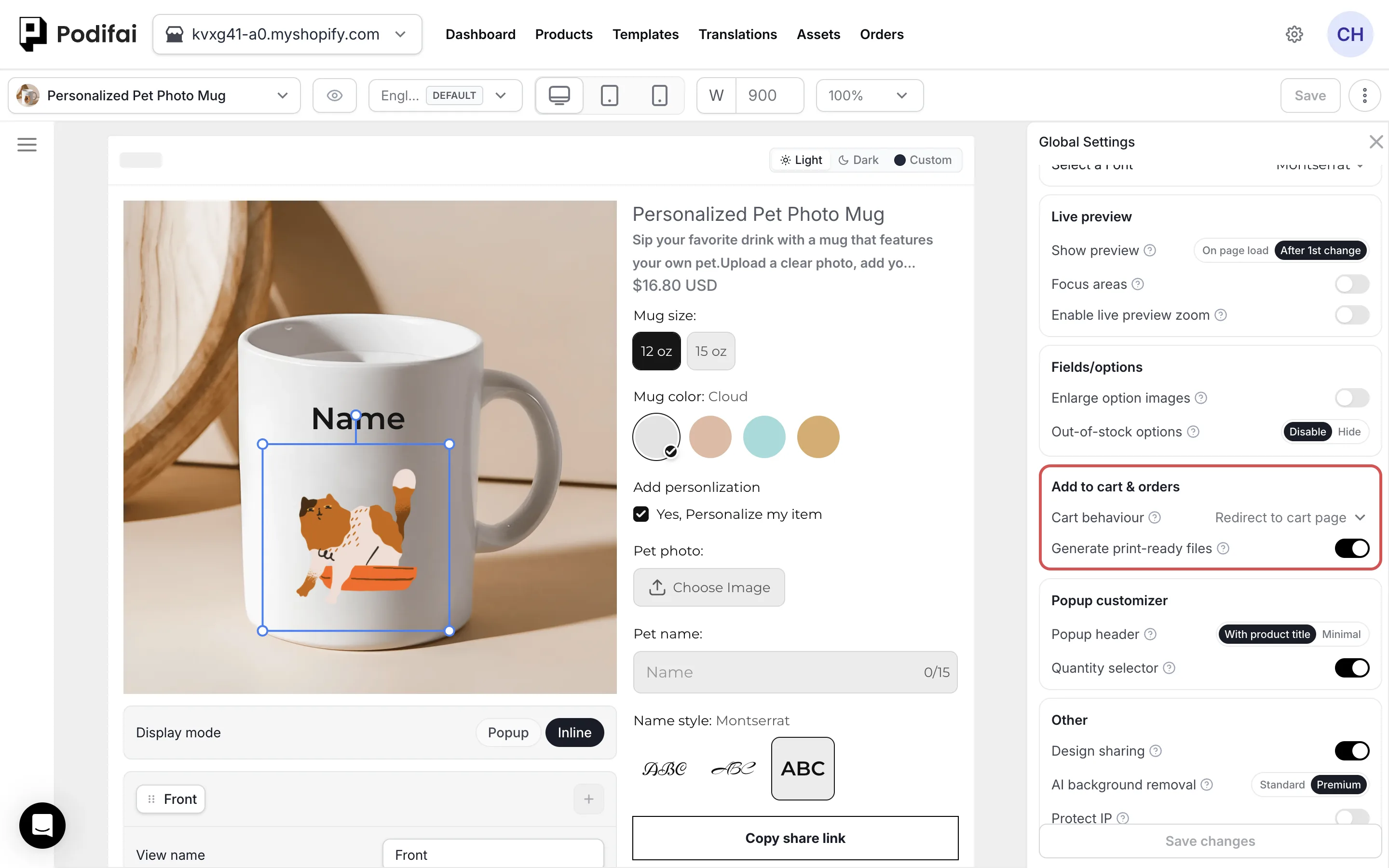
- Open Global Settings in the editor and find the Add to cart & orders card. This is separate from the app's plan or billing settings.
- Turn on Generate print-ready files and click Save changes. This shop-wide setting is off by default.
- Place a test order and check the output before using it for production.
Generation starts when Shopify creates the order, including unpaid orders such as cash on delivery or pending payment. The setting must be on when the customer adds the product to the cart. Orders placed while the feature was off cannot have print-ready files generated retroactively. Enable the setting before placing a new test order.
What Is in the File?
- Included: Live Preview text with its colors, fonts, and effects, SVG icons inserted through the Text Input or Text Area icon selector, and customer-uploaded images shown in Live Preview (with any mask applied).
- Excluded: product photos, mockup backgrounds, Image Swatch images or icons, and option controls.
- One PNG per view: included elements are combined into a single flattened image, preserving placement, size, and rotation. Views without included customization have no PNG.
For example, a view containing a product photo, a selected Image Swatch logo, and customer-entered text exports the included text layer; the product photo and swatch logo are excluded. A view containing only a product background and Image Swatch artwork has no included customization to export.
Are SVG Icons Inserted into Text Included?
Yes. SVG icons or symbols inserted through Enable icon selector in Text Input or Text Area are included with the text in the generated print-ready PNG. Upload your own icon artwork as SVG files. The icons and text are flattened into the PNG; this does not create an editable SVG output. Image Swatch images or icons are a separate feature and remain excluded.
File Size and Format
- Transparent PNG, RGB color, 300 DPI. Podifai produces PNGs only; it does not generate PDF or vector files.
- Longest side up to 3600 pixels (12 in or 30.5 cm at 300 DPI), with the original aspect ratio preserved. Each PNG uses the full dimensions of the view canvas. Rectangular designs stay rectangular.
- Full view canvas and transparent margins preserved, without automatic trimming.
Check the physical print size in your production software. For a print larger than 12 in on its longest side, the PNG is scaled up there, which does not add detail. Enlarging a low-resolution upload does not restore missing detail. Convert to CMYK in your production software if needed. The PNG has no editable layers; original customer uploads remain available separately in the order data.
Wait for Generation
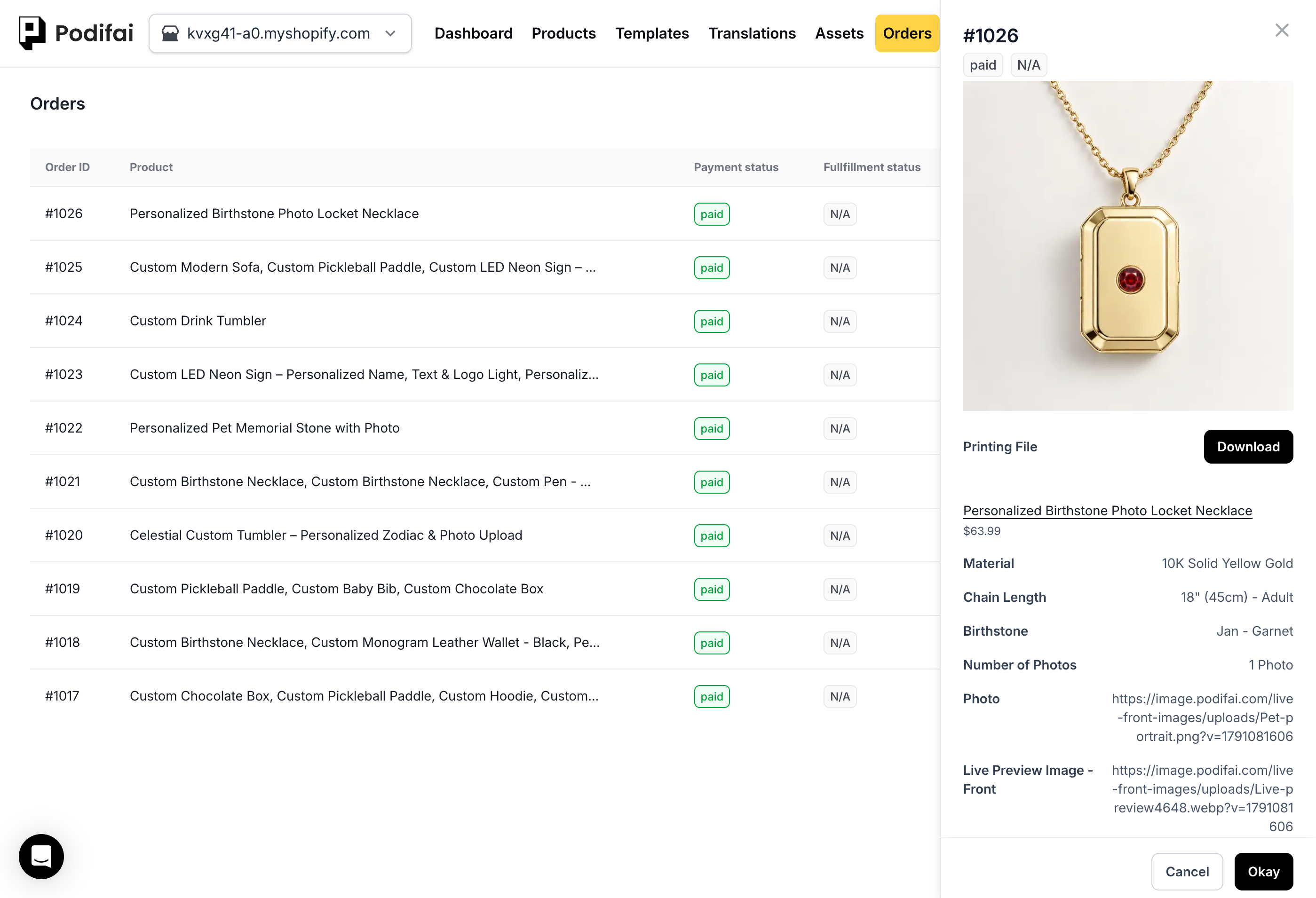
In Podifai, open Orders and click View Details on the order. The status appears next to Printing File; it changes to a Download button when the ZIP is ready.
| Status | What to do |
|---|---|
| Queued / Generating | Wait for all required files to finish. |
| Download button available | The complete order ZIP is ready. |
| Generation Failed | Automatic retries run. Use the chat icon on the left side of the page or email chelsea@podifai.com if the issue persists. |
Automatic retries: Podifai retries failed views automatically for up to 7 days, and successful views are not regenerated. If a view is still Failed after a few hours, contact us with the order number.
Download the ZIP
- From Podifai: open Orders → your order and click the print-file download button.
- From Shopify Admin: open Orders → your order → Metafields → Print-ready files. Open the link, or copy it into your browser.
The ZIP contains a folder for each product and PNGs identified by view name. It is available only when all required files have succeeded. Download buttons are not shown in the storefront or cart.
If Something Looks Wrong
- No download button: check whether generation was enabled when the order was placed and whether the views contain included text or uploads. Then check the order's generation status.
- Blurry artwork or an unwanted background: check the original upload.
- Wrong text, placement, or effects: compare with the order's final preview, then use the chat icon on the left side of the page or email chelsea@podifai.com with the order number and affected view.
Check the order's generation status before treating a missing download button as a file error. If one required view is still generating or failed, the complete ZIP is not ready. For missing swatch graphics or backgrounds, review the included and excluded content; those layers are outside this export's output.
No Generation Status or Download Button
A missing button alone does not prove that print data was not saved. If you see no generation status, use the chat icon on the left side of the page or email chelsea@podifai.com with the order number, product and view, a screenshot of the order details, and whether generation was enabled before that order was placed. Support needs to investigate the order data and generation trigger; do not assume it is queued. Enabling the setting now cannot backfill files for orders placed while it was off.
Check the ZIP Before Production
- Match the ZIP's product folder and view names to the customized order.
- Open each PNG and compare its included text and upload layers with the final order preview.
- Check placement and transparent margins against the full view canvas.
- Set and review the physical output size in your production software; inspect the artwork at that size.
Keep the original upload and final preview available as separate references. For a production problem, send support the order number, affected product/view, generation status, and a description of the difference you found.
For integrations: access files through the Admin API
Read the Order metafield: namespace podifai, key print_files_url, type url. Requires read_orders. The ZIP URL does not require authentication and does not expire; anyone with the URL can download it.
Generation starts when Shopify creates the order, not when payment succeeds.
See Managing Orders for other order data, or use the chat icon on the left side of the page or email chelsea@podifai.com.
Continue with your product setup
- Plan an engraving workflow — Understand where transparent PNG artwork ends and machine preparation begins.
- Review the original customer options — Check personalization details alongside the generated files in the order.