
Show Customizations in Order Confirmation Emails
Show Podifai selections, uploads, and preview images in Shopify order emails. Back up the notification template and test an actual order.
Last updated: 2026-11-06
Shopify stores Podifai choices as line item properties. Follow the find-and-replace steps below to reveal Shopify's existing property loops, add the loops missing from bundle components, and show uploaded files and final Live Preview images in the order confirmation email.
What This Change Does
Shopify's order confirmation template already contains several loops that can display line item properties, but the default conditions can limit those loops to gift card data. This process opens the existing property gates and adds a property loop only where a bundle component does not already have one.
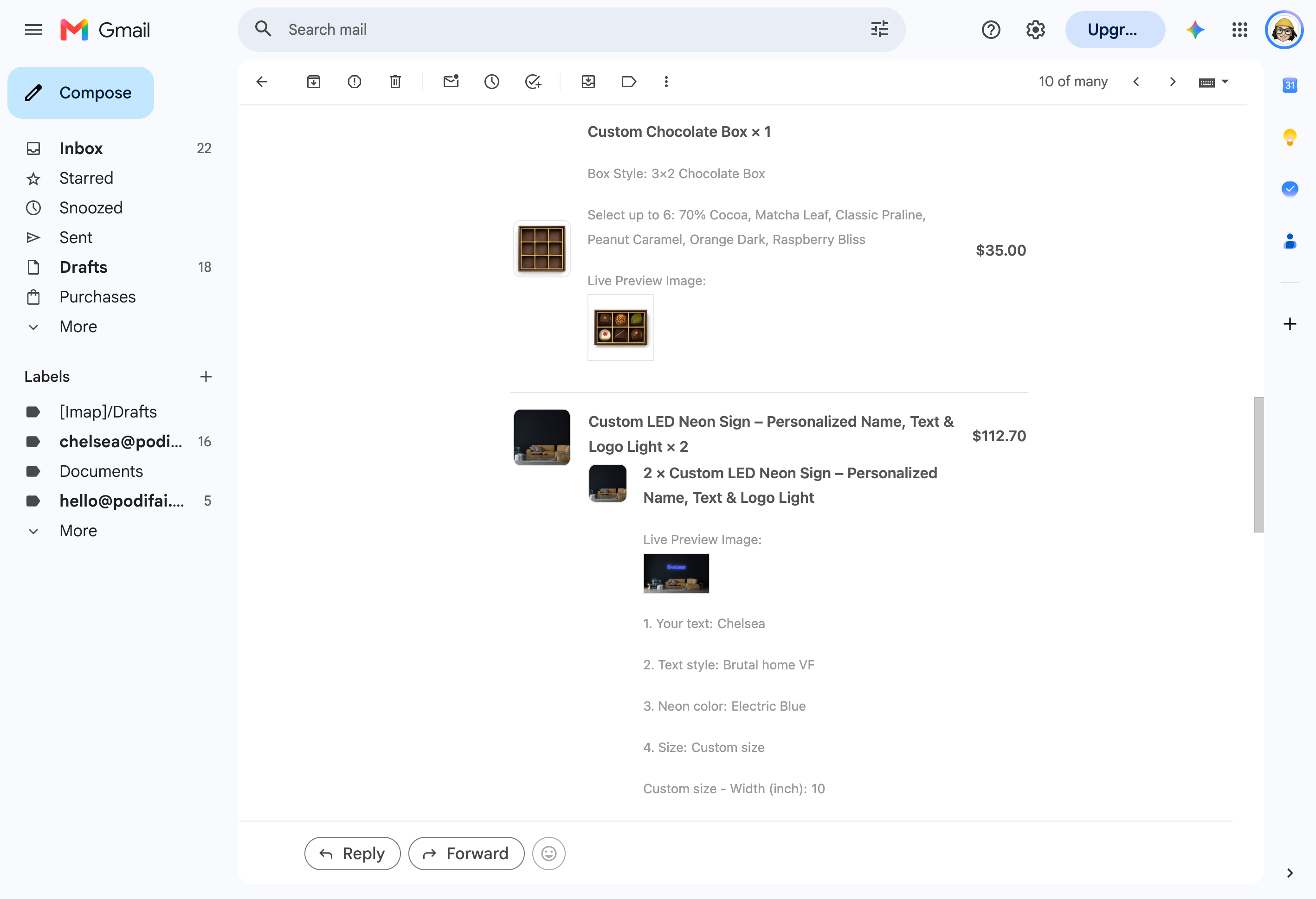
- Text, swatches, dropdown selections, and other values appear as a label and value.
- Customer upload URLs appear as clickable file names.
- A property whose name contains
Live Preview Imageappears as a clickable thumbnail. - Blank properties and property names beginning with
_are hidden.
The underscore check is important. Podifai uses private properties such as _Podifai Embedded and _podifai_all_attributes for app and fulfillment data. Customers generally should not see those internal values in their confirmation email.
These steps change only the Order confirmation notification. Other Shopify emails that list items, such as order edited or shipping confirmation, use their own templates and are not changed. Use the chat icon on the left side of the page or email chelsea@podifai.com if you want the same details there.
1. Open and Back Up the Template
- In Shopify Admin, go to Settings → Notifications.
- Open Customer notifications, then select Order confirmation.
- Click Edit code.
- Copy the complete template into a plain-text file and save it as your backup.
Shopify's interface can vary slightly by admin version. See Shopify's notification template guide if the menu labels in your store are different.
2. Reveal the Existing Property Loops
In the template editor, use the code editor's search (or your browser's find, Ctrl+F or Cmd+F) to look forgift_card and. Change the opening condition at every matching property loop. Most matches use line; at least one template branch can use component.
Standard line item gate
Find:
{% if line.gift_card and line.properties["__shopify_send_gift_card_to_recipient"] %}Replace with:
{% if line.properties %}Component gate
Find:
{% if component.gift_card and component.properties["__shopify_send_gift_card_to_recipient"] %}Replace with:
{% if component.properties %}endif unchanged. Match counts can vary by Shopify template version, so update every exact match instead of relying on a fixed number.If a gate already reads {% if line.properties %} or {% if component.properties %}, it has already been updated. Do not add another loop beside it.
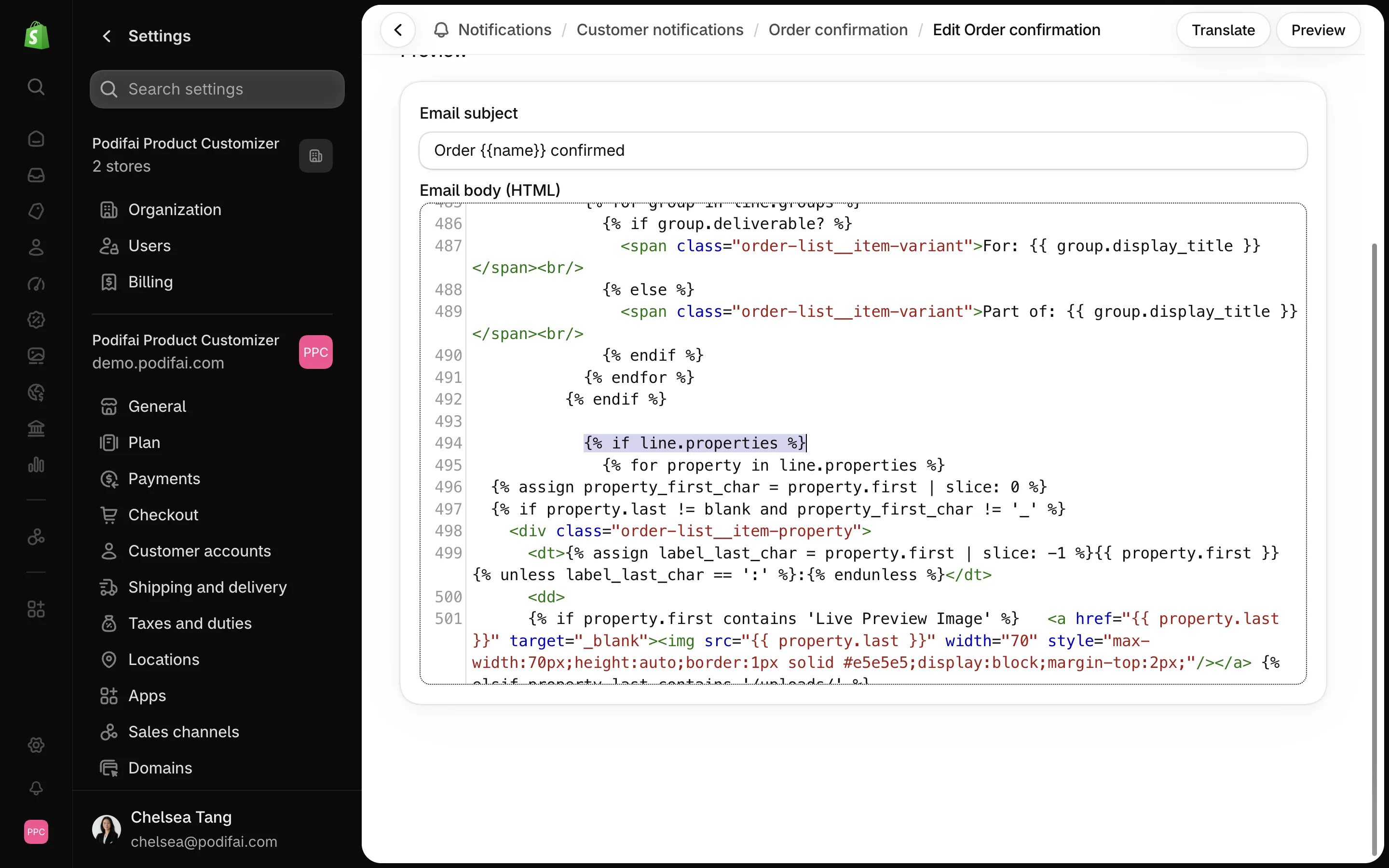
3. Add the Property Loop Missing from Bundle Components
Some bundle-component snippets do not contain a property loop at all. Search for the following line; each match identifies a component snippet to inspect:
<span class="order-list__item-variant">{{ component.variant.title }}</span>Find the endif that closes the surrounding variant-title condition. If that component snippet does not already contain {% if component.properties %}, paste the following block immediately after the closing endif:
{% if component.properties %}
  {% for property in component.properties %}
    {% assign property_first_char = property.first | slice: 0 %}
    {% if property.last != blank and property_first_char != '_' %}
      <div class="order-list__item-property">
        <dt>{{ property.first }}:</dt>
        <dd>
          {% if property.last contains '/uploads/' %}
            <a href="{{ property.last }}" class="link" target="_blank">{{ property.last | split: '/' | last }}</a>
          {% else %}
            {{ property.last }}
          {% endif %}
        </dd>
      </div>
    {% endif %}
  {% endfor %}
{% endif %}
Repeat this check for every matching component snippet. Do not add a second property loop when one is already present.
4. Render the Live Preview as an Image
Search for the upload condition below. Replace it at every match, including the component loops added in Step 3.
Find:
{% if property.last contains '/uploads/' %}Replace with:
{% if property.first contains 'Live Preview Image' %}
  <a href="{{ property.last }}" target="_blank"><img src="{{ property.last }}" width="70" style="max-width:70px;height:auto;border:1px solid #e5e5e5;display:block;margin-top:2px;"/></a>
{% elsif property.last contains '/uploads/' %}
The last line changes the original upload condition from if to elsif. This preserves the existing else and endif below it: Live Preview URLs render as images, upload URLs remain clickable files, and other values remain text.
5. Prevent Duplicate Colons (Optional)
This step is cosmetic. Do it if an option label ends with a colon, such as Choose quote:, which would otherwise appear as Choose quote:: value. Search for the following label at every property loop.
Find:
<dt>{{ property.first }}:</dt>Replace with:
<dt>{% assign label_last_char = property.first | slice: -1 %}{{ property.first }}{% unless label_last_char == ':' %}:{% endunless %}</dt>6. Preview, Save, and Test
- Click Preview and confirm that Shopify reports no Liquid or HTML errors.
- Save the template.
- Place a real test order for a Podifai product after saving the template.
- Include a text choice whose label ends with a colon, an uploaded file, and Live Preview when available.
- Confirm that readable selections appear once and properties beginning with
_stay hidden. - Check the received email on desktop and mobile, including the preview thumbnail and upload link.
- Test pickup, local delivery, split delivery, and bundle orders when your store uses those workflows.
- Confirm that the same selections also appear in Podifai Orders and Shopify Admin.
Troubleshooting
No customization values appear
- Confirm the test order was placed after the template was saved.
- Open the order in Shopify Admin and confirm the line item contains the expected properties.
- Search again for the original gift-card condition and update any remaining matches.
- Check whether the order used a component branch that still has no property loop.
The Live Preview thumbnail does not load
- Open the actual order in Shopify Admin and find its Live Preview Image property.
- Open the saved URL in a browser to check whether the image itself loads.
- If it loads there, review the email template branch for that item and the email client's image-display setting.
- If the URL is missing or the image fails to load in the browser, send support the order number and affected item.
Confirm that the property name contains Live Preview Image and that its value is a public HTTPS image URL. Some email clients block remote images until the recipient chooses to display them; the image remains clickable when the client permits the link.
Values appear twice
A second property loop might have been added beside Shopify's existing loop instead of opening the existing gift-card gate. Keep only one line.properties or component.properties loop in each rendering branch, and use the gate replacement from Step 2.
Why the Customized Preview Is Missing
The email has its own Shopify notification template. A product thumbnail in that template can still show the original product image even when a final Live Preview link was saved with the order. Rendering that saved link as an image requires the email template changes described above.
First check that the customized order contains a Live Preview Image link. Then check the matching product or component branch of the email template. Test using an actual customized order: Shopify's sample preview may not contain the customization properties.
If the saved preview link is absent, template code alone cannot recover it; use the chat icon on the left side of the page or email chelsea@podifai.com to investigate. Display the customer-facing Live Preview, not the merchant-only print-ready production PNG.
See Customer Uploads and Final Preview Images for the purpose of each order file. Production ZIP generation has its own settings and status; it is separate from rendering the saved preview in a notification.
Customer Preview and Production Files
Use the saved Live Preview image to show customers their design in the email. Print-ready files are separate production assets. Hiding their link in the notification does not add access control: anyone with the ready ZIP URL can download it. See Generate Print-Ready Files for generation and access details.
Maintain the Custom Template
Keep the backup and a copy of these find-and-replace steps. Shopify occasionally changes its default notification templates, while customized templates can require manual updates. After a major Shopify notification change, compare your template with the current default and reapply only the changes that are still needed.
Shopify reference: line item properties in notification templates.
Free Setup Assistance on Starter and Growth
Podifai provides free help with order confirmation email and packing slip template code changes for Starter and Growth merchants. Use the chat icon on the left side of the page or email chelsea@podifai.com with the document you want to change and an example order. See Packing Slips for that separate workflow.
FAQ
Can Podifai help modify my order confirmation email?
Yes. Starter and Growth merchants receive free assistance with the template code changes needed to show customization details and the Live Preview image. Contact Podifai Support with your current template and an example order.
Why does my order confirmation email show the original image instead of the customized Live Preview?
Shopify renders order confirmation emails from a separate notification template. The template must display the saved Live Preview Image property as an image; changing the storefront or cart does not automatically change the email. Check that the order has a preview link, then follow the order confirmation email guide.
Why do I need to update more than one place in the template?
Shopify's order confirmation template has separate rendering branches for standard products, split deliveries, pickups, and line item groups. Open every matching line and component property gate, then add the component loop only to bundle snippets that do not already have one.
Why are properties beginning with an underscore hidden?
Properties beginning with an underscore contain app or workflow metadata. The snippet intentionally excludes them so customers see their readable selections instead of Podifai's internal data.
Why don't Podifai values appear in Shopify's preview email?
Shopify's preview uses sample order data and might not include Podifai line item properties. Use Preview to check the template layout and syntax, then place a real test order for a customized product to verify the values.
Will this also change old order confirmation emails?
No. The change applies only when Shopify renders a notification after the template is saved. It does not rewrite emails that were already sent.