
Show Customizations on Packing Slips
Add Podifai selections, uploads, and preview images to Shopify packing slips. Back up the template and check quantities and partial shipments.
Last updated: 2026-11-06
Update Shopify's packing slip template so each product prints the customer's Podifai selections, uploaded image, and Live Preview image. Setup requires no additional app.
order.line_items because shipment items do not expose the required properties. For a partial shipment, the slip therefore lists the whole order and the total quantity ordered—not only what is in this box. The code adds a warning banner to those slips.Before You Start
- Use a store owner or staff account with Settings permission.
- Have a real order containing Podifai customizations ready.
- Allow about five minutes.
- Keep your Shopify admin open: if anything looks wrong after saving, restore the backup you make in Step 2.
1. Open the Packing Slip Code
In Shopify Admin, go to Settings → Shipping and delivery, scroll to Packing slips, and click Edit.
2. Back Up the Current Template
Select all the code, copy it, and save it in a plain-text file. Revert to default restores Shopify's original code, not your previous customizations.
3. Add the Image Settings and Shipment Warning
Find the first {% endcapture %} and replace that line with:
{% endcapture %}

{% assign podifai_thumbnail_width = 120 %}
{% assign podifai_upload_thumbnails = true %}

{% unless includes_all_line_items_in_order %}
  <p class="shipment-warning">
    This slip lists every item on order {{ order.name }}. Some of them are
    <strong>not in this shipment</strong> — check the order before packing.
  </p>
{% endunless %}
podifai_thumbnail_width controls image width. Set podifai_upload_thumbnails to false to print an upload filename without its thumbnail.
4. Read Items from the Order
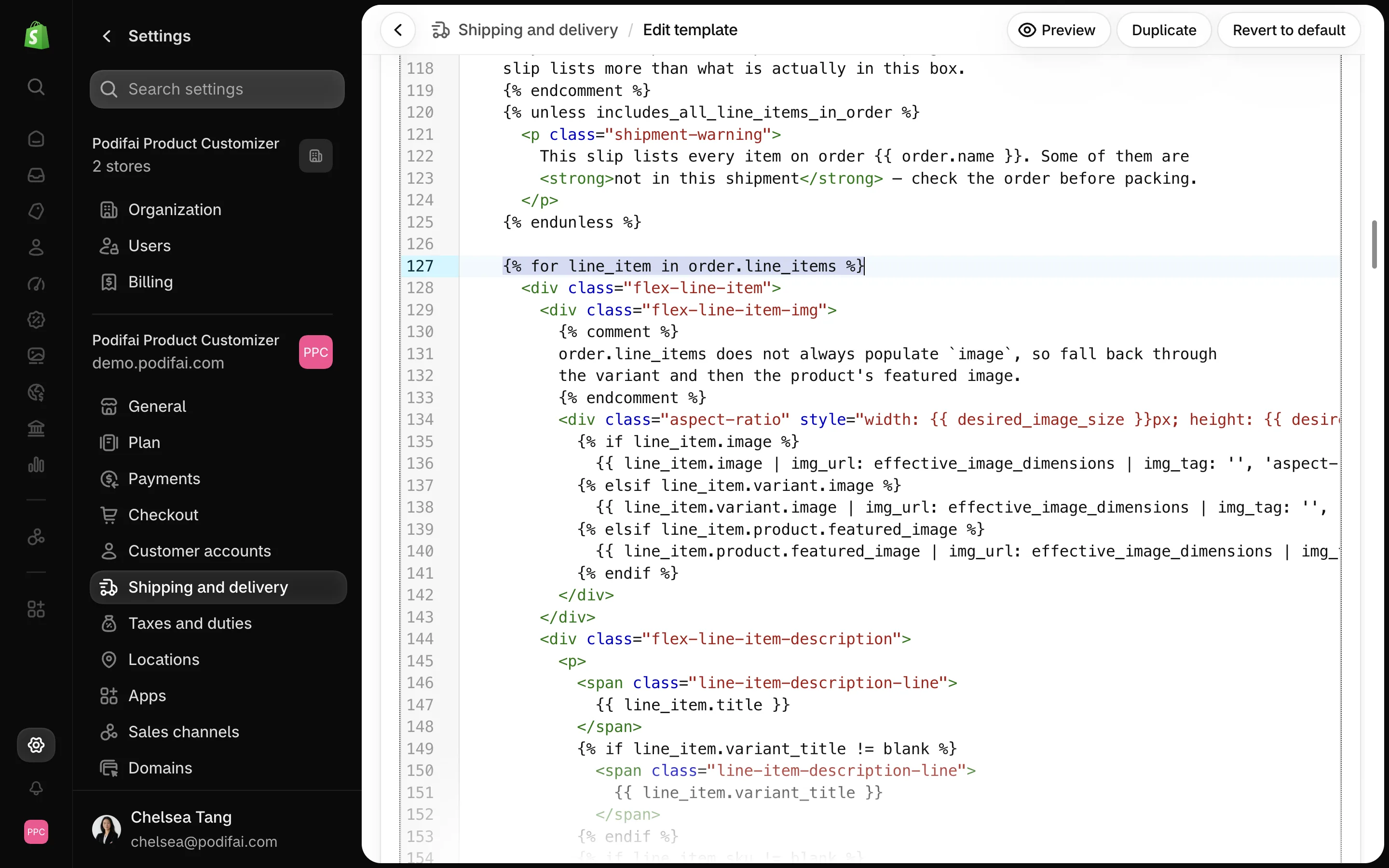
Find the block that starts with {% for line_item in line_items_in_shipment %} and includes its flex-line-item-img section. Select everything from that for line down to the closing </div> of the flex-line-item-img section (the image area), and replace it with the code below. Keep the product description that follows the image section; the replacement ends where the image section ends.
{% for line_item in order.line_items %}
  <div class="flex-line-item">
    <div class="flex-line-item-img">
      <div class="aspect-ratio" style="width: {{ desired_image_size }}px; height: {{ desired_image_size }}px;">
        {% if line_item.image %}
          {{ line_item.image | img_url: effective_image_dimensions | img_tag: '', 'aspect-ratio__content' }}
        {% elsif line_item.variant.image %}
          {{ line_item.variant.image | img_url: effective_image_dimensions | img_tag: '', 'aspect-ratio__content' }}
        {% elsif line_item.product.featured_image %}
          {{ line_item.product.featured_image | img_url: effective_image_dimensions | img_tag: '', 'aspect-ratio__content' }}
        {% endif %}
      </div>
    </div>
This exposes the customization properties and falls back from the line-item image to the variant image and then the product featured image.
5. Add the Customization Details
Find the closing </div> of the product description, immediately followed by <div class="flex-line-item-quantity">. Replace those two lines (the </div> and the quantity div line) with the code below, which adds them back at its end:
{% if line_item.properties %}
  <div class="line-item-properties">
    {% for property in line_item.properties %}
      {% assign property_first_char = property.first | slice: 0 %}
      {% if property.last != blank and property_first_char != '_' %}
        <div class="line-item-property">
          {% assign label_last_char = property.first | slice: -1 %}
          <span class="property-label">{{ property.first }}{% unless label_last_char == ':' %}:{% endunless %}</span>
          {% if property.first contains 'Live Preview Image' %}
            <img src="{{ property.last }}" width="{{ podifai_thumbnail_width }}" class="property-image">
          {% elsif property.last contains '/uploads/' %}
            <span class="property-value">{{ property.last | split: '/' | last | split: '?' | first }}</span>
            {% if podifai_upload_thumbnails %}
              <img src="{{ property.last }}" width="{{ podifai_thumbnail_width }}" class="property-image">
            {% endif %}
          {% else %}
            <span class="property-value">{{ property.last }}</span>
          {% endif %}
        </div>
      {% endif %}
    {% endfor %}
  </div>
{% endif %}
</div>
<div class="flex-line-item-quantity">property_first_char != '_'. It hides Podifai prices, tokens, SKU/barcode bookkeeping, and the unreadable _podifai_all_attributes JSON value.6. Fix the Quantity
Replace:
{{ line_item.shipping_quantity }} of {{ line_item.quantity }}with:
{{ line_item.quantity }}7. Add the Styling
Find <style type="text/css"> near the bottom and replace that line with this block. Keep Shopify's existing styles below it.
<style type="text/css">
  .shipment-warning { margin: 1em 0 0; padding: 0.6em 0.8em; border: 1px solid #b25e00;
    border-left-width: 4px; background: #fff6e5; line-height: 1.45; page-break-inside: avoid; }
  .line-item-properties { margin-top: 0.55em; font-size: 0.87em; line-height: 1.5; }
  .line-item-property { margin: 0.2em 0; page-break-inside: avoid; }
  .property-label { font-weight: bold; margin-right: 0.35em; }
  .property-value { word-break: break-word; }
  .property-image { display: block; max-width: 100%; height: auto;
    border: 1px solid rgba(195, 207, 216, 0.6); margin: 0.3em 0 0.15em; }
8. Save
Click Save. Closing the editor without saving keeps the old template. To restore your backup, paste the saved text back into the editor and click Save.
9. Print and Check a Real Order
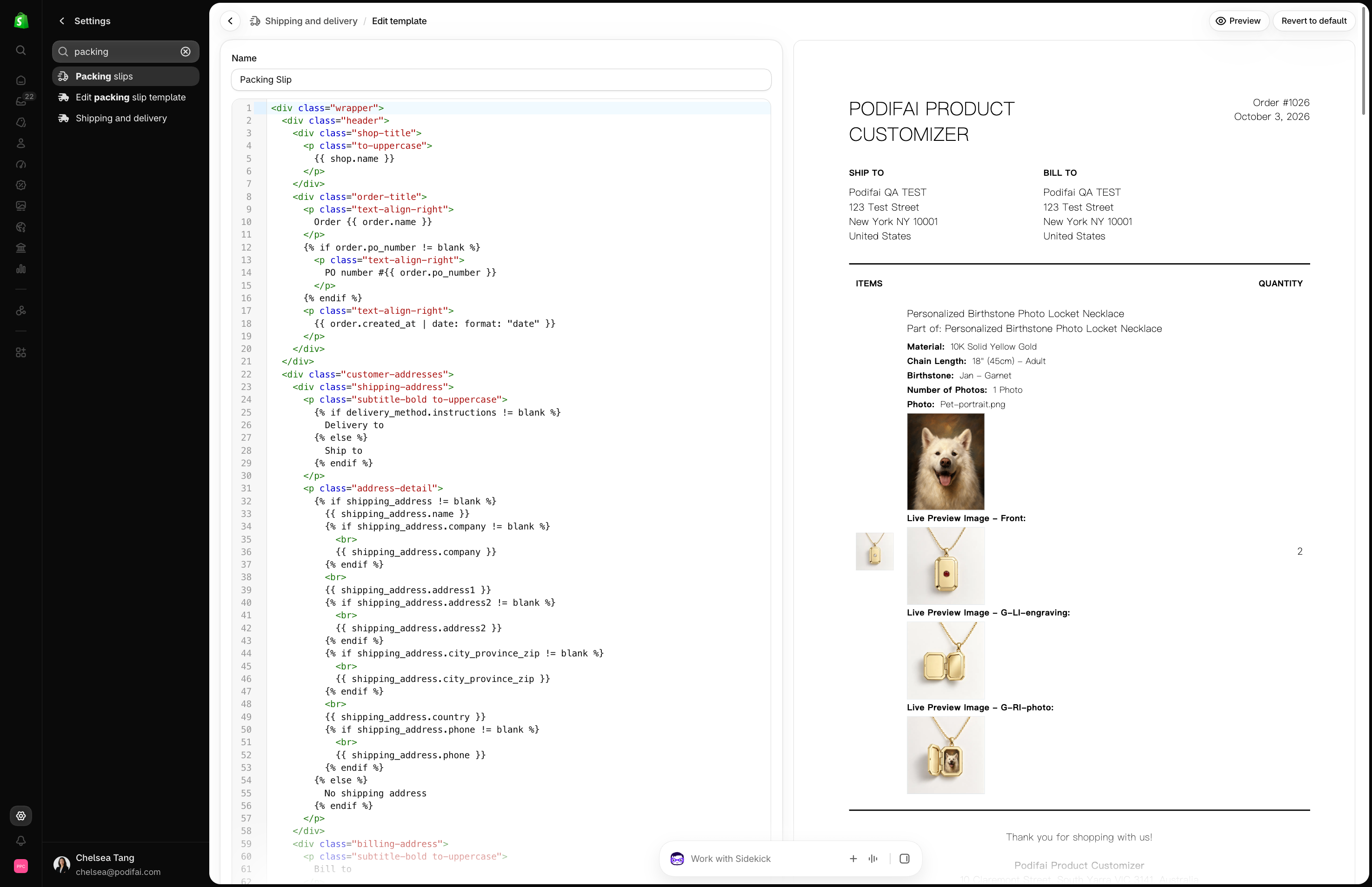
Open a customized order and choose More actions → Print packing slip. Confirm that:
- Each customer-facing option appears on its own line with your Podifai label.
- An upload shows its filename only, not the long web address. Its thumbnail appears when
podifai_upload_thumbnailsistrueand is omitted when it isfalse. - Each saved Live Preview Image property displays as an image.
- No printed name begins with an underscore.
- For a partial shipment, the whole-order warning appears and quantities match the total quantities ordered.
Troubleshooting
Nothing appears under the product name
The loop is probably still using line_items_in_shipment. Repeat Step 4 and test a real customized order.
Internal fields or a long JSON line appear
Repeat Step 5 and restore both conditions: the value is not blank and the property name does not start with _.
Labels print but images are blank
Click Shopify's template Preview button. If images are blank there too, send the order number to Podifai Support so the image URL can be checked.
The slip includes items not in the box
This is expected for a partial shipment. The slip lists the full order and shows the warning from Step 3. Check the shipment before packing.
You cannot find an exact block
Your template has probably already been customized. Stop editing and send the Step 2 backup to Podifai Support so existing customizations are not lost.
Free Setup Assistance on Starter and Growth
Podifai provides free assistance with packing slip template code changes for Starter and Growth merchants. Use the chat icon on the left side of the page or email chelsea@podifai.com with the current template and an example customized order. The order confirmation email uses a separate template.
Related Guides
- Show Customizations in Order Confirmation Emails
- Podifai Orders and Shopify Admin
- Generate Print-Ready Files
- Shopify packing slip customization guide
FAQ
Can Podifai help add customization details to my packing slip?
Yes. Starter and Growth merchants receive free assistance with the packing slip template code changes. Contact Podifai Support with your existing template and an example customized order.
Why are my customization details or Live Preview images missing from the packing slip?
Check that the order contains the selections and preview links, then follow this guide to update the packing slip template. It uses order.line_items, displays readable properties and image thumbnails, and hides internal fields. Cart and email templates are separate; changing them does not update the packing slip.
Why use order.line_items?
Shopify's line_items_in_shipment objects do not reliably expose the Podifai properties. They are available on order.line_items.
Why does a partial-shipment slip list the whole order?
That is the trade-off of order.line_items. The template adds a warning because the slip can include products not in this box and prints total quantities ordered.
Why hide names beginning with an underscore?
They are Podifai bookkeeping values, including prices, tokens, SKU or barcode fields, and JSON. Keep the filter exactly as shown.
Can the thumbnail be used for production?
No. It is only a packing reference. Review the original upload or, when print-ready generation is enabled and complete, the production PNG. Check the print-ready file's included content and physical output size before manufacturing.