
Inventory & Variants
Track custom option stock or link Shopify variants. Stock is deducted after order creation; cancellations and refunds do not reverse Podifai deductions.
Last updated: 2026-11-06
Inventory in Podifai is controlled at the option value level. Use custom inventory when Podifai should track a stock count, or link an option value to a Shopify variant when Shopify should be the source of truth for real-time availability. Out-of-stock values can be hidden or shown in a visually disabled state.
Overview
Podifai lets each option value use its own inventory setting. You can leave inventory untracked, track a custom stock count inside Podifai, or link the option value to a Shopify variant so stock can be controlled from Shopify.
Inventory is an option value-level feature. It works best for options where the merchant defines selectable values ahead of time, such as image choices, colors, fonts, dropdown values, and badge choices.
Inventory Modes
The Track inventory dropdown supports three modes:
- Not tracking inventory — The option value does not use stock tracking in Podifai.
- Custom — Podifai tracks a stock count for this option value using fields you enter manually.
- Linked to a variant — Podifai reads stock from a Shopify variant in real time.
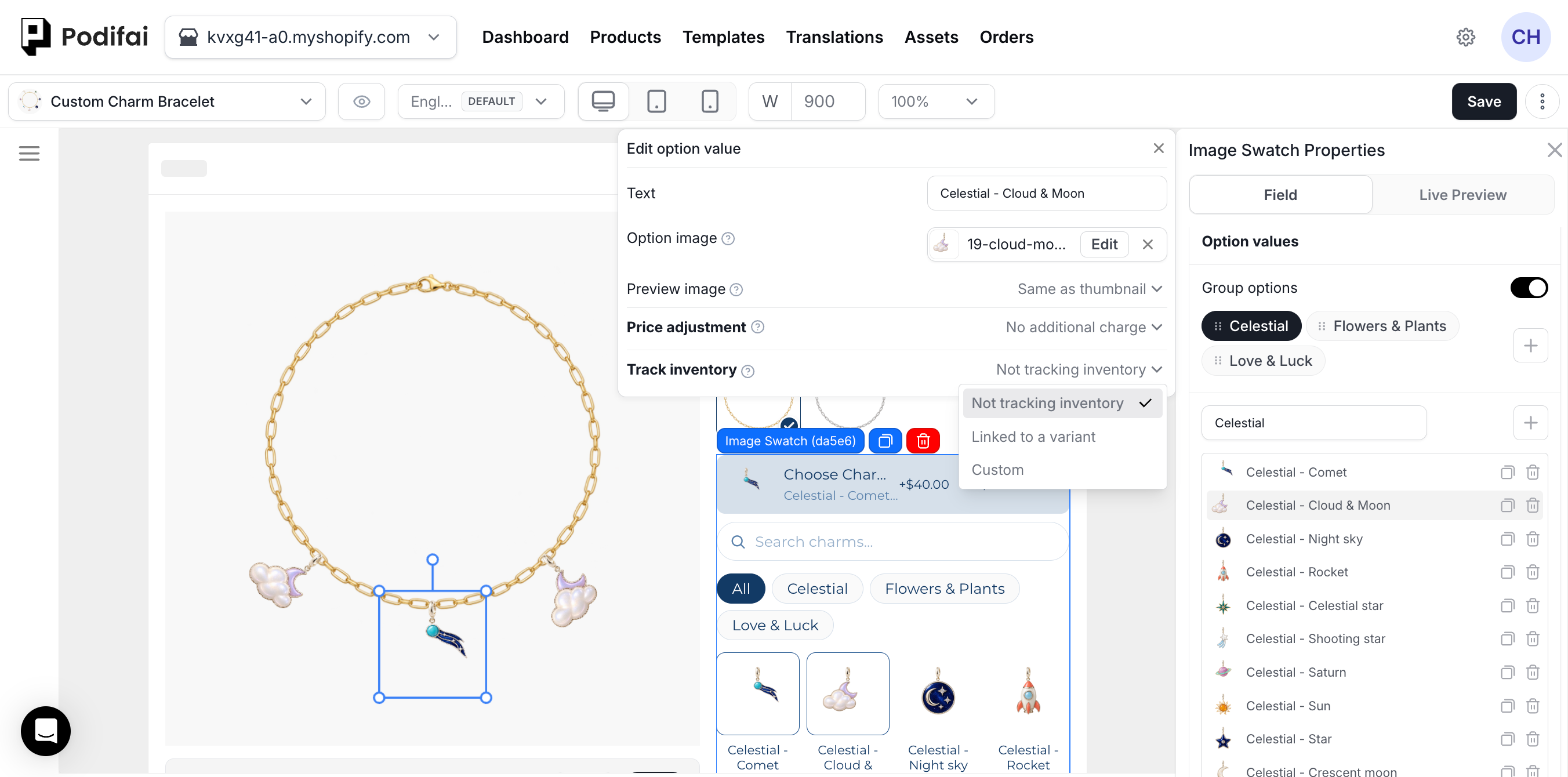
Turn on inventory for a value
- Select the option, then open the value you want to track (Edit option value).
- In Track inventory, choose Custom or Linked to a variant.
- For Custom, fill in SKU, Barcode, and Available. For Linked, choose the Shopify variant.
- Save and test the value on your storefront.
Supported Option Types
Variant-linked inventory is available from option value settings on value-based option types:
Text Input, Text Area, and Image Upload collect customer-entered content, so they do not use per-value inventory in the same way.
Custom Inventory
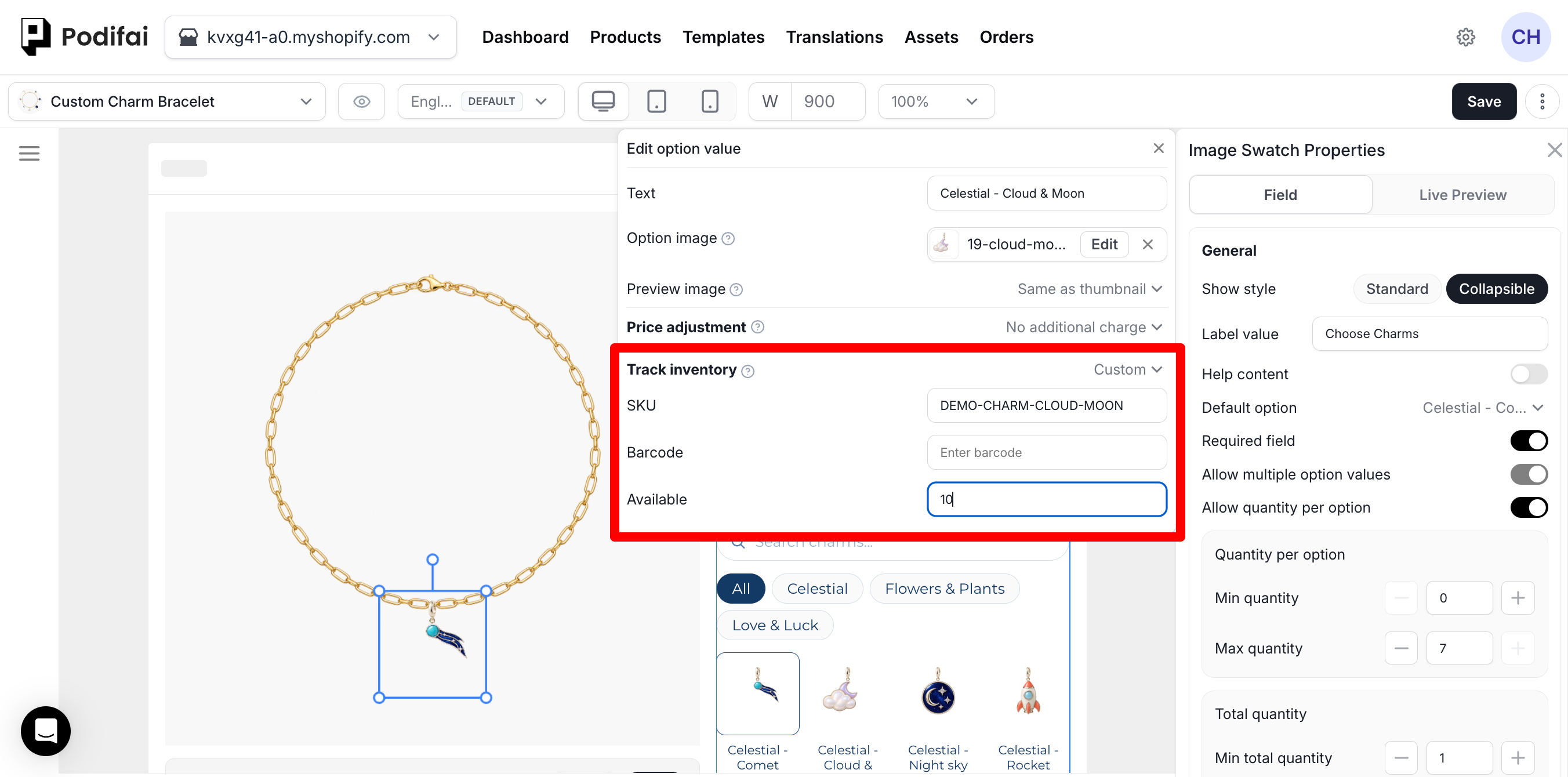
Use Custom when the option value has its own stock count but should not be tied to a Shopify variant. Custom inventory contains three fields:
- SKU — An internal stock keeping unit for identifying the item in inventory, fulfillment, and reporting workflows.
- Barcode — A scannable product identifier used for fulfillment, retail, and supply-chain tracking.
- Available — The starting quantity available for sale. Podifai deducts stock after a Shopify order is created, without waiting for payment; abandoned carts do not reserve or reduce stock.
For a demo value, this example uses SKU DEMO-CHARM-CLOUD-MOON, leaves Barcode blank, and enters 10 in Available. Use your own SKU, barcode where applicable, and actual stock count for a product you sell. Save the editor after making changes.
Linked Variant Inventory
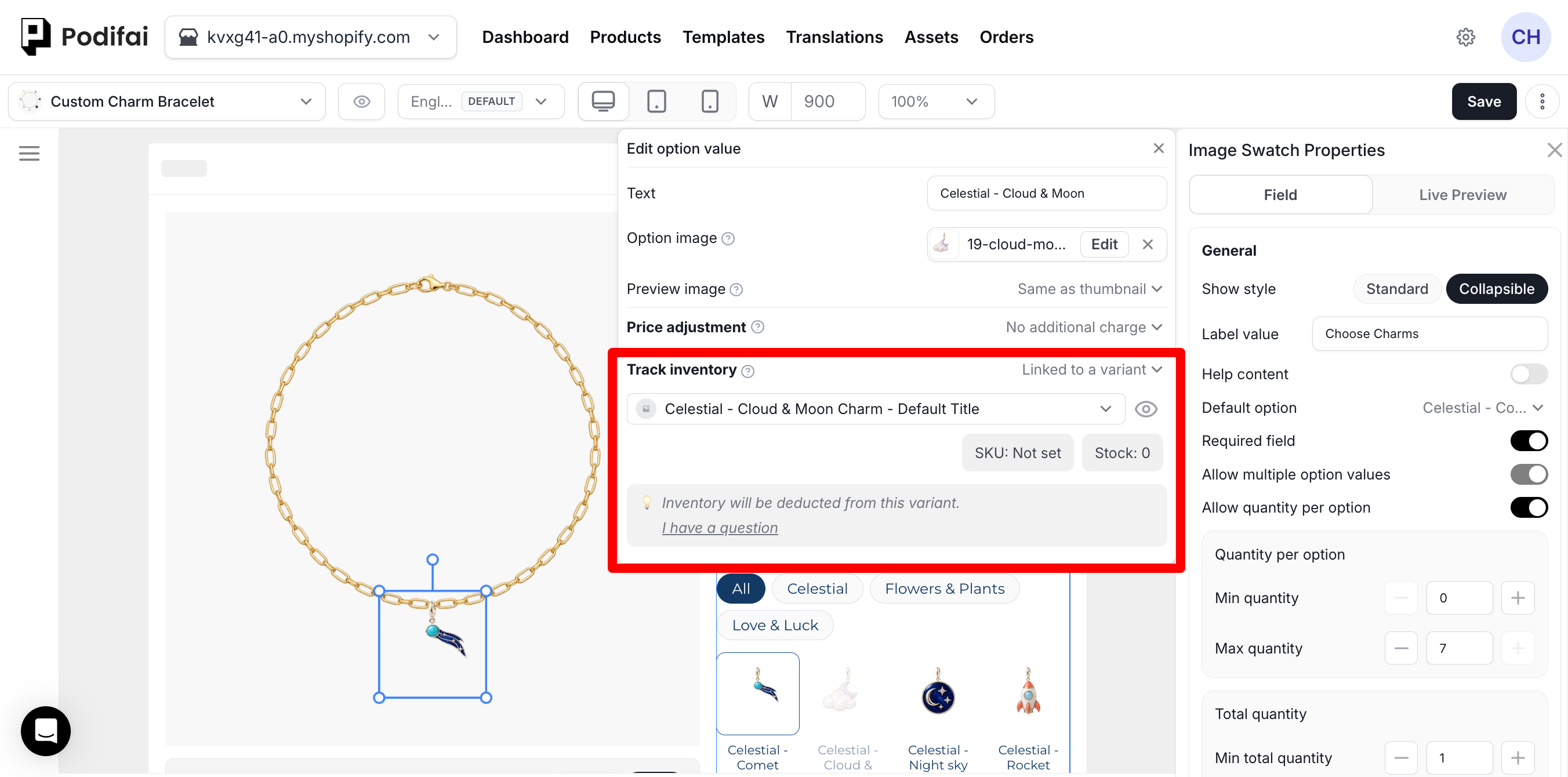
Use Linked to a variant when you want Shopify to be the source of truth for stock. Each Podifai option value links to one Shopify variant. After linking, merchants can update stock in Shopify, and Podifai uses the current Shopify stock state in real time in both the dashboard and storefront customizer.
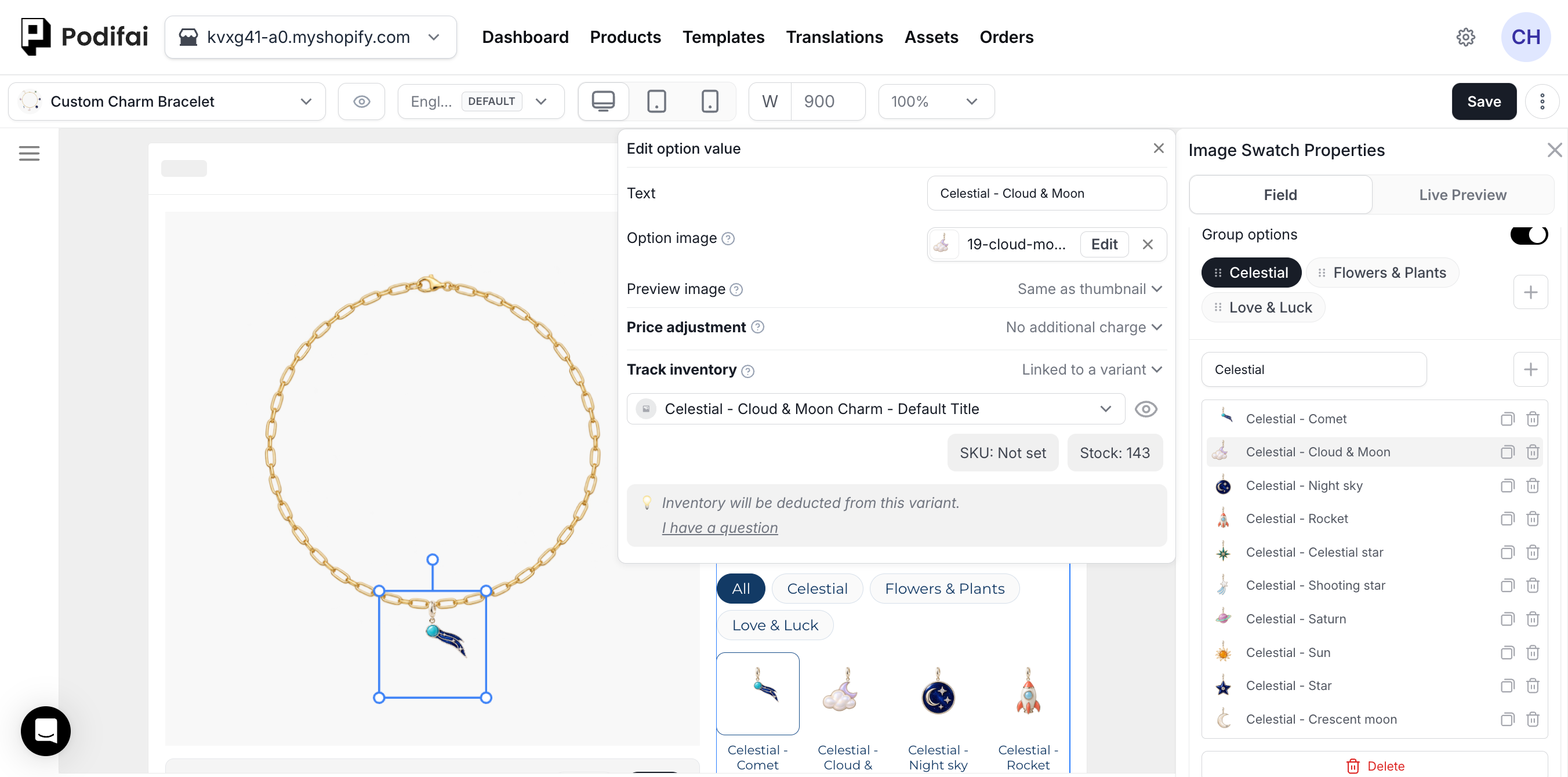
Link an option value to a variant
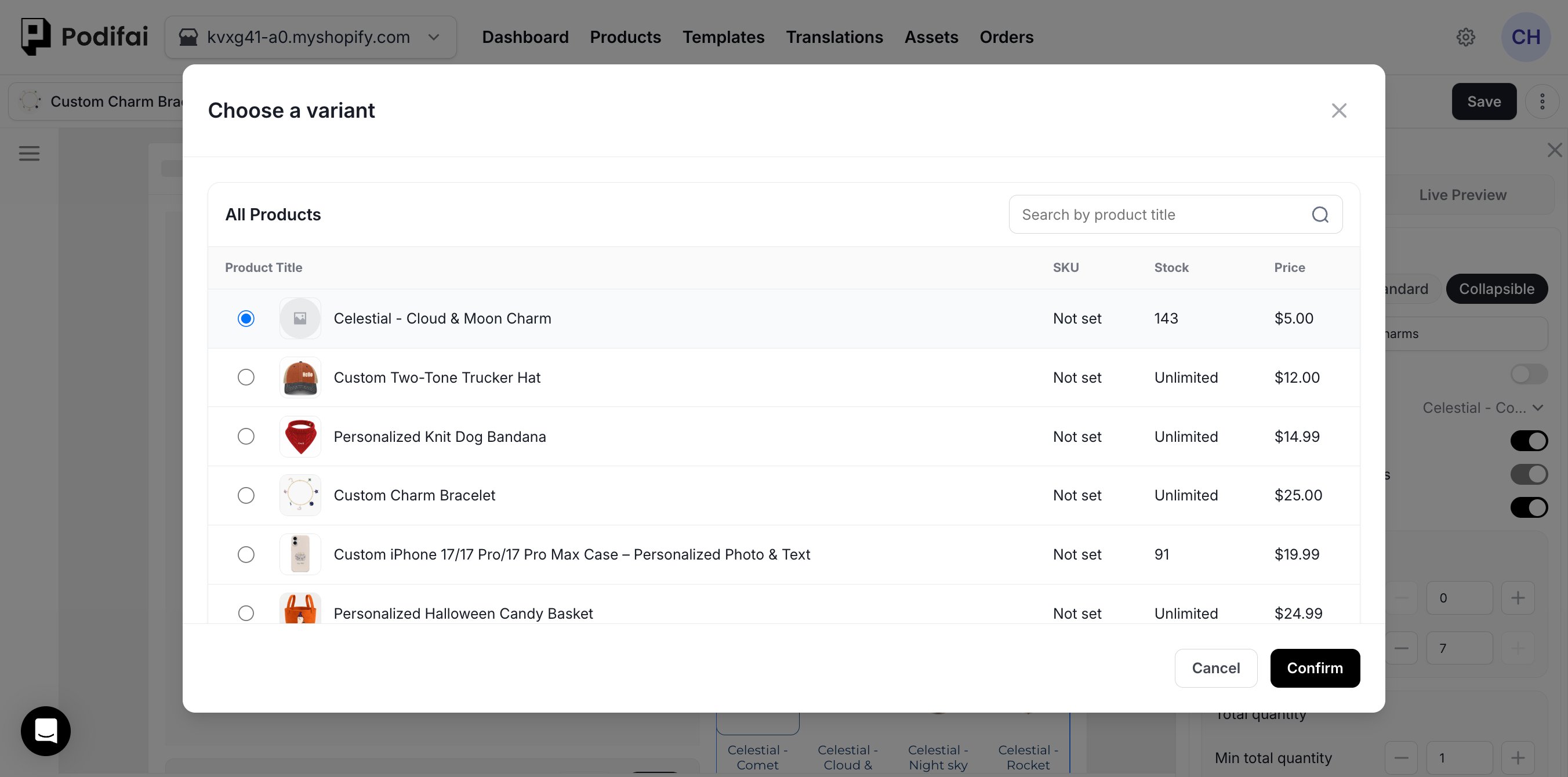
Create separate products for extra item inventory
For add-ons that are not variants of the base product, create separate Shopify products or variants first, then link the Podifai option value to the specific Shopify variant that should control stock.
Podifai does not automatically create Shopify variants for option values. If Shopify should control stock, create the variant in Shopify first, then link it from the Podifai option value.
Choose how out-of-stock values appear
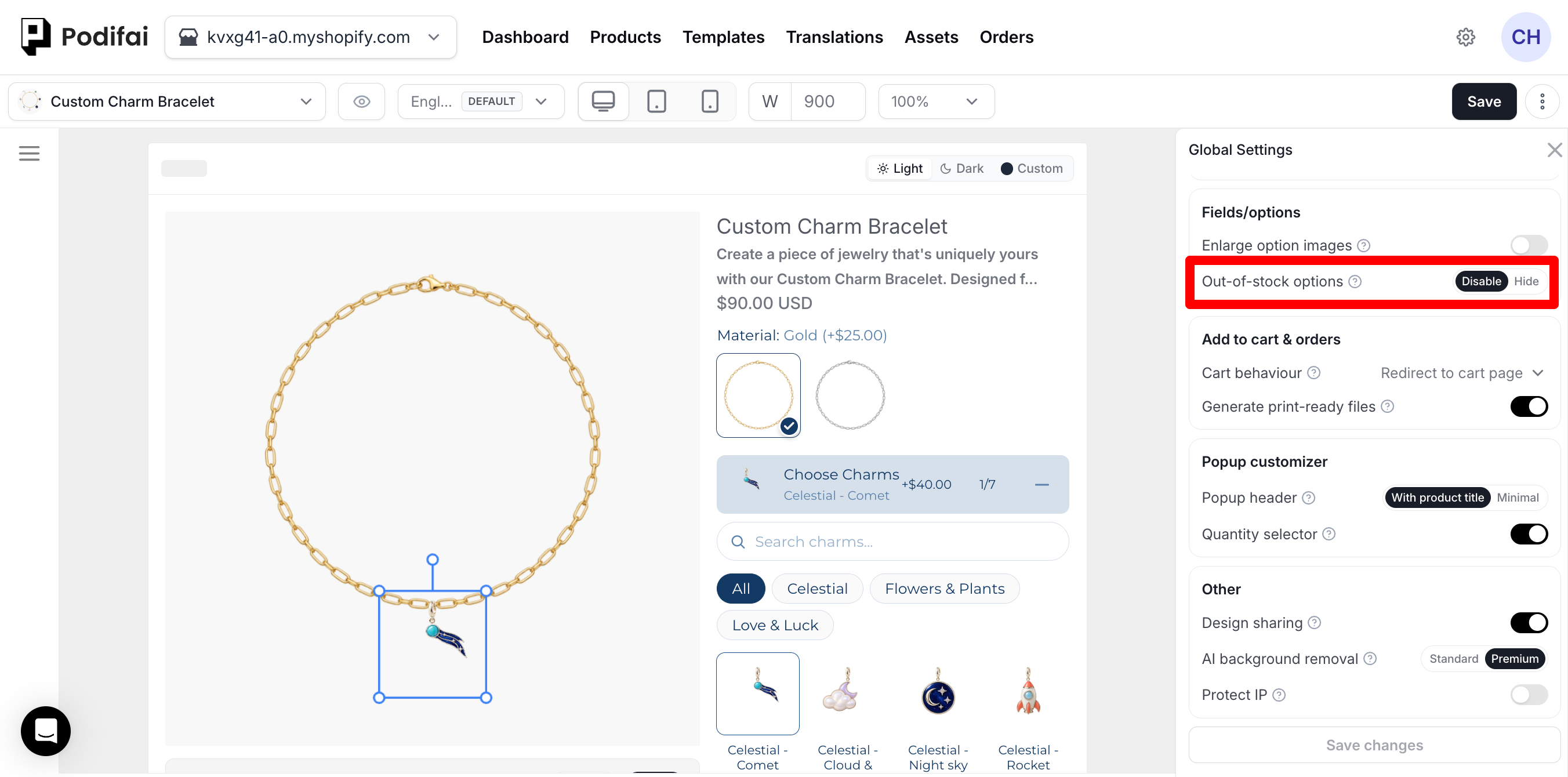
Open Global Settings → Fields/options and find Out-of-stock options. This setting is global and affects all store products using Podifai. Choose the storefront behavior that fits your catalog:
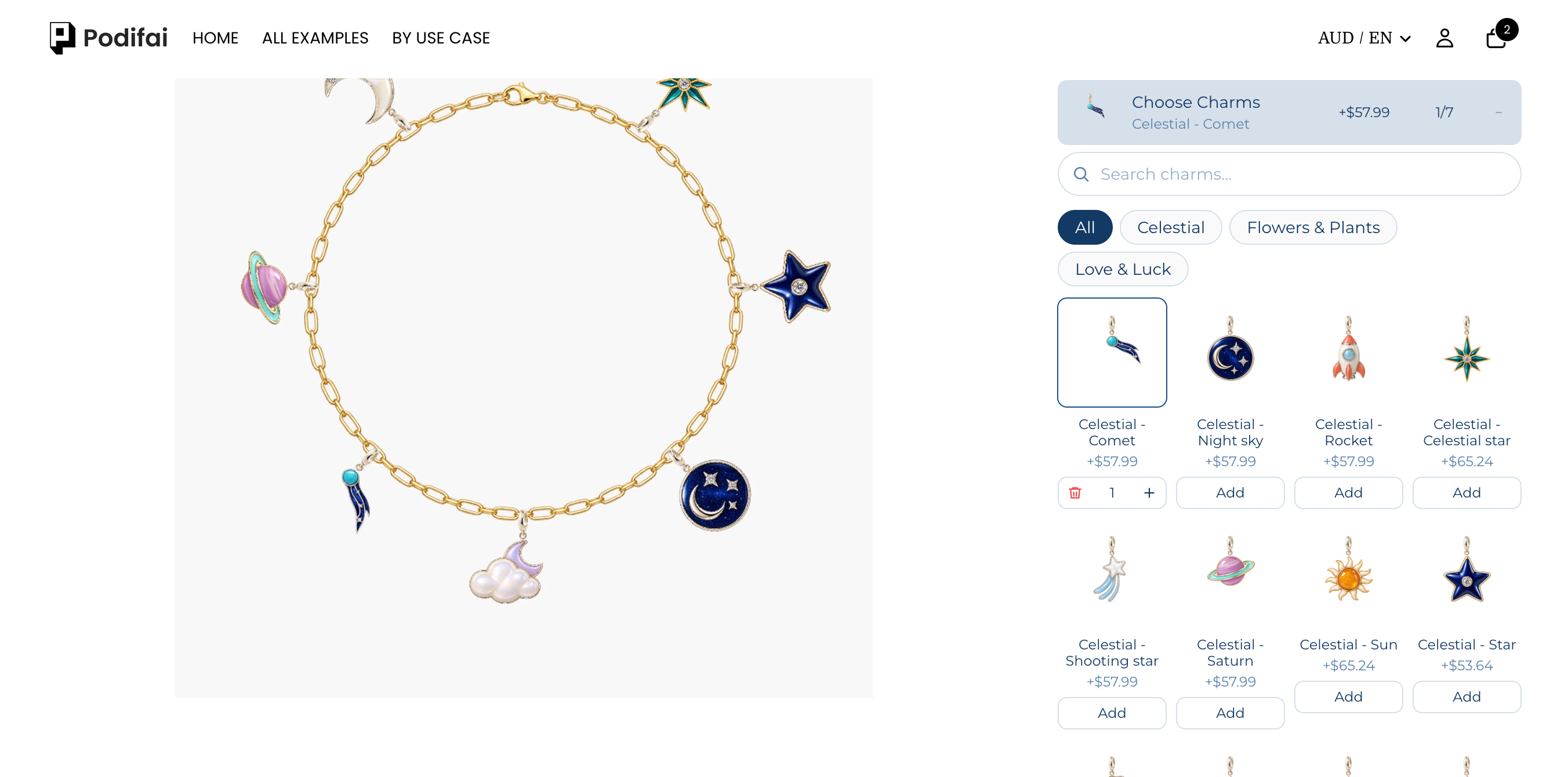
- Hide — Remove unavailable values from the storefront option list.
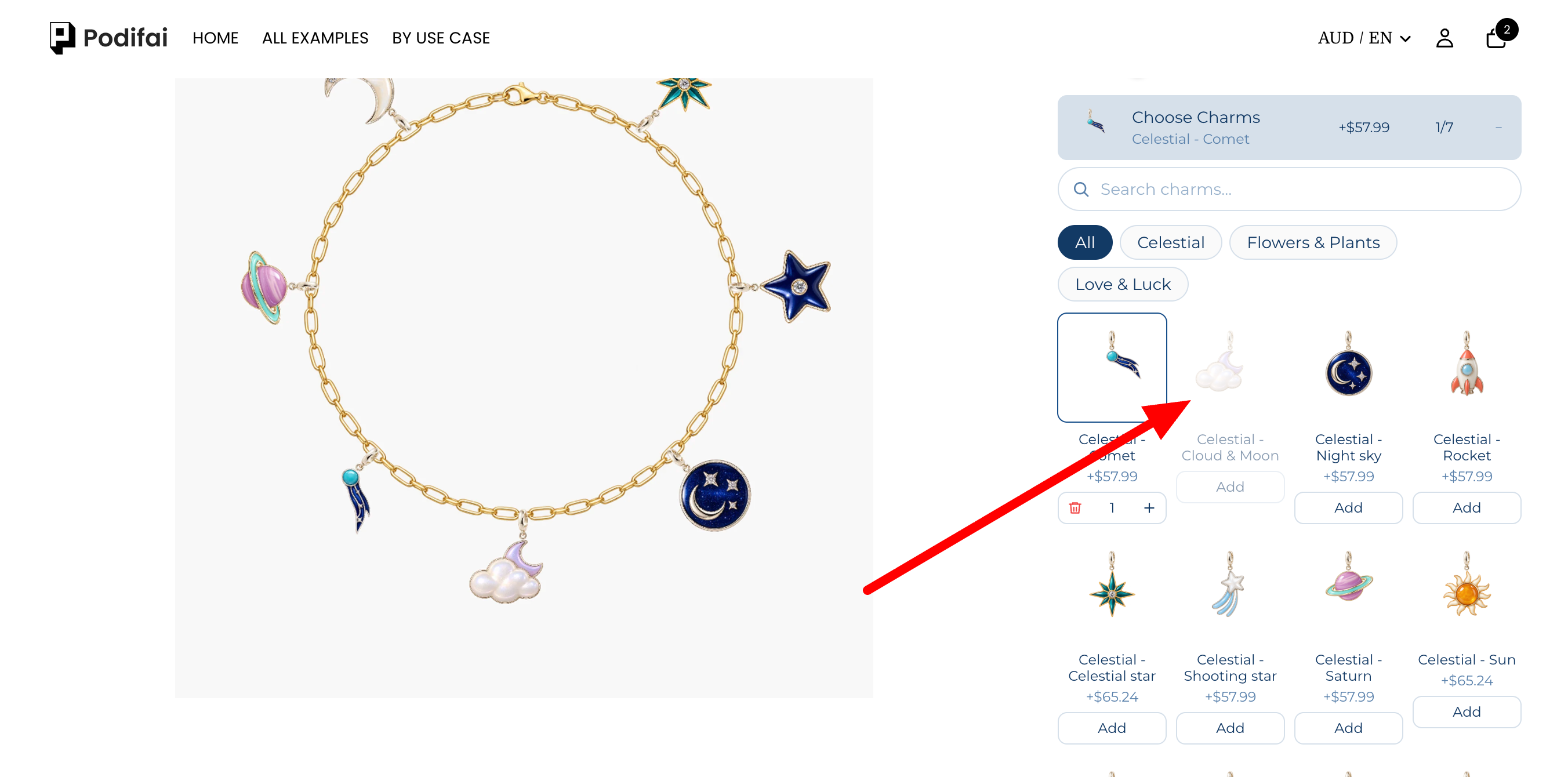
- Disable — Keep unavailable values visible, but visually disable them and prevent selection.
Hide is useful for large catalogs where unavailable colors, materials, or components would create clutter. Disable is useful when you want shoppers to see that the choice exists even though it cannot be purchased right now.
If an out-of-stock value was previously set as the default for a required option, it will not be selected on the storefront. The shopper will see the normal required-selection prompt, such as "Please select", and must choose an available value before adding to cart.
Out-of-stock linked variants
When Price Linking Uses a Variant
Inventory linking does not add a separate cart item or charge the variant price. Use Price adjustment → Add variant price (Bundle variant) for variant-based pricing. If the same variant is also linked for inventory, Podifai and Shopify can both deduct stock when that variant is included as an order line. Set Podifai inventory to Not tracking inventory when Shopify already handles that variant through its order line.
If a price-linked add-on product is set to Draft or unpublished, Add to Cart shows a cart error. Do not assume inventory Hide/Disable settings prevent every pricing-link error. See Linked Inventory & Add-on Pricing for setup steps, cart line behavior, duplicate deductions, product eligibility, and ERP reporting.
Data from Linked Variants
When an option value is linked to a Shopify variant, Podifai can use the following data:
- Price — The variant price, when used for dynamic pricing.
- Compare-at price — The compare-at price, when available.
- SKU — The Shopify SKU for inventory and fulfillment reference.
- Barcode — The Shopify barcode field for the variant.
- Available quantity — The current quantity available for sale.
- Availability — Whether the linked item is in stock or out of stock.
- Image — The variant image, when available.
- Product URL — A link back to the source product.
Multi-Select Inventory
For multi-select options, each option value can link to its own Shopify variant. With Allow quantity per option off, each value is selected once in the same option group. For an order containing one main product, each selected value deducts its linked variant once when the order is created.
For example, if a shopper buys one necklace and selects three different charm values from one multi-select Image Swatch, each selected charm can reduce its own linked Shopify variant stock by one after the order is created.
With Allow quantity per option on, shoppers can select repeated units within one product. Check inventory separately from the displayed quantity and price: place a test order, compare the component's Available and Committed stock and inventory history, and confirm the exact deduction. Test repeated units, several main products, shared component links, and identical value names in different fields. If the deduction is missing or differs from the expected total, use the chat icon on the left side of the page or email chelsea@podifai.com with the order and linked variant before relying on this configuration for stock control. See Linked Inventory & Add-on Pricing for shared links and order-line behavior.
See Charm Builder for the complete multi-select charm workflow, including Multiple position in Live Preview and per-value pricing.
Inventory & Pricing Independence
Podifai lets pricing and inventory stay independent when they do not need to use the same Shopify variant. For example, an option value can track stock through linked variant inventory without adding a surcharge, or it can use a price add-on without tracking stock.
Use Cases
- Track a custom material, color, charm, or add-on without creating a Shopify variant.
- Let Shopify control stock for an option value that already exists as a variant.
- Hide out-of-stock values or keep them visible in a disabled state.
- Keep SKU and barcode data attached to option values for shipping and operations.
- Track color, material, font, charm, patch, or component availability through option values.
- Combine inventory with Dynamic Pricing when price and stock need separate rules.
Shopify Reference
Shopify describes SKUs as internal codes used to track inventory and report on sales. Shopify also notes that barcodes are separate from SKUs and are typically used by barcode scanners and supply-chain workflows. In Shopify inventory, Available means the quantity available for sale.
Option Value Linking
Variant-linked inventory is available from option value settings, including Color Swatches, Font Swatches, Image Swatches, dropdowns, and badge groups. Select the option value, open Track inventory, and choose either Custom or Linked to a variant.
See Shopify Variants vs Podifai Options when deciding whether a product choice should control the base Shopify variant or remain a Podifai personalization option.
Check the Total Required Stock
Product-page linked-inventory validation counts repeated option units, options sharing the same variant, and main-product quantity together. With Shopify tracking enabled and Continue selling when out of stock off, a selection needing six units is rejected when only five remain.
This check does not reserve inventory. Verify quantity edits in the cart, checkout, and the actual order's stock history separately. For a bundle add-on included as a Shopify variant line, Shopify checks the required add-on quantity. See required quantity checks.
Order Creation, Cancellations, and Refunds
Podifai deducts tracked option inventory after Shopify creates the order. Payment is not the trigger; an unpaid order can therefore reduce stock. Adding an item to cart or abandoning checkout does not reserve or deduct this inventory.
Before adjusting a linked variant, check whether Shopify has already restored stock for a separate order line. Reconcile the actual count so the same component is not added back twice.
Verify the Stock Change
- Record the starting count for each custom inventory value or linked Shopify component.
- Place a test order with known selections and product quantity.
- Inspect the actual Shopify order lines and compare the resulting component stock counts.
- Repeat with your supported product quantities and any shared component links.
- Test Hide or Disable and the required-selection prompt when the default choice is unavailable.
When stock changes twice, first check whether Shopify already deducts the component through its order line as well as Podifai's inventory link. Follow the setup comparison before changing either tracking setting.
FAQ
Which Podifai option types support inventory?
Inventory is available for value-based option types: Image Swatch, Color Swatch, Font Swatch, Dropdown, and Badge Group. Text Input, Text Area, and Image Upload collect customer-entered content and do not use per-value inventory tracking.
When does Podifai reduce custom inventory?
Podifai deducts stock after Shopify creates the order; it does not wait for payment. Abandoned carts do not reserve inventory or reduce the available stock count.
Does cancelling or refunding an order restore Podifai-tracked inventory?
No. Podifai does not currently automatically reverse its inventory deductions when an order is cancelled or refunded. Review the affected custom inventory values or linked Shopify variants and manually correct their stock counts as needed. Check any stock already restored by Shopify before making another adjustment.
Does linked inventory update from Shopify in real time?
Yes. When an option value is linked to a Shopify variant, Podifai uses the current Shopify stock state in real time in the dashboard and storefront customizer.
Does Podifai create Shopify variants automatically?
No. Podifai does not automatically create Shopify variants for option values. If Shopify should control stock, create the variant in Shopify first, then link it from the Podifai option value.
What happens when a required default value is out of stock?
The out-of-stock value will not be selected on the storefront. The shopper sees the normal required-selection prompt, such as "Please select", and must choose an available value before adding to cart.
Can I hide out-of-stock option values instead of showing them as disabled?
Yes. In Global Settings, use Out-of-stock options to choose Hide or Disable. This is a global setting that affects all store products using Podifai.