
Font Swatch
Upload fonts, link Font Swatch to personalized text, change the sample lettering, and configure two-letter or three-letter monograms.
Last updated: 2026-11-06
Font Swatch lets shoppers choose a font for personalized text. Link it to Text Input or Text Area with Link font swatch so the selected font updates the live preview text. Custom font uploads support selecting and uploading multiple TTF, OTF, WOFF, or WOFF2 files at once, up to 5 MB per file. Shoppers can select one font at a time from the Font Swatch.
Overview
Font Swatches let customers pick a typeface for personalized text. Each font option shows sample text in that font. Typically paired with a Text Input for the actual text entry.
Upload custom fonts for Font Swatch
- Open the Font Swatch value with Edit option value and click Select Font.
- Click Click to upload and choose one or more font files.
- Pick the uploaded font for the value and save. You can manage uploaded fonts later in Assets.
You can select and upload multiple custom font files in one upload. Each file can be a TTF, OTF, WOFF, or WOFF2 file up to 5 MB. WOFF2 is compressed for the web and is usually the preferred format when it is available from your font provider. Confirm that your font licenses permit storefront web use before uploading the files.
Batch upload affects only how merchants add font files. On the storefront, Font Swatch is single-select: a shopper can choose one font at a time for the linked text.
Two-Letter and Three-Letter Monograms
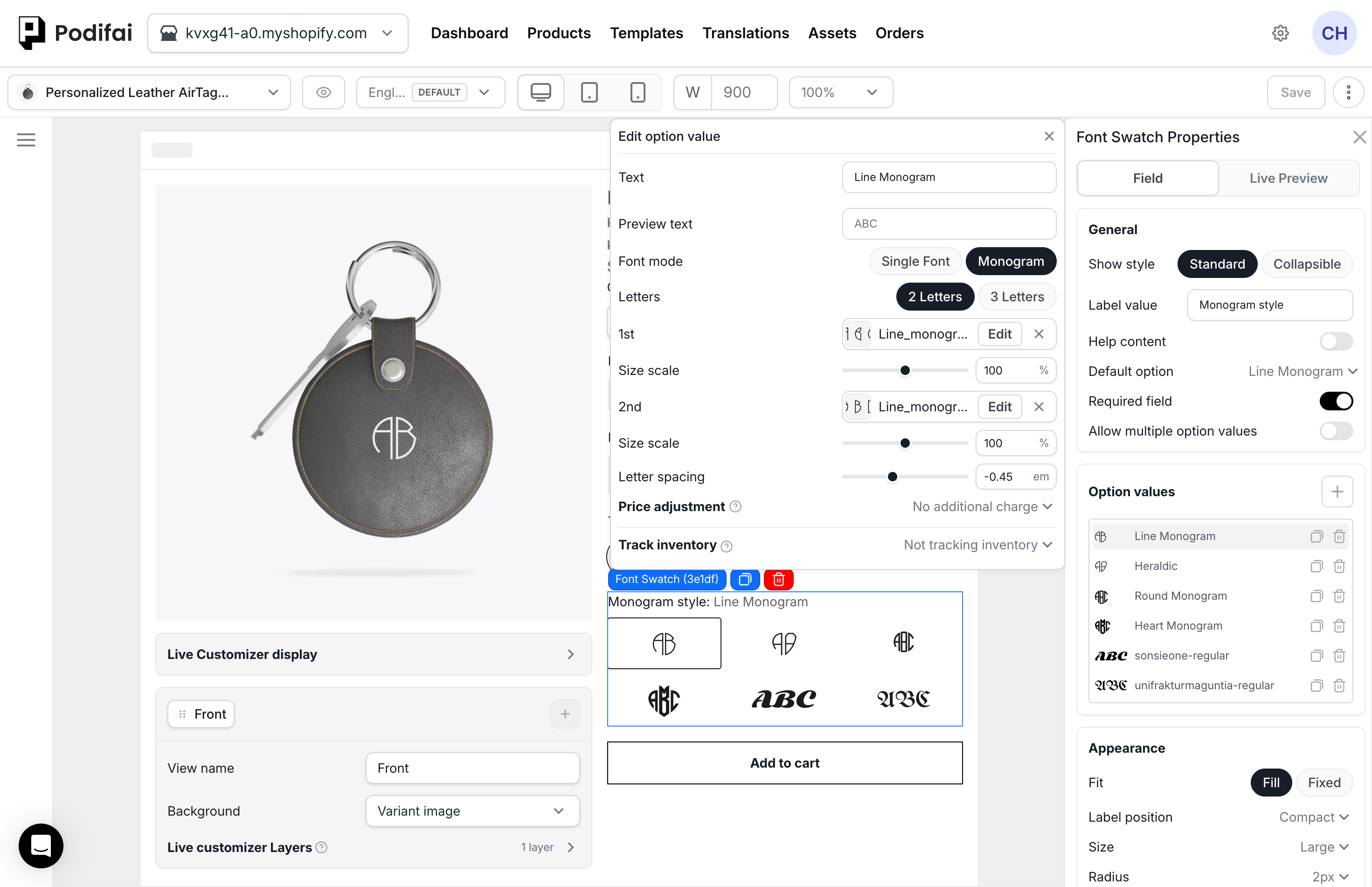
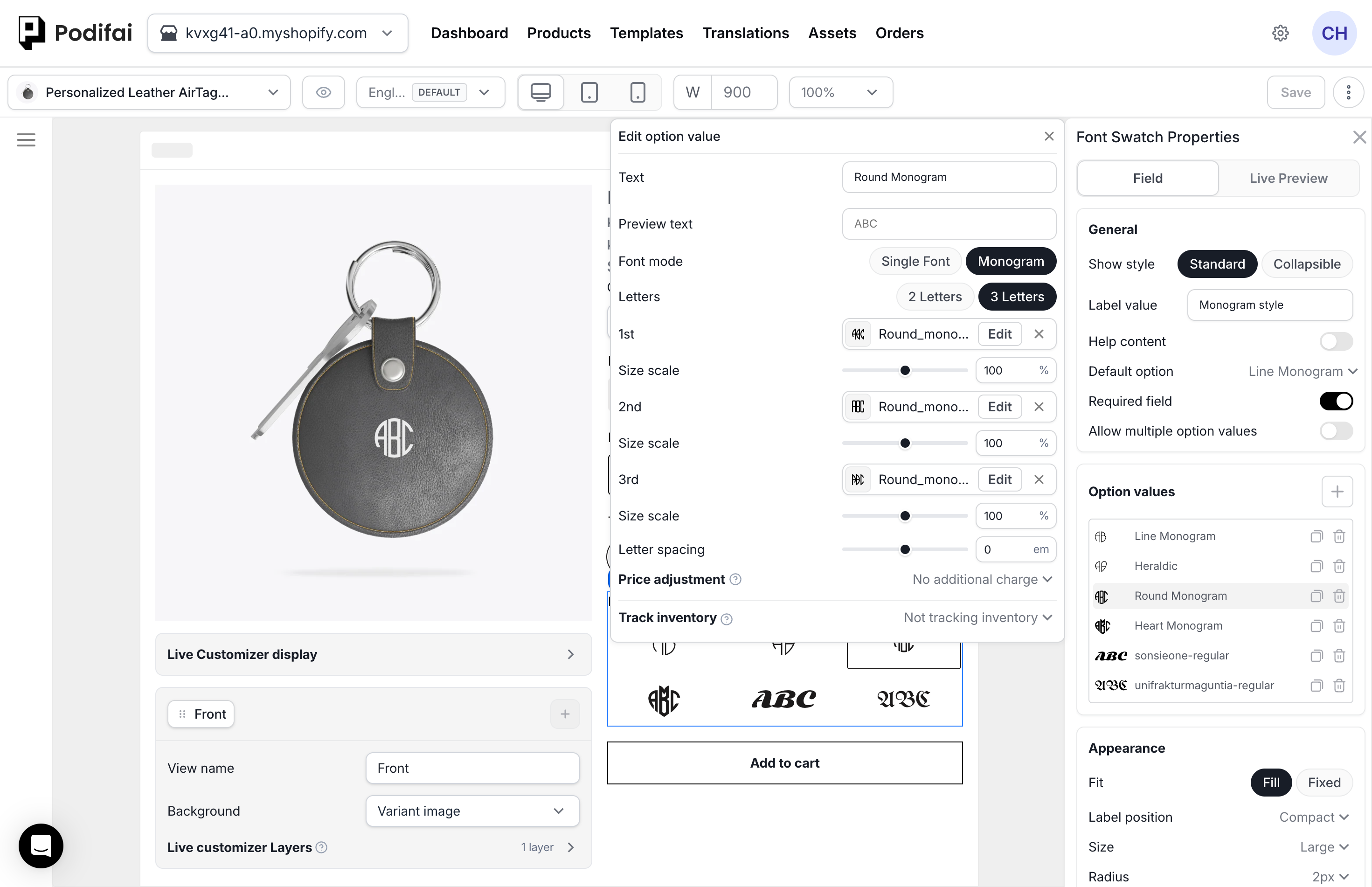
Monogram mode belongs to each Font Swatch option value. Open Edit option value, change Font mode from Single Font to Monogram, then choose Two letters or Three letters. You can scale each letter independently and adjust the overall letter spacing. The editor's right panel and the Font Swatch itself show the composed result as you configure it.
- Create or select a Font Swatch option value.
- Choose Monogram under Font mode, then select Two letters or Three letters.
- Adjust each letter's size scale and the overall letter spacing.
- Link the Font Swatch to a Text Input or Text Area.
- Set the linked Text Input or Text Area character limit to match the two- or three-letter layout.
- Test every font value and allowed character count on the storefront.
Two-Letter Example
Three-Letter Example
Live Preview
Font Swatch controls the font style, but it needs to be linked to a text option before it can update Live Preview. A Font Swatch can control either a Text Input or a Text Area.
- Add a Text Input or Text Area option.
- Add a Font Swatch option.
- Select the text option in the editor.
- Enable Live Preview for that Text Input or Text Area and position its text layer.
- In the right-side settings panel, use Link font swatch to choose the Font Swatch option that should control this text.
- Save and test the product page.
After linking, the customer types text into the Text Input or Text Area, then chooses a font from the Font Swatch. The live preview text updates to use the selected font.
Link Font Swatch to a Text Input
To offer symbols alongside personalized text, configure the SVG icon selector on Text Input or Text Area.
General Settings
- Label value — The option group title (e.g. "Choose Font")
- Required field — Whether a font must be selected
- Default option — Pre-selected font when the page loads
- Help content — Hover or popup guidance.
Option Values
Each value has a Text label, Preview text, and a font configured through Select Font. You can duplicate or delete values. Additional settings per value:
- Preview text — Defaults to ABC. Replace it with the sample text you want the font swatch to display.
- Price adjustment — Optional surcharge for premium font styles
- Track inventory — Link to a Shopify variant for stock tracking
Appearance
- Fit — Choose Fill or Fixed for the swatch layout.
- Size — Set swatch dimensions.
- Padding — Set space inside each swatch.
- Radius — Set corner rounding.
- Fill & outline — Choose the fill and outline style.
- Label position — Choose the label layout.
Switch Font Swatch to fixed layout
Change Font Swatch label position
Change Font Swatch size
Change Font Swatch corner radius
Change Font Swatch style
Conditional Logic
Use Conditional Logic to show or hide this option based on another selection. For example, show font options only when text personalization is enabled.
Customize Font Swatch Preview Text
Open a Font Swatch value in Edit option value. Preview text defaults to ABC; replace it with your own sample letters or text to change what the swatch displays. The Text field names the option value, while Preview text demonstrates its font.
Preview text is the sample on the font selector. The shopper enters the actual personalization in the linked Text Input or Text Area. Change the sample here; change the text field's label, help text, and character limit on the text option.
If the Preview Font Does Not Change
- Select the Text Input or Text Area that owns the preview text and confirm Live Preview is enabled.
- Check that Link font swatch references the intended Font Swatch option.
- Enter sample text in the text field and switch between font values on the storefront.
- If only one value looks wrong, review its selected font, font file, and Single Font or Monogram mode.
Test the actual characters shoppers will use, including accented letters or non-Latin text where needed, because each font file has its own character coverage. For monograms, also check the matching character limit and letter layout. See text sizing for fitting the linked text to a defined area.
FAQ
Can two text boxes use different fonts chosen by the shopper?
Yes. Add one Font Swatch for each text box and link each text box to its own Font Swatch. One Font Swatch can only control the text boxes linked to it. A single Color Swatch can still be linked to both text boxes if they should share the same color.
Can shoppers mix a text font and an emoji font in one input?
Text Input and Text Area offer Enable icon selector for inserting configured SVG icons alongside text. Choose built-in icons or add your own with Select SVG. This is separate from applying two different text fonts within one input or supporting every Unicode emoji. See the Text Input icon selector instructions.
Can I change the ABC sample shown in a Font Swatch?
Yes. Open Edit option value and change Preview text from its default ABC to the sample text you want to display.
Can Font Swatch control Text Input and Text Area?
Yes. A Font Swatch can be linked to either Text Input or Text Area through Link font swatch in the text option's right-side settings panel.
Does Font Swatch update Live Preview by itself?
No. Link it to a Text Input or Text Area with Link font swatch. The Font Swatch then changes the font used by that text option's live preview layer.
Can Font Swatch values have price add-ons?
Yes. Font Swatch values can have a Price adjustment when premium font styles should add an extra charge.
Can Font Swatch use inventory?
Yes. Font Swatch values can link to Shopify variants for stock tracking when a font style or production option has limited availability.
Can I upload a WOFF2 font to Podifai?
Yes. Font Swatch and Global Font uploads support TTF, OTF, WOFF, and WOFF2 files up to 5 MB each.
Can I upload multiple font files at once?
Yes. You can select and upload multiple font files in one upload. Shoppers can still select only one font at a time from a Font Swatch.
How do I create a two-letter or three-letter monogram?
Edit a Font Swatch option value, change Font mode from Single Font to Monogram, choose Two letters or Three letters, then adjust each letter's size scale and the overall letter spacing. Link the Font Swatch to a Text Input or Text Area and set a matching character limit on the linked text option.
Manage and Delete Uploaded Fonts
Open Assets to manage uploaded fonts. Unused fonts can be deleted individually or in bulk. A font used in a customization setup is protected from deletion. Replace or remove its uses before deleting the asset.
Why does selecting a font or color not change my text?
A swatch needs to be linked to the text it controls. Select the Text Input or Text Area, open its Live Preview settings, and choose the intended Font Swatch with Link font swatch. Use Link color swatch for its text color. Repeat the link for each text field that should use those shared choices.
Check each text field on the storefront after saving. Changing the global interface font or color styles the customizer UI; it does not replace the text layer's swatch links.