
Multiple Languages & Translations
Publish a Shopify language, translate Podifai options and messages, save manual edits, and review AI translations before confirming them.
Last updated: 2026-11-06
Publish the language in Shopify, add it in Podifai, then translate your customizer. Save manual edits with Save; review and confirm AI translations before customers see them.
These steps translate what shoppers see on your storefront. The Podifai admin and editor are in English. To read them in another language, use your browser's built-in translation, such as Google Chrome's Translate option.
What Podifai translates: option labels, values, placeholders, help text, buttons, view names, and system messages (such as validation errors). What it does not: product titles and descriptions, theme text, and cart and checkout text. Those are translated through Shopify and your theme. Shoppers reach each language through your theme's language selector or a Shopify domain or market.
1. Add the Language
- In Shopify Admin → Settings → Languages, add and publish the language.
- In Podifai → Translations, click Add language and select it.
Your store's default language appears automatically. Other languages must be published in Shopify before you can add them in Podifai. Shopify controls which languages customers can access on each domain.
2. Translate Your Options
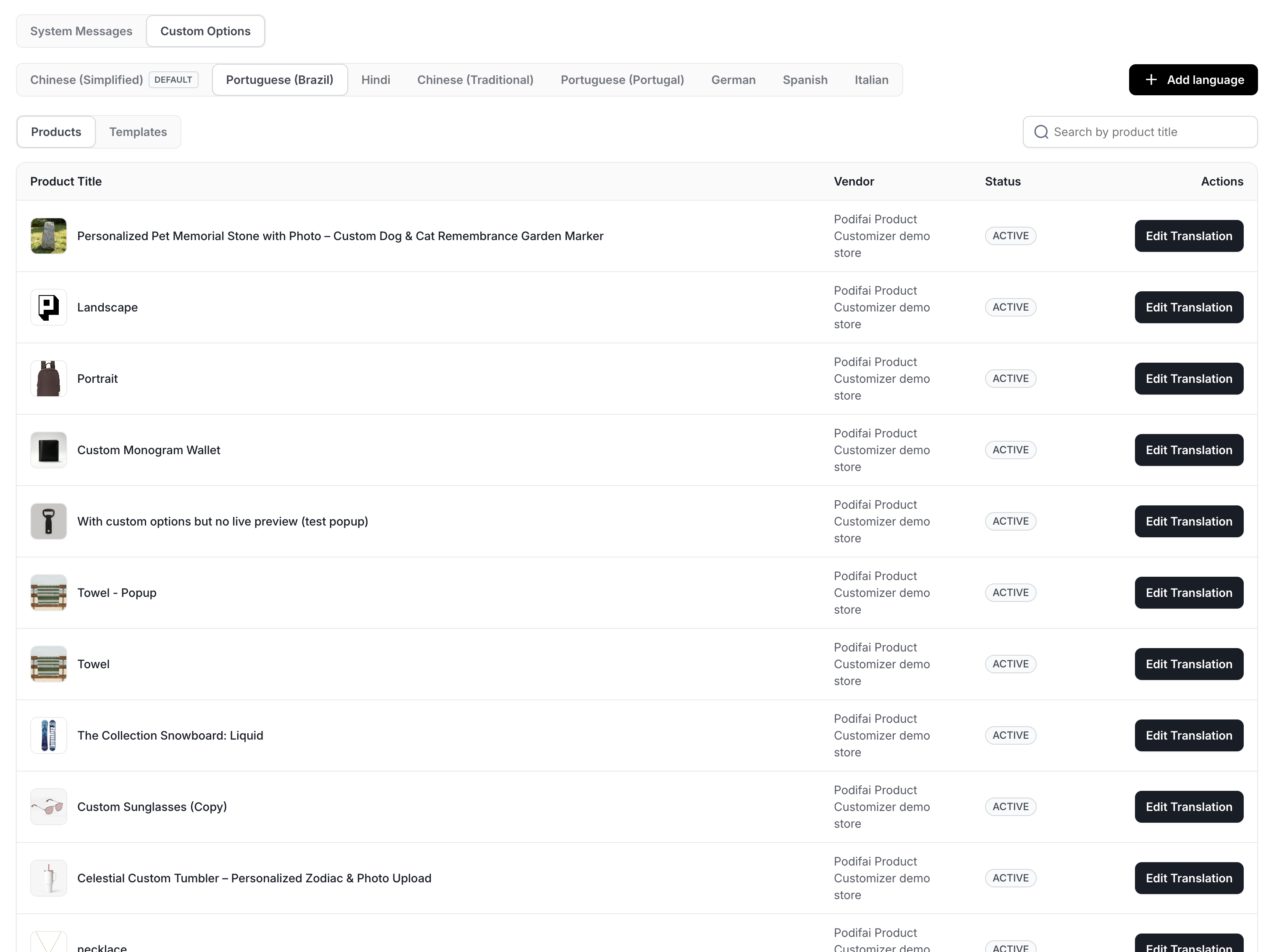
Use Translations → Custom Options for option labels, values, placeholders, help text, buttons, and view names. Product titles and descriptions are managed in Shopify.
- Select the target language, such as Spanish.
- Choose Products or Templates, find the item, and click Edit Translation.
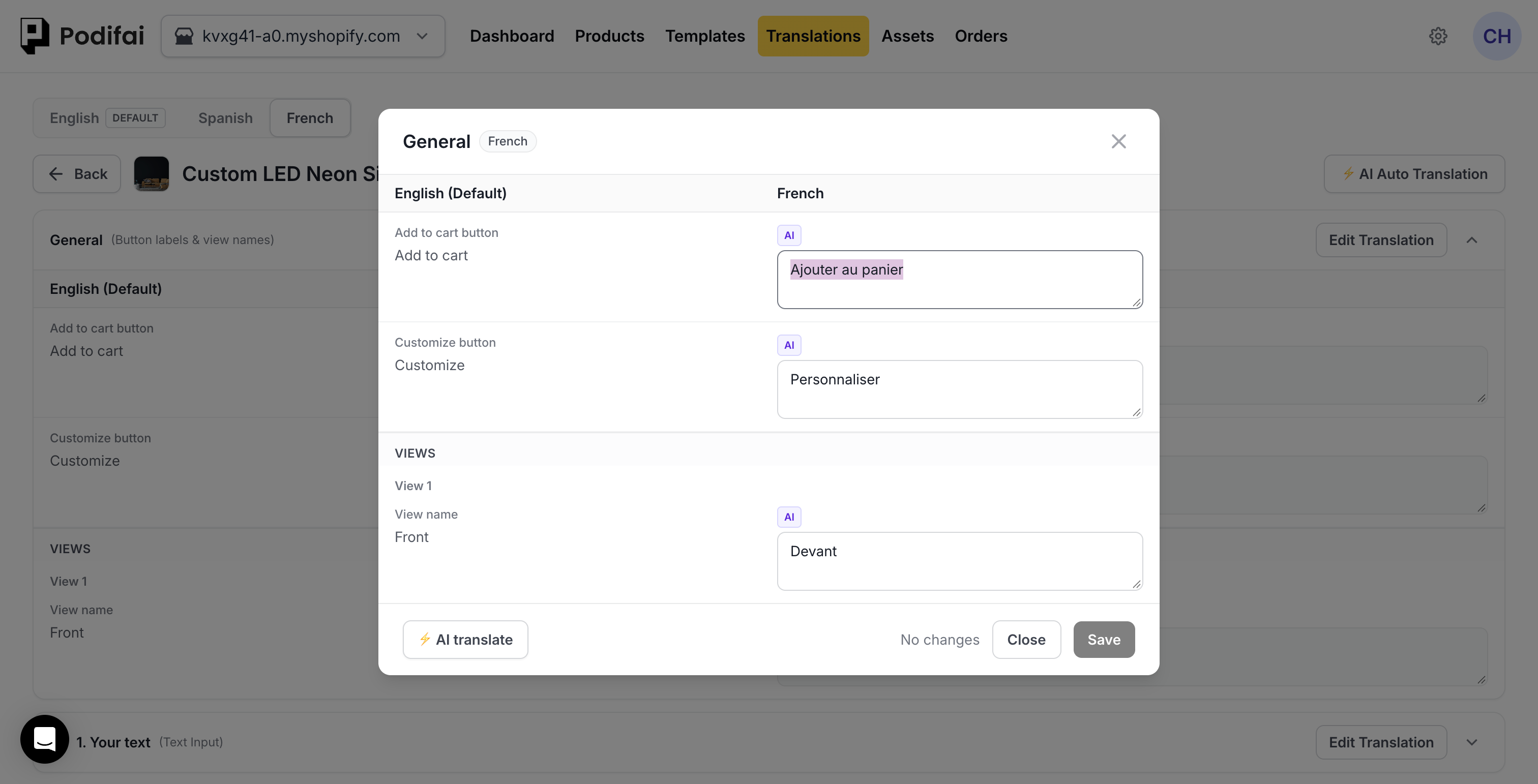
- For General or an option group, click Edit Translation to open its popup.
- Edit the translation on the right, using the source text on the left as a reference.
- Click Save at the bottom right of the popup.
| English source | German | Spanish |
|---|---|---|
| Please choose a color | Bitte wählen Sie eine Farbe | Elige un color |
Edit the Default Language
The language marked DEFAULT uses your original text. Click Edit original to open the product or template editor.
AI Auto Translation
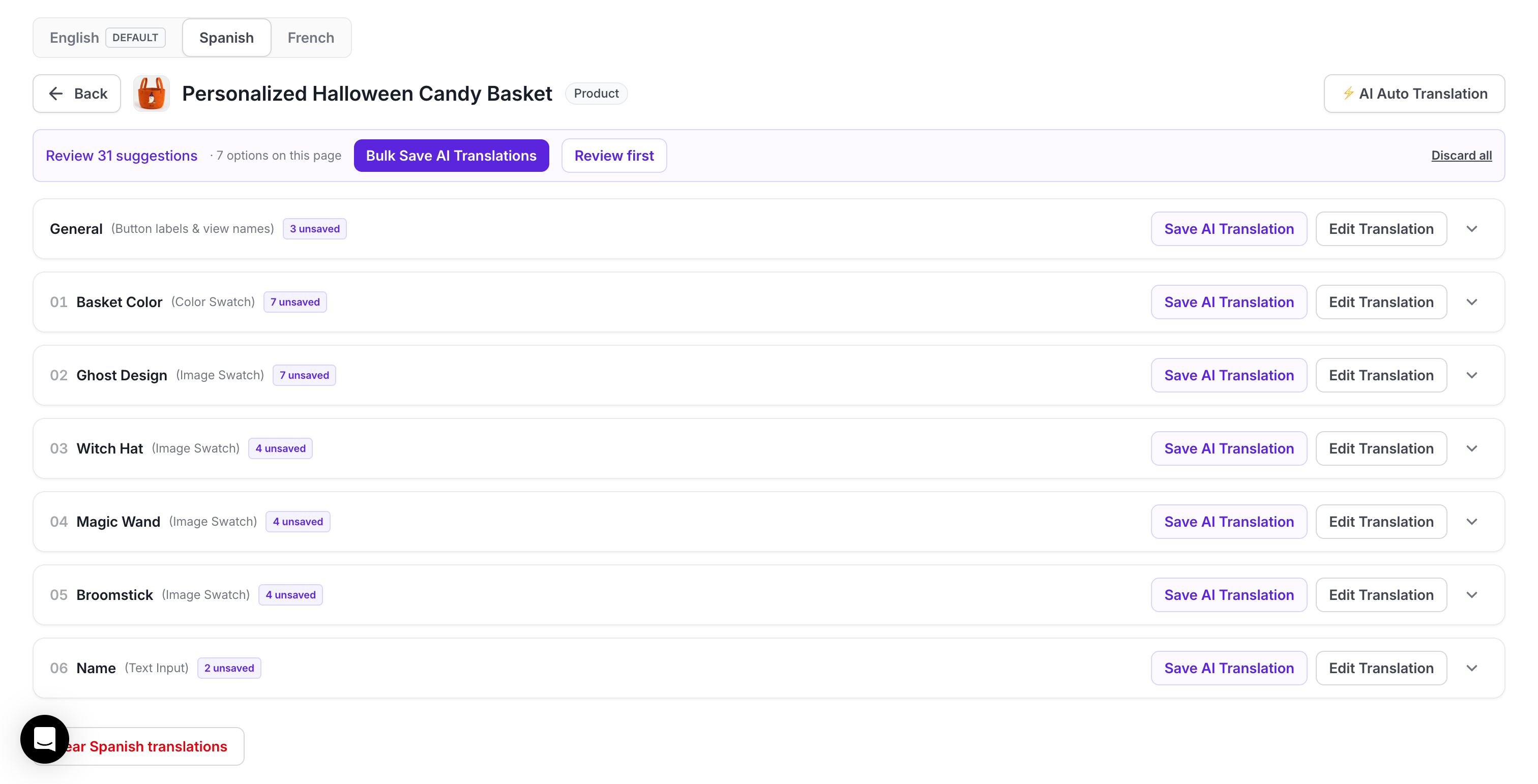
- Choose a product or template and a target language. Click AI Auto Translation. By default, it fills missing translations.
- Wait for translation to finish. Suggestions marked unsaved are not saved yet. Click Review first to review them.
- Click Save AI Translation beside a section, or Bulk Save AI Translations to save all suggestions. No additional publish step is needed.
AI works on one product or template and one language at a time. It is included on every plan with no quota or extra fee. If some translations fail, run AI Auto Translation again. You cannot retry only the failed items.
3. Check System Messages
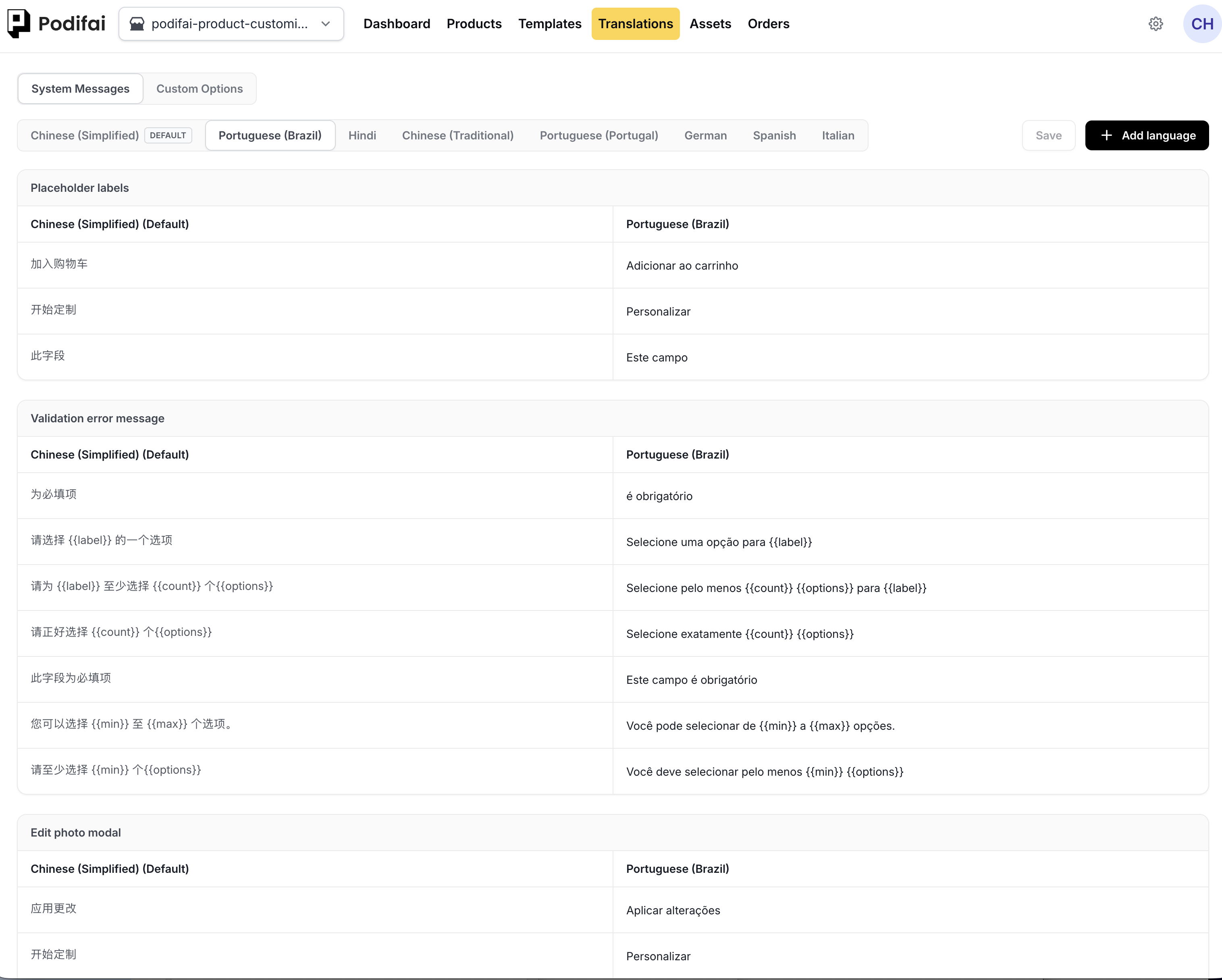
Open Translations → System Messages and select the language. These messages include validation errors, placeholders, and the Edit photo controls.
Complete built-in translations are available for 92 languages: English and 91 others. Other languages are automatically translated using AI when added.
When editing messages, keep tokens such as {{label}}, {{count}}, {{min}}, and {{max}} unchanged.
See the System Messages screen
4. Preview the Result
Open the product editor and choose a language from its language dropdown. Hover over a language and click Translate to edit it. Return to the product editor after translating to check the result.
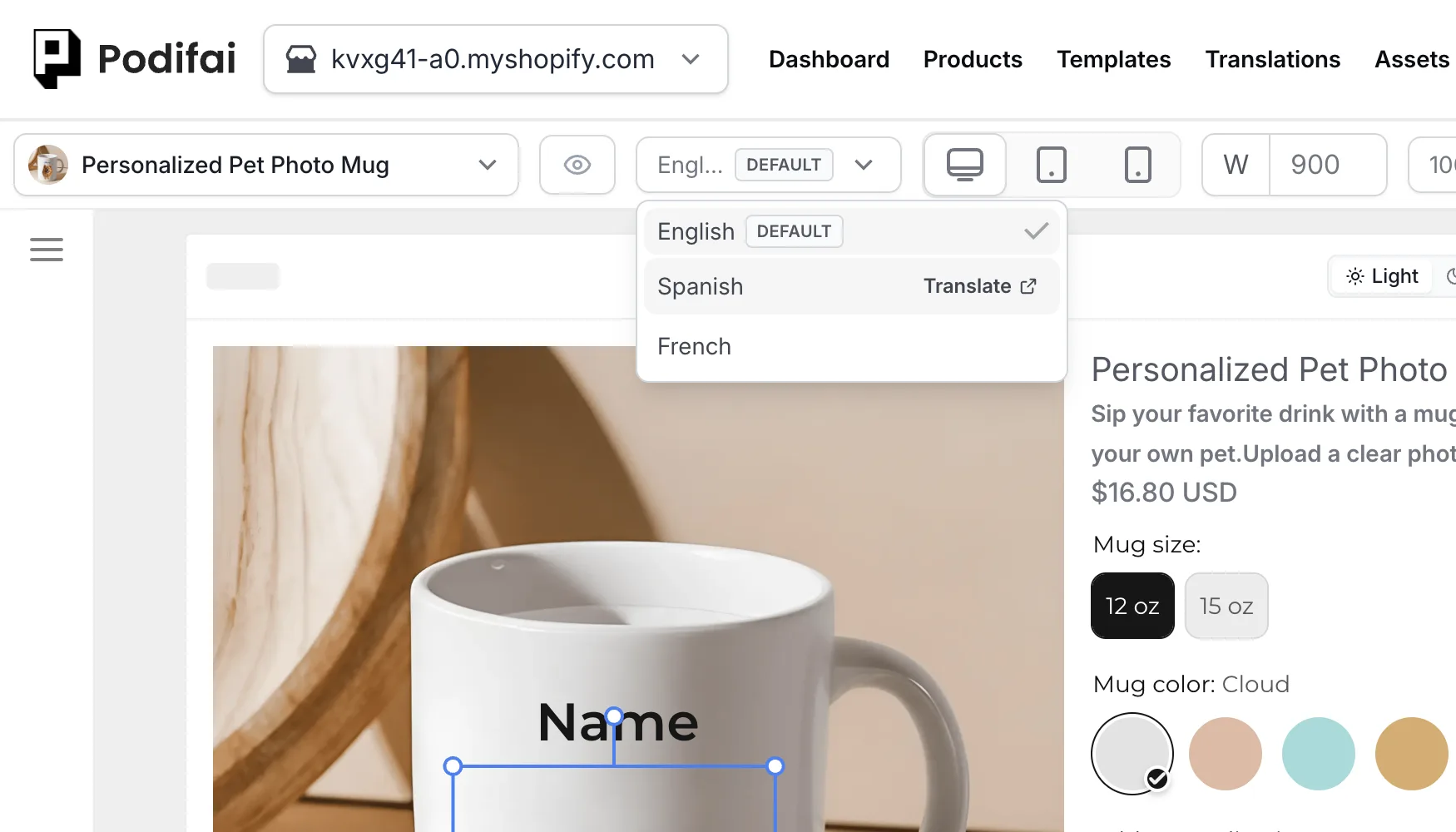
The editor and Translations tab share the same translation content. Podifai warns you before leaving the editor with unsaved changes.
Check the Customer-Facing Language
- Open the actual product page in a language available on that Shopify domain.
- Review option labels, values, help text, placeholders, button labels, and view names.
- Trigger a required-field or selection-limit message and review the relevant System Messages translation.
- For linked products, check the template translation and at least one linked product. Review independent product translations separately.
- Check long labels and messages on desktop and mobile so the translated interface stays usable.
An editor language preview checks the saved copy; the storefront check also verifies the language customers can access through Shopify. If a language is missing from the storefront, review its Shopify publication and domain availability before changing the option text.
Changing Your Default Language
For example, you change the default from English to German. German customers still see Please choose a color, even if Bitte wählen Sie eine Farbe is already saved as a translation. Change the source label in the product editor to the German text and save.
Saved German translations remain stored, but the default language uses source text. AI also receives the old source text with the new source-language setting, which can cause translation failures or unchanged results. Update the source before running AI again.
Common Questions
What if I unpublish or remove a language?
It disappears from Podifai's translation editor, but translations stay saved. Re-add and publish the same language to restore them automatically.
Removing a language from a domain changes storefront availability. Podifai translation and preview remain available while the language is published. A market's default language may differ from the store's default.
What if I change the original option text?
Existing translations continue to be used. Review them after editing the source. Missing Custom Options translations appear blank in the translation editor.
What is the difference between Clear translations and Discard?
Clear translations removes all translations for the current product or template and target language, including manual and AI content.
Discard removes translation content awaiting confirmation. Confirmed AI translations stay saved. Discarded content must be translated again.
Review Translations After Editing Source Text
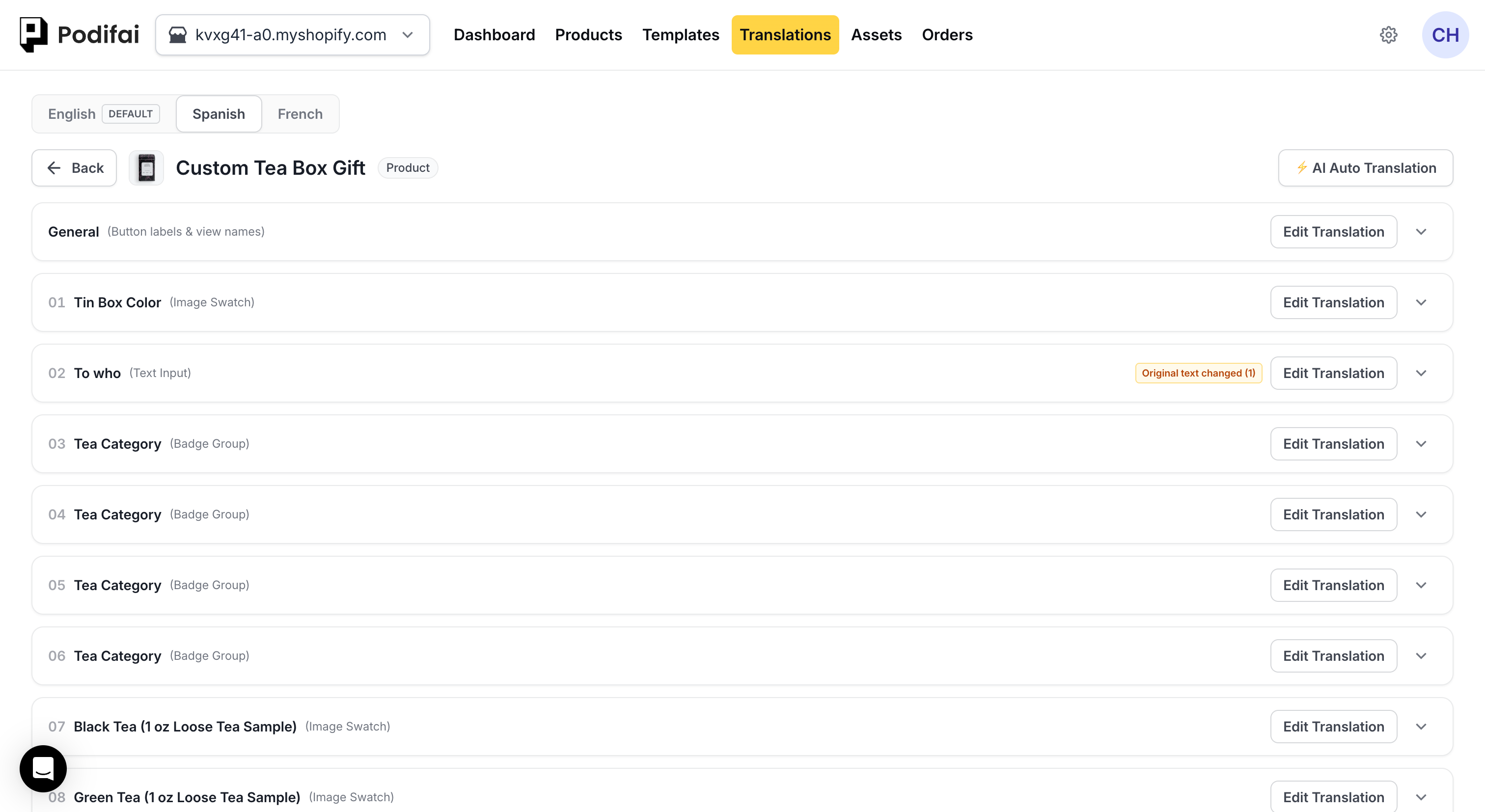
Original text changed identifies source text that needs review, even when all entries have saved translations. The translation count shows completeness; it does not guarantee that translations match the latest source.
- Save the source labels, values, help text, or view names in the product or template editor.
- Open each target language and compare the existing translation with the changed source text.
- Edit and Save manual translations, or review and confirm the AI results.
- Return to the editor language preview and repeat the storefront language check.
AI Auto Translation fills missing content by default, so do not assume that rerunning it replaces every existing translation after a source edit. Review changed entries directly. For linked products, make the translation change on the template.
Related guides: Change the Look and Templates Overview.