
Templates Overview
Apply built-in templates or reuse your own option set. Choose Link for shared updates or Copy for independent product adjustments.
Last updated: 2026-11-06
Podifai supports two kinds of templates: Podifai-provided templates (pre-built configurations you can apply with one click) and custom templates that let you reuse your own option setup across products.
What Are Templates?
A template in Podifai is a saved customizer configuration — the full set of options, labels, pricing, conditional logic, and Live Preview placement. Templates save you setup time and let you keep many products consistent.
There are two kinds of templates in Podifai:
- Podifai templates — Pre-built, curated configurations you can apply and customize to fit your products. Check the Templates page in your dashboard for the current selection.
- Custom templates — Templates you create yourself from your own option set, then apply to one or more products with either Link or Copy.
How to Use a Podifai Template
- Go to Templates in the Podifai dashboard.
- Browse available templates by category or search for a specific use case.
- Hover a template card and click View Demo to see a live example (optional).
- Click Copy to Product on the template card.
- In Choose a product, find the product with the search box or the All Products, Linking Template, and Custom Options tabs. Click Apply if it has no Podifai options yet. If it already has options, the button reads Override: the template replaces that product's existing options, so only use it when you no longer need them.
- Modify the options, labels, and pricing as needed in the editor.
- Save, then verify the options and preview on the selected product's storefront page.
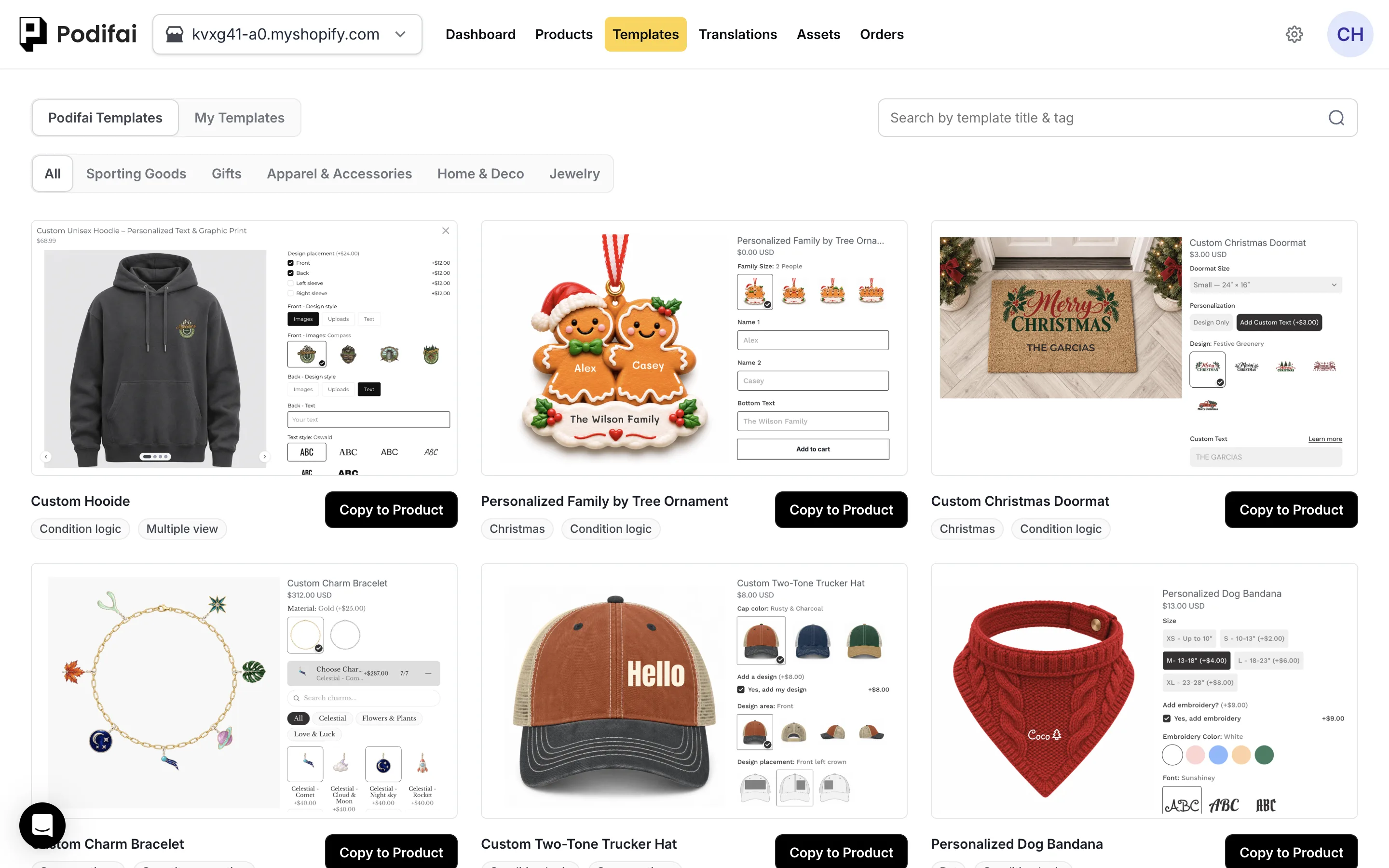
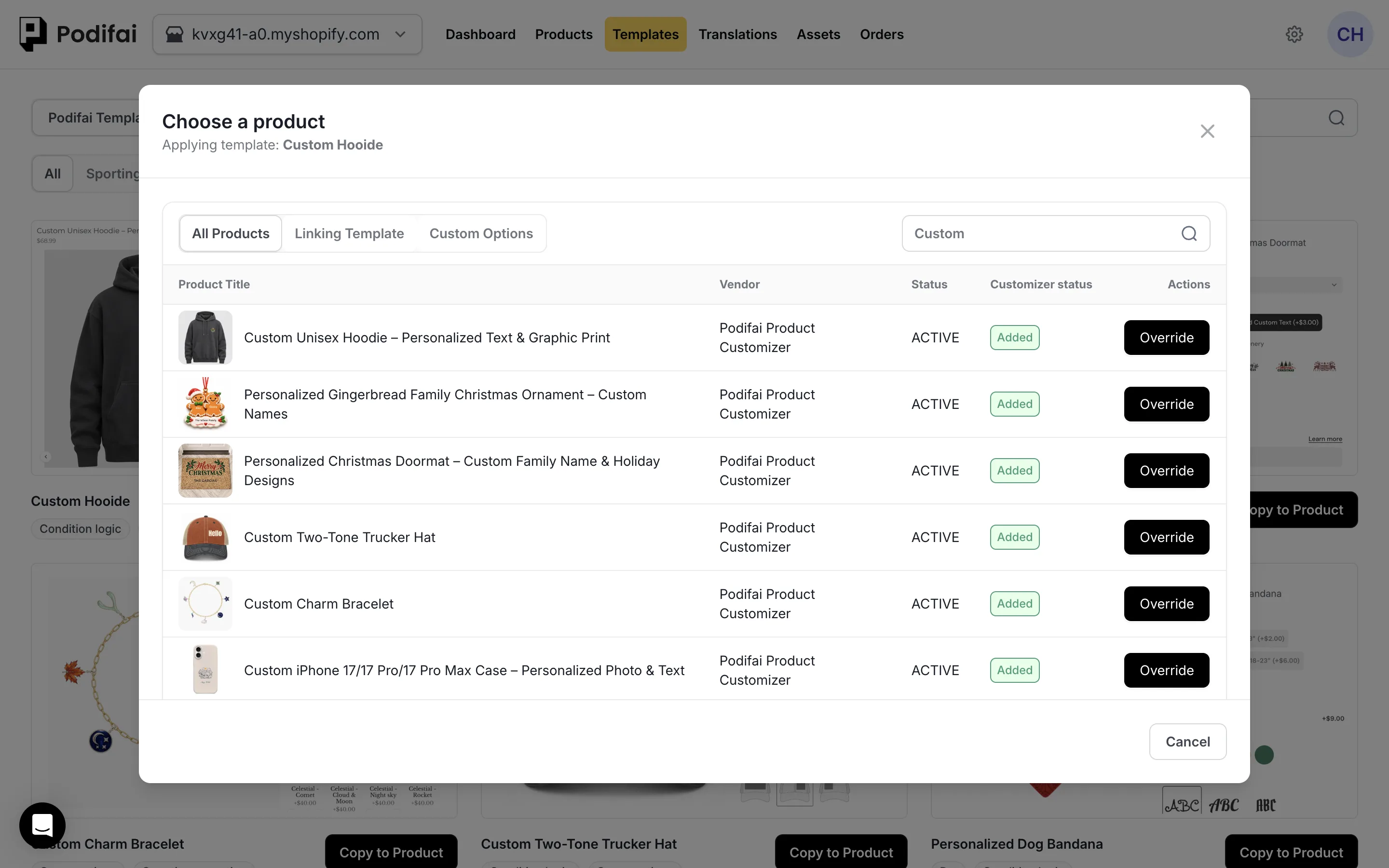
For a complete example with annotated editor screenshots, see how to sell personalized embroidered dog bandanas, which starts from the Personalized Dog Bandana template.
Apply a Podifai template to a product
Custom Templates: Reuse One Option Set Across Many Products
If you want the same custom options on many products — for example, the same engraving setup across every ring in your catalog, or the same print-customization options on every t-shirt — custom templates let you save your option set once and apply it to as many products as you need.
Create a custom template
You can create a custom template in two ways:
- From an existing product customizer: open the product customizer, click Save, then open the three dots menu on the right and choose Save as Template.
- From My Templates: open the My Templates tab, create a new template, upload a base image or choose an image ratio, then link or copy it to products.
Link vs Copy
When you apply a template to a product, choose how that product should use the template:
- Link keeps the product connected to the template. If you edit the linked template later, changes sync to every product linked to that template.
- Copy copies the current template setup into the product once. The product keeps the configuration, but it is not connected to the template. Later template edits will not affect that product.
Copying a Setup Is Not Appending One Option
Copy to Product applies a complete template setup. It can replace the product's existing options; it is not a way to append one Color Swatch or another individual option while preserving all existing settings.
Use Link for products that should share future template changes. Use Copy as the starting point when each product needs different placement or sizing. Before applying a template to an already configured product, save its existing setup as a separate template and test on one product.
If you need to add the same individual option to many existing configurations without replacing them, use the chat icon on the left side of the page or email chelsea@podifai.com about that workflow before applying a full template.
Find Link to Product and Copy to Product
Go to Templates → My Templates. Use Link to product on the template row to keep products connected. For an independent copy, open that row's three-dot menuand choose Copy to Product.
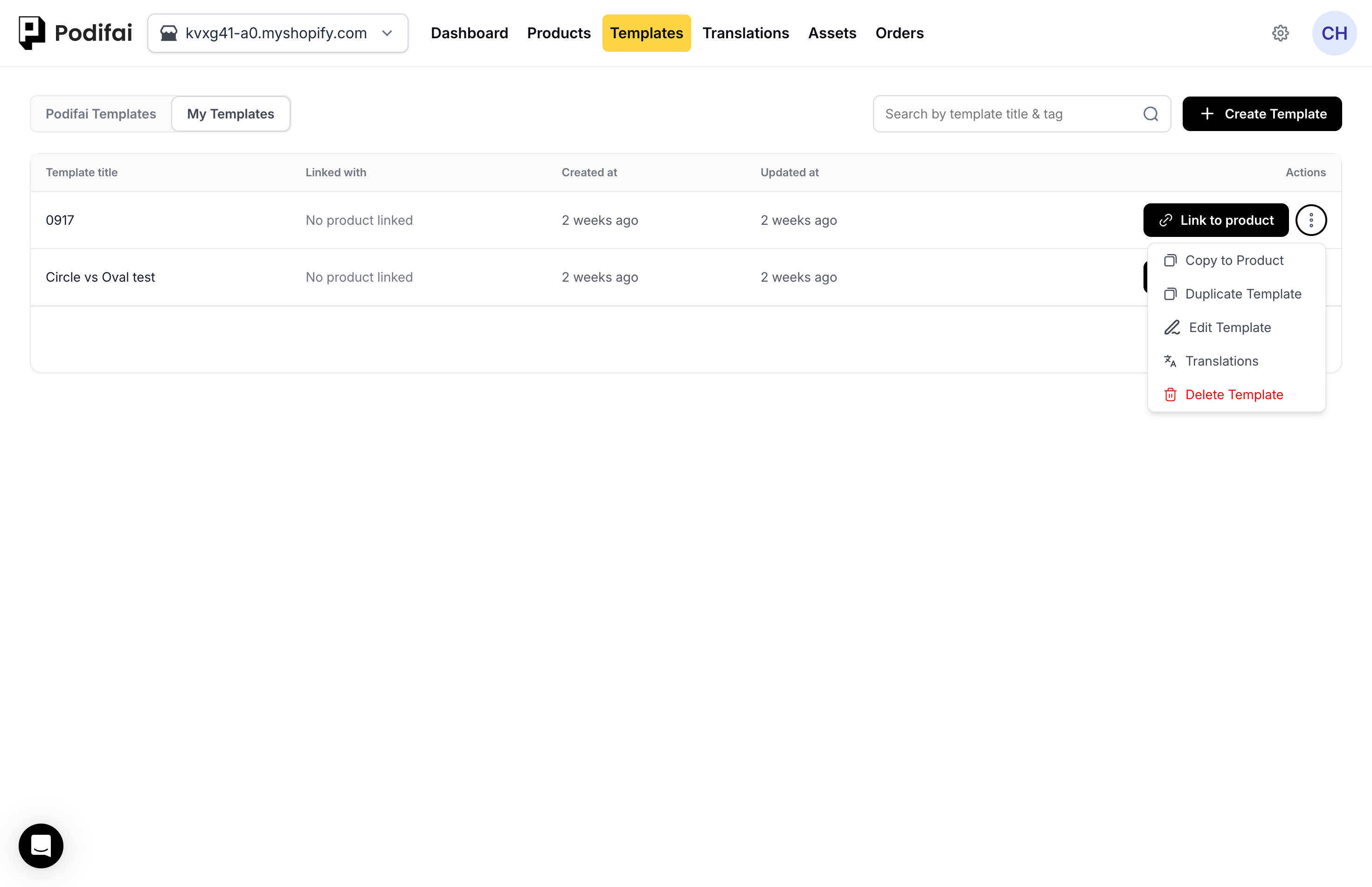
Copy to Product
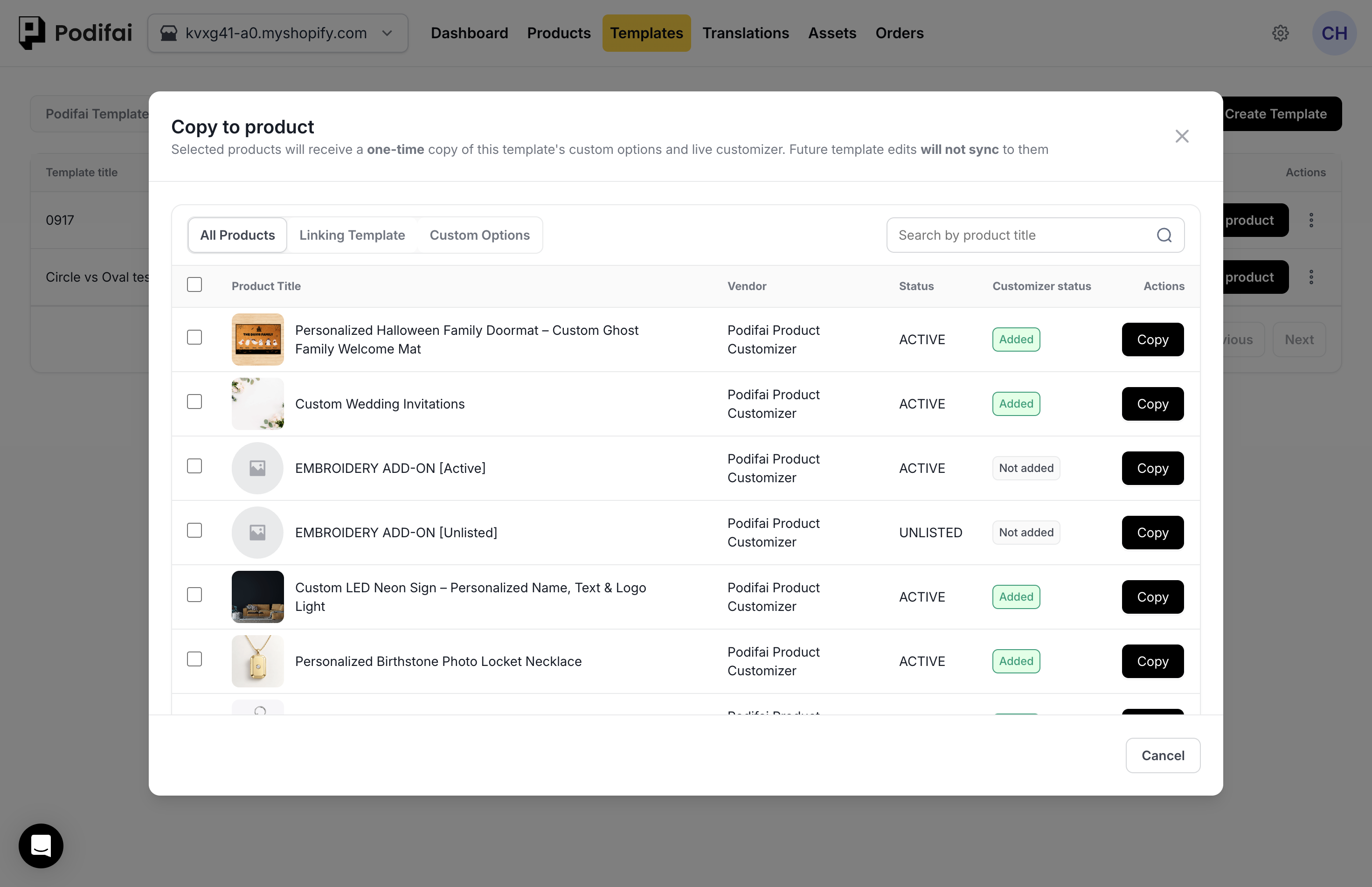
Link Products to a Template
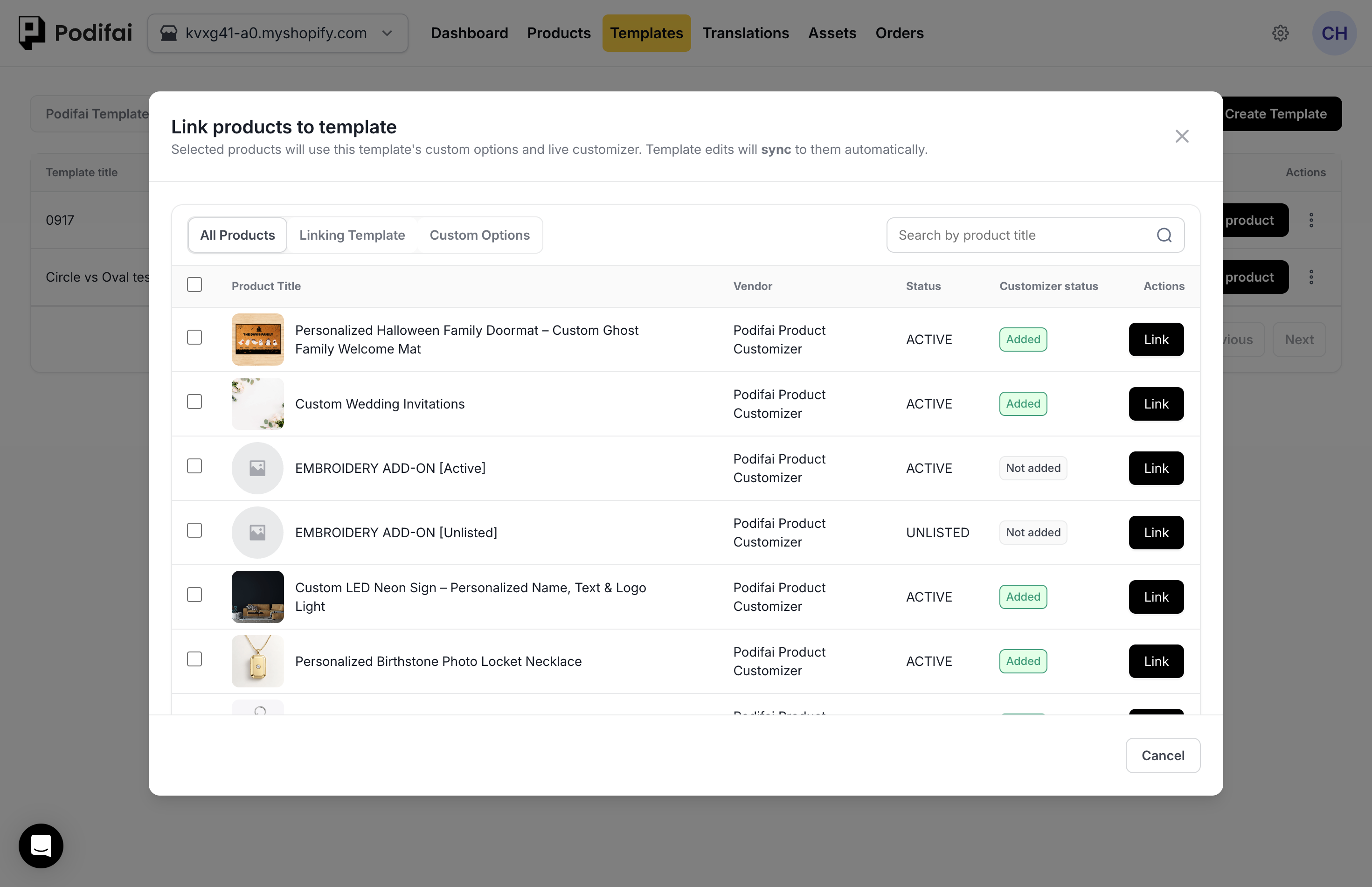
Apply One Template to Multiple Products
You can create and reuse a custom template in two ways:
- Create the template first: open My Templates, create the custom template, build its options and Live Preview, then link it to the products that should use it.
- Start from an existing product: finish the product customizer, save it as a template, then open the saved template and link it to the other products.
Duplicate a Template
Go to Templates → My Templates. Open the template row's three-dot menu and select Duplicate Template to create another template from that setup.
The same menu includes Copy to Product for a one-time product copy and Edit Template for changing the template. Use Link to product or Manage product on the template row to manage product connections.
Choose Duplicate Template when you need another reusable template, Copy to Product when an individual product needs its own adjustments, and Link when products should receive later template changes.
Create a variation from an existing template
If you want to start from a template but customize one product differently, use Copyto give that product its own setup. If the product is already linked, unlink it before making independent changes. If you want to reuse the edited version, click Save, open the three dots menu, and choose Save as Template to create a new template from it.
If Podifai warns that saving a product will unlink it, decide where the change belongs. Edit the template when all linked products should receive the change. Confirm unlinking only when this product should become independent.
Podifai templates do not duplicate the Shopify product page itself. Product titles, descriptions, Shopify variants, product media, and theme layout remain managed in Shopify. Templates only reuse the customizer setup you build in Podifai.
What templates include
- Options, labels, option values, required settings, and help text.
- Pricing, conditional logic, and Live Preview configuration.
- Product-specific Shopify data, such as product title, description, variants, and product media, remains managed in Shopify.
Podifai Template Categories
Explore example setups by industry:
- Sporting Goods — Custom Pickleball Paddle, Custom Bike
- Gifts — Custom Mug, Custom Print
- Apparel & Accessories — Customizable Backpack, Small Pouch
- Home & Deco — Bottle Opener, Luggage Name Tag, Phone Case, Tumbler, Sofa
- Jewelry — Personalized Wedding Ring, Charm Necklace
Choose Link or Copy for Similar Products
| Your goal | Choose | What happens later |
|---|---|---|
| Many products share the same text position, text size, and option setup. | Link | Changes made to the template apply to all products linked to it. |
| Reuse the options, then adjust placement or size for each product. | Copy | Each product has an independent configuration. Later template changes do not update it. |
Link is a connection from the template to its linked products. Make shared changes in the template. Copy is a one-time starting point for individual product edits; it does not keep that connection.
Verify Each Product After Applying a Template
- Review labels, help text, required fields, character limits, and option values for the target product.
- Check the background source and preview layer placement against that product's images and variants.
- Review charges, linked variants, and any conditional rules before accepting a test order.
- Test the product page on desktop and mobile in the theme you intend to use.
Follow Verify Before Launch to check the cart, checkout, and order details. When products need different layer positions or sizes, choose Copy and adjust each product independently.
FAQ
Can I copy just one option to another product?
Not directly. Save the product's current setup as a template, then copy or link that template to the other products. Copy replaces the other product's existing options with the template's setup, so do not use it on a product whose options you want to keep; to add only one option to such a product, use the chat icon on the left side of the page or email chelsea@podifai.com. Copying a template also copies its custom background image; afterwards you can switch the background to a Shopify product image, a Variant image, or your own image.
Can I duplicate a template directly?
Yes. Go to Templates > My Templates, open the three-dot menu for a template, and choose Duplicate Template. Use this when you want another template based on an existing setup. Copy to Product instead applies a one-time copy to a product, while Link to product keeps products connected to template changes.
Should I use Link or Copy for similar products with different text positions?
Use Link when the products should share the same setup, such as text position and size, and receive later template changes. Use Copy when you want the same starting setup but need to adjust each product separately. Copied products do not receive later template edits.
What is a template in Podifai?
A template in Podifai is a saved customizer configuration — the full set of options, labels, pricing, conditional logic, and Live Preview placement. Templates let you start from a proven setup instead of building from scratch, and they let you reuse the same option set across many products.
What is the difference between Podifai templates and custom templates?
Podifai templates are pre-built configurations curated by Podifai. Custom templates are templates you create from your own option setup, either from the My Templates tab or by saving an existing product customizer as a template.
Can I apply the same custom options to many products at once?
Yes. Save the setup as a custom template, then apply it to other products. Choose Link if you want all linked products to stay connected to the template, or Copy if you only want to duplicate the setup once.
If I change a custom template, will all products using it update automatically?
Only linked products update automatically. If you apply a template with Copy, that product keeps an independent copy and later template edits will not affect it.
How do I create a custom template in Podifai?
A custom template needs a defined canvas. To create one directly, open My Templates, create a new template, then either upload a base image or choose an image ratio for a blank canvas before building the options. You can also open an existing product customizer, click Save, open the three dots menu, and choose Save as Template; that template uses the customizer's existing canvas setup.
Do I have to upload a base image when creating a template?
No. A template needs a defined canvas, but the base image itself is optional. When creating a template directly from My Templates, either upload a base image or choose an image ratio to create a blank canvas. Podifai uses that canvas to position and size the template's option layers.
How can I create an independent variation from an existing template?
Use Duplicate Template from the three-dot menu in Templates > My Templates to create another reusable template. If only one product needs different settings, use Copy to Product and edit that product independently; it will not receive later changes from the original template.
Can I duplicate the whole Shopify product page with Podifai?
Podifai reuses the customizer setup, not the Shopify product page itself. Shopify product titles, media, descriptions, variants, and theme layout stay in Shopify. Use a custom template with Link or Copy when you want the same personalization setup on multiple products.
Can I apply a template directly to a Shopify collection?
Not currently. Podifai does not support assigning a template or rendering its options directly on a Shopify collection page. You can link one template to multiple products, but the products must be selected directly.
Why does editing a product unlink it from its template?
A linked product receives its customizer configuration from the template. Edit the template when a change should apply to every linked product. Edit and unlink an individual product only when that product should keep an independent configuration.