
Enable App Embed
Enable Podifai App Embed in your Shopify theme, or use App Block for custom placement. Check the product template before launch.
Last updated: 2026-11-06
Enable App Embed explains the default setup we guide most merchants to use. You can also turn off App Embed and add the App Block when you need exact placement control inside a product template.
Overview
Podifai uses a Shopify App Embed as the default way to display product options on your storefront. In the default setup, you enable the app embed once and Podifai automatically renders options on product pages that have an option set. If you need exact placement control, you can turn off App Embed and add the Podifai App Block inside a product template instead.
Default Setup: Enable the App Embed
Podifai's onboarding checklist includes an Activate app step with a button that takes you directly to the Shopify theme editor. You can also navigate there manually:
- In your Shopify admin, go to Online Store → Themes
- Click Edit theme on the theme you want to configure
- In the theme editor, click App embeds (toggle icon in the left sidebar)
- Find Podifai Customizer in the list and toggle it on
- Click Save
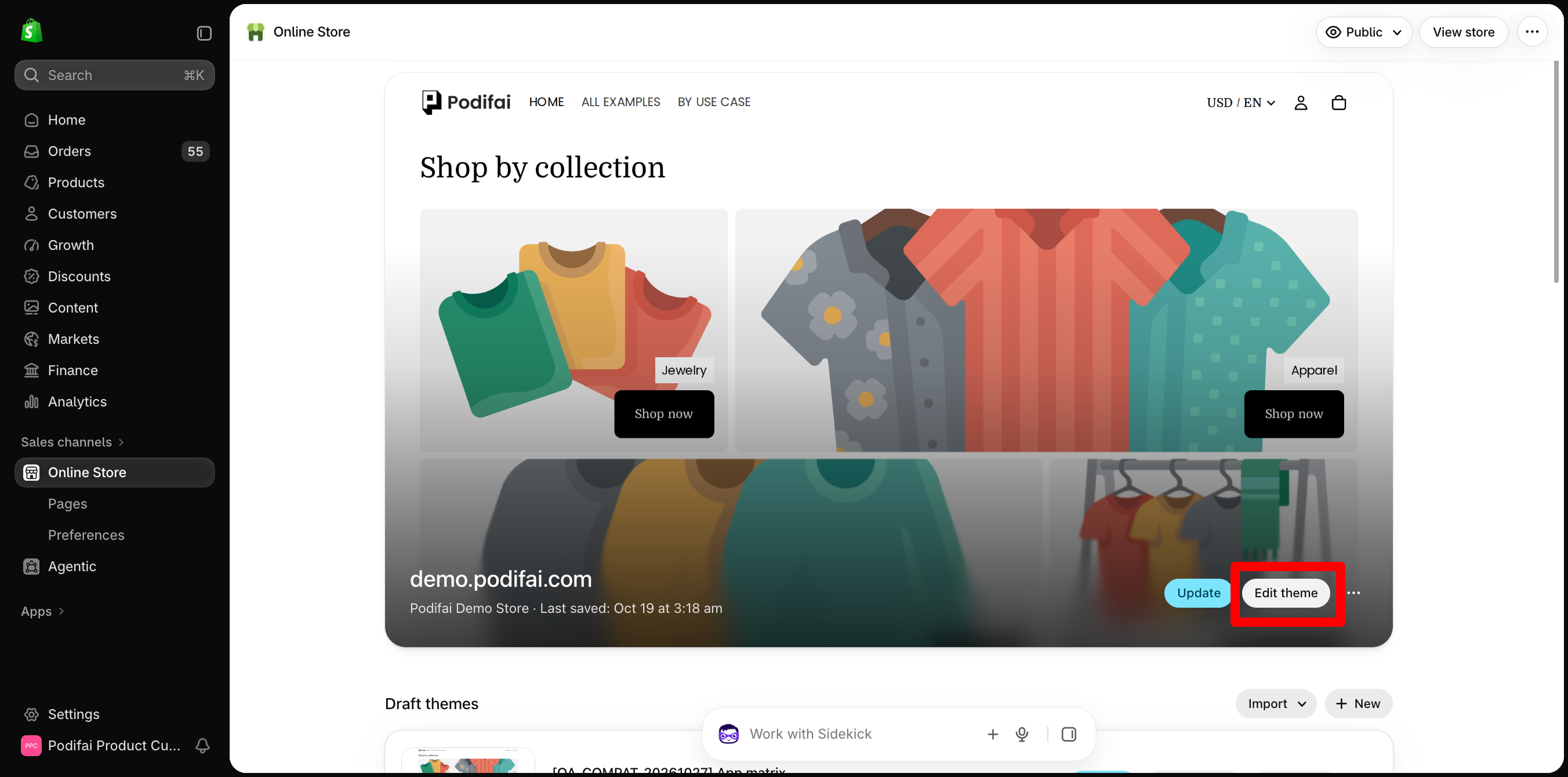
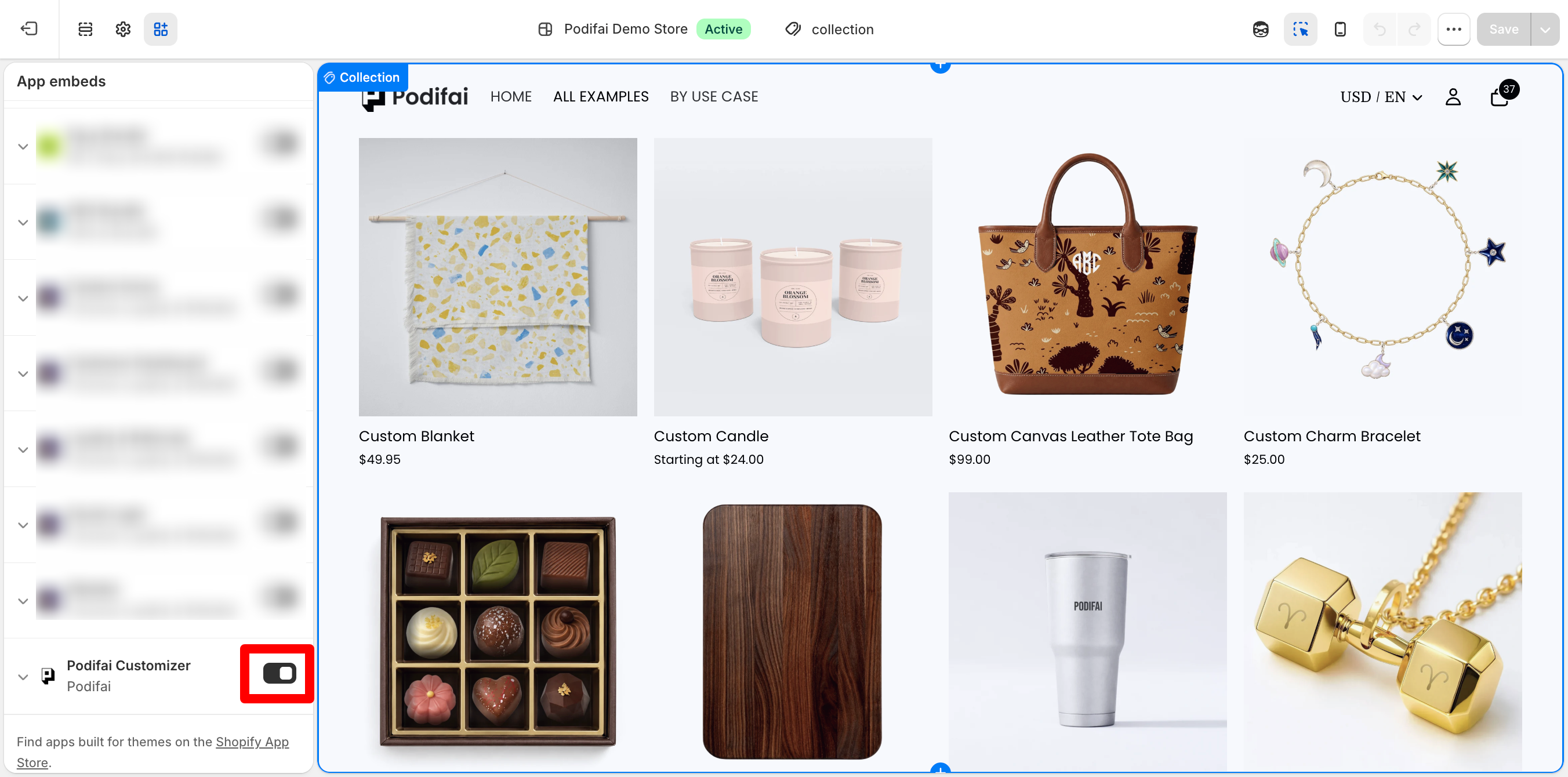
Once enabled, Podifai detects the change and marks the onboarding step as complete. If the checkmark does not appear, refresh the Podifai dashboard.
App Embed controls where Podifai loads on the Shopify storefront. It does not control whether a specific option uses Live Preview. To disable Live Preview for one option, follow the option-only setup steps in the Podifai editor.
Turn on the Podifai App Embed in Shopify
What this shows
- Open the Shopify theme editor.
- Go to App embeds.
- Turn on Podifai and save the theme.
Verify It's Working
After enabling the app embed, visit any product page where you have added options. The option fields should appear on the product page. Inside the Podifai dashboard, a completed checkmark will show next to the "Activate app" step.
- Open the product page in the same theme you just saved, including its theme preview if it is unpublished.
- Confirm that the product uses the product template you configured, especially when using App Block.
- Check the options and any enabled Live Preview on desktop and mobile.
If the fields are missing, check these first:
- The App Embed (or App Block) is saved on the same theme you are viewing.
- The product has a saved Podifai option set.
- The product uses the template where you added the App Block.
- Hard refresh the page or open it in a private window to rule out a cached page.
If the fields are still missing, follow Troubleshooting. Once they appear, complete the first-customizer verification checklist to check validation, prices, and order data as well.
Custom Placement: Add the App Block
By default, the App Embed inserts options automatically on product pages. If you want more control over where the options appear (e.g. below the price, inside a specific section), use a Podifai App Block. Turning off App Embed is optional; see “When to use which” below. App Blocks need an Online Store 2.0 theme (see Theme Compatibility).
- In your Shopify admin, go to Online Store → Themes → Edit theme
- Use the page selector at the top of the theme editor to open Products → Default product (or the product template you use)
- In the section where you want options to appear, click Add block. If the list has no Apps option, use Add section → Apps instead
- Under Apps, select Podifai Customizer
- Drag the block to your desired position within the section
- Click Save
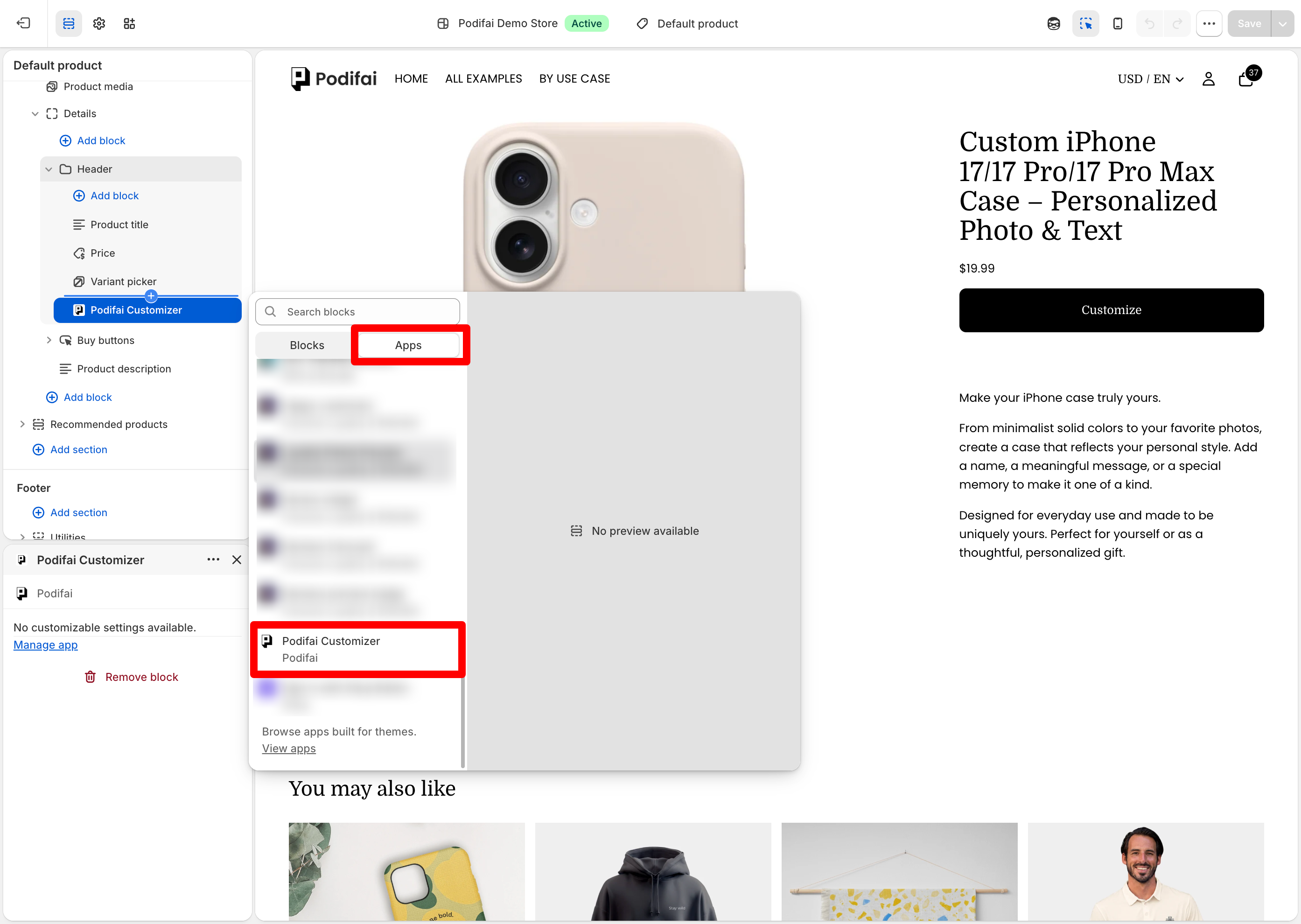
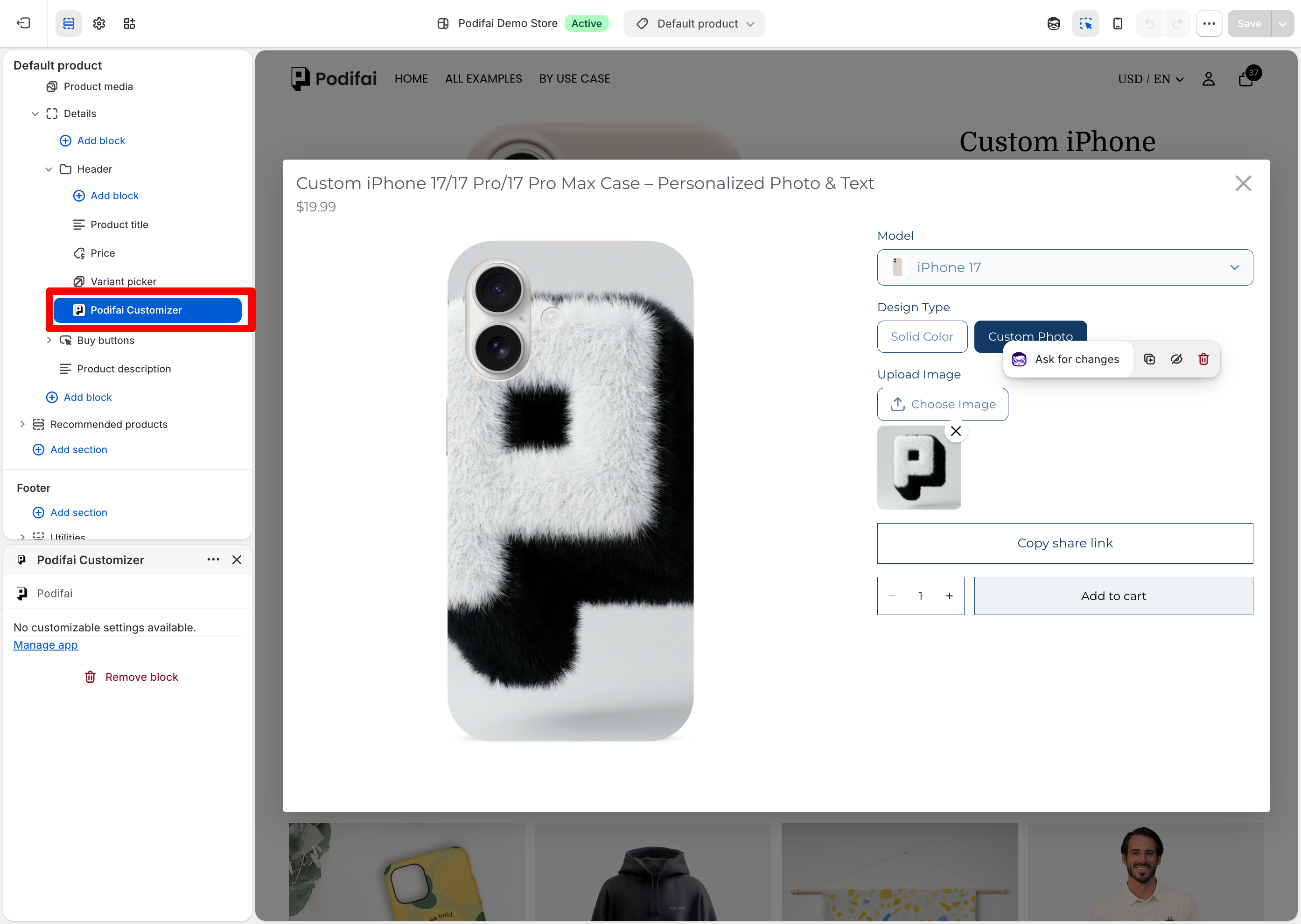
App Blocks give you drag-and-drop control over placement. If you add the Podifai App Block to a product template, custom options and Live Preview render at that exact position even when the App Embed toggle is off — the App Block alone is enough to load Podifai on that template. This is the recommended setup when you want custom inline placement. Keep App Embed on only if other product templates should still get automatic placement.
When to use which:
- App Embed only — easiest setup. Podifai inserts options automatically on every product page that has an option set, no template editing required.
- App Block only — use when you want options at a specific location and only on the templates where you have added the block. Turn off App Embed and add the App Block to that product template.
- Both enabled — also fine. The App Block overrides the App Embed's default placement on templates where the block is present; the App Embed continues to render automatically on templates without a block.
Add the Podifai App Block to a product template
What this shows
- Open a product page template in the theme editor.
- Add a block from the Apps section.
- Place the Podifai block where the customizer should appear.
Multiple Themes
Both App Embed and App Block settings are per-theme. If you switch to a different theme, you will need to enable App Embed again, or add the App Block again if you use custom placement.
Enable Podifai on another Shopify theme
What this shows
- Open the new or unpublished theme.
- Enable the Podifai app embed for that theme.
- Add the App Block again if you use custom placement.
Next Step
With App Embed active, your options are visible automatically. With App Block, your options appear at the block position on templates where you added the block. Visit your product page to verify everything looks correct.
Next, see Customizer Display Modes to choose whether the options should appear Inline or open in a Popup.
FAQ
What is the Podifai app embed?
The Podifai app embed is the default Shopify theme setting that lets Podifai show product options on product pages.
When should I use the Podifai app block?
Use the App Block when you want to control the exact placement of the customizer inside a product page template. Turning off App Embed is optional; keep it on only if other product templates should still get automatic placement.
Do I need to enable Podifai again after changing themes?
Yes. Shopify app embed and app block settings are theme-specific, so enable App Embed again or add the App Block again for each theme you publish or test.
Do I need to enable the App Embed if I'm using the Podifai App Block?
No. If the Podifai App Block is added to your product template, custom options and Live Preview will still render at the block's position even when the App Embed toggle is off. Either App Embed or App Block alone is enough for Podifai to load on that template — you don't need both.
Does App Embed control whether an option uses Live Preview?
No. App Embed and App Block control where Podifai loads on the Shopify storefront. To disable Live Preview for a specific option, select that option in the Podifai editor and turn off Live Preview in the right-side settings panel.
Can I show Podifai options in a Featured Product section or another collection-page section?
Not currently. Podifai customizers are supported on product pages and their product templates. Featured Product sections, collection pages, and other non-product-page sections are not currently supported as customizer surfaces.