
Dashboard Analytics
Review revenue including personalization add-ons, with refunds deducted, plus total and monthly order metrics in the Podifai Dashboard.
Last updated: 2026-11-06
Use the Podifai Dashboard to review revenue and order metrics associated with customized products. Use order details to investigate individual purchases; the Dashboard shows summary figures.
Overview
The Dashboard page in Podifai shows key metrics for orders that include customized products.
Key Metrics
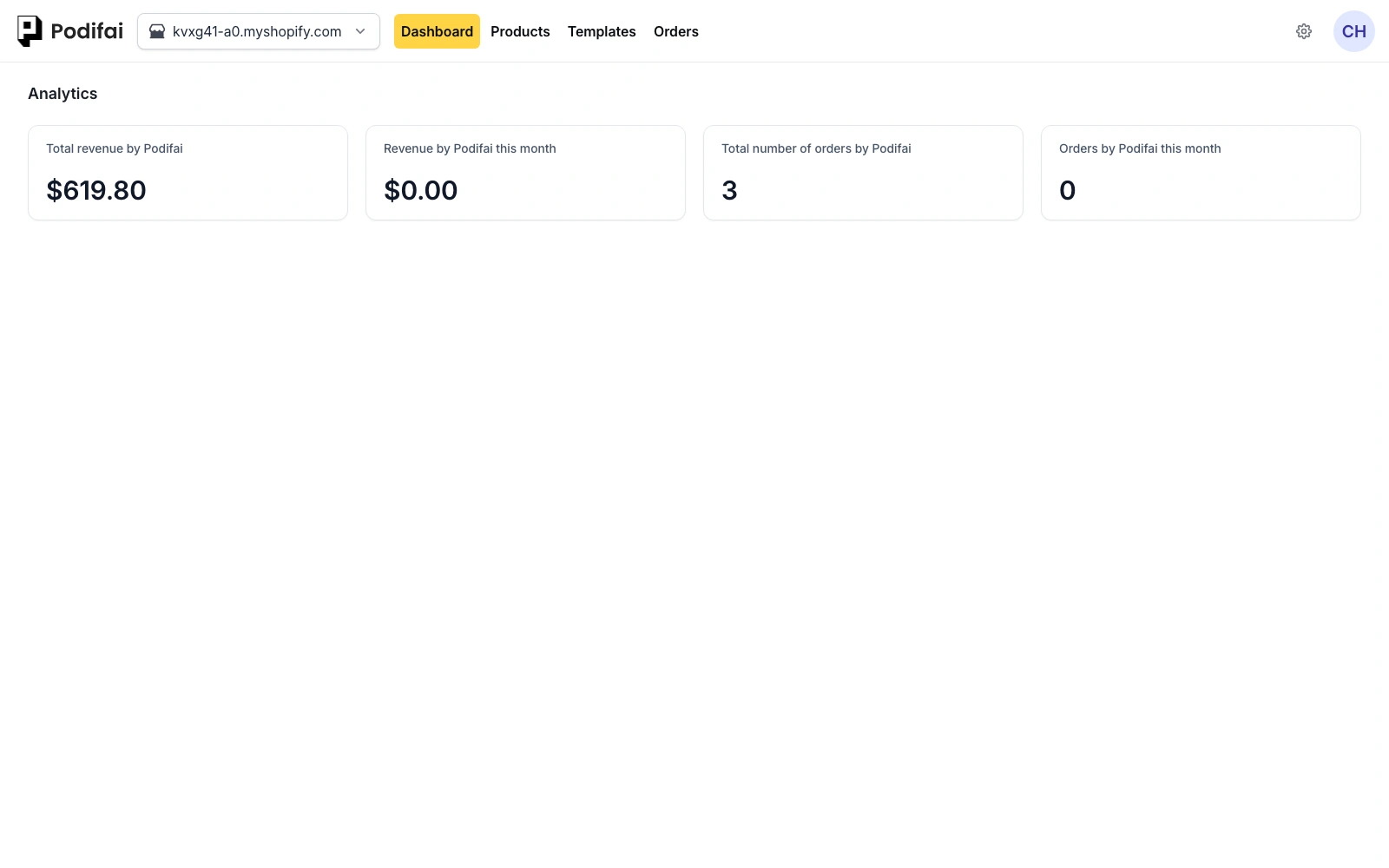
| Metric | Description |
|---|---|
| Total revenue by Podifai | The full order total of every order that includes a customized product, with refunds deducted |
| Revenue by Podifai this month | The same revenue for orders placed this month |
| Total number of orders by Podifai | Total count of orders that include a customized product |
| Orders by Podifai this month | Count of orders with customized products for the current month |
Revenue, Personalization Charges, and Refunds
Revenue is the full order total, not only the customized items: if an order also contains a regular product, that product counts too. Personalization add-on charges are included, and refunded amounts are deducted. Test orders are included in both revenue and order counts.
Read the Metrics Together
- Compare monthly revenue with monthly orders, or total revenue with total orders. Keep the reporting period consistent.
- An order count is not a count of personalized items or selected options. Review the order when you need its product quantities and customization details.
- The Dashboard is not a storefront traffic report. Revenue and order figures do not show how many shoppers opened the customizer.
Compare a Figure with Shopify
Before comparing a Dashboard figure with a Shopify report, confirm that both use the same revenue scope, currency, date range, and order statuses. Use full order totals, subtract refunds, and remember that the Dashboard also counts test orders. Ask support if the figures still differ.
- Record the exact metric label, displayed amount, and the date and time of your check.
- Open the Shopify orders you are comparing and note their totals, customized items, payment status, cancellations, and refunds.
- Check the saved personalization in Managing Orders. Compare the same set of orders and reporting period.
- If the difference remains, send support the store URL, metric screenshot, report period, and relevant order numbers.