How to Sell Monogrammed Leather Keychains on Shopify
Set up a monogrammed leather AirTag keychain on Shopify with real 2- and 3-letter monogram fonts, uppercase-only input, photo options and live preview.
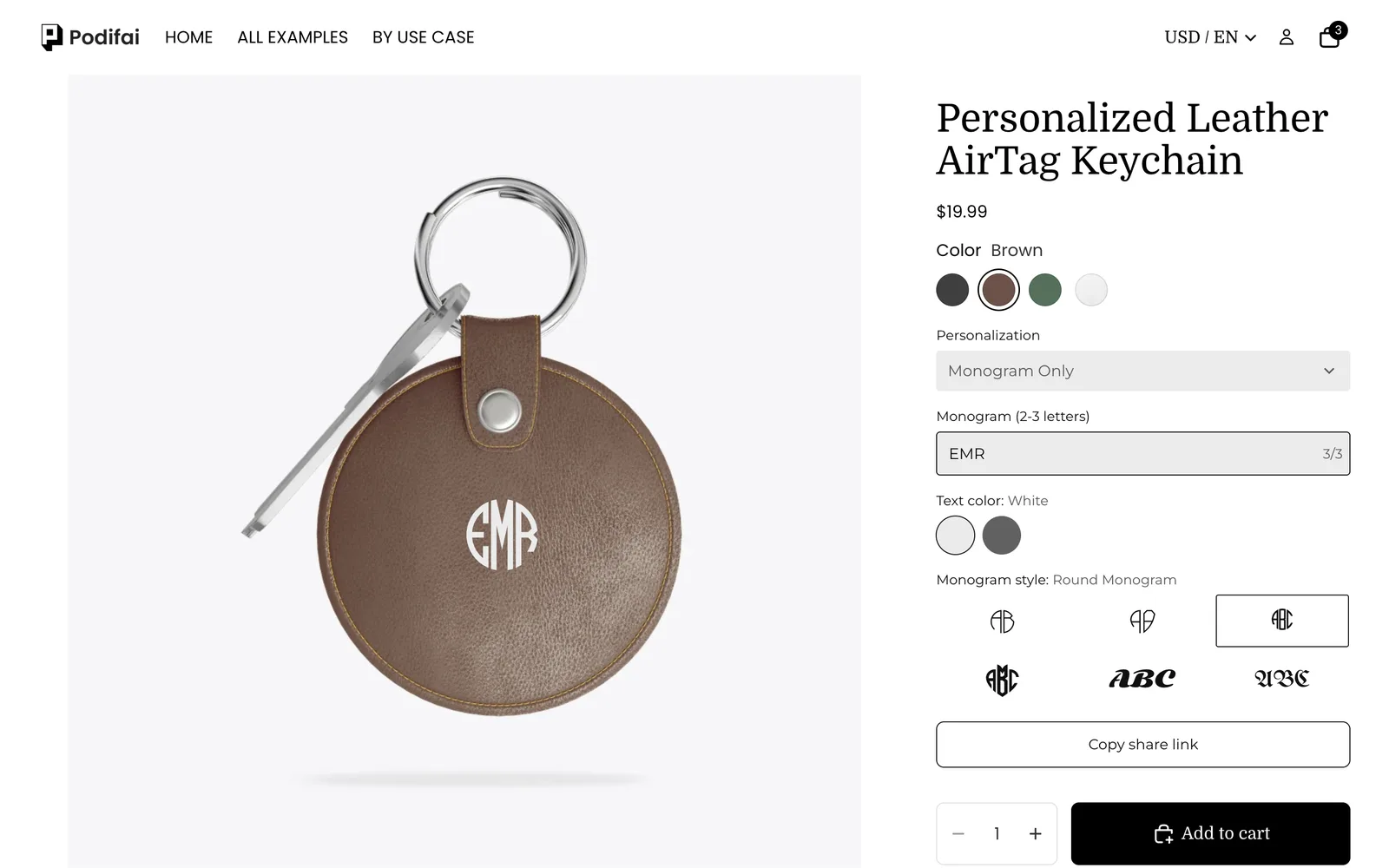
TL;DR: To sell monogrammed leather keychains with Podifai, keep leather colors as Shopify variants and add a Personalization dropdown with four choices: monogram, image, text, or image and text. For the monogram, use a Font Swatch in Monogram mode, which gives the first, middle and last letters their own font file, and a 3-character text field that only accepts letters and converts them to uppercase. Start from the ready-made Personalized Leather AirTag Keychain template; every feature used here is on the Free plan.
What does the shopper see?
- Pick the leather color: Black, Brown, Green or White. The photo switches to that keychain.
- Choose a personalization: Monogram Only, Image Only, Text Only or Image & Text.
- For a monogram, type 2 or 3 initials. Lowercase letters turn into capitals automatically, and numbers or symbols are blocked.
- Choose the monogram style (Line, Heraldic, Round or Heart, plus two classic fonts) and the stamp color, White or Ink.
- Check the preview and add to cart.
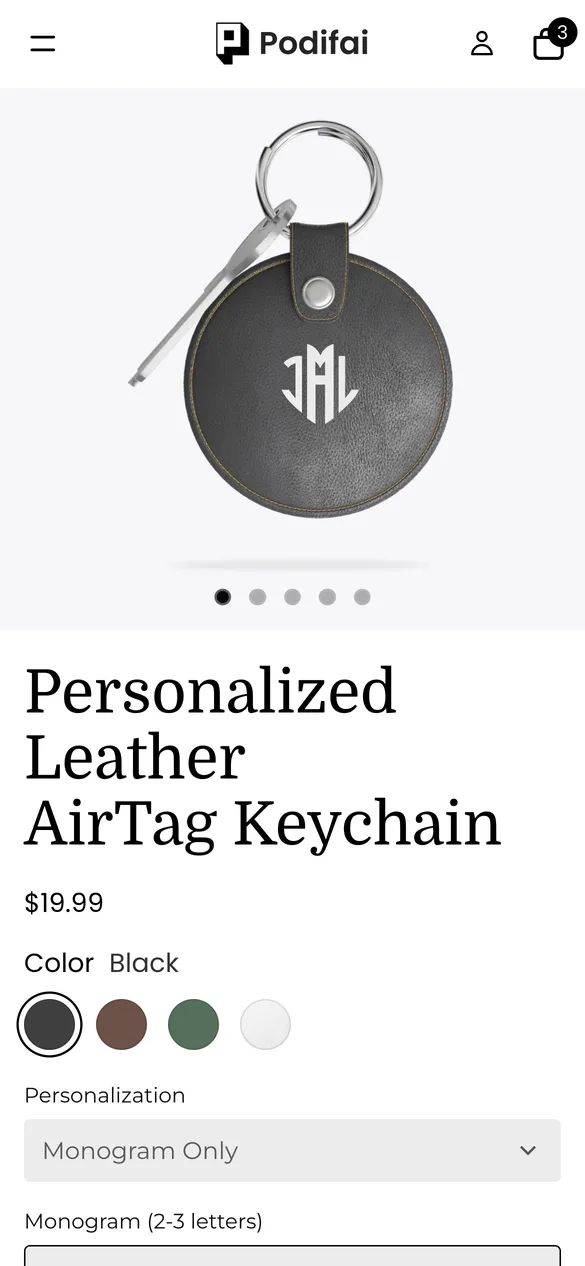
Try it yourself on the live demo product.
What do you need before you start?
1. Install Podifai and turn on the app embed
Install Podifai from the Shopify App Store, then open Online Store > Themes > Edit theme > App embeds and switch on Podifai Customizer. See Enable App Embed.
2. Add leather colors as Shopify variants
Create the keychain with a Color option (Black, Brown, Green, White) and give each variant a photo of that keychain, shot at the same size and angle. Each leather color is real stock, so Shopify should track it.
3. Get monogram fonts in three parts
Classic circle and diamond monograms use a different glyph for the left, middle and right letter. Buy or license a monogram font that ships as separate left, middle and right files (TTF, OTF or WOFF). Plain fonts work too, as single-font values. See Font Swatch monograms.
Should leather colors be Shopify variants or Podifai options?
The demo keeps leather color as a Shopify variant and puts only the personalization in Podifai. The rule of thumb:
| Your situation | Use | What it gives you |
|---|---|---|
| Each color is separate stock with its own SKU | Shopify variants (as in the demo) | Shopify tracks stock; the preview follows the variant photo |
| Colors are made to order from one stock item | Podifai Color Swatch | No variant limit; give each value a photo |
| Personalization choices (monogram, text, image) | Podifai options | Shown only when relevant, saved on the order line |
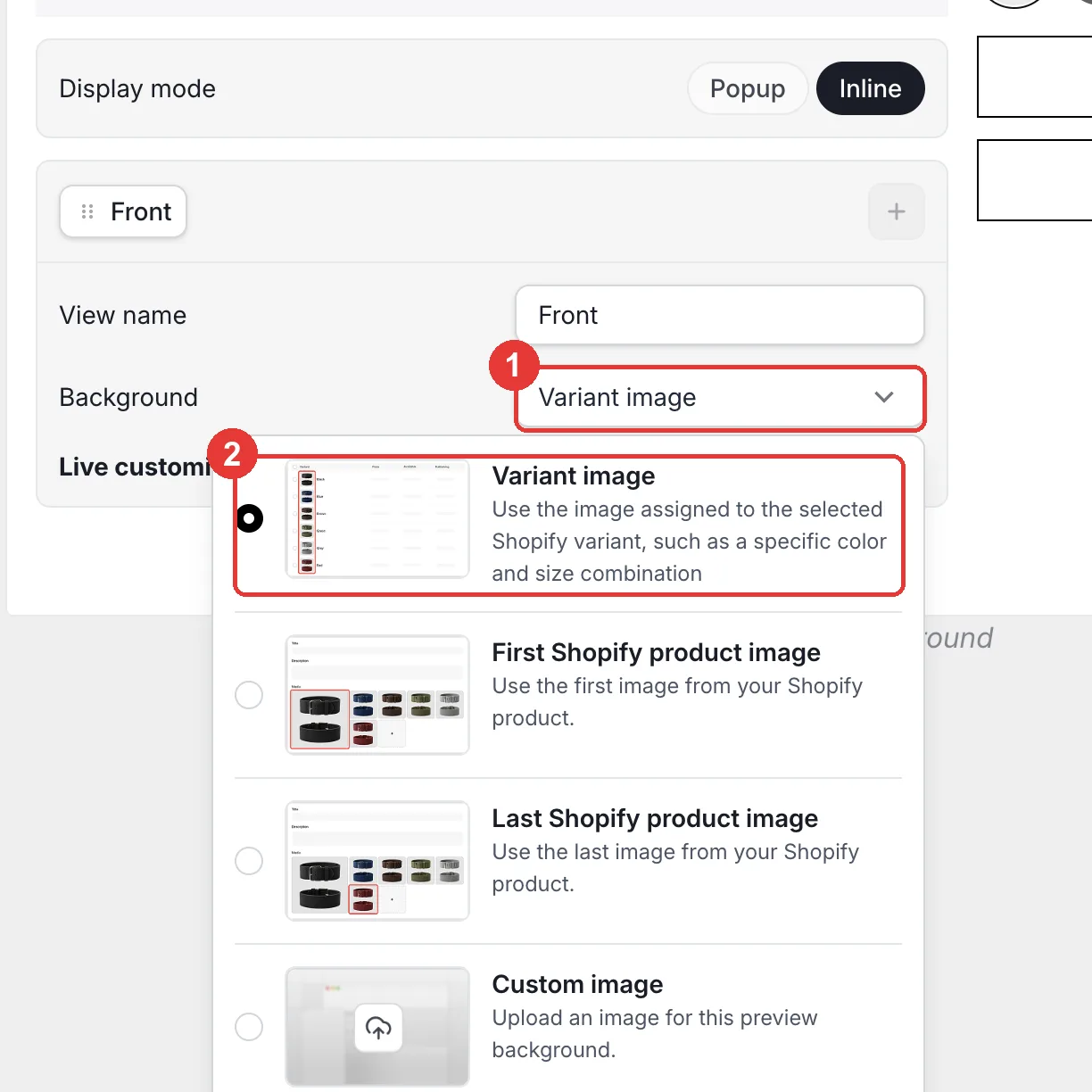
With variants, set the view Background to Variant image so the preview always shows the selected leather (step 7).
What is the fastest way to set this up?
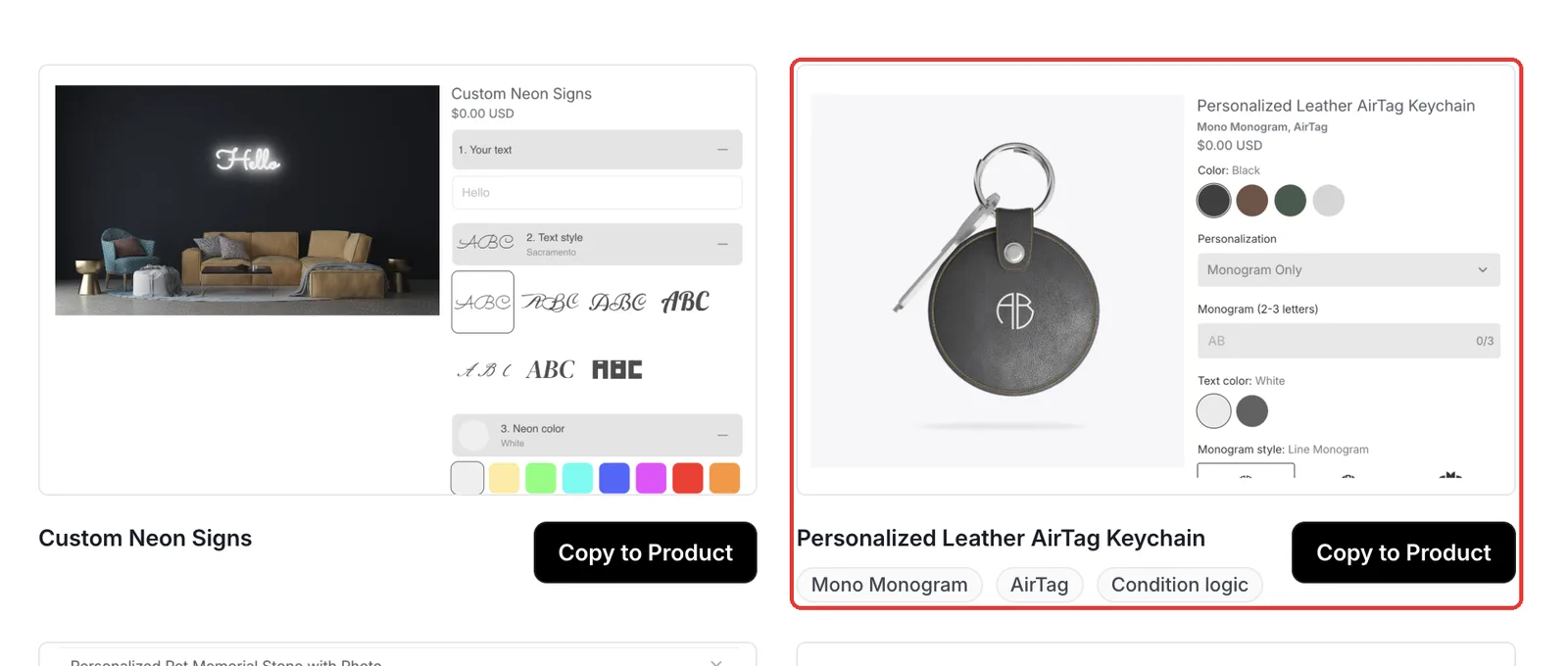
Podifai ships a ready-made Personalized Leather AirTag Keychain template with the same seven options as the demo, including the four monogram styles. Open Templates > Podifai Templates, find it and click Copy to Product, then choose your keychain and click Apply (or Override, which replaces existing Podifai options). After copying, upload your own monogram fonts if you have licensed different ones, check the stamp colors and save.
Which options do you need?
The whole customizer is 7 Podifai options on one Shopify product:
| Option | Podifai type | Key settings | Price |
|---|---|---|---|
| Personalization | Dropdown | Monogram Only, Image Only, Text Only, Image & Text | No charge in the demo |
| Image | Image Upload | Circle mask; shown for Image Only and Image & Text | No charge |
| Text (name under the photo) | Text Input | Name under the image; shown for Image & Text | No charge |
| Monogram (2-3 letters) | Text Input | Max 3 characters, letters only, uppercase; shown for Monogram Only | No charge |
| Text (short message) | Text Area | Short message, fixed width with wrap; shown for Text Only | No charge |
| Text color | Color Swatch | White or Ink stamp | No charge |
| Monogram style | Font Swatch | 4 monogram-mode values and 2 single fonts | No charge |
How to set it up in Podifai, step by step
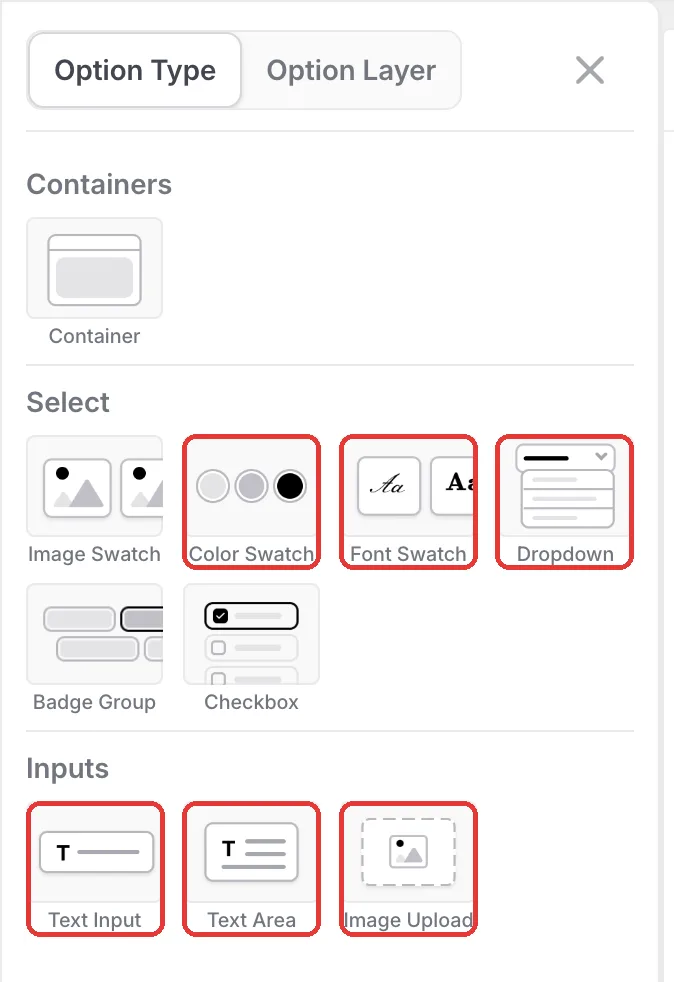
These steps match the live demo product. Red boxes mark what to change; numbers follow the order in the step text.
Step 1: Add the option types
Open the keychain in the Podifai editor and click the menu icon on the left. From Option Type, add a Dropdown for the personalization type, an Image Upload, two Text Inputs (one for the monogram, one for a name), a Text Area for a short message, a Color Swatch for the stamp color and a Font Swatch for the monogram style.
Step 2: Let shoppers choose what to personalize
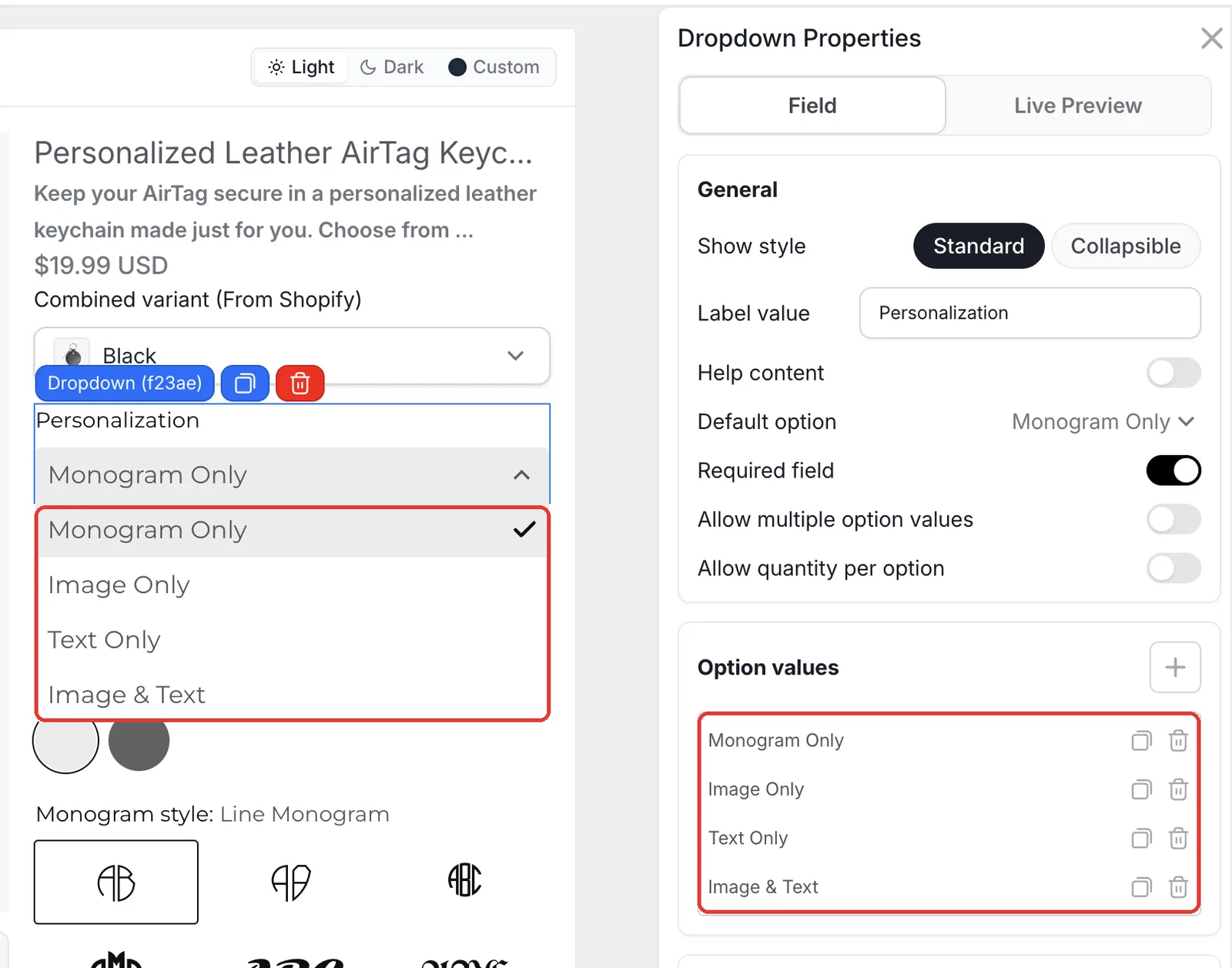
Add four values to the Personalization dropdown: Monogram Only, Image Only, Text Only and Image & Text, and set Monogram Only as the Default option. Then give each personalization field a Condition based on this dropdown, for example Monogram (2-3 letters) only when Personalization contains Monogram Only.
Step 3: Accept only 2 or 3 capital letters
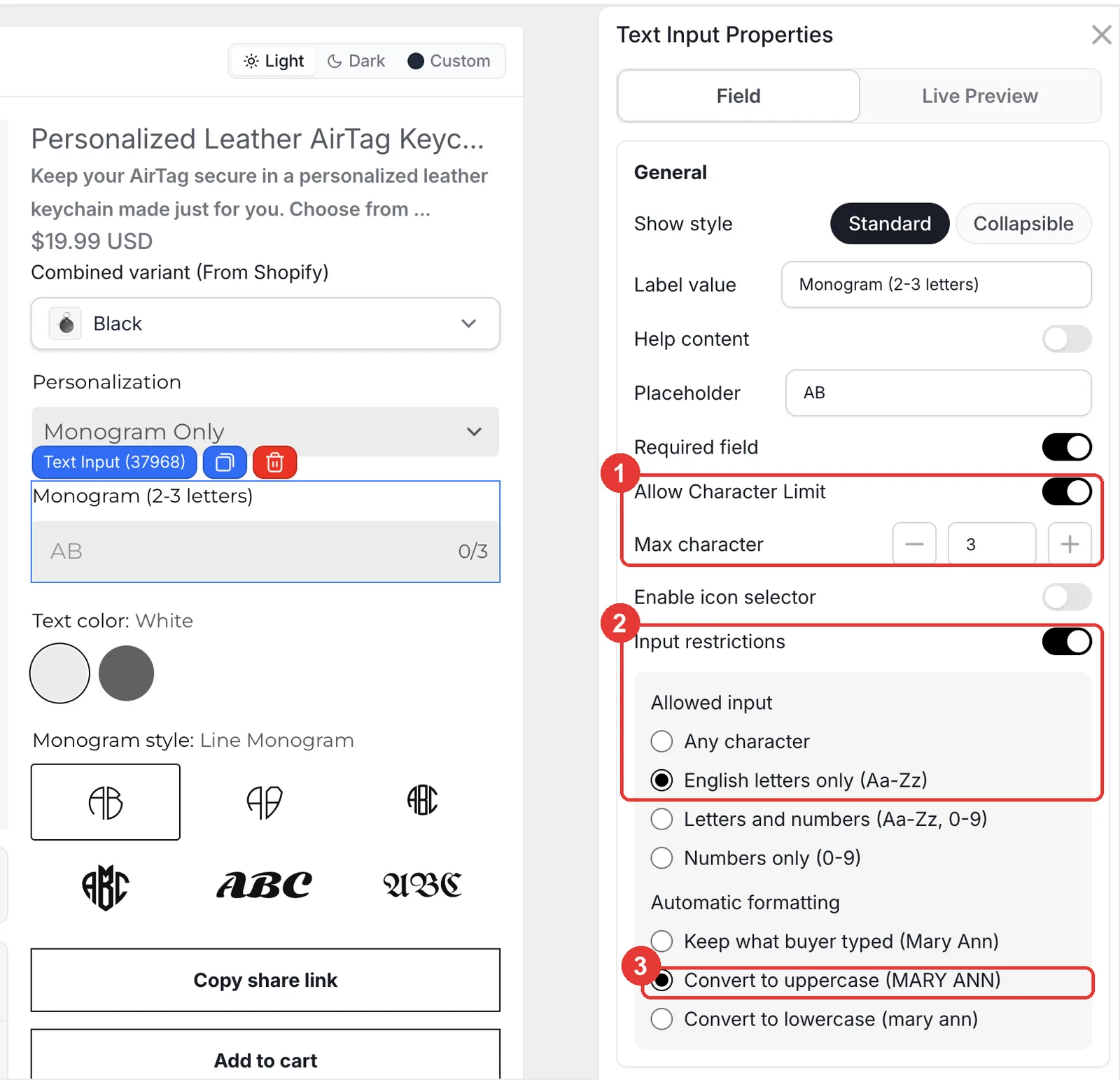
Select the Monogram text input. Turn on Allow Character Limit and set Max character to 3. Turn on Input restrictions, choose English letters only, then under Automatic formatting choose Convert to uppercase. Shoppers cannot type numbers or symbols, and "emr" becomes EMR.
Step 4: Add true monogram fonts
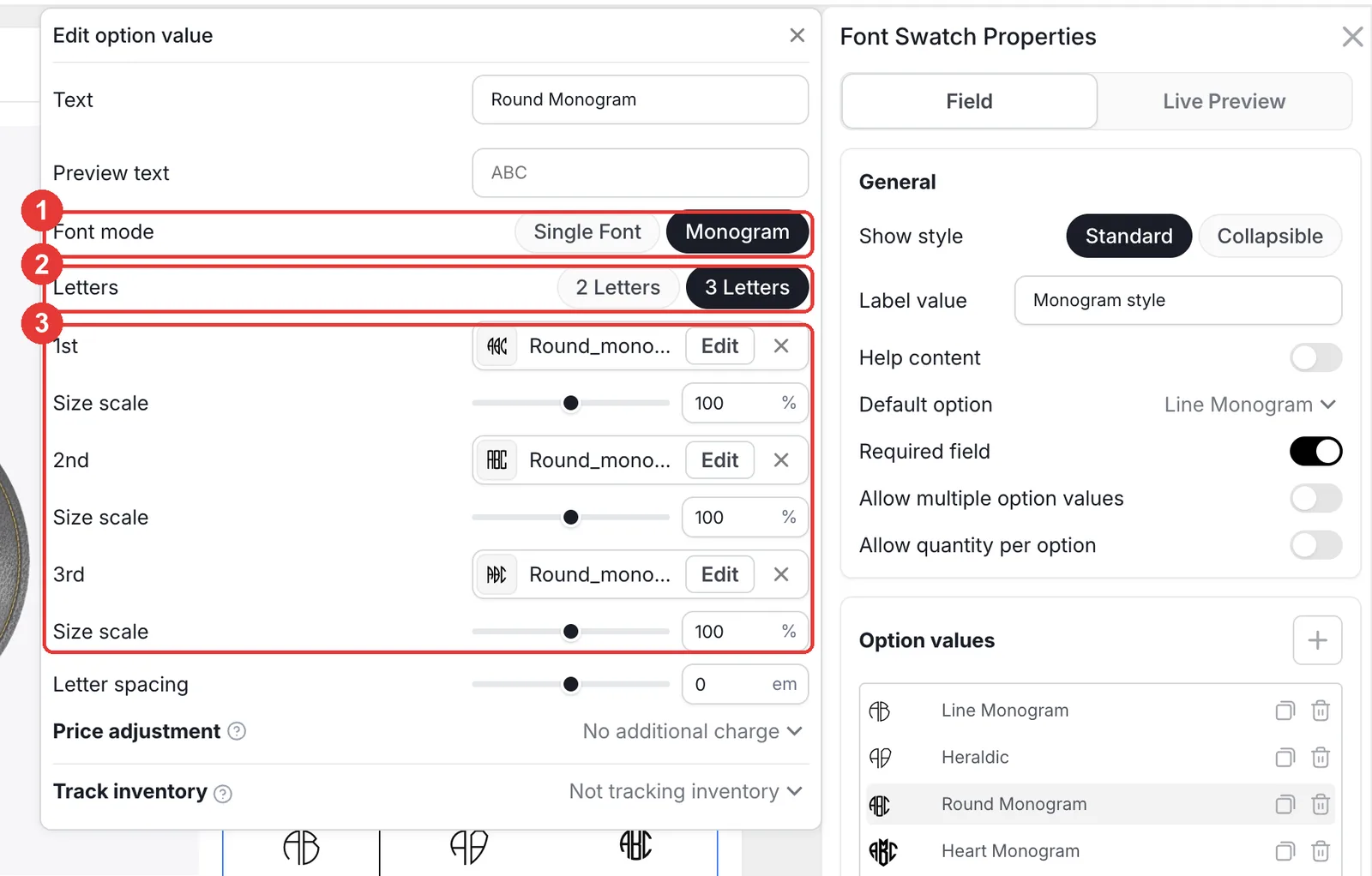
In the Font Swatch, click a style to open Edit option value. Set Font mode to Monogram, choose 2 Letters or 3 Letters, then upload a font file for each letter position (1st, 2nd and 3rd). Use Size scale to make the middle letter larger if your font needs it. Add a single-font value, such as a blackletter, for shoppers who prefer plain initials.
- A 3-letter style needs three initials to look right. Say so in the field's help text, or offer 2-letter styles too.
- Upload the shop's own licensed fonts; font licenses for commercial products differ by foundry.
Step 5: Link the monogram preview to color and style
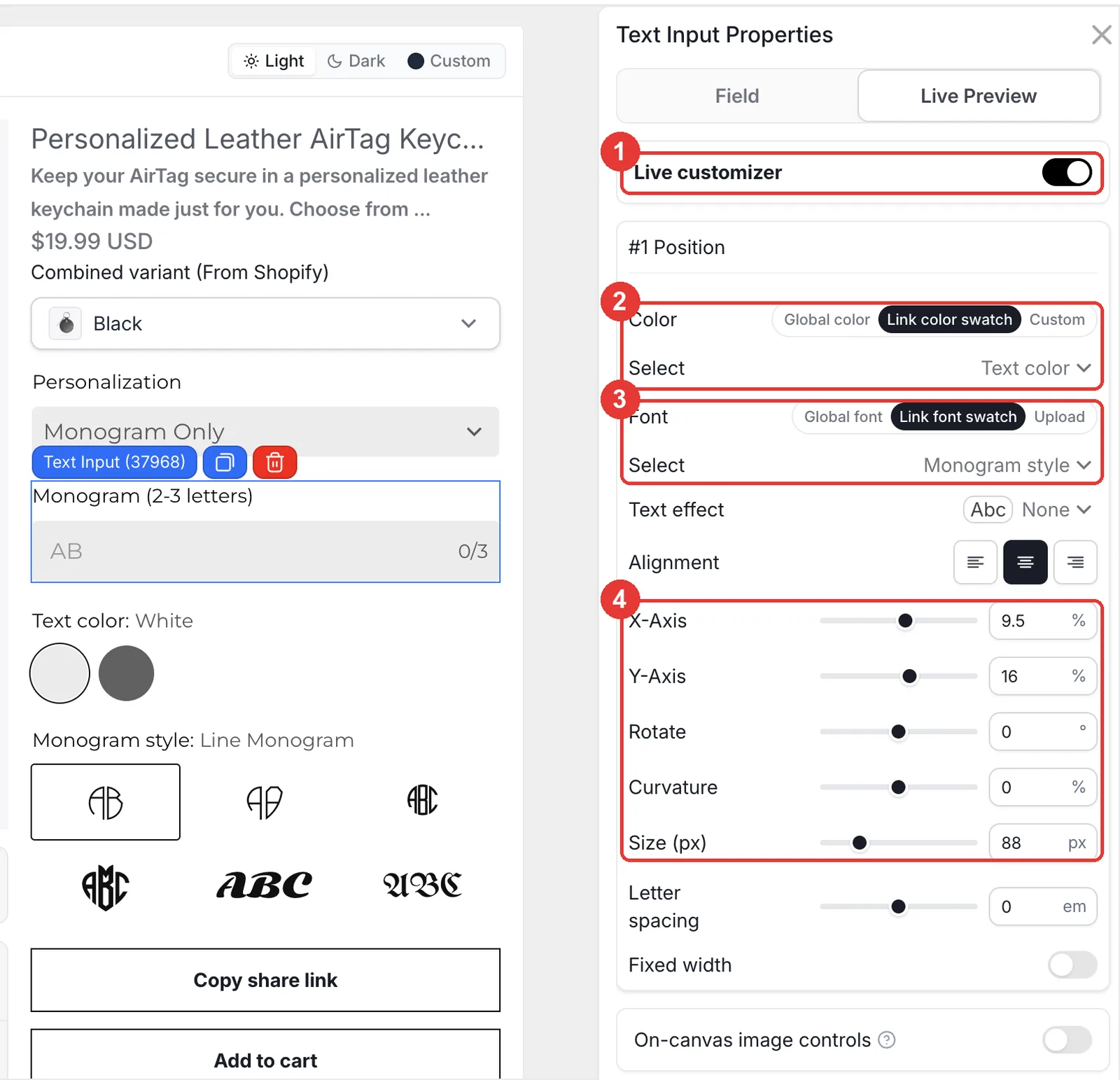
Open the Monogram text input's Live Preview tab and turn on Live customizer. Set Color to Link color swatch and pick Text color, then set Font to Link font swatch and pick Monogram style. Place it in the middle of the keychain with X-Axis, Y-Axis and Size (88px in the demo).
Step 6: Clip uploaded photos to a circle
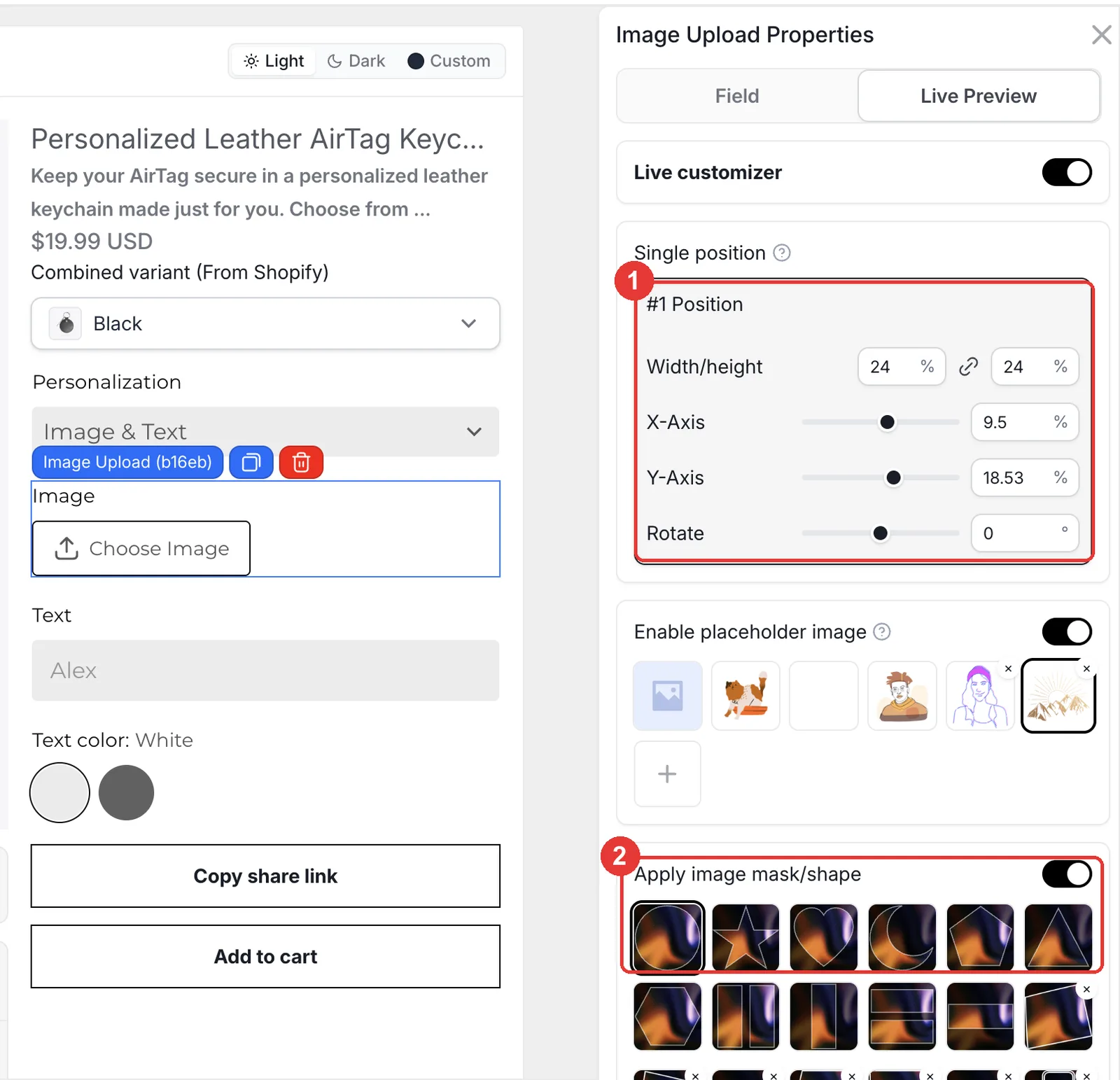
For the Image Upload, open Live Preview, set Width/height (24% in the demo) and X/Y so the photo sits on the leather, then turn on Apply image mask/shape and pick the circle. Add the name Text Input below it with the condition Personalization contains Image & Text.
Step 7: Show the selected leather color
Below the preview, open Background on the Front view and choose Variant image. The preview now uses the photo of whichever Shopify color variant the shopper picks. Click Save and test each personalization type on the storefront.
What happens in the cart and after the order?
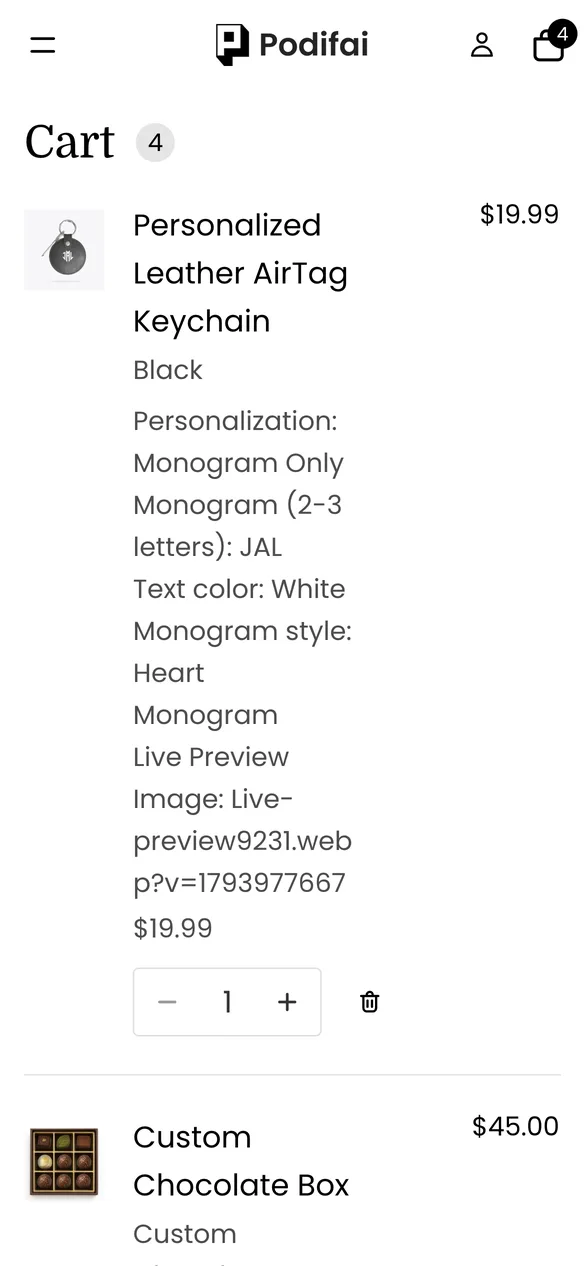
- The leather color comes from the Shopify variant, so stock is tracked by Shopify.
- Personalization type, initials, stamp color and monogram style are saved on the order line as line item properties.
- A link to the final preview is saved with the order, so your team can match the stamp to what the shopper approved.
- With Generate print-ready files on, Podifai creates a transparent PNG of the monogram, which you can use for a hot-stamp die or laser file.
Troubleshooting
The monogram looks wrong with two letters
The selected style is set to 3 Letters. Either ask for three initials or add a 2-letter version of the style. See Font Swatch monograms.
The preview does not change with the leather color
Check that each Shopify variant has its own image, and that the view Background is set to Variant image.
Shoppers can type numbers or lowercase letters
Input restrictions is off on the Monogram text input. Turn it on and choose English letters only and Convert to uppercase. See Input restrictions.
Selling tips
- Explain the letter order. In a traditional 3-letter monogram the surname initial sits in the middle. Add a help note such as "Type initials in order: first, last, middle" if your fonts follow that convention.
- Show a sample monogram. Use a placeholder like AB so the preview already shows a monogram before the shopper types.
- State the personalization policy. Monogrammed leather is usually final sale. Say so on the product page.
What else can you sell with this setup?
The same monogram setup works for any product stamped, engraved or embroidered with initials:
- Leather wallets, card holders and passport covers
- Monogram necklaces and signet rings
- Embroidered towels, robes and pillowcases
- Tote bags and luggage tags
- Stationery and wax seals
Frequently asked questions
Yes. Set a Font Swatch value to Font mode: Monogram, choose 2 or 3 letters, and upload a font file for each letter position. The preview builds the monogram from those files.
On the Text Input, turn on Input restrictions, choose English letters only and set Automatic formatting to Convert to uppercase. Combine it with a 3-character limit.
Yes. Open Templates > Podifai Templates, find Personalized Leather AirTag Keychain, click Copy to Product and Apply it to your product.
Yes. Use a Dropdown for the personalization type and conditions on each field, so only the relevant inputs show.
Yes, if each color is separate stock. Set the view Background to Variant image and the preview will follow the selected color.
Monograms, input restrictions, masks and conditions are all on the Free plan, which covers up to 3 custom products. Starter ($7.9/month) covers 30 products and Growth ($15.9/month) is unlimited.
More Podifai use cases
- How to Sell Personalized Embroidered Dog Bandanas on Shopify
- How to Sell Custom Photo Phone Cases on Shopify
- How to Sell Custom Neon Signs on Shopify
- How to Build a Charm Bracelet Builder on Shopify
- How to Sell Custom Hoodies with Front, Back and Sleeve Prints on Shopify
- How to Sell Custom Pickleball Paddles on Shopify
- How to Sell Custom Wedding Invitations on Shopify
- How to Sell Personalized Pens with a Paid Engraving Add-on on Shopify
- How to Sell Custom Trucker Hats on Shopify
Related help docs
Build this customizer on your store
Free for 3 custom products. Start from the ready-made template and change what you need.
 Install Podifai free