How to Sell Personalized Pens with a Paid Engraving Add-on on Shopify
Sell personalized pens on Shopify where engraving is a real add-on product: its own price and stock, added to the cart as a linked line under the pen.
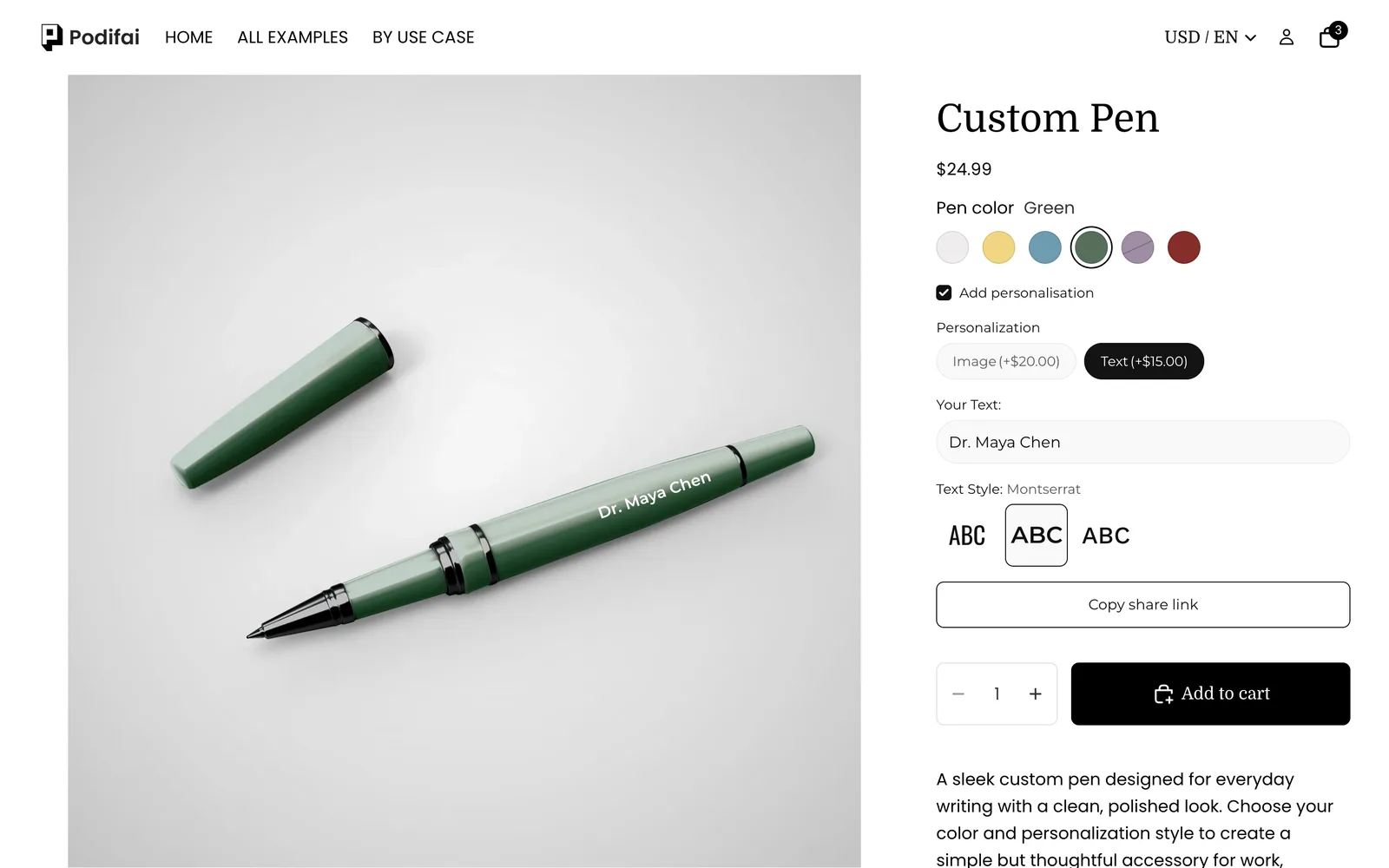
TL;DR: To sell a personalized pen with a paid engraving add-on, keep pen colors as Shopify variants and create the engraving services as their own Shopify products. In Podifai, an optional checkbox reveals Image or Text personalization, and each choice uses Add variant price (Bundle variant) linked to its service product. The service is added to the cart as a separate linked line, charged at its Shopify price, and Shopify deducts its stock, so you can cap how many engravings you take. Start from the Custom Pen template; every feature used here is on the Free plan.
What does the shopper see?
- Pick a pen color. Sold-out colors (Purple in the demo) are crossed out by Shopify.
- Tick Add personalisation to see the options. Shoppers who just want a pen skip it.
- Choose Image (+$20.00) to upload a logo, or Text (+$15.00) to engrave words.
- For text, type the words and pick a font. The engraving shows on the barrel.
- Add to cart. The pen and the engraving service appear as two linked lines.
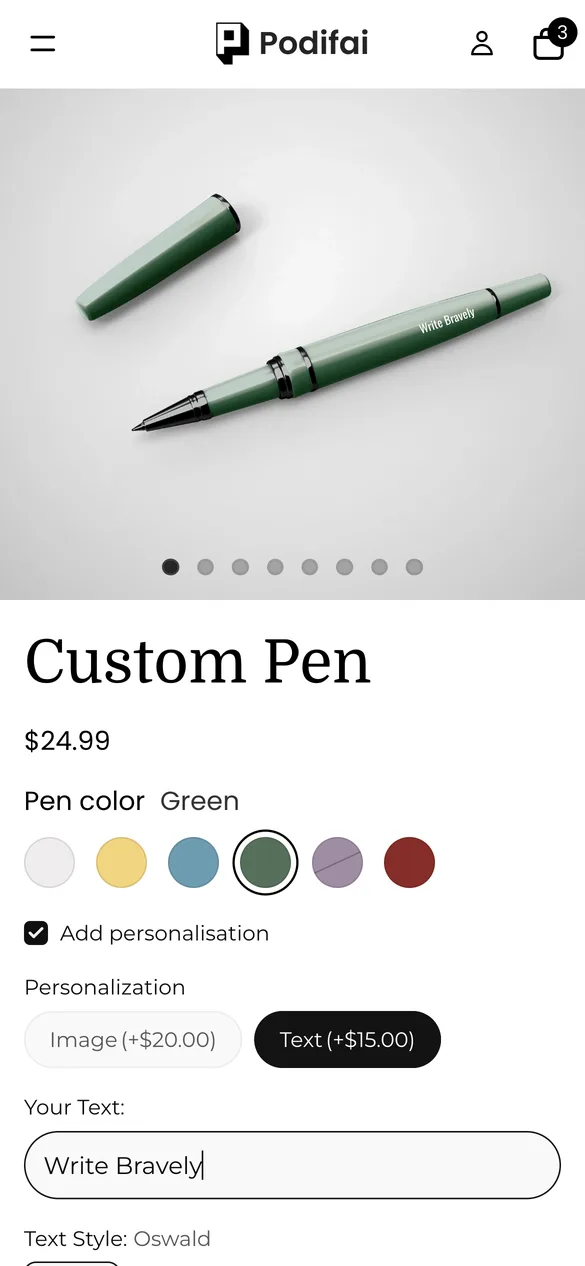
Try it yourself on the live demo product.
What do you need before you start?
1. Install Podifai and turn on the app embed
Install Podifai from the Shopify App Store, then open Online Store > Themes > Edit theme > App embeds and switch on Podifai Customizer. See Enable App Embed.
2. Create the add-on products
In Shopify, create one product per paid service, for example "Engrave Text" at $15.00 and "Engrave Image" at $20.00. Keep them Active and published to the Online Store, but you can hide them from collections and search. Turn on inventory tracking if you want to limit how many you take.
3. Keep pen colors as variants
Pen colors are physical stock, so create them as Shopify variants with one photo each. Podifai uses the variant photo as the preview background.
When should an add-on be its own Shopify product?
Podifai can charge for an option in two ways. A linked add-on product is the right choice when the service has its own cost, SKU or capacity:
| Your situation | Use | What it gives you |
|---|---|---|
| You only need to charge a bit more | Increase by fixed amount | Simplest; the price is added to the pen's line |
| The add-on has its own SKU, cost or capacity | Add variant price (Bundle variant), as in the demo | Separate linked cart line, Shopify stock and reporting |
| You only want to deduct a part's stock, not charge for it | Track inventory linked to a variant | Stock moves; price stays the same |
Collection pages always show the pen's own Shopify price, so keep a real base price on the pen and put only the extra amount on the add-on product.
What is the fastest way to set this up?
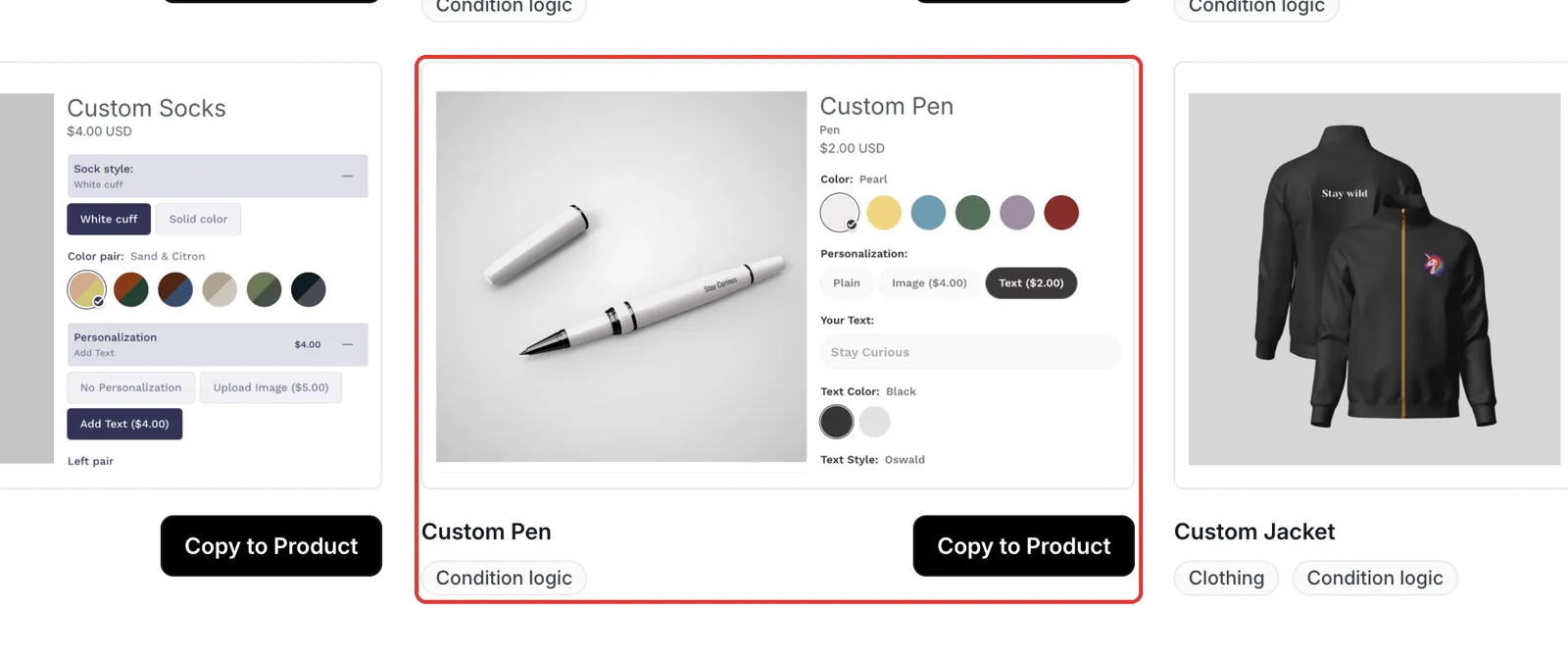
Podifai ships a ready-made Custom Pen template with the same options. Open Templates > Podifai Templates, find Custom Pen, click Copy to Product, choose your pen and click Apply (or Override, which replaces existing Podifai options). After copying, open each Personalization value and link it to your own add-on product, since the template cannot know your products. Then save.
Which options do you need?
The whole customizer is 5 Podifai options on one Shopify product:
| Option | Podifai type | Key settings | Price |
|---|---|---|---|
| Add personalisation | Checkbox | One value, not required | No charge |
| Personalization | Badge Group | Image or Text; shown when the checkbox is ticked | Linked add-on: $20 / $15 |
| Your image | Image Upload | Small logo area on the barrel; shown for Image | Included |
| Your Text | Text Input | Right-aligned on the barrel, font linked; shown for Text | Included |
| Text Style | Font Swatch | Oswald, Montserrat, Work Sans | No charge |
How to set it up in Podifai, step by step
These steps match the live demo product. Red boxes mark what to change; numbers follow the order in the step text.
Step 1: Add the option types
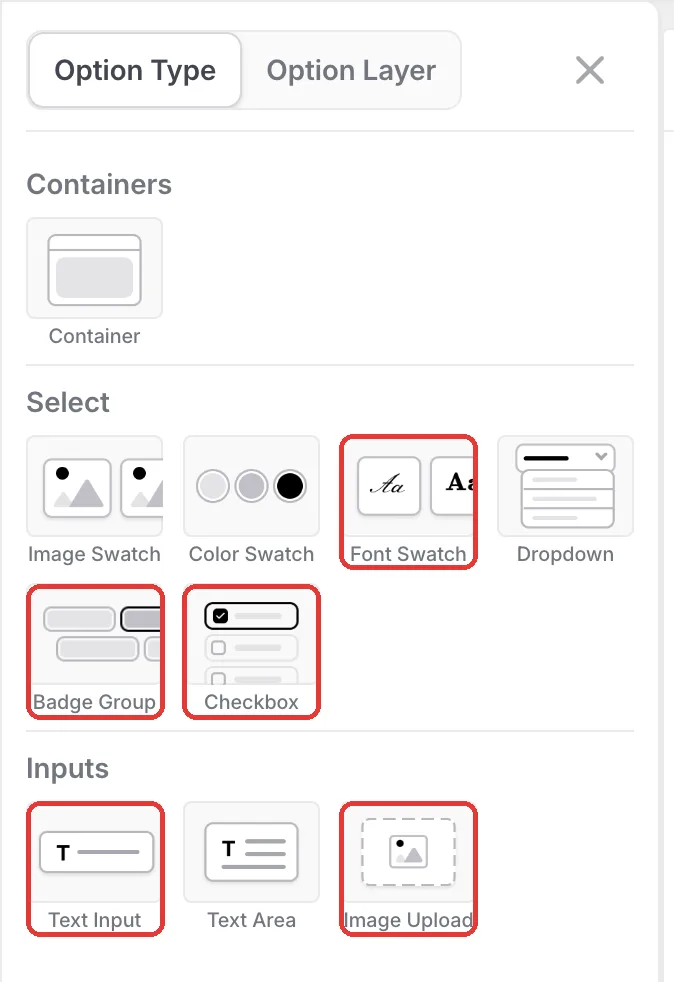
Open the pen in the Podifai editor and click the menu icon on the left. Add a Checkbox for opting in, a Badge Group for the personalization type, an Image Upload for logos, a Text Input for engraving and a Font Swatch.
Step 2: Link each choice to its add-on product
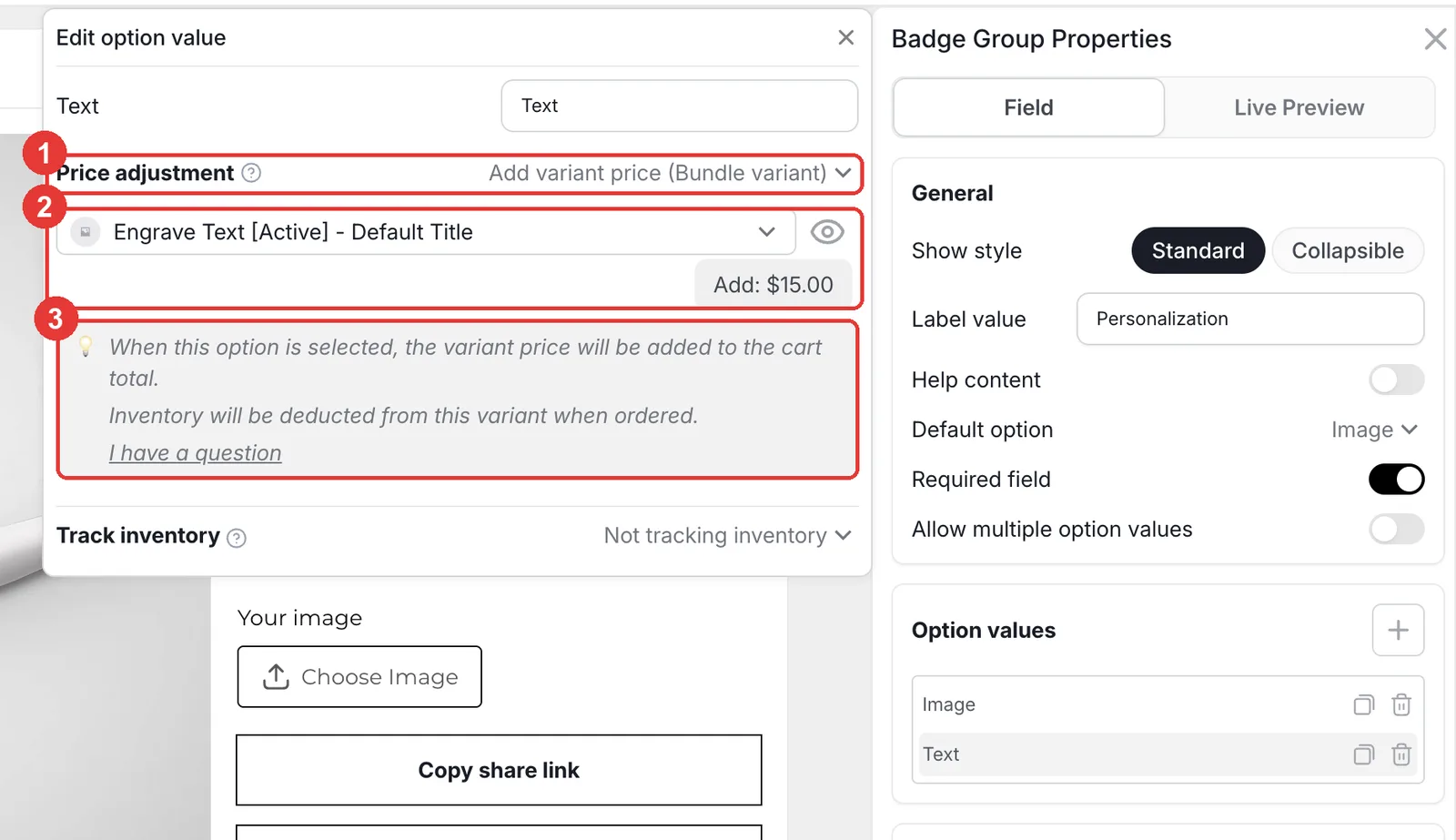
In the Personalization badge group, click Text to open Edit option value. Set Price adjustment to Add variant price (Bundle variant), then pick the Engrave Text variant. Podifai shows the price it will add ($15.00) and notes that stock is deducted from that variant. Do the same for Image with the Engrave Image product.
- Leave Track inventory on Not tracking inventory here. Shopify already deducts the add-on's stock through its cart line, and tracking it again would deduct twice.
- If the add-on product runs out, the option becomes unavailable automatically.
Step 3: Make personalization optional
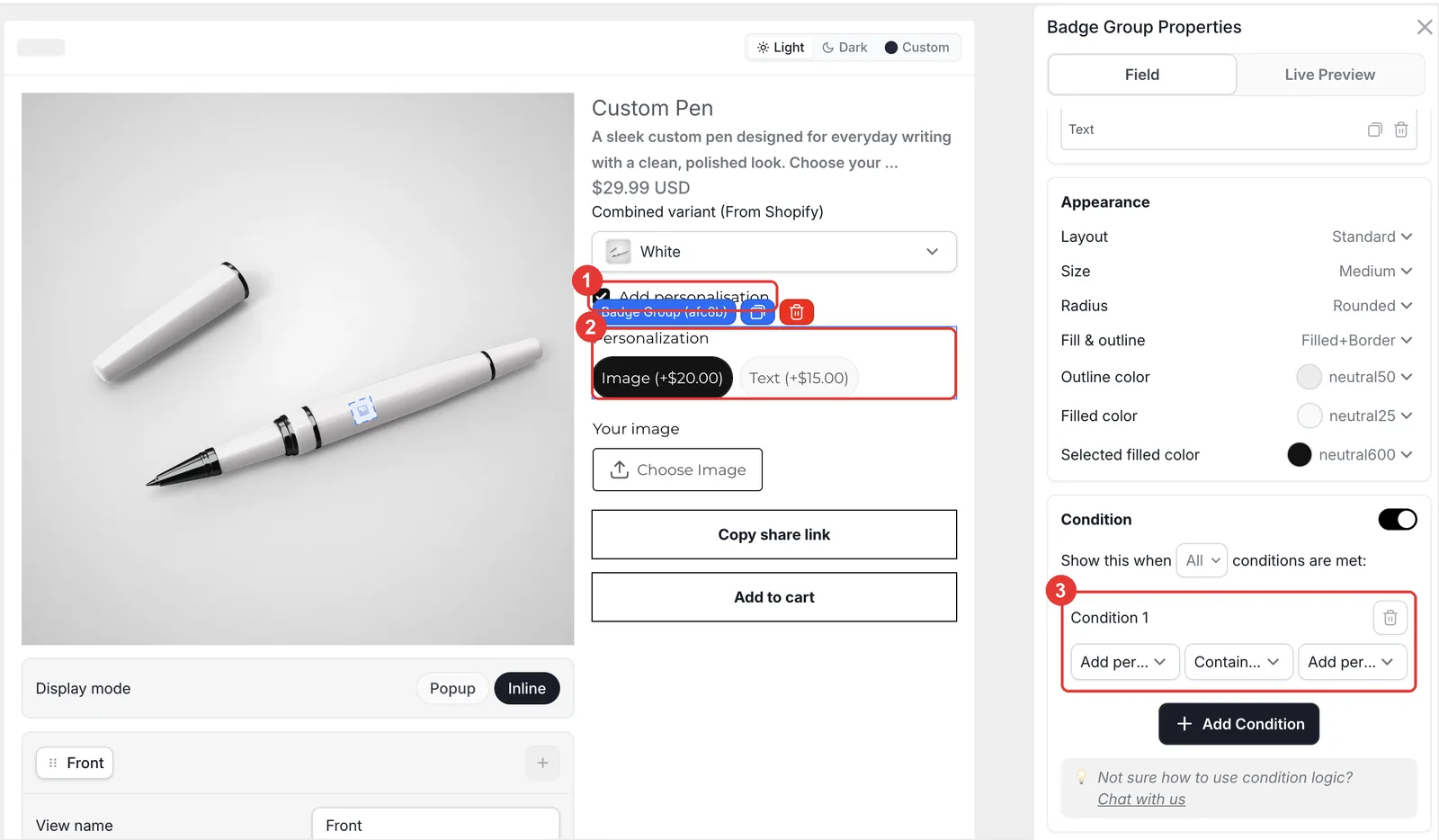
Add a Checkbox called Add personalisation with one value and leave Required field off. Give the Personalization badge group the condition Add personalisation contains Add personalisation, then show the upload only for Image and the text and font only for Text. Place the text on the barrel in each field's Live Preview tab, click Save and test on the storefront.
What happens in the cart and after the order?
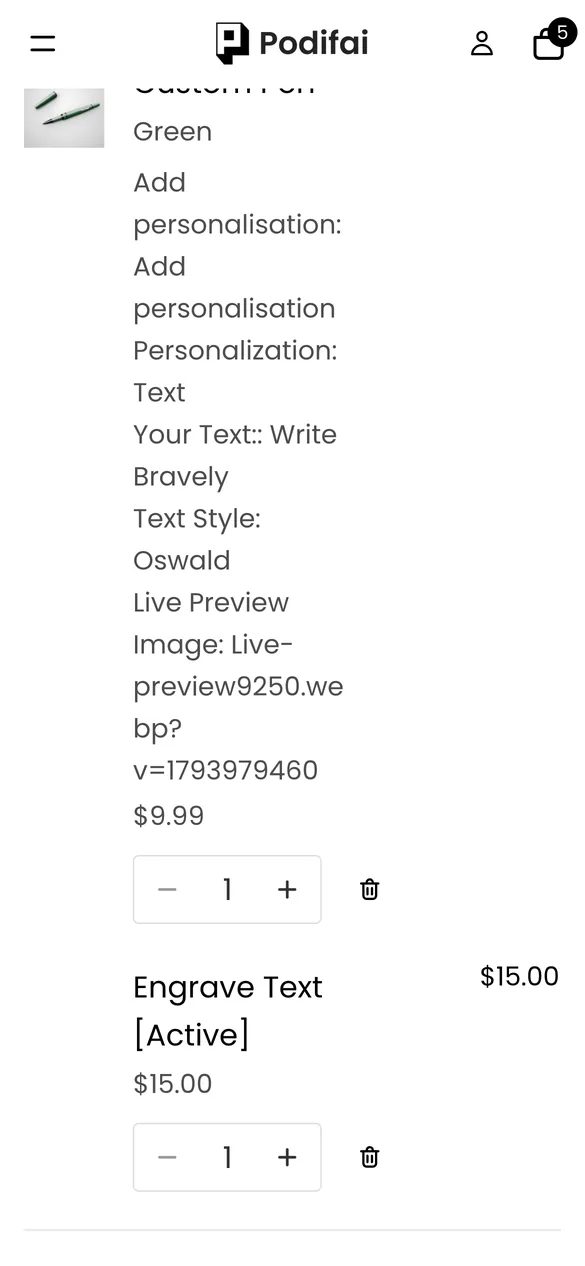
- The add-on is a real Shopify line, so it shows in order reports, has its own SKU and deducts its own stock.
- The pen line carries the engraving text, font and preview link as line item properties.
- Both lines carry the same hidden link ID, so your team can match each engraving to its pen.
- With Generate print-ready files on, Podifai creates a transparent PNG of the engraving text or logo.
Troubleshooting
The add-on price is missing at checkout
The add-on product is in Draft or not published to the Online Store. Keep add-on products Active and published, then test the checkout total again. See Linked inventory and add-on pricing.
The engraving option is greyed out
The linked add-on variant is out of stock. Restock it or allow Continue selling when out of stock on that product.
The cart label shows a double colon
The demo's label is "Your Text:", and the cart adds its own colon. Leave the trailing colon off option labels.
Selling tips
- Use add-on products for capacity. If you can only engrave 80 pens a week, set that as the add-on's stock. When it runs out, shoppers can still buy plain pens.
- Hide add-on products from browsing. Keep service products out of collections and search so nobody buys an engraving on its own.
- Offer corporate logos. Image engraving at a higher price suits company gifts. Mention bulk discounts in the description.
What else can you sell with this setup?
Linked add-on products work for any paid extra with its own cost or stock:
- Gift wrap, gift boxes and greeting cards
- Engraving on watches, lighters and knives
- Embroidery on bags and jackets
- Extended warranties and rush production
- Extra straps, chains and refills
Frequently asked questions
Create the engraving as its own Shopify product, then in Podifai set the option value's Price adjustment to Add variant price (Bundle variant) and pick that product. It is added to the cart as a linked line.
A fixed amount is added to the main product's line. A bundle variant adds a separate Shopify product line at its own price, with its own SKU and stock.
Yes. Track inventory on the add-on product in Shopify. When its stock runs out, the engraving option becomes unavailable.
Yes. Open Templates > Podifai Templates, find Custom Pen, click Copy to Product and Apply it, then link the Personalization values to your own add-on products.
Collection pages show the pen's own Shopify price. Keep a real base price on the pen and put only the extra on the add-on product.
Bundle variant pricing, conditions and live preview are on the Free plan, which covers up to 3 custom products. Starter ($7.9/month) covers 30 products and Growth ($15.9/month) is unlimited.
More Podifai use cases
- How to Sell Personalized Embroidered Dog Bandanas on Shopify
- How to Sell Custom Photo Phone Cases on Shopify
- How to Sell Monogrammed Leather Keychains on Shopify
- How to Sell Custom Neon Signs on Shopify
- How to Build a Charm Bracelet Builder on Shopify
- How to Sell Custom Hoodies with Front, Back and Sleeve Prints on Shopify
- How to Sell Custom Pickleball Paddles on Shopify
- How to Sell Custom Wedding Invitations on Shopify
- How to Sell Custom Trucker Hats on Shopify
Related help docs
Build this customizer on your store
Free for 3 custom products. Start from the ready-made template and change what you need.
 Install Podifai free