How to Build a Charm Bracelet Builder on Shopify
Build a charm bracelet or build-a-box product on Shopify: charms snap onto the chain, priced per charm, grouped by category, with stock per charm.
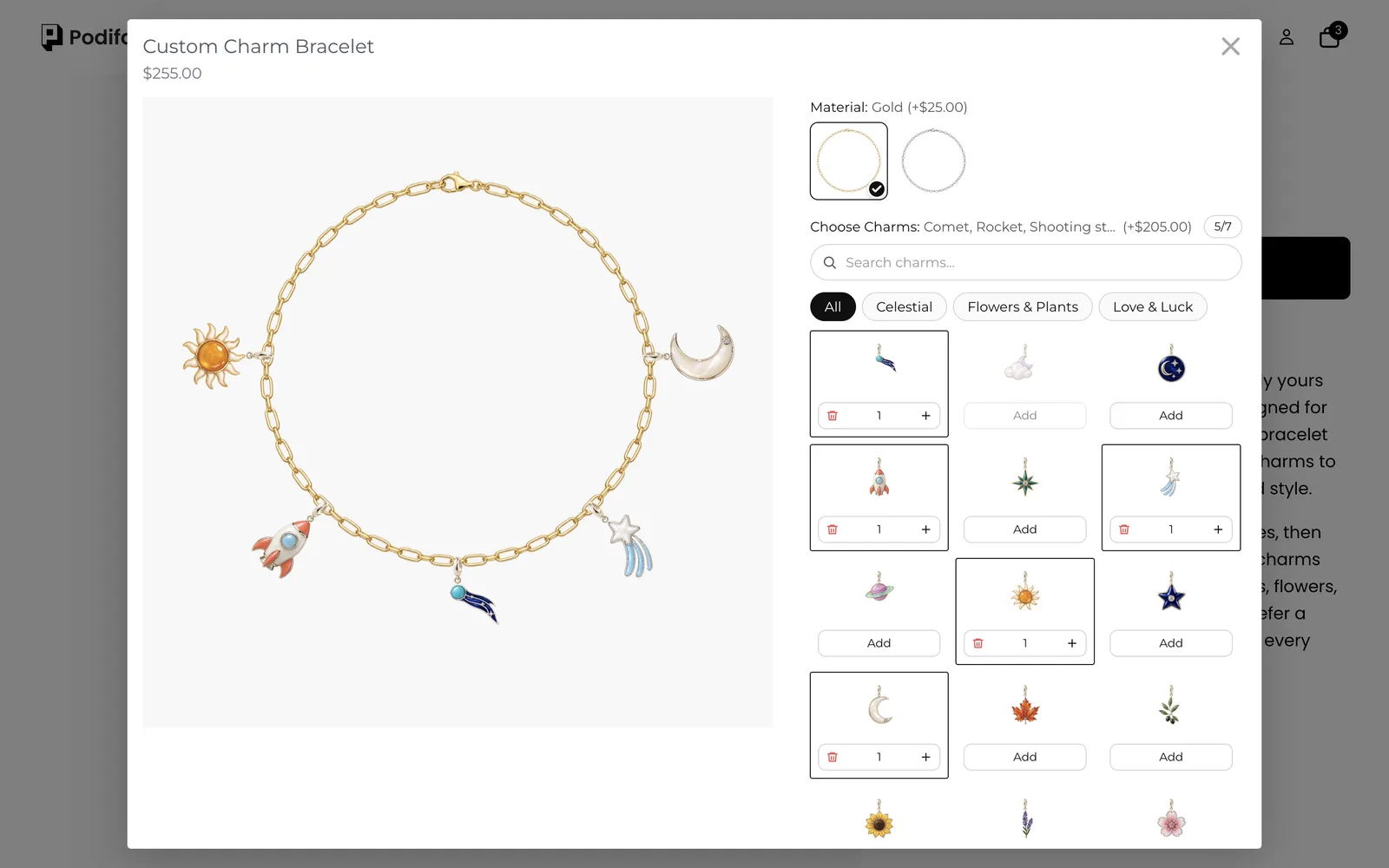
TL;DR: To build a charm bracelet with Podifai, use one Image Swatch for the chain and a second Image Swatch for the charms with multiple selection and quantity per option turned on. Give the charm swatch one live preview position per slot on the chain in Drag & snap mode, so each added charm lands in the next slot. Put a price on every charm, sort them into groups with a search bar, and link charms to Shopify variants to track stock. The same setup builds a chocolate or gift box. Start from the Custom Charm Bracelet template; every feature used here is on the Free plan.
What does the shopper see?
- Click Customize and choose the chain: Gold (+$25.00) or Silver.
- Browse charms by category (Celestial, Flowers & Plants, Love & Luck) or search by name.
- Tap Add on a charm. It snaps onto the next free spot on the chain and its price is added.
- Use + and − to add the same charm twice or remove it. A counter shows how many of the 7 spots are used.
- Out-of-stock charms are greyed out. When the bracelet looks right, add to cart.
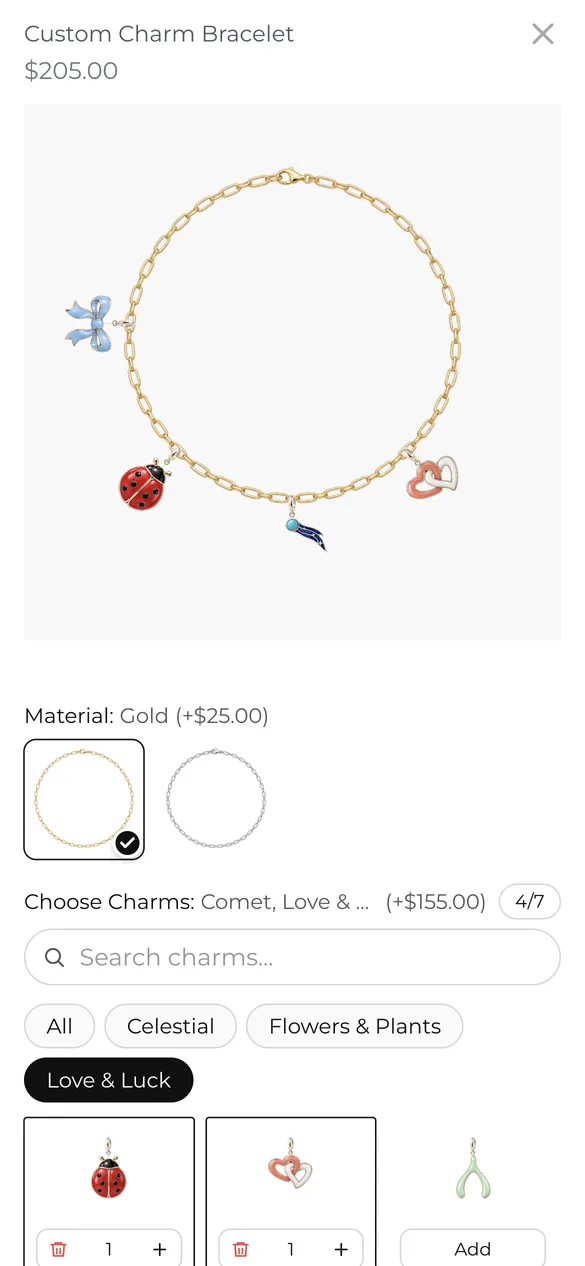
Try it yourself on the live demo product.
What do you need before you start?
1. Install Podifai and turn on the app embed
Install Podifai from the Shopify App Store, then open Online Store > Themes > Edit theme > App embeds and switch on Podifai Customizer. See Enable App Embed.
2. Photograph the chain and every charm the same way
You need a top-down photo of the empty chain, and each charm as a transparent PNG cut out at the same scale, with the jump ring at the top so it hangs naturally. Consistent lighting matters more than resolution here. See Image & Asset Requirements.
3. Decide how you track charm stock
If charms are counted stock, create them as Shopify products or variants first (the demo has a "Celestial - Cloud & Moon Charm" product). Podifai can then deduct stock from that variant when a bracelet sells.
Should charms be Shopify products or Podifai options?
Each charm is a Podifai option value with its own image and price, because a bracelet can hold any mix of charms. Stock is the only reason to also create Shopify products:
| Your situation | Use | What it gives you |
|---|---|---|
| Charms are made to order or stock is not tracked | Podifai values only | Price per charm, no extra Shopify products |
| Charms are counted stock | Podifai value linked to a Shopify variant (as for Cloud & Moon) | Stock deducts from that variant; sold-out charms grey out |
| Chain material changes the base price | Podifai Image Swatch with a price (as in the demo) | Gold adds $25 on top of the product price |
Linked stock is deducted when Shopify creates the order. Cancelled or refunded orders do not restore it automatically.
What is the fastest way to set this up?
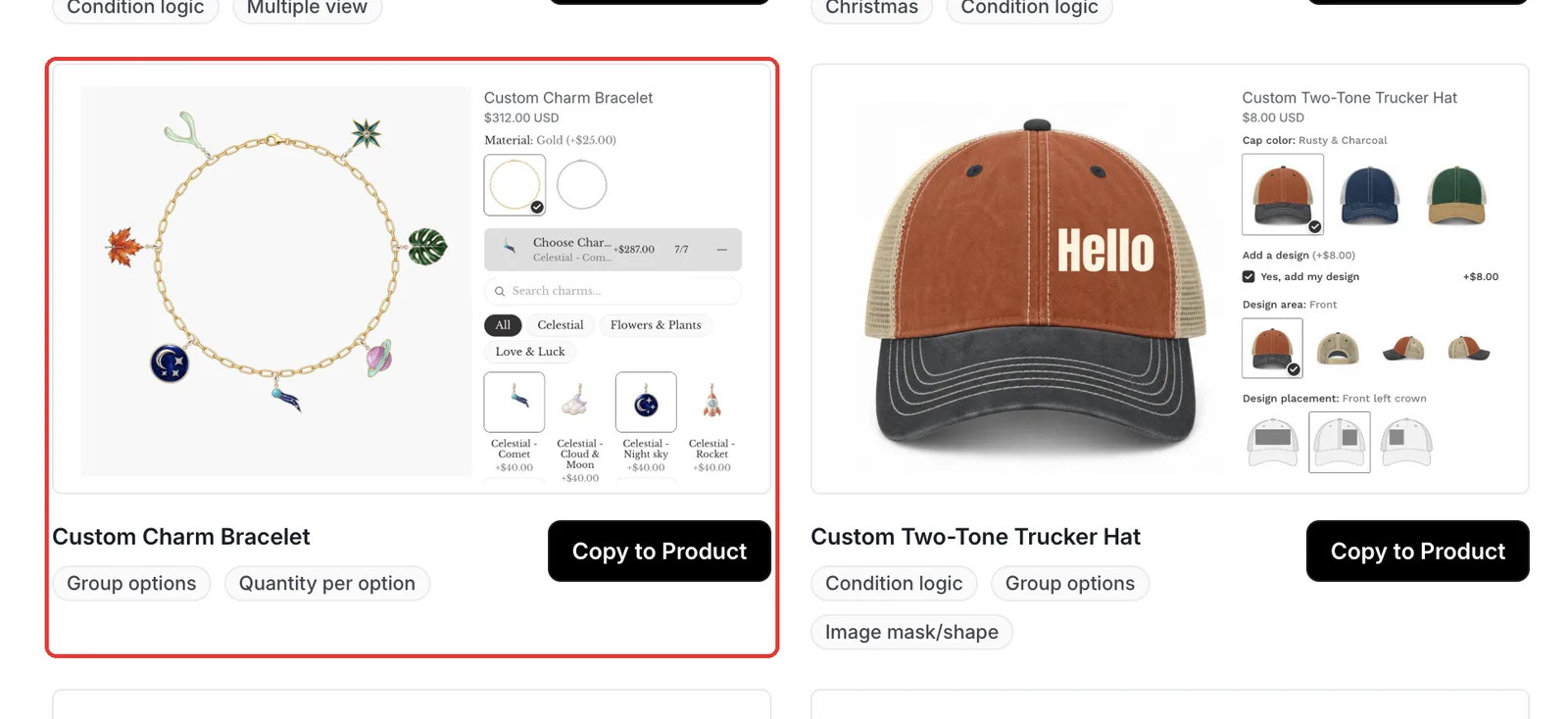
Podifai ships a ready-made Custom Charm Bracelet template with the same two options, 30 charms, three groups and seven chain positions. Open Templates > Podifai Templates, find Custom Charm Bracelet, click Copy to Product, choose your product and click Apply (or Override, which replaces existing Podifai options). Then swap in your chain photo and charm images, set your prices and save. Adjust the seven positions if your chain photo is shaped differently.
Which options do you need?
The whole customizer is 2 Podifai options on one Shopify product:
| Option | Podifai type | Key settings | Price |
|---|---|---|---|
| Material | Image Swatch | Gold or Silver chain photo, full-size preview layer | +$25 for Gold |
| Choose Charms | Image Swatch | Multiple values, quantity per option, max 7 total, 3 groups, 7 snap positions | +$35 to +$45 per charm |
How to set it up in Podifai, step by step
These steps match the live demo product. Red boxes mark what to change; numbers follow the order in the step text.
Step 1: Add two image swatches
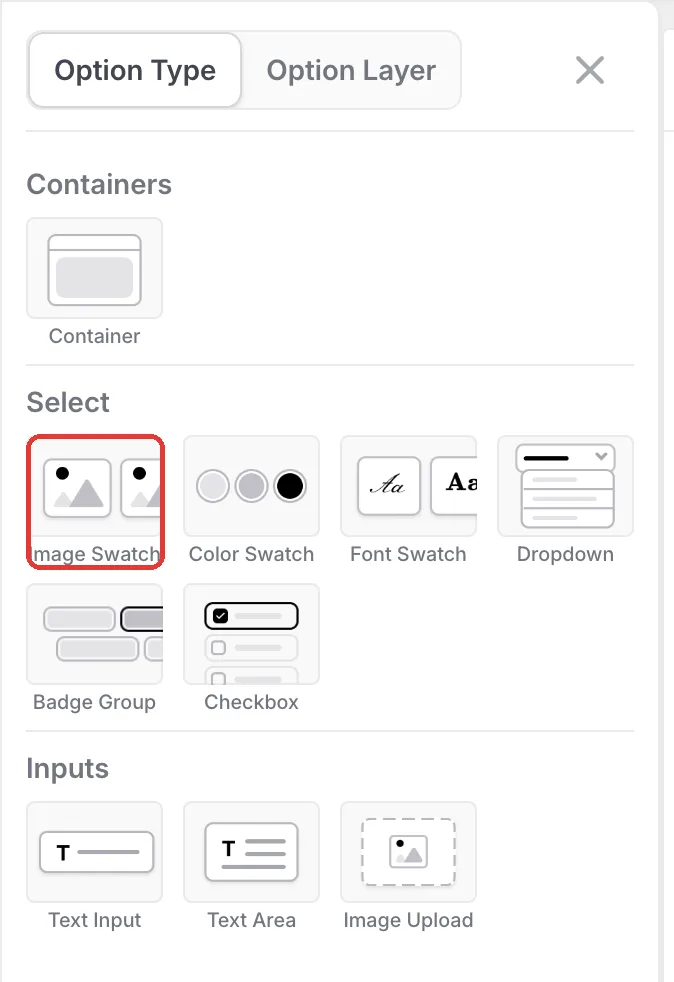
Open the product in the Podifai editor, click the menu icon on the left and add two Image Swatches from Option Type: one called Material for the chain, one called Choose Charms. Give each Material value its chain photo and turn on Live customizer at a size that fills the preview.
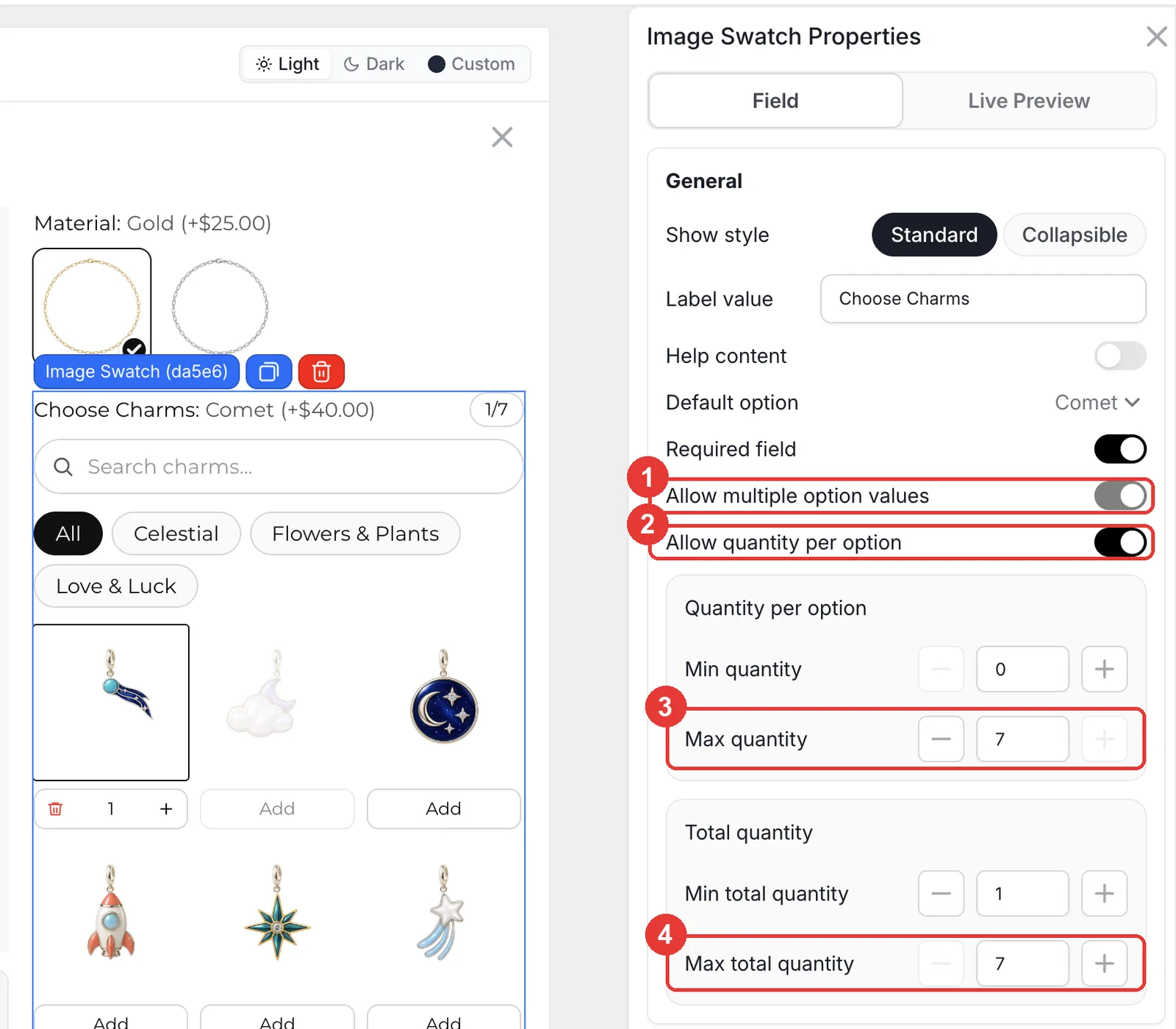
Step 2: Let shoppers pick several charms
Select Choose Charms. Turn on Allow multiple option values, then Allow quantity per option. Under Quantity per option set Max quantity to 7 so one charm can repeat, and under Total quantity set Max total quantity to 7, the number of spots on the chain. Keep Min total quantity at 1 so nobody orders an empty chain.
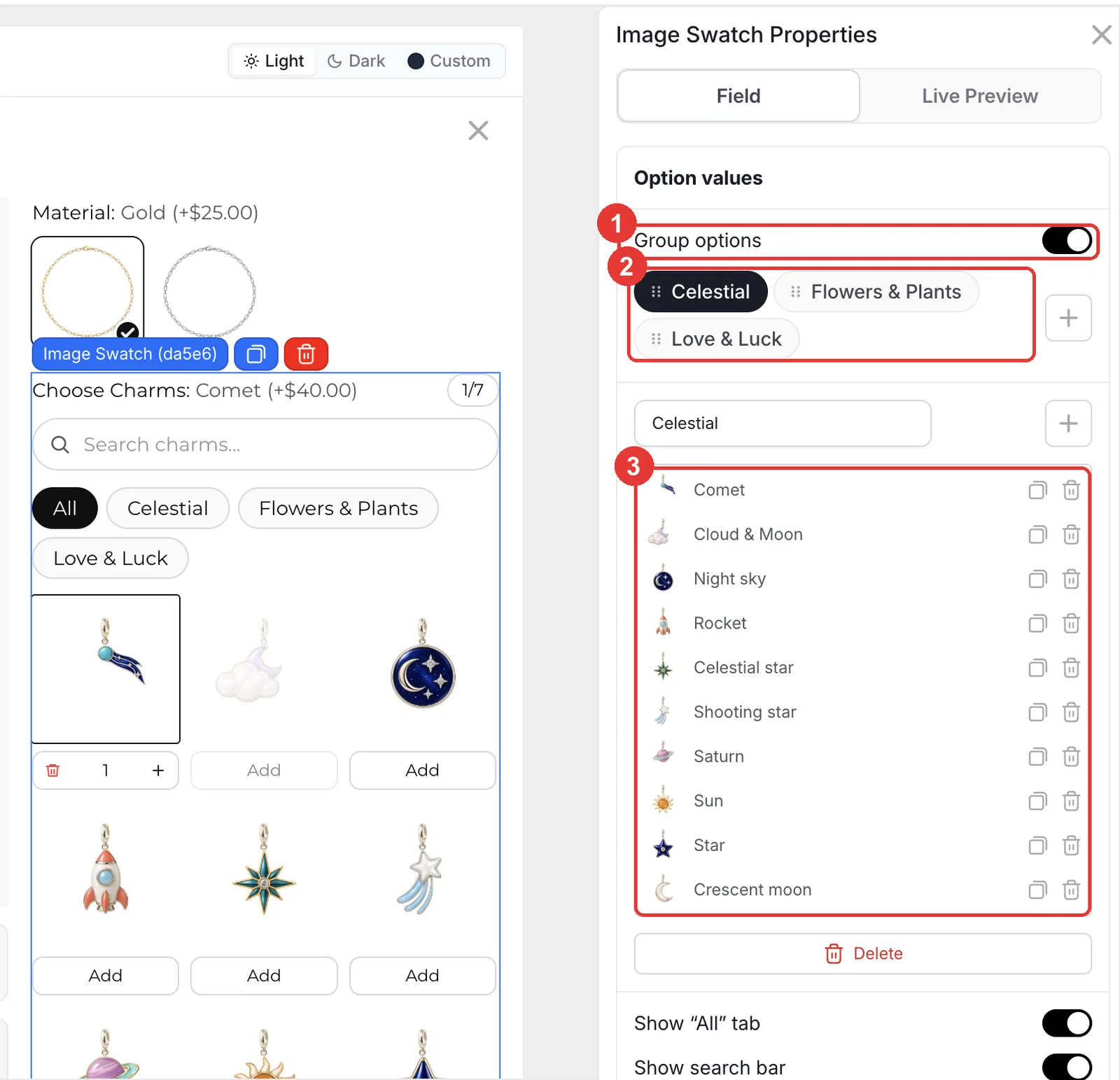
Step 3: Group charms into categories
Under Option values, turn on Group options and add one group per category (Celestial, Flowers & Plants, Love & Luck). Add each charm to its group with its image and a fixed price adjustment. Keep Show "All" tab and Show search bar on, so shoppers can browse everything or search by name.
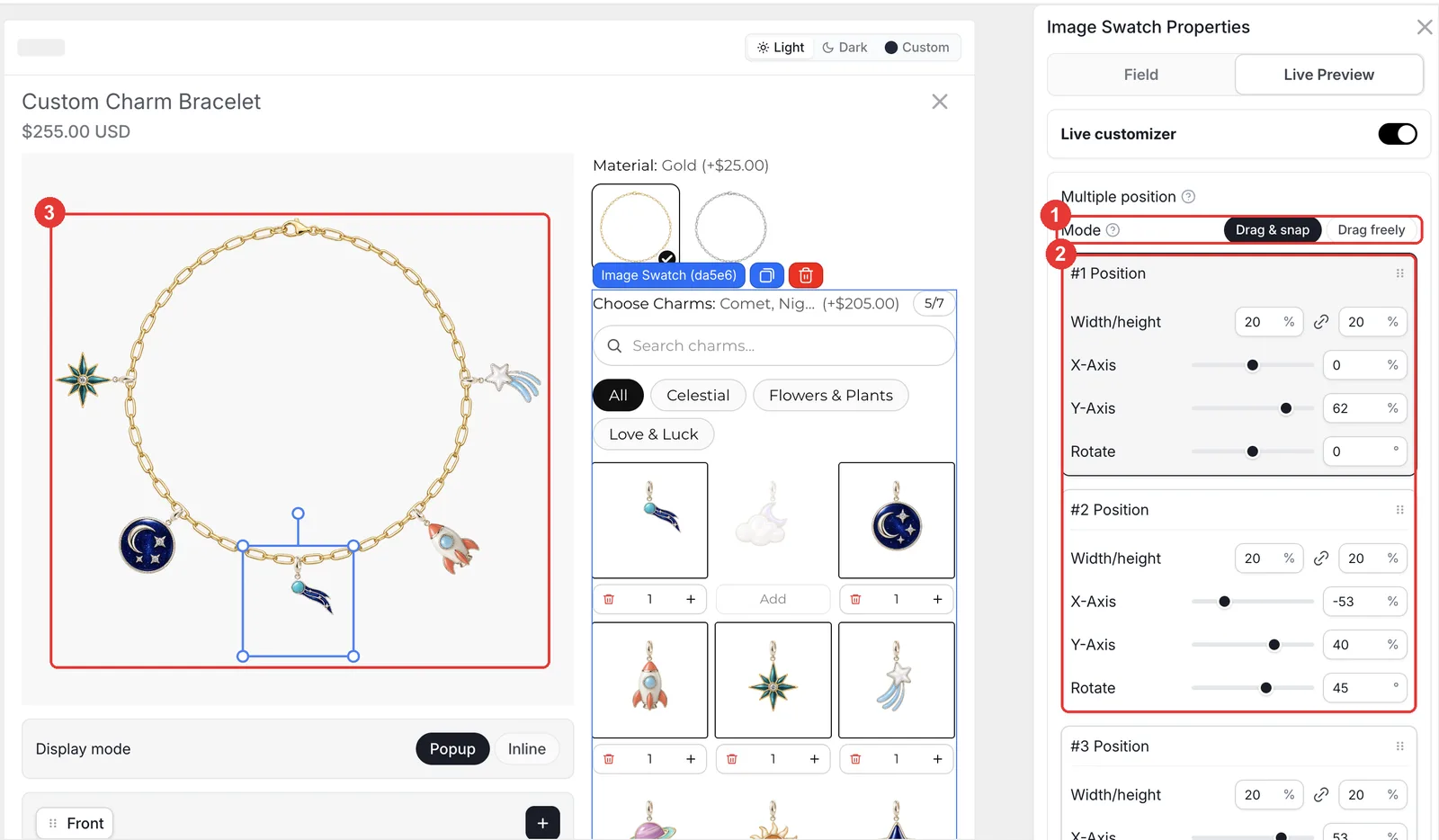
Step 4: Snap charms onto the chain
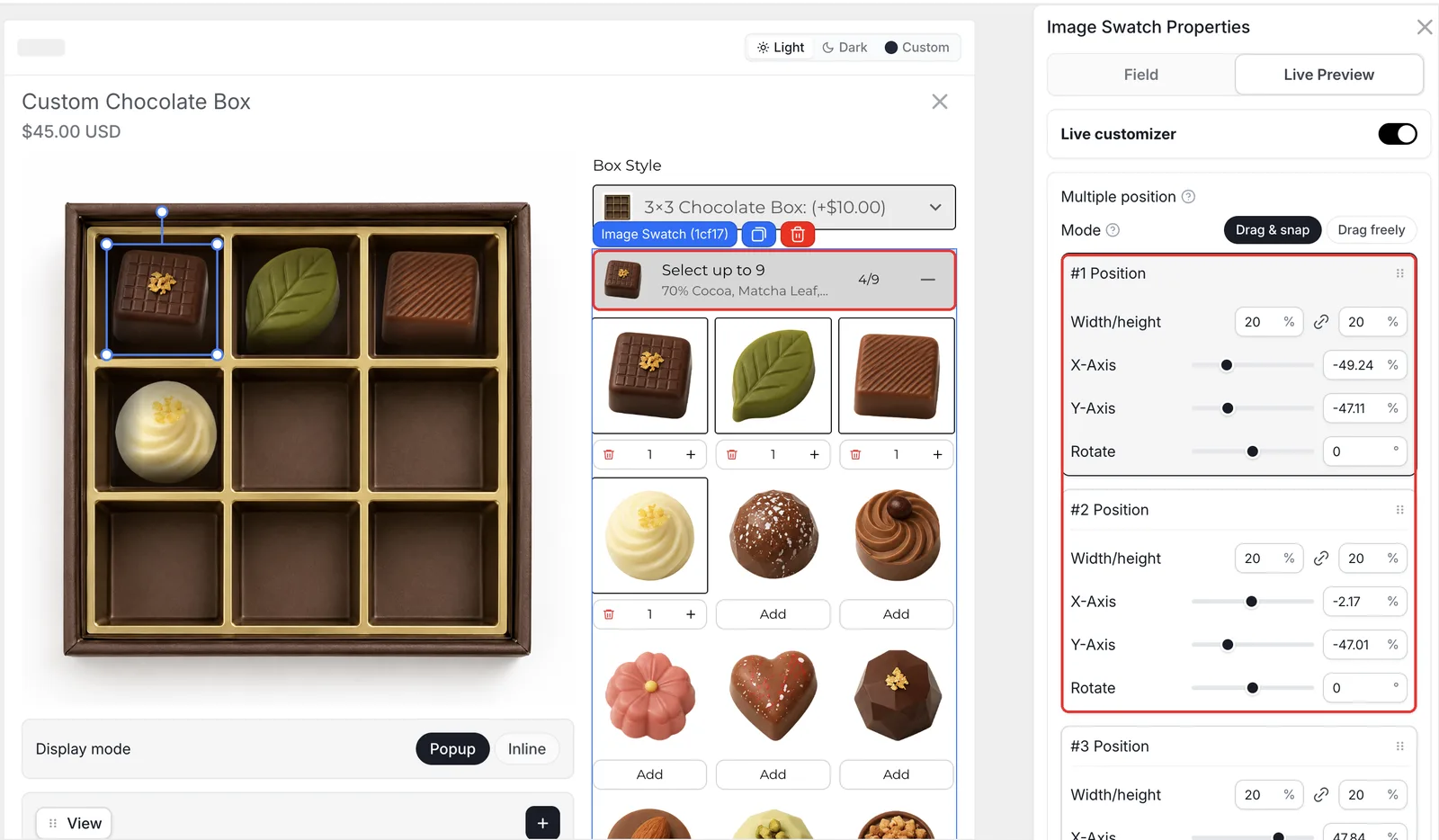
Open the Live Preview tab. Under Multiple position choose Drag & snap, then add one position per spot on the chain (7 in the demo) and set Width/height, X-Axis, Y-Axis and Rotate for each, so charms hang along the curve. The first charm fills position 1, the next fills position 2, and shoppers can drag a charm to another spot.
- Rotate side positions to follow the chain, like −45° and 45° in the demo.
- Choose Drag freely instead if charms can go anywhere, such as on a keychain ring.
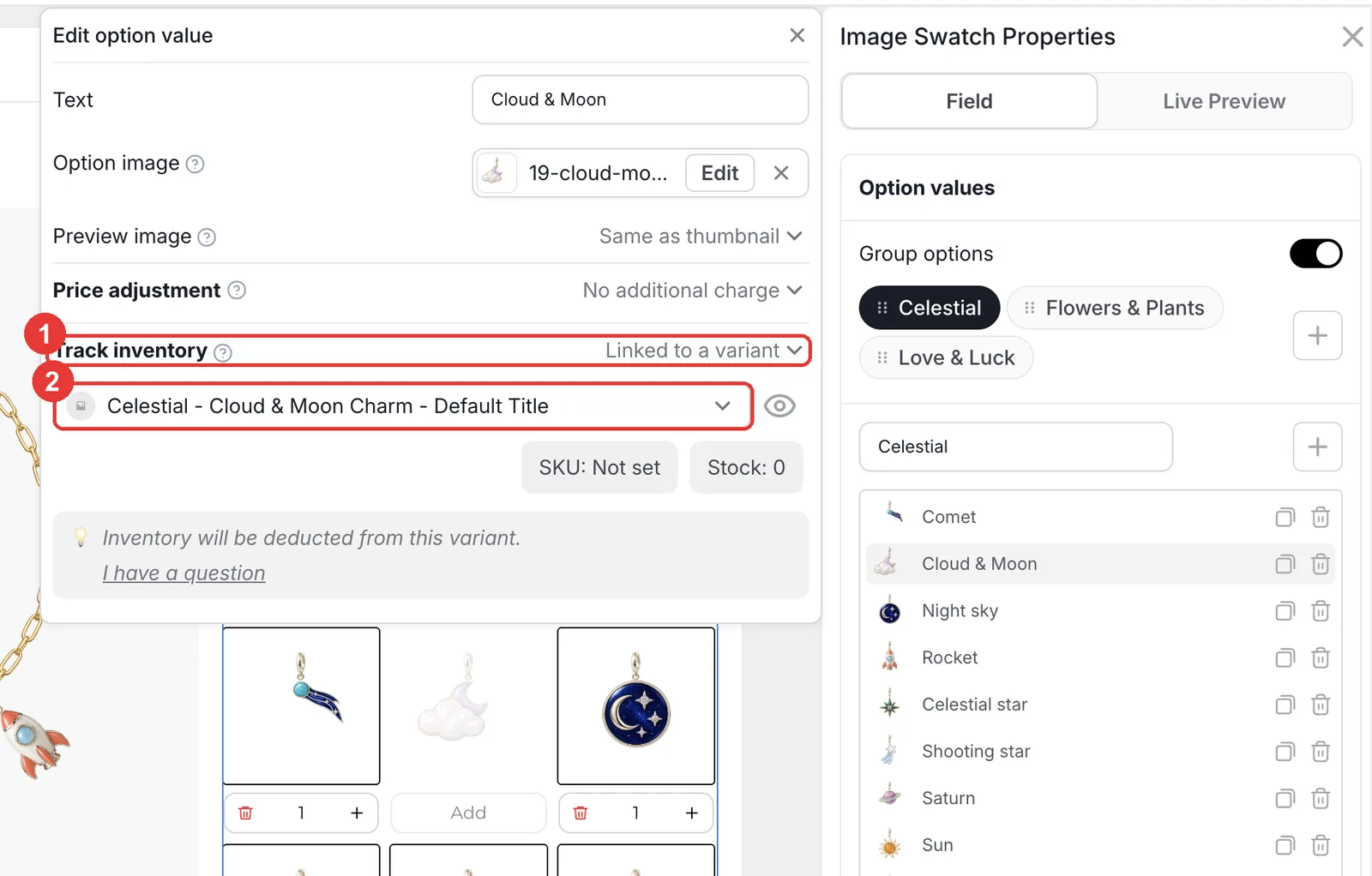
Step 5: Track stock for counted charms
Click a charm to open Edit option value. Set Track inventory to Linked to a variant and pick the charm's Shopify variant. When it runs out, the charm is disabled on the storefront (or hidden, depending on Global Settings > Out-of-stock options).
Step 6: Use the same setup for a gift box
The Custom Chocolate Box demo uses the same pattern: a Dropdown for the box size and an Image Swatch for chocolates with one snap position per compartment and Max total quantity equal to the number of compartments (9 for a 3×3 box). Add a condition to show the right flavour swatch for each box size. Click Save and test on your store.
What happens in the cart and after the order?
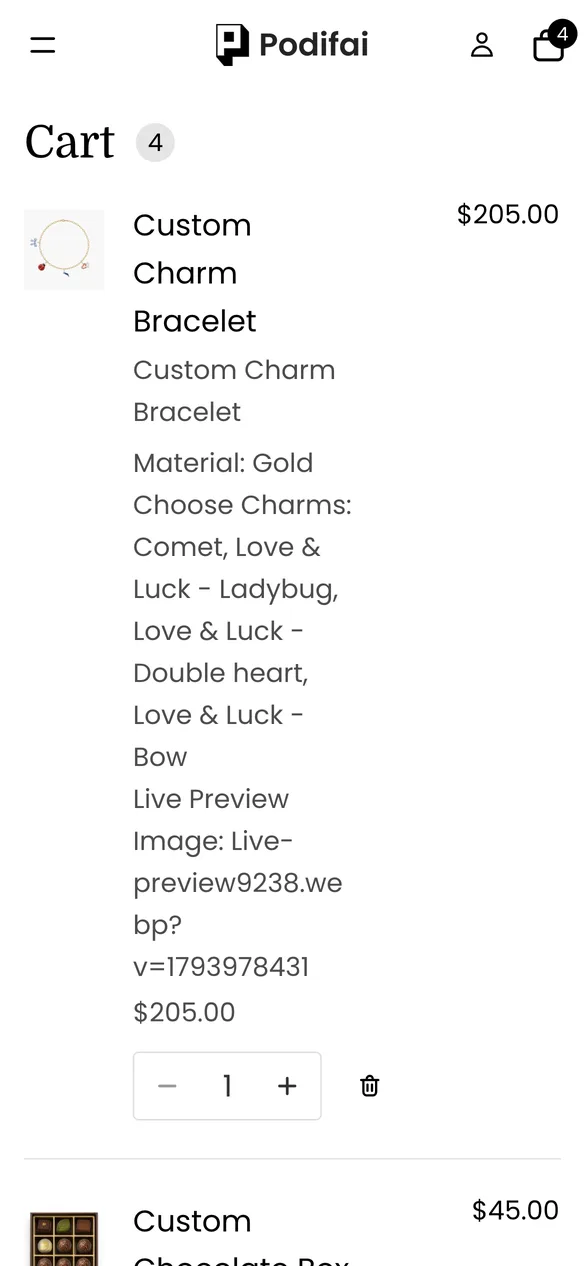
- Material and every charm (with "x2" style counts for repeats) are saved on the order line as line item properties.
- Each charm's price is added to the same line at checkout, so the bracelet is one product in the order.
- Linked charm stock is deducted when the order is created.
- A link to the final preview shows exactly where each charm sits on the chain.
Troubleshooting
Charms pile up in one spot
The charm swatch has only one position. Add one position per spot under Multiple position in the Live Preview tab. See Charm builder.
Shoppers can add more charms than the chain holds
Set Max total quantity to the number of positions. Max quantity only limits repeats of one charm.
A charm shows as unavailable
Its linked Shopify variant is out of stock. Restock the variant or set Track inventory back to Not tracking inventory. See Inventory & Variants.
Selling tips
- Lead with a pre-filled example. Set one charm as the default so the bracelet is never empty, and use a styled bracelet as the product's main photo.
- Price charms in tiers. Most shops use two or three charm prices ($35, $40, $45 in the demo) rather than unique prices, which keeps the total easy to follow.
- Use groups as gift themes. Groups such as Love & Luck double as gift ideas. Name them after occasions if that suits your customers.
What else can you sell with this setup?
The same multi-select swatch with snap positions works for any product built from pieces:
- Chocolate, macaron and cookie boxes
- Necklaces and anklets with charms
- Patch jackets and pin boards
- Keychains and bag charms
- Gift sets and build-your-own bundles
Frequently asked questions
Yes. Use a Podifai Image Swatch with multiple values and quantity per option, then add one live preview position per spot on the chain in Drag & snap mode. Charms snap into place as shoppers add them.
Yes. Open Templates > Podifai Templates, find Custom Charm Bracelet, click Copy to Product and Apply it to your product, then replace the images and prices.
Yes. Every charm value has its own fixed price adjustment, and the total updates as charms are added or removed.
Set Max total quantity on the charm swatch to the number of spots. Max quantity limits how many of one charm a shopper can add.
Yes. Set a charm's Track inventory to Linked to a variant and choose the Shopify variant, or use a Custom count. Sold-out charms are disabled or hidden.
Yes. Use one snap position per compartment and set Max total quantity to the number of compartments. The demo Custom Chocolate Box uses exactly this setup.
Multiple selection, quantity per option, groups, snap positions and linked inventory are all on the Free plan, which covers up to 3 custom products. Starter ($7.9/month) covers 30 products and Growth ($15.9/month) is unlimited.
More Podifai use cases
- How to Sell Personalized Embroidered Dog Bandanas on Shopify
- How to Sell Custom Photo Phone Cases on Shopify
- How to Sell Monogrammed Leather Keychains on Shopify
- How to Sell Custom Neon Signs on Shopify
- How to Sell Custom Hoodies with Front, Back and Sleeve Prints on Shopify
- How to Sell Custom Pickleball Paddles on Shopify
- How to Sell Custom Wedding Invitations on Shopify
- How to Sell Personalized Pens with a Paid Engraving Add-on on Shopify
- How to Sell Custom Trucker Hats on Shopify
Related help docs
Build this customizer on your store
Free for 3 custom products. Start from the ready-made template and change what you need.
 Install Podifai free