 Free install on Shopify
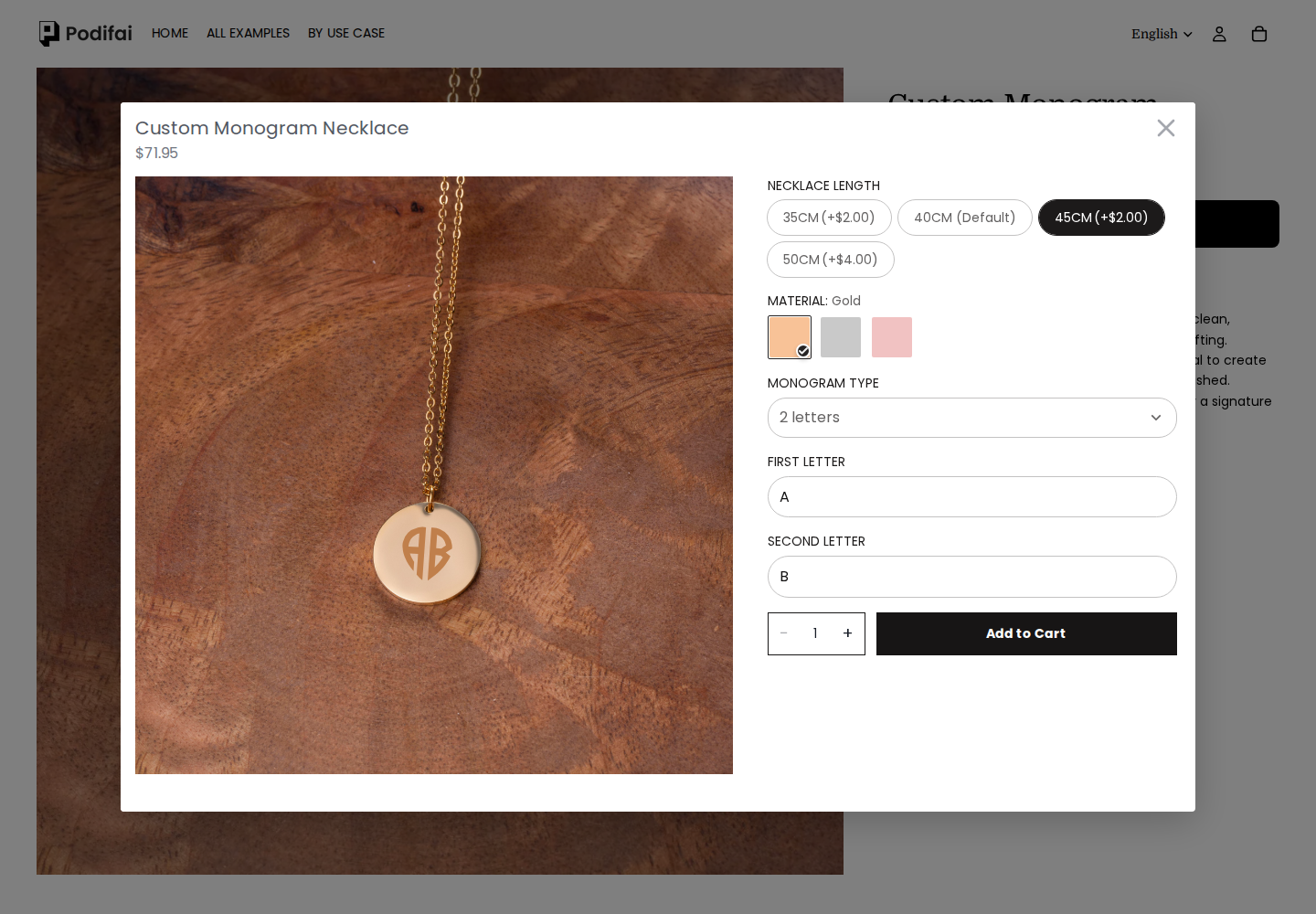
Monogram necklace
Choose two initials, change the material, then compare chain lengths and their displayed add-ons.
Try monogram necklace ↗Set up monogram fontsShow supported text, uploads, colors, and prepared component artwork on a layered 2D product preview before checkout.
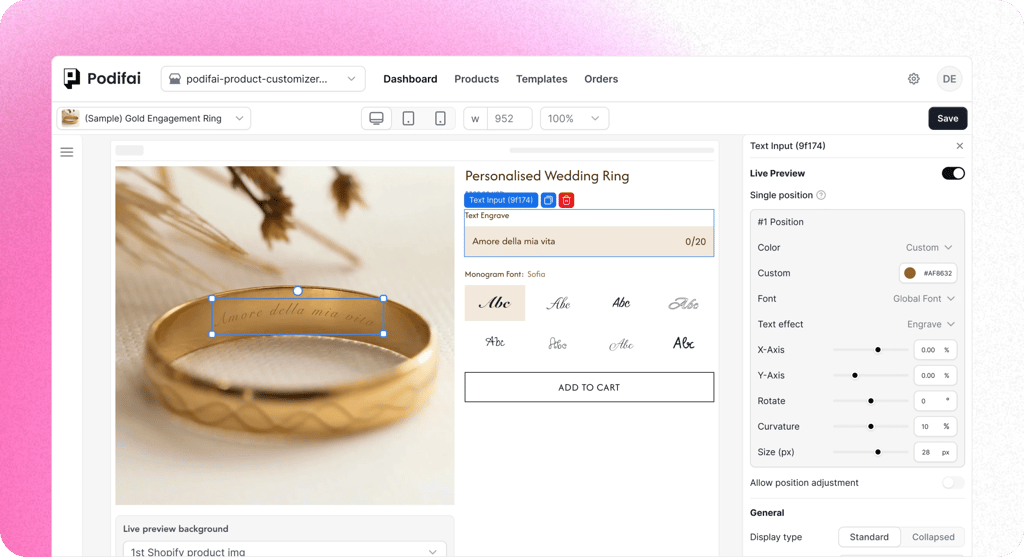
Direct answer
A live product preview shows supported customer choices on a prepared product image before checkout. Podifai connects inputs and selected values to layered 2D previews and configured Multiple Views. Enabled print-ready generation separately exports included text and customer-uploaded artwork as transparent PNGs.
Try the storefront
Explore initials, product artwork and component choices in real storefront demos. Each example uses its own prepared images and option rules.
Choose two initials, change the material, then compare chain lengths and their displayed add-ons.
Try monogram necklace ↗Set up monogram fonts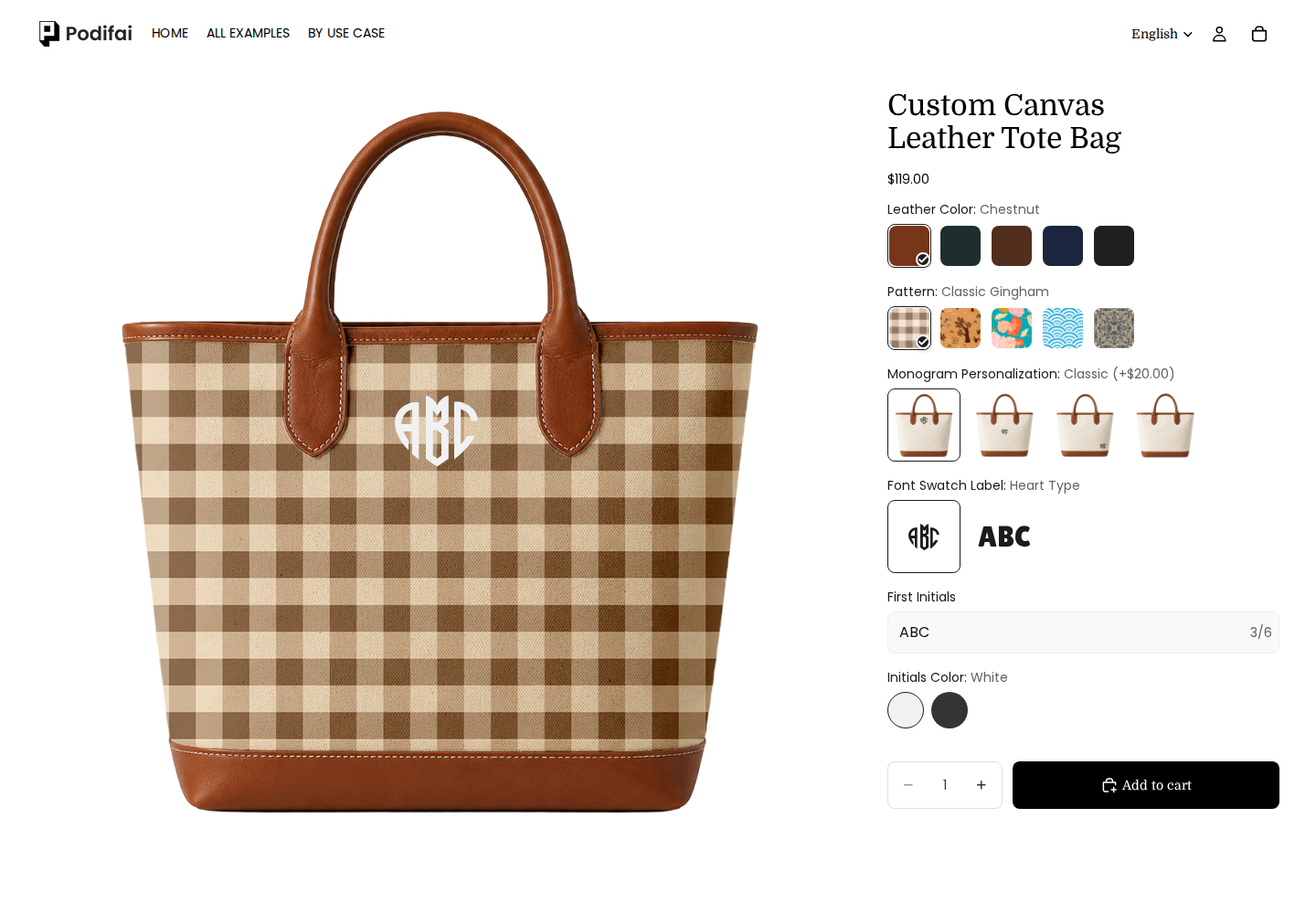
Change the initials and font, then compare the lettering against different patterns and leather colors.
Try monogram tote bag ↗Connect options to a preview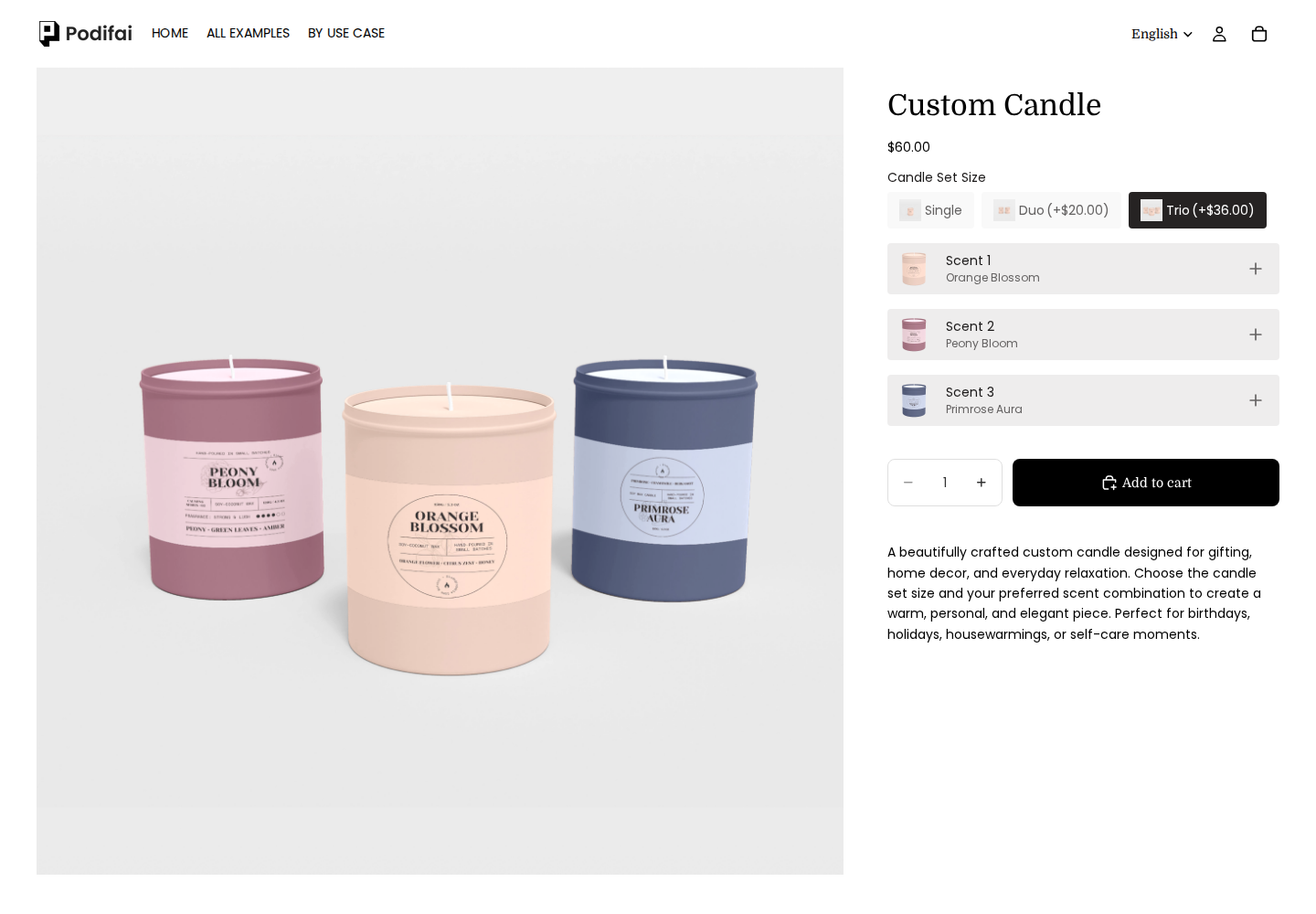
Switch between Single, Duo and Trio, then choose the scents offered for each position and check the total.
Try build a candle gift set ↗Show fields for the selected set sizeWhy live preview
Without a preview, shoppers must translate option labels into a mental picture. A layered 2D preview shows the current configuration before checkout.
Option labels leave room for interpretation

More combinations than product photos
Eight fonts, six colors, and three placements create 144 combinations. Static photos cannot show every possible selection.

Customers can't picture the final product
Gold chain, emerald pendant, script engraving. They've never seen those three together. Without a live preview, they're buying on hope.

Custom details need confirmation
Names, dates, uploads, colors, and placement choices are easier to check when shoppers can review them together before ordering.
Show the configured 2D view
Real-time 2D composition
Supported text, image, upload, font, color, and charm selections update one layered product preview.
Selections saved with the order
The preview reflects supported choices, and the selected customization details are saved with the Shopify order.
Clearer review before checkout
Shoppers can review the current 2D configuration before checkout instead of relying only on option names.
Pick a zodiac sign and see it appear on the pendant instantly. Customers choose their sign, preview the result, and buy with confidence.
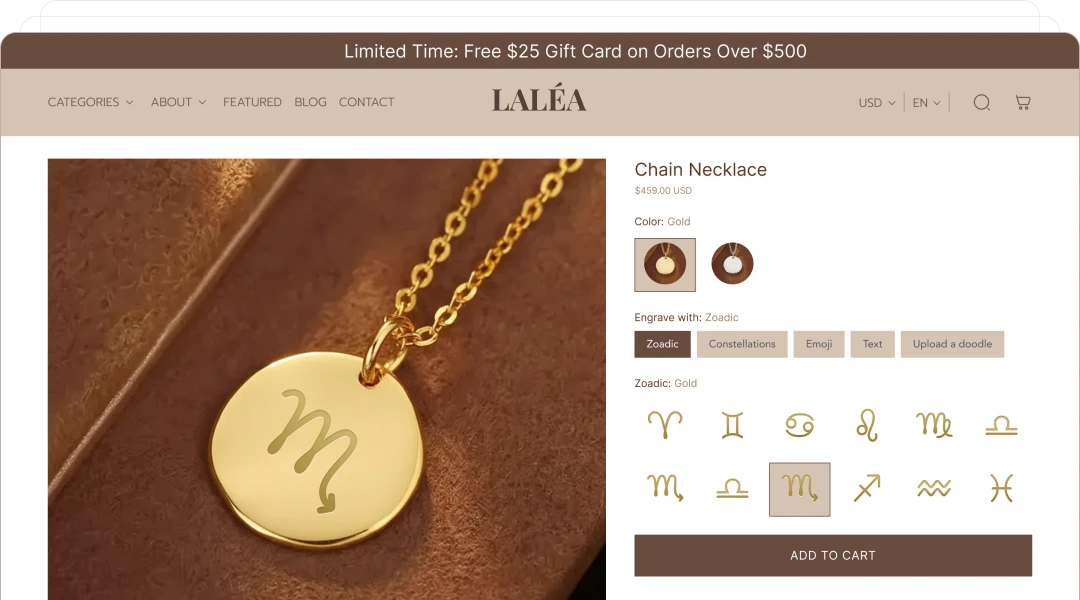
Pick a zodiac sign, choose chain length and metal, and preview the pendant before checkout.
Storefront display
Choose how much space the customization flow needs. Both modes support Live Preview. Multiple Views requires Popup mode; inline display does not support view switching.
Keep options directly on the product page for shorter configurations and immediate interaction. Inline placement depends more on the theme's product-gallery structure.
Keep the product page compact and move larger customization flows into a focused workspace. Popup uses the full screen on mobile and a fixed-size window on desktop.
Choose fixed or sequential positioning to match your product layout and prepared preview artwork.
Use fixed positioning when a supported preview layer belongs in a defined area, such as initials on a wallet or an image on a product.
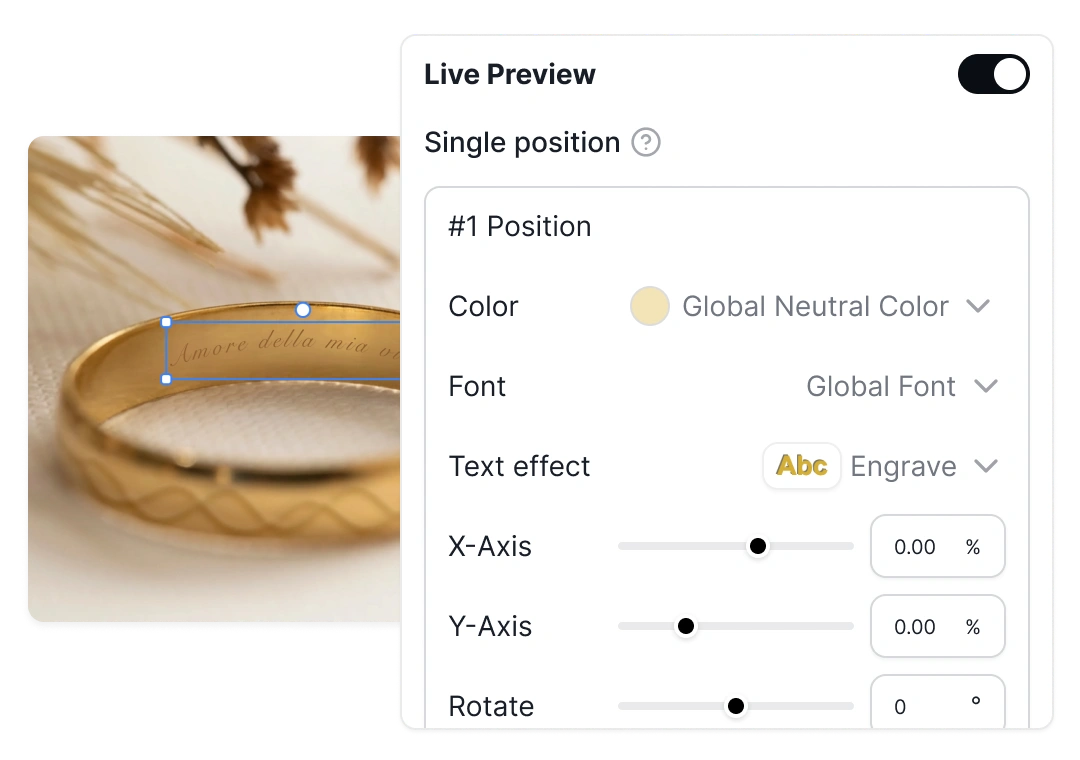
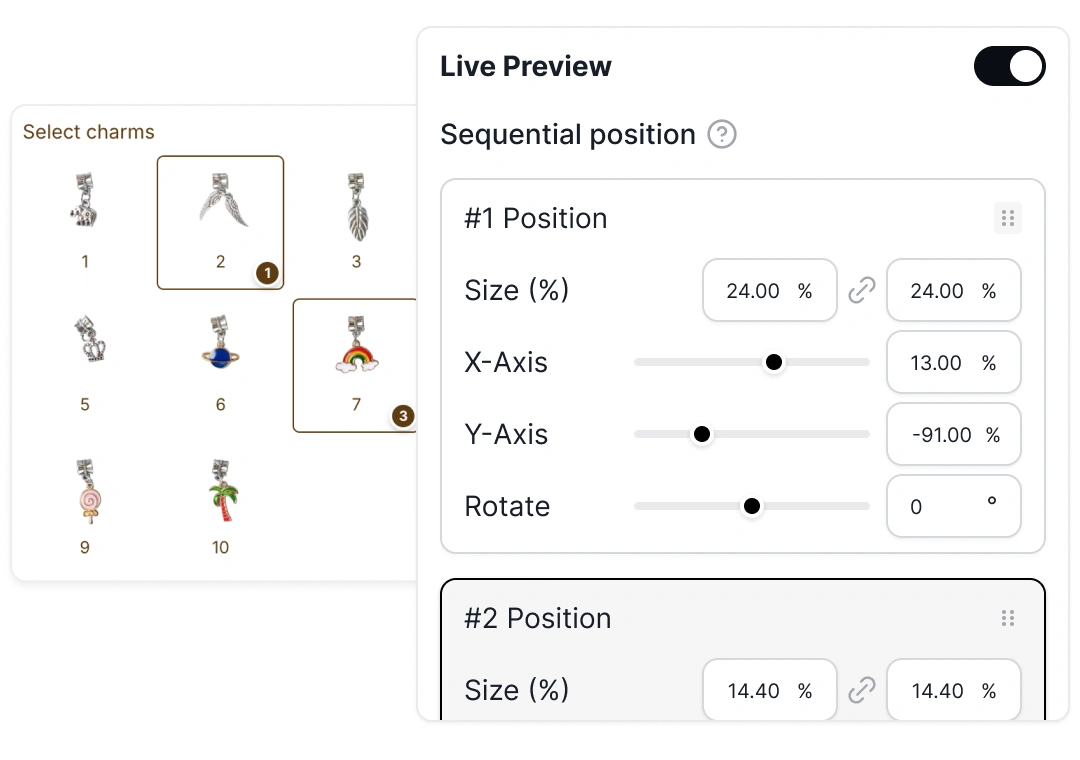
Use sequential positioning for supported selections that occupy successive positions, such as selected charms on a bracelet.
Variant-aware preview
When Shopify variants control a stocked look, Live Preview can follow the active variant image while keeping personalization layers aligned above it.
Storefront Image Editor
Start with a merchant-defined layout, then let shoppers move, resize, or rotate supported text and image layers.
Drag the selected layer to a new position.
Scale the layer with its size handles.
Match an angled or non-horizontal product area.
Customer-controlled cropping and fixed shape masking are not currently available. The editor changes the preview layer only.
Read the Storefront Image Editor guideAdvanced text
Combine styling with layout controls so names, messages, and monograms remain readable as input changes.
Preview names, messages, and engraving text along supported curves, then apply supported shadow styling.
This planned control will keep preview text inside a defined area as shopper input changes.
Align text inside the configured preview area for the product design.
Map text, uploads and prepared option images to a layered 2D canvas. Use Multiple Views for separate configured surfaces. Check text length, contrast and placement on your actual product.
Preview setupAdd a representative configuration to the cart and check selected values, charges and its preview link. Before launching your store, place a test order and inspect the saved configuration used by fulfillment.
Review order detailsWhen enabled, print-ready generation exports included text and customer uploads as a transparent PNG per customized view. Product backgrounds and Image Swatch artwork are excluded. Check the exported file against your production process; the storefront preview is a separate reference.
Check PNG contents and settingsCustomer stories
See how merchants use visual previews for engraving, bespoke product choices, and embroidery while keeping production requirements explicit.
Leovia
See a guided engraving flow that combines shopper-facing visualization with a final human review before production.
Read customer story
Start free with 3 custom products. Paid plans start at $7.9/month, with no transaction fees.